
Data Center
The Data Center is a workflow's variable store — the single place that holds every value available as a request moves through the workflow. As each step runs, its outputs are added to the Data Center, so later steps can read them.
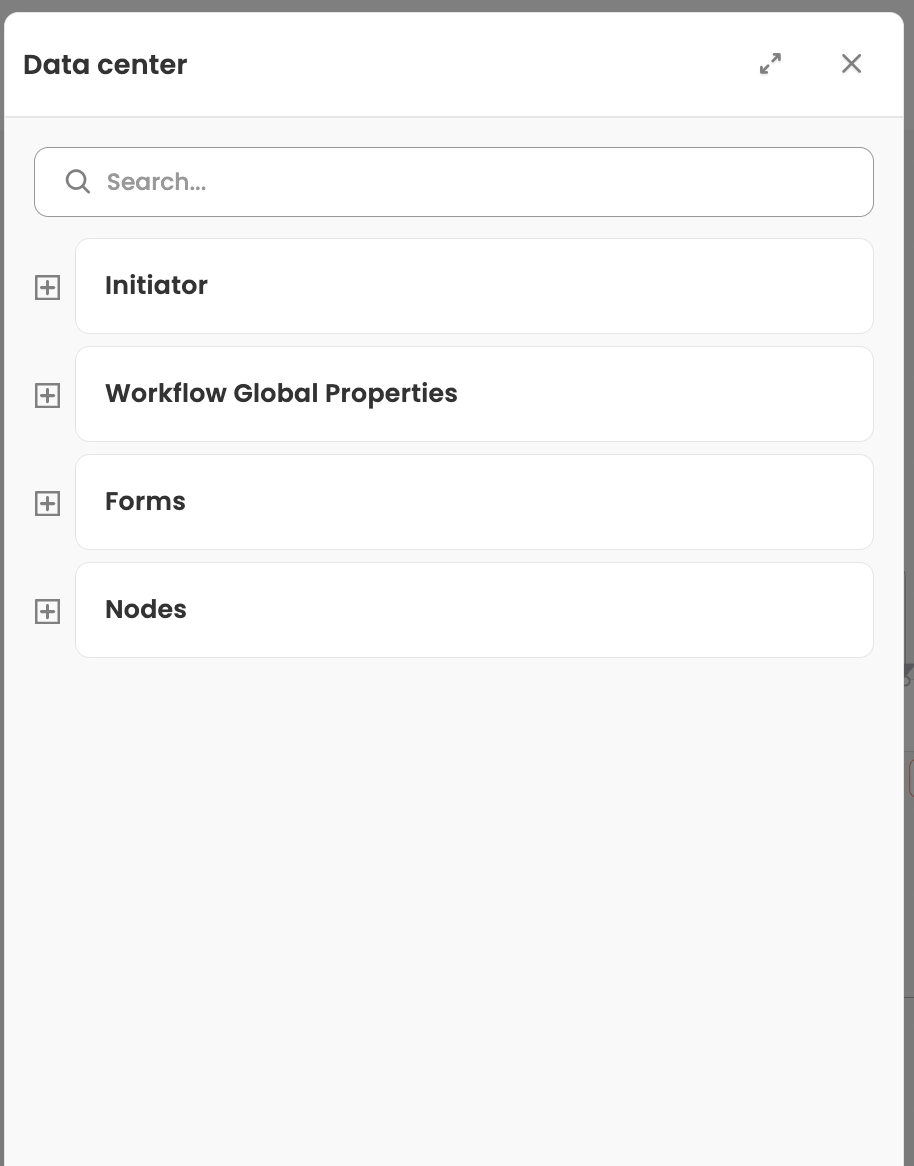
When you configure a node, write a condition, or build a notification, the Data Center is what you pick values from. You reference a value by wrapping its path in double curly braces — {{...}} — inside any field that accepts a dynamic value (for example, {{forms.travel_request.amount}}). At runtime the engine replaces each {{...}} token with the actual value for that request.
What's in the Data CenterThe Data Center aggregates values from across the workflow, organized by source:
- Form responses —
forms.{formId}.{fieldName}(for dropdowns/selects, use.valueto get the selected value, e.g.forms.user_info.department.value).- Node outputs —
nodes.{nodeId}..., such as an Action node's API response or an Approval outcome.- Initiator — the requester's profile, referenced as
initiator.<field>: Employee Id (initiator.employeeId), Email (initiator.email), Display Name (initiator.displayName), Designation (initiator.designation), Department (initiator.department), and Location (initiator.location).- Global constants —
globalConstants.{label}(see Global Constants).- Data models, master data, and DOA tables — structured values resolved through the Data Center as well.
Insert a value from the Data Center
To insert a Data Center value, type double curly braces {{ in any field that accepts a dynamic value. Typing {{ opens the Data Center picker right there in the field:
- Place your cursor in the field and type
{{. - The Data Center picker opens, listing the available variables grouped into expandable categories (Initiator, Forms, Nodes, Global constants, and so on).
- Select the variable you want — it's inserted as a
{{path}}token (for example,{{forms.travel_request.amount}}).
You can mix tokens with plain text — for example, Hi {{initiator.displayName}}, your request is approved. Then save the node/field. At runtime each {{...}} is replaced with the real value.
The{{is the triggerThe double curly brace is how you summon the Data Center — there's no separate "insert variable" button to hunt for. Just type
{{wherever a field supports dynamic values, and the picker appears. In a plain static field that doesn't support dynamic values, typing{{does nothing and the text stays literal.
Where you'll use it
The Data Center picker shows up across the builder. You'll use it to:
- Map inputs for an Action node (what to send to the integration) or a Function node.
- Build conditions in a Decision node or loop (e.g., compare a form value against a global constant).
- Write back values with an Update Data node, or reshape lists with a Mapper node.
- Resolve assignees — pick the column field for a DOA table, or match rows against Data Center values.
- Personalize messages — notification and email templates resolve the same
{{...}}paths.
How the Data Center is populated
You don't build the Data Center manually — it's assembled automatically:
- As you add and configure forms and nodes, their outputs are registered as available variables.
- At runtime, the platform gathers the actual values from every step that has executed so far and makes them available to the next step.
Action/Function node outputs must be saved to the Data CenterA node that returns a response — such as an Action node (integration call) or a Function node — does not automatically expose its output in the Data Center. After you configure it, Test the node, then click Save to data center to register its response keys. If you skip this step, the node's output won't appear in the Data Center and downstream steps won't be able to reference it.
When saving, you choose how the new keys merge with anything previously saved for that node: Overwrite existing keys (replace) or Only new & existing keys (keep prior values, add new ones). See Clone, Restore & Test nodes.
Good to know
- Order matters: a step can only reference data produced before it runs. Values from a node that hasn't executed yet won't resolve.
- Selects use
.value: for dropdown/select fields, reference....valueto compare or pass the underlying value rather than the display label.- The same Data Center paths power conditions, DOA assignee matching, notifications, and integrations — so once you understand the paths, they work consistently everywhere.
Updated 3 months ago