
Referencing AOPs, Tools in AOP Instructions
Learn how to add AOPs, tools to your AOP instructions using the selector interface
Overview
When writing AOP instructions, you can quickly reference other AOPs (primary or helper) and tools using the @ symbol. This allows you to seamlessly integrate existing components into your AOP workflow without manually searching for them.
How to Reference AOPs or Tools
- Navigate to the AOP Instructions section while creating or editing an AOP
- In the text editor, type @ where you want to add a reference
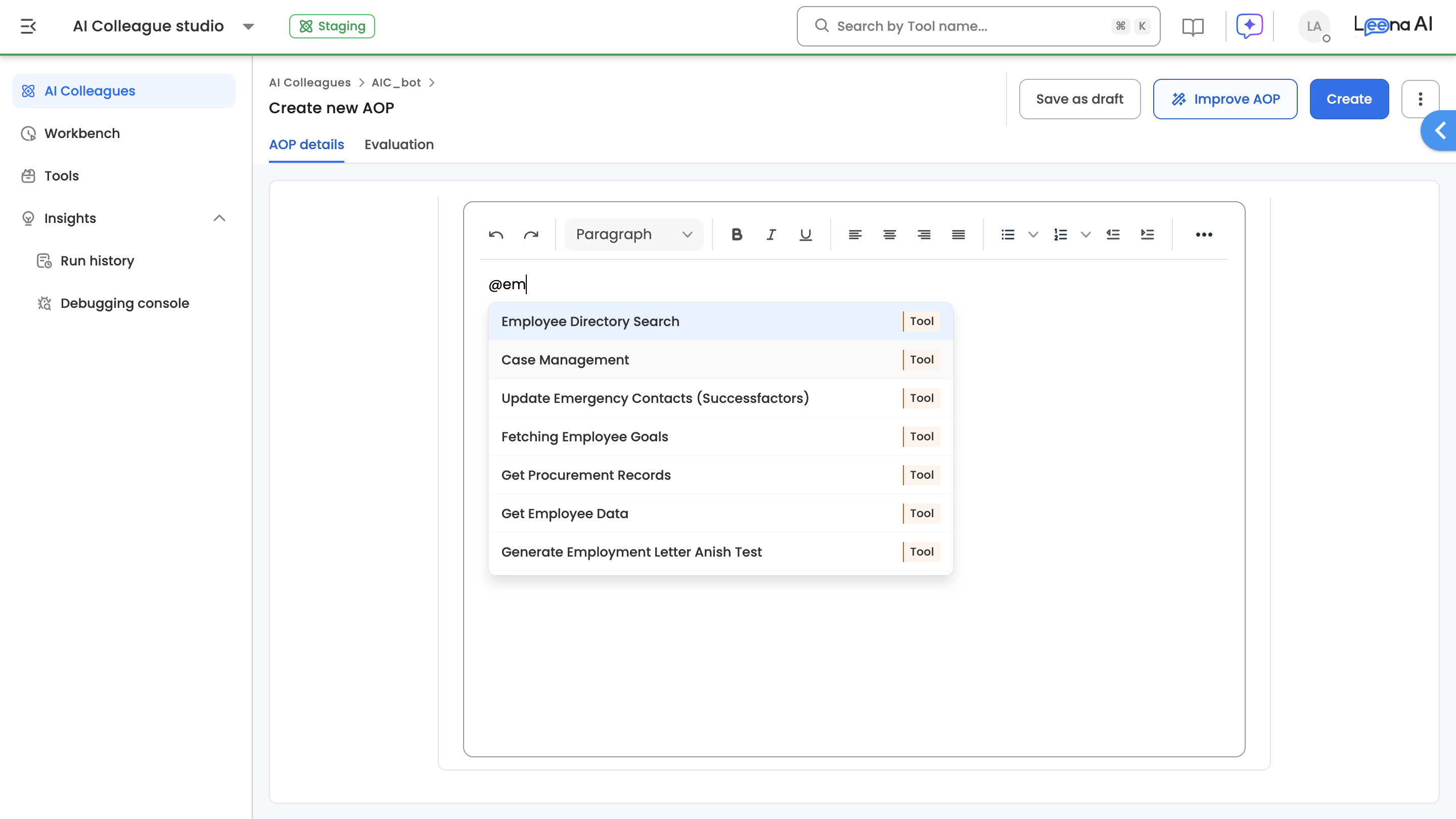
- A dropdown flat-list will appear showing all available AOPs and tools
- Search and select the desired tool/AOP from the list to insert it into your instructions
Understanding the Dropdown
When you type @, a flat list selector appears displaying:
| Column | Description |
|---|---|
| Name | The name of the AOP or tool |
| Type | Indicates whether the item is an AOP or Tool |
| Scroll through the list or continue typing after @ to filter and find the component you need. |
Key Points
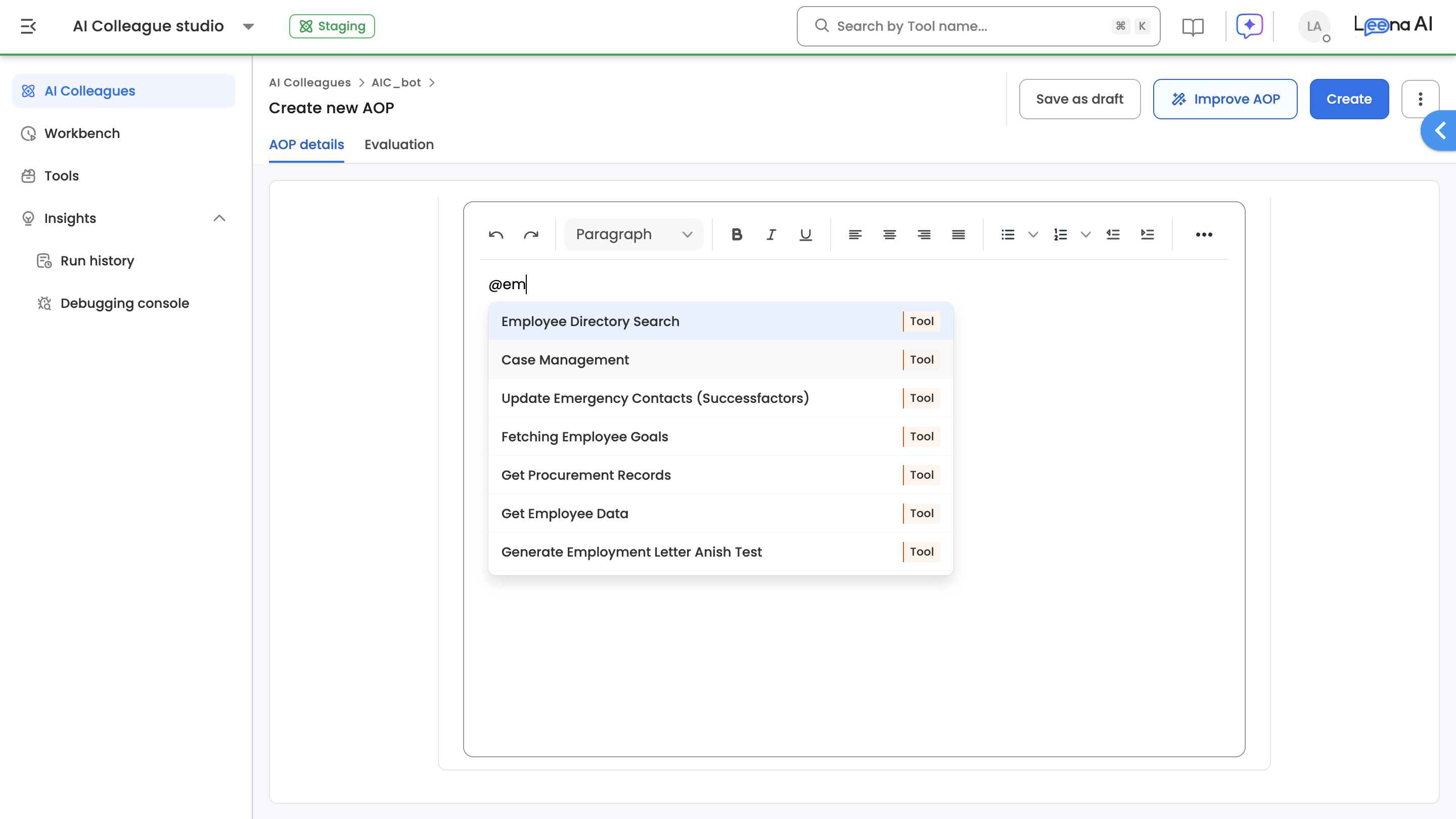
- Both AOPs and tools appear in the same dropdown for easy selection
- The type label (AOP or Tool) helps you distinguish between items
- Only active AOPs and tools available in your environment will appear in the dropdown
Related Articles
Updated about 2 months ago
Did this page help you?