
AOP Migration
AOP Migration
AOP Migration lets Admins copy a single AOP — along with its linked tools and, optionally, its evaluation test cases — from a source environment (e.g., UAT) to a destination environment (e.g., PROD). The wizard auto-matches the destination AI Colleague, validates dependencies (helper AOPs, workflows, access), and walks you through tool mapping on a single screen.
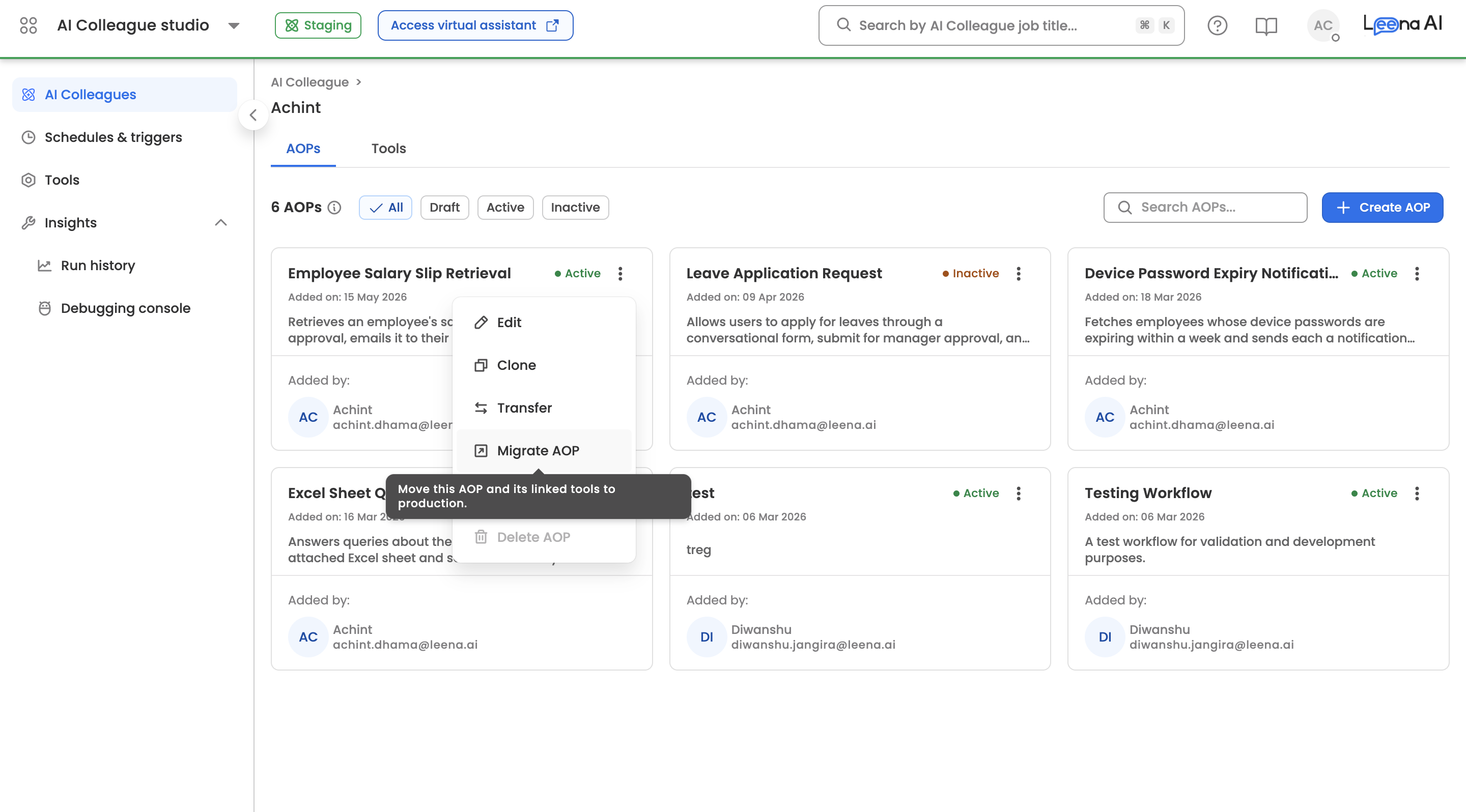
Navigate to AI Colleagues → [Select AIC] → [Select AOP] and open the kebab menu (⋮) → Migrate AOP to start.
Overview
The migration runs in two phases:
| Phase | What happens |
|---|---|
| 1. Destination selection | A modal where you pick the destination environment. The wizard auto-matches the destination AI Colleague, checks your access, and validates the AOP identifier, helper AOPs, and workflow availability. |
| 2. Configuration mapping | A single page listing every tool linked to the AOP. You map each tool to its equivalent in the destination environment — connections, URLs, MCP servers, and audiences — then confirm and migrate. |
Entry point and access
The Migrate AOP option appears in the kebab menu (⋮) on the AOP card and inside the AOP detail page.
| Condition | Behaviour |
|---|---|
| AOP is Active / Inactive | Migrate AOP enabled — "Move this AOP and its linked tools to production." |
| AOP is Draft | Disabled — "Draft AOPs can't be migrated. Publish this AOP before migrating." |
| You don't have admin access | Disabled — "You need admin access to migrate this AOP." Reach out to your admin to migrate. |
Phase 1: Destination selection
Clicking Migrate AOP opens the Migrate "[AOP name]" modal. Select the Destination environment from the dropdown. Two checks then run in sequence:
- AI Colleague resolution — the wizard matches the source AI Colleague to the destination environment by identifier and shows the result under Destination AI Colleague ("Matched to the same name in the destination account."). There is no AIC dropdown — the match is automatic.
- Discovery validation — the AOP identifier, helper AOP dependencies, and workflow availability are validated in the destination.
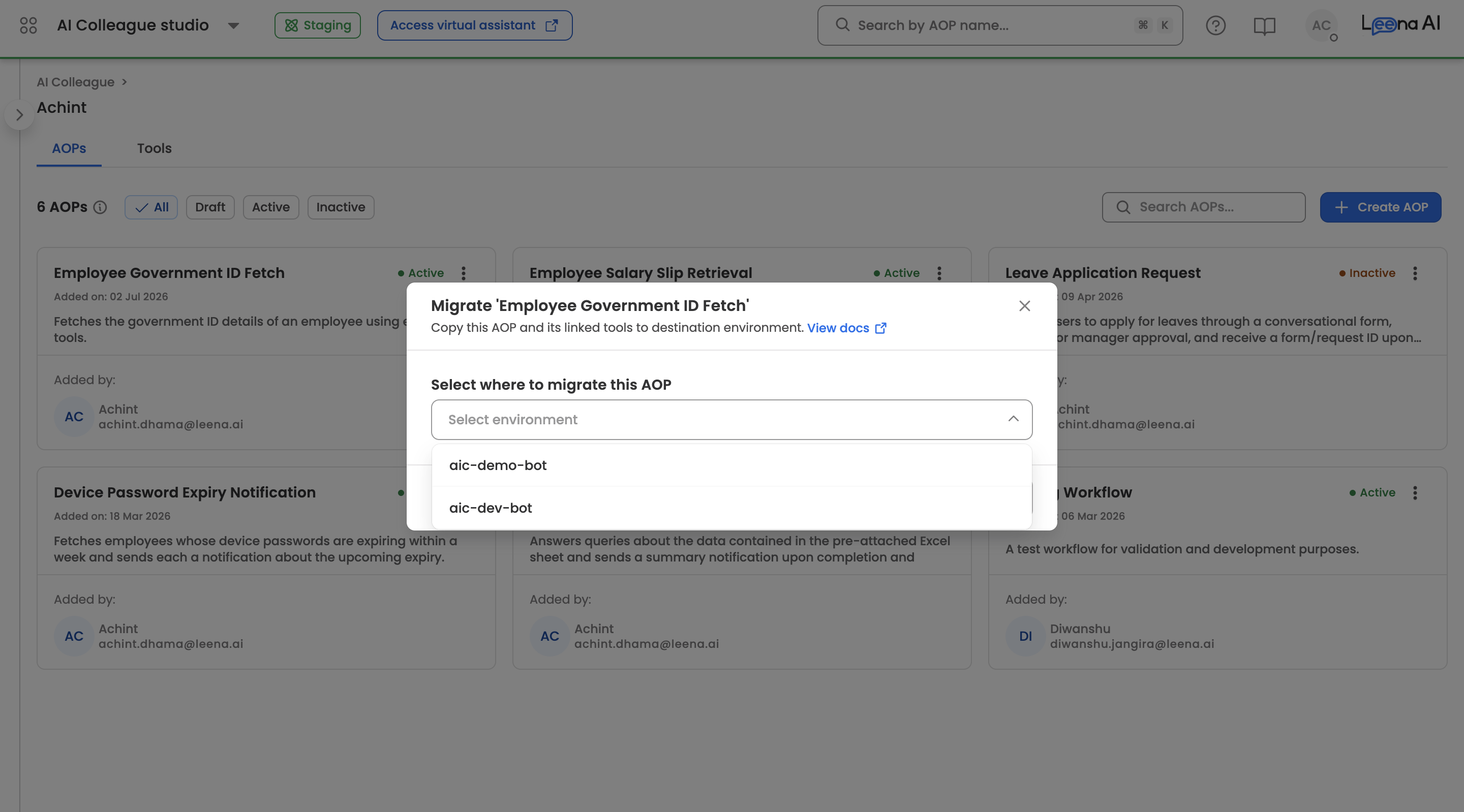
Next stays disabled until every blocker is cleared — hovering it shows "Resolve all issues before migrating." Warnings do not block.
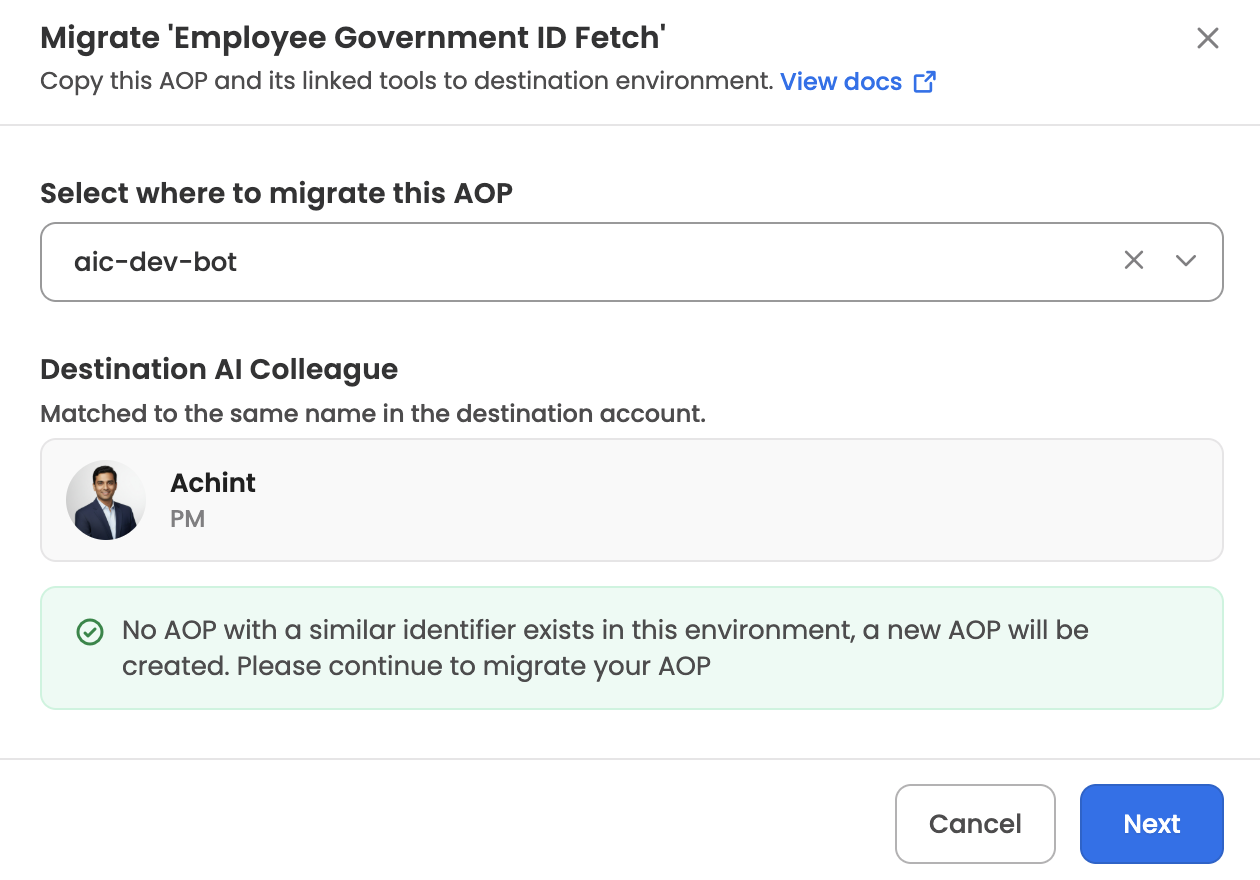
Blockers and warnings in this phase
| Check | Severity | What you see | How to resolve |
|---|---|---|---|
| Admin access on destination | 🔴 Blocker | "You don't have admin access to this environment. Contact your customer success manager to request access before you can migrate this AOP." | Request admin access on the destination environment. |
| No matching AI Colleague | 🔴 Blocker | An error under Destination AI Colleague — no AI Colleague with a matching identifier exists in the destination. | Create an AI Colleague with the matching identifier in the destination environment, then reselect the environment. |
| Helper AOP missing | 🔴 Blocker | An error banner, followed by "Migrate these AOPs to the destination environment to migrate this AOP:" and the list of missing helper AOPs (marked Unavailable, each linking to the AOP). | Open each listed helper AOP via its link, migrate it to the destination first, then retry. |
| Workflow missing in destination | 🔴 Blocker | An error banner with a Migrate via Workflow studio action. | Use the action to open Workflows Studio and migrate the workflow app, then reselect the environment. |
| AOP identifier conflict | 🟡 Warning | A warning banner — an AOP with the same identifier already exists in the destination; migrating overwrites it, including any draft versions. Includes a Learn more link to this page. | No action needed to proceed — be aware the existing AOP and its drafts in the destination will be overwritten. |
| No conflicts | ✅ Success | "No AOP with a similar identifier exists in this environment, a new AOP will be created. Please continue to migrate your AOP." | Proceed with Next. |
Phase 2: Configuration mapping
After Next, you land on the AOP configuration mapping page ("Map each tool to its PROD equivalent on [environment]"). Breadcrumb: AI Colleagues → [AIC name] → AOP Migration: [AOP name].
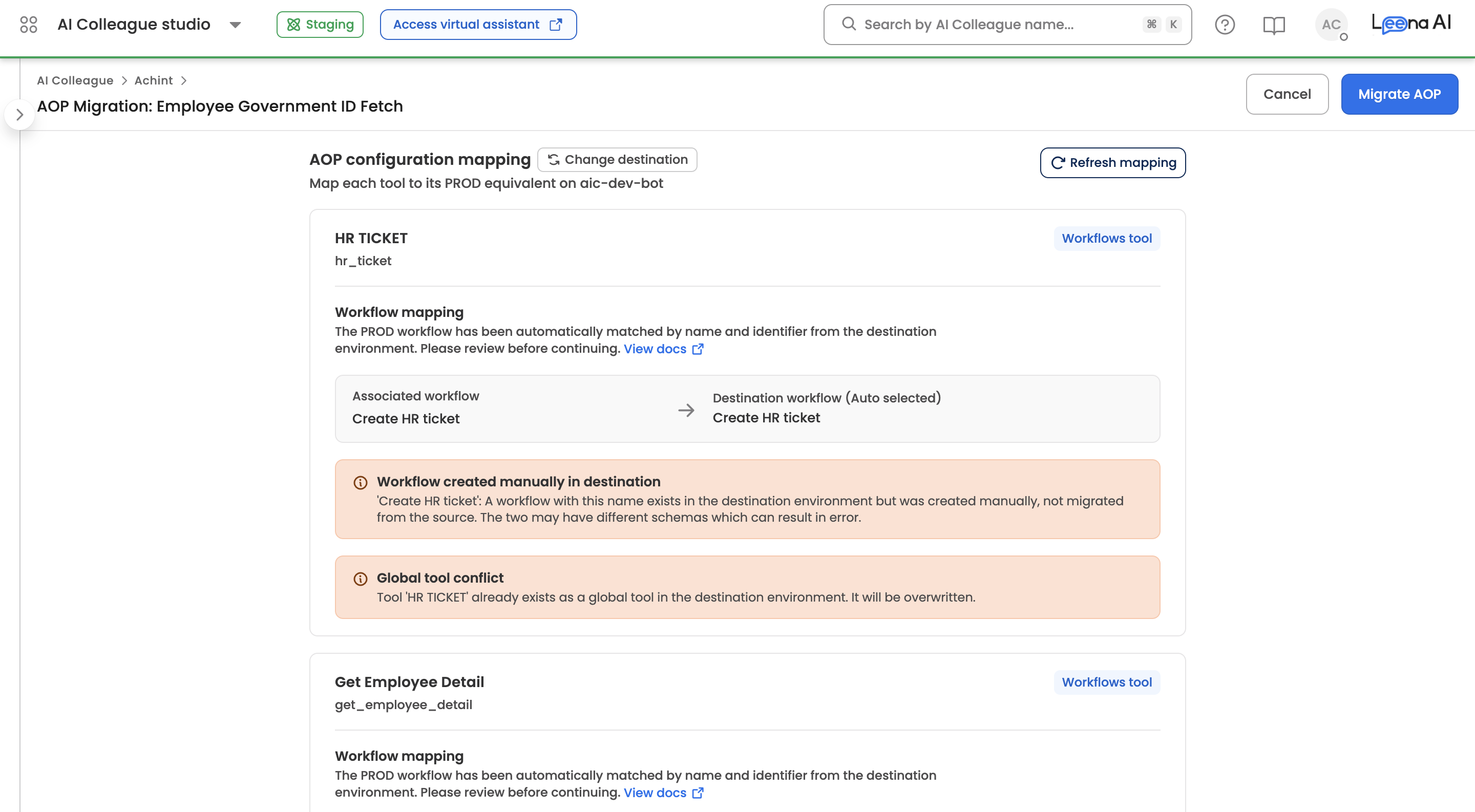
Tools are listed as cards, ordered API tools → Workflows tools → MCP tools. Built-in (default) tools need no mapping — a banner confirms: "N default tools don't need mapping. They're already available in [environment]."
If the AOP has no tools and no custom audience, you'll see No tools to map ("[AOP name] has no tools or connectors. Nothing to configure here, you're ready to migrate.") and can migrate directly.
AOP audience mapping
Shown when the AOP is scoped to an audience other than Everyone. Map the Current audience to a Destination audience. This mapping is optional — if left empty, the AOP defaults to the Everyone audience in the destination.
API tools
For each API tool, under API connection ("Select the destination URL and connection ID tool should use after migration."):
- Destination request URL — must be a valid URL ("Please enter a valid URL (must start with http:// or https://)").
- Destination connection ID — pick from connections that already exist in the destination environment.
Workflows tools
"The PROD workflow has been automatically matched by name and identifier from the destination environment. Please review before continuing." The Destination workflow (Auto selected) field is read-only. Any issues reported for the matched workflow appear as banners on the card.
MCP tools
Map the Destination application and the Destination MCP server/connection. When you pick a connection, the wizard verifies it live ("Checking selected MCP server/connection...").
Blockers and warnings in this phase
Error and warning banners on tool cards are generated by the destination validation — any tool card showing an error blocks the Migrate button until it's resolved. Warnings never block.
| Issue | Severity | What it means | How to resolve |
|---|---|---|---|
| Required mapping missing | 🔴 Blocker | An API tool is missing a valid destination URL or connection, or an MCP tool is missing an application or server/connection. | Fill in every destination field. The Migrate button stays disabled until all mappings are complete. |
| MCP actions missing on destination | 🔴 Blocker | An error on the MCP tool card — the selected destination MCP server/connection does not expose the actions this AOP's tool uses. | Pick a different destination server/connection, or add the missing actions to it in the destination, then reselect. |
| MCP connection check failed | 🔴 Blocker | The live verification of the selected MCP server/connection could not complete; the error returned by the check is shown on the card. | Reselect the connection to re-run the check; verify the connection is healthy in the destination environment. |
| Tool scope conflict | 🔴 Blocker | An error on the tool card — a tool with the same identifier exists in the destination but is scoped to a different AI Colleague. | Change the existing tool's scope in the destination to the matched AI Colleague or Global, then use Refresh mapping. |
| Workflow issues | 🟡 Warning | A warning on the Workflows tool card — for example, the matched destination workflow exists but is not yet published. | Publish the workflow in the destination's Workflows Studio before activating the migrated AOP. Does not block migration. |
| Existing tool will be overwritten | 🟡 Warning | A tool with the same identifier already exists in the destination at the same scope. | No action needed — the destination tool is overwritten on migrate. |
Refresh and change destination
- Refresh mapping re-fetches the pre-filled values: "Refreshing will reset the values in the form back to pre-filled values." Any mappings you've entered are lost.
- Change destination re-opens the destination selection modal (the originally selected environment is excluded). Confirming warns: "Changing the destination will update your tool and connector mappings. Any mappings you've set up for this migration will be reset."
Confirming the migration
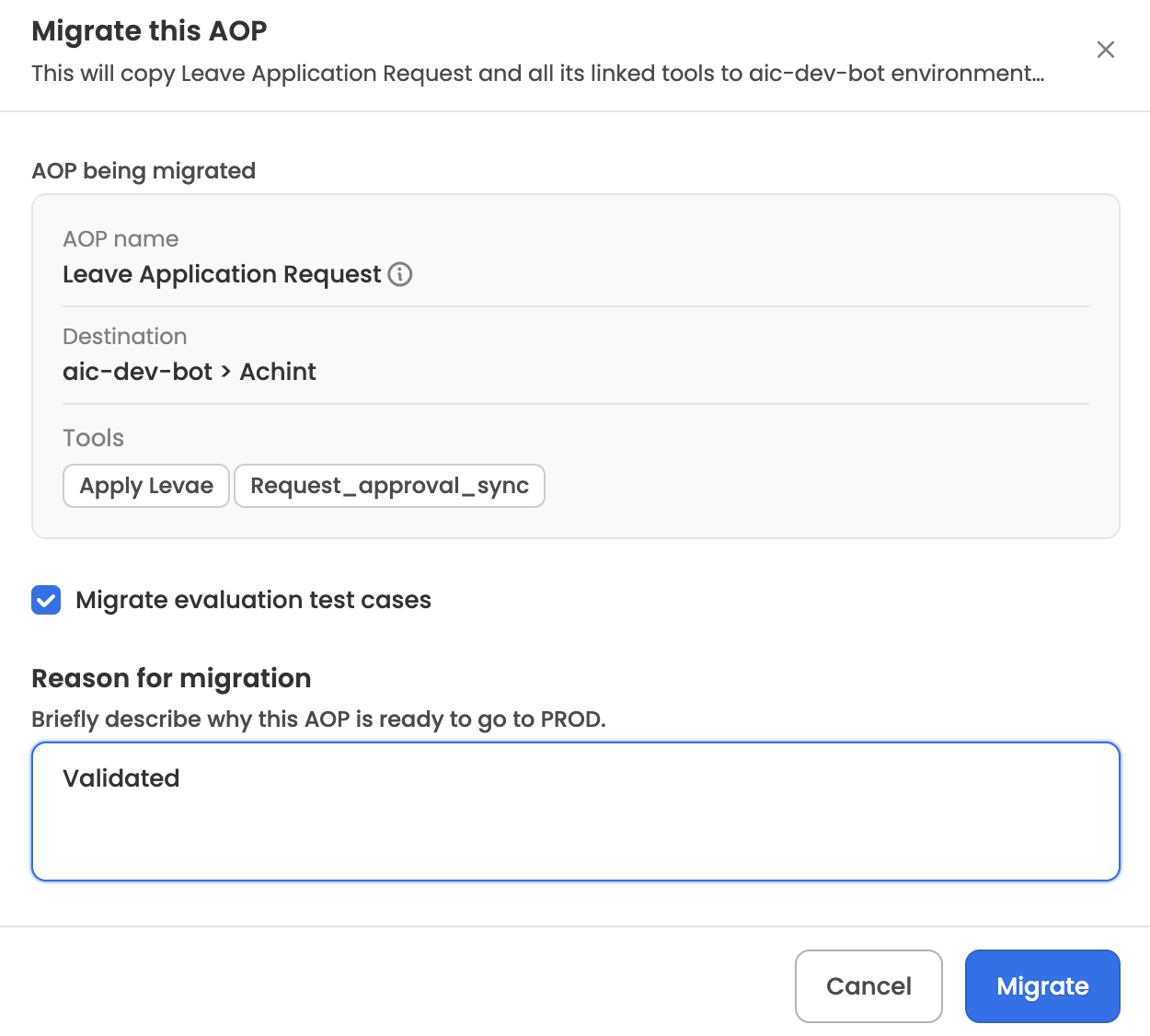
Clicking Migrate opens a final confirmation: "This will copy [AOP name] and all its linked tools to [environment], scoped to [AIC name]." It summarises the AOP, destination, and tools, and asks for:
- Evaluation test cases (shown only when the AOP has test cases) — an opt-in checkbox:
- "Migrate evaluation test cases" when the destination has no prior eval history.
- "Migrate and overwrite evaluation test cases in the destination environment" when it does — checking it replaces the destination's test cases.
- Reason for migration — "Briefly describe why this AOP is ready to go to PROD." (e.g., "Validated in UAT, approved by QA"). The reason is stored in the migration history along with who ran the migration.
While running, you'll see "Migrating your AOP — please wait, this may take a few moments."
Migration results
| Outcome | What you see | What to do |
|---|---|---|
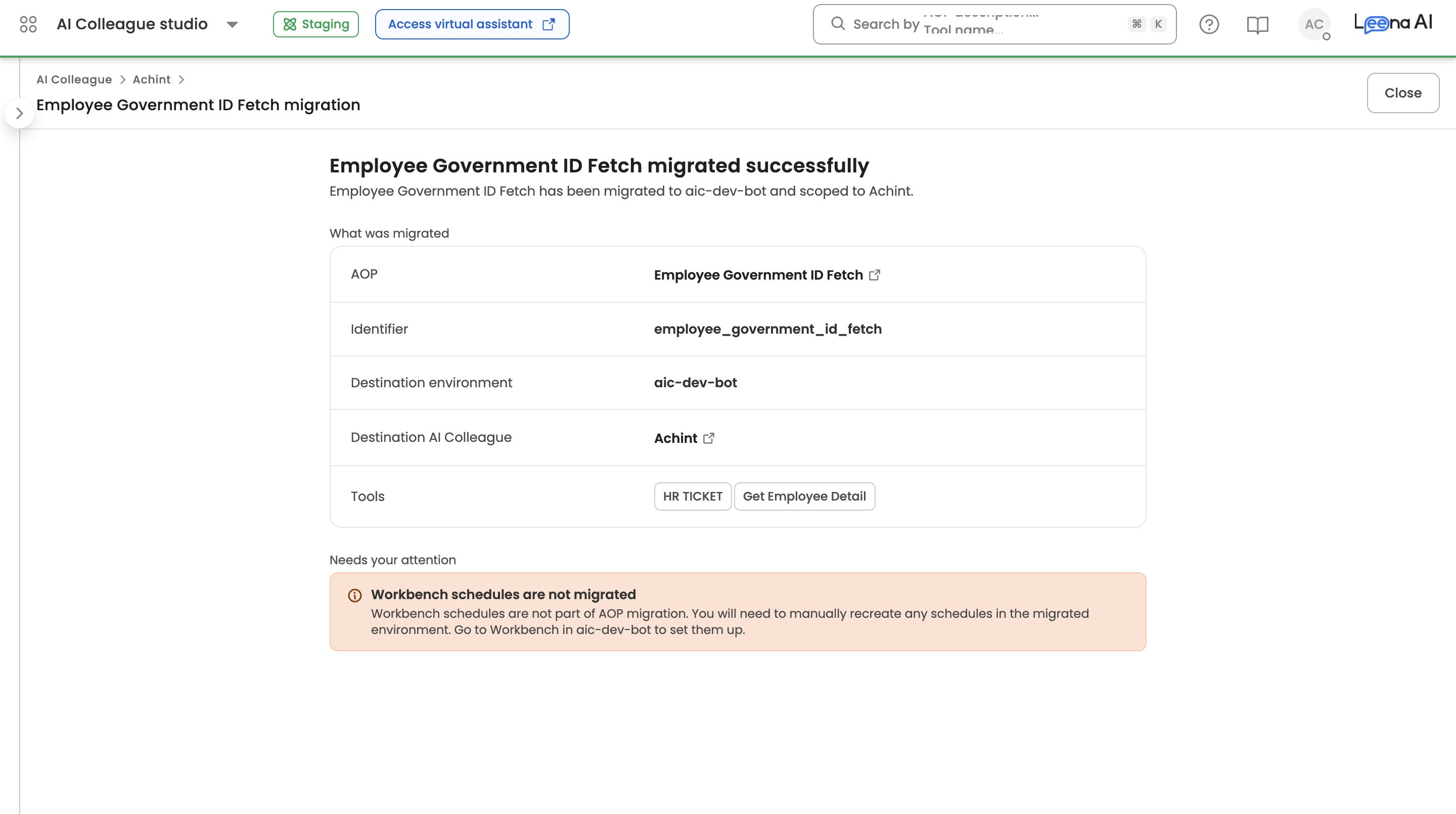
| Success | "[AOP name] migrated successfully — has been migrated to [environment] and scoped to [AIC name]." with a View migrated AOP action. | Review and publish the AOP in the destination. |
| Partial | "Migration partially completed. Some tools need your attention." A per-tool report separates What was migrated from Needs your attention. | Click Retry migration — everything that went through successfully is not repeated; only the failed tools are retried. |
| Failure | "Migration failed — Something went wrong and nothing was saved to PROD. No changes were made, your UAT setup is untouched. You can safely retry and the migration will start fresh." | Retry the migration; the run starts fresh. |
Workbench schedules are not migratedWorkbench schedules are not part of AOP migration. Recreate any schedules manually in the destination environment — go to Workbench in the destination to set them up.
Every migration run — successful or failed — is recorded in the migration history with its status, the person who ran it, the reason provided, and start/completion timestamps.
Related Articles
- Build your first AI Colleague
- Understanding AOP format
- Evals
- App Migrate & Clone Options
- Migrating AI Colleagues
Updated 3 months ago