
SharePoint
Securely connect Leena AI to your Microsoft SharePoint tenant using the modern Microsoft Graph API and certificate-based authentication. This guide walks you through configuring Azure AD permissions and syncing your documents.
Migration for existing users
⚠️ Migration Guide for Existing Customers (REST to Graph API)
If you previously connected Leena AI to SharePoint using the legacy REST API and Client Secrets, you must migrate to our new Graph API and Certificate-Based Authentication.
You do not need to create a new App Registration. Simply update your existing connection by following these steps:
Step I: Generate & Download Your Certificate
-
Go to the Leena AI Dashboard > Settings > Knowledge Management > Integrations > SharePoint.
-
Click the three dots on your active connection and select View Connection.
-
Click Generate Certificate, then click Download Certificate and save it to your computer.
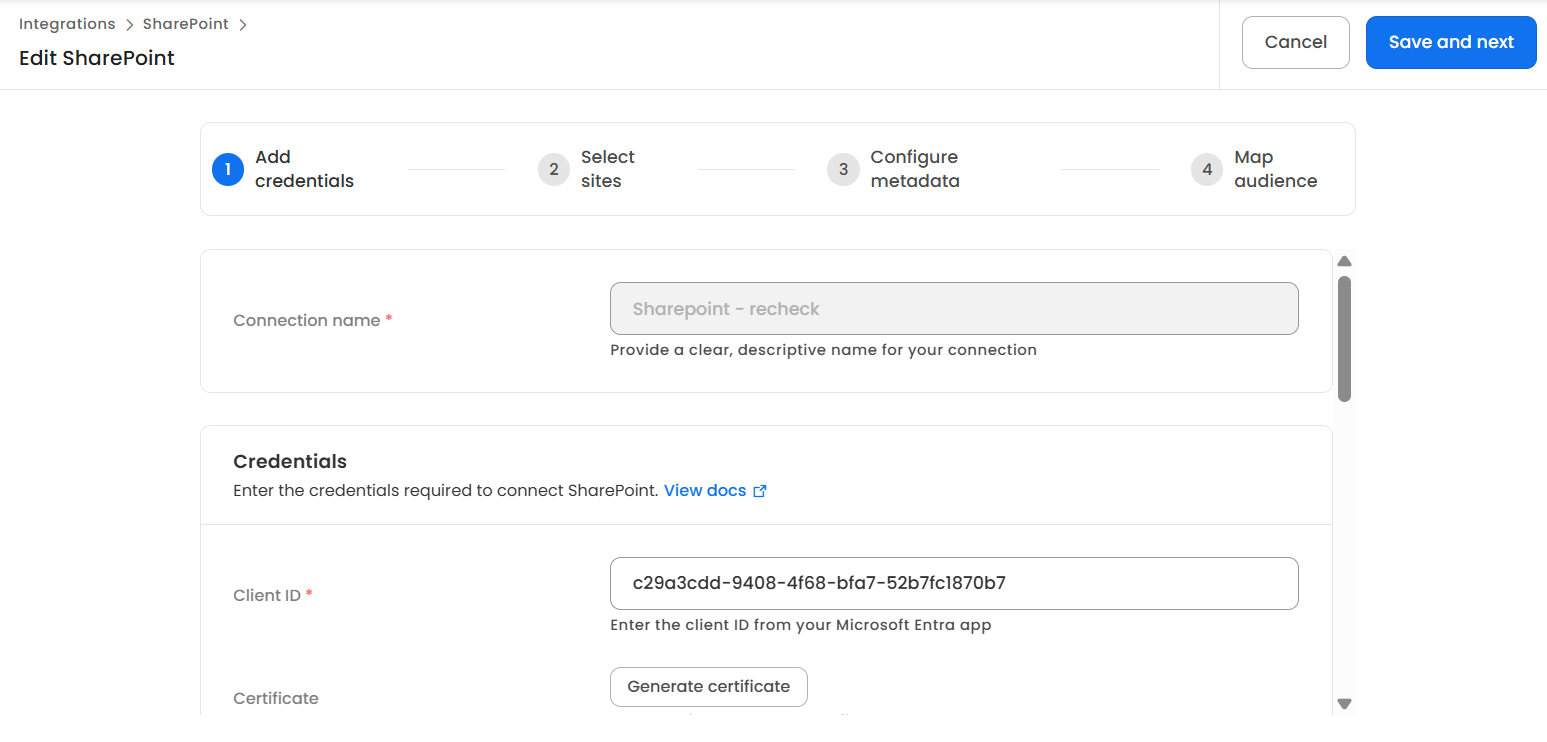
Important: Every time you generate a new certificate here, you must upload the latest version to Entra ID.
Step II: Upload Certificate & Grant Permissions in Entra ID
- Log into Microsoft Entra ID and navigate to your existing Leena AI App Registration.
- Go to Certificates & secrets > Certificates and click Upload certificate. Upload the file you downloaded in Step 1.
- Go to API permissions. Update your permissions to the current model (see the Permissions overview in Step 1 under adding a new sharepoint connector):
- Microsoft Graph: keep
Sites.Read.All(orSites.Selectedfor restricted access) andUser.Read.All. - If you have article-permission syncing enabled, also ensure Microsoft Graph has
GroupMember.Read.All, and the SharePoint resource hasSites.FullControl.All(orSites.Selected) andUser.Read.All.
- Microsoft Graph: keep
- Remove
Group.Read.Allif present. Earlier setups usedGroup.Read.All, which is tenant-wide and grants read access to the contents of every group-connected site — bypassing site-level isolation. Replace it withGroupMember.Read.All, which provides only the group membership data the connector needs. - Click Grant admin consent to finalize the changes.
Wait a moment before saving.After uploading the certificate to Entra ID, allow a minute or two for Microsoft to register and propagate it before clicking Save in Step III. Saving too soon can return an "Invalid Credentials" error even though the certificate is valid — if that happens, wait briefly and save again.
Step III: Save and Complete Migration
- Return to the Leena AI Dashboard (where you initiated the certificate download).
- Click on Save to update the connection.
Success: Once these steps are completed, your integration is fully migrated to the modern standard.
Adding a new SharePoint Connector: Overview
Leena AI integrates with Microsoft SharePoint using the modern Microsoft Graph API, providing a single, secure, and unified connection method. This allows you to sync documents from your entire SharePoint tenant or just specific sites directly into your Leena AI Knowledge Management (KM) system.
This guide will walk you through the two main steps:
- Creating an Application in Microsoft Entra ID to grant Leena AI the necessary permissions.
- Configuring the connection in the Leena AI dashboard using the credentials from Entra.
Step 1: Configure Permissions in Microsoft Entra ID
Leena AI requests permissions on two Microsoft API resources. Configure both as needed:
| Permission | API resource | Grants | Required |
|---|---|---|---|
Sites.Read.All or Sites.Selected | Microsoft Graph | Read site content (all sites, or only granted sites) | Always — choose one |
User.Read.All | Microsoft Graph | Resolve user identities for author/modifier mapping | Always |
GroupMember.Read.All | Microsoft Graph | Read group membership (name, members, owners) for audience mapping | Only when "Fetch article permissions" is enabled |
Sites.FullControl.All or Sites.Selected | SharePoint | Read SharePoint security objects (site groups, role assignments) | Only when "Fetch article permissions" is enabled |
User.Read.All | SharePoint | Resolve users within site groups | Only when "Fetch article permissions" is enabled |
How users are identified?
Leena AI identifies every SharePoint user by email address. The email address held against the user record in SharePoint or Entra ID is the key used to map that user to their Leena AI identity — for author and modifier attribution, and for article-level permission sync. Where a user has no email address populated against their record, that user cannot be resolved and is skipped. The user is omitted from the article's permission list and from any synced group membership, which means the article does not become visible to them in Leena AI even if they hold access to it in SharePoint. Access is never granted by inference: an unresolvable user is excluded rather than allowed. Service accounts, certain guest or external principals, and accounts where the mail attribute has not been set in Entra ID are the most common cases. Populate email addresses for all users who require access to synced content before enabling permission sync.
Choosing your access model.
- Least-privilege (recommended): use
Sites.Selectedon both the Microsoft Graph and SharePoint resources, and grant the app access to each site explicitly (see theSites.Selectedsteps below). Access stays strictly limited to the sites you grant. - Full-tenant: use
Sites.Read.All(Graph) andSites.FullControl.All(SharePoint). On the SharePoint resource,FullControlis required because reading SharePoint security objects (site groups / role assignments) app-only is not permitted at lower levels.
Important — what
Sites.Selecteddoes and does not isolate.Sites.Selectedgoverns access only through the/sites/...path. Microsoft 365 Group–connected "Team sites" also expose their document library through the/groups/...path. To keep access strictly limited to the sites you grant, do not add any tenant-wide content permission — for exampleGroup.Read.All,Groups.Read.All, orSites.Read.All— alongsideSites.Selected. Leena AI requires onlyGroupMember.Read.All(membership, not content), which preserves isolation.
Follow these steps to register an application using the Azure Active Directory admin center:
A. Create a New App Registration
-
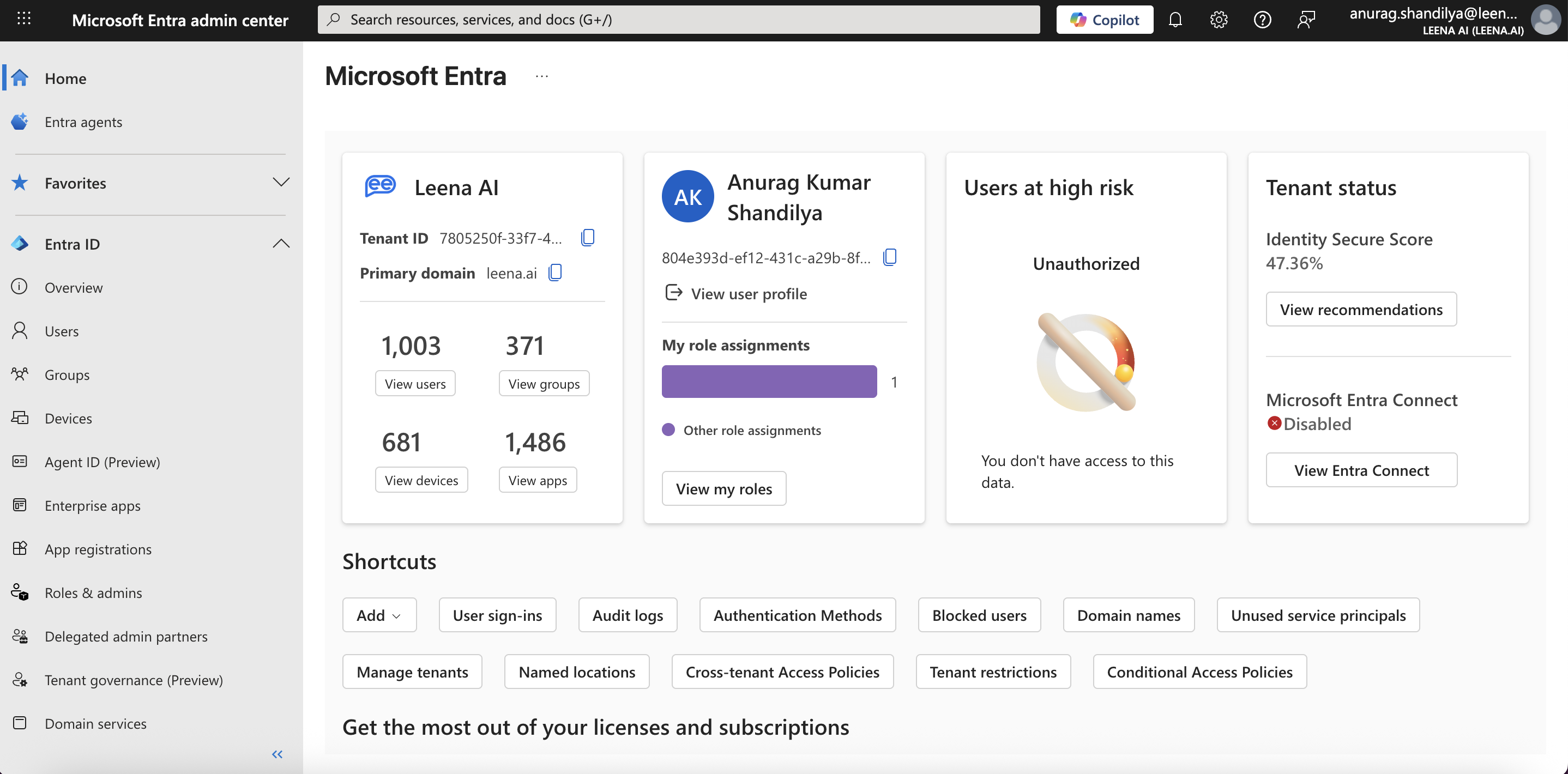
Go to the Microsoft Entra admin center and login using a Global administrator account.
-
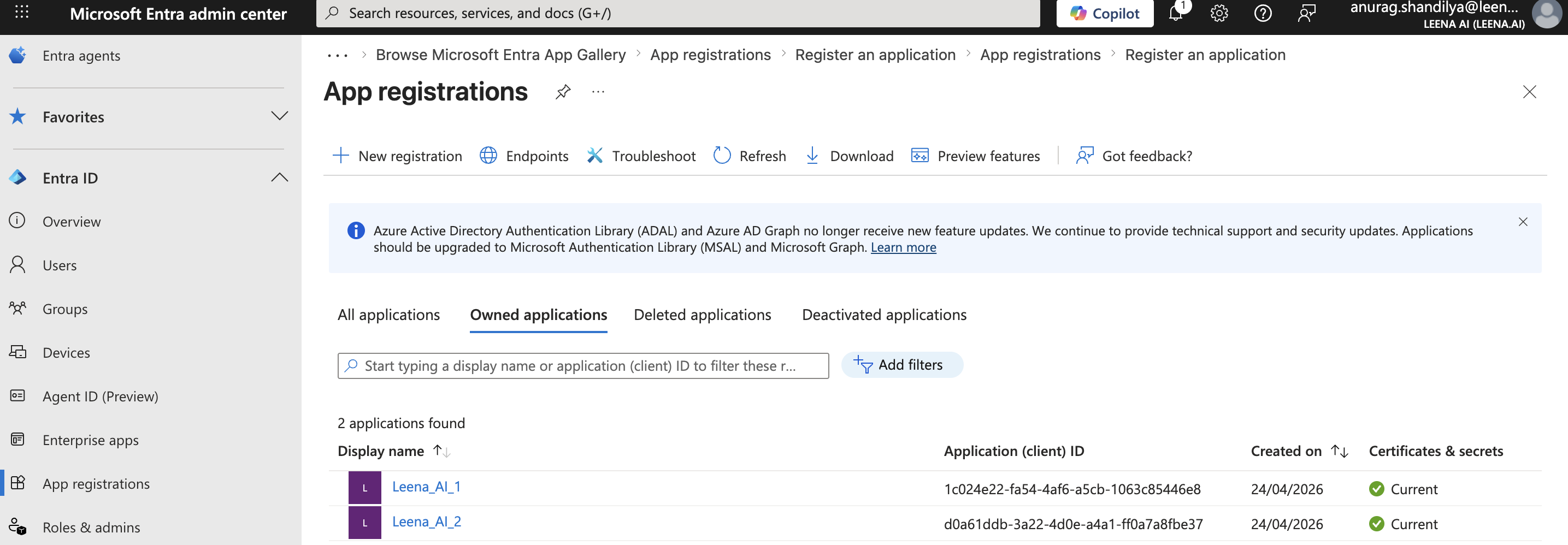
Navigate to App registrations.
-
Click + New registration.
-
Name: Give your application a clear name (e.g., "Leena AI SharePoint Connector").
-
Supported account types: Select "Single tenant only".
-
Redirect URI: Leave this blank.
-
Click Register.
-
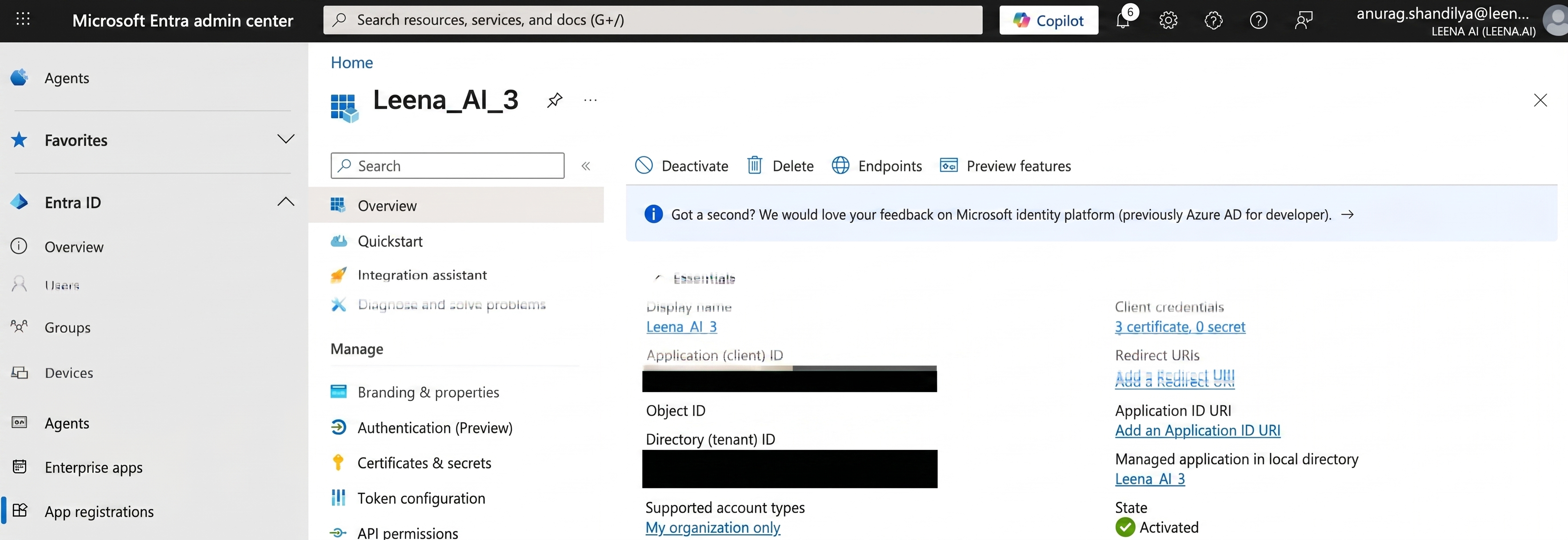
On the application's Overview page, copy the value of the Application (client) ID and Directory (tenant) ID and save them; you will need these values in the next step.
B. Configure API Permissions
-
In your new app registration, select API permissions from the left menu.
-
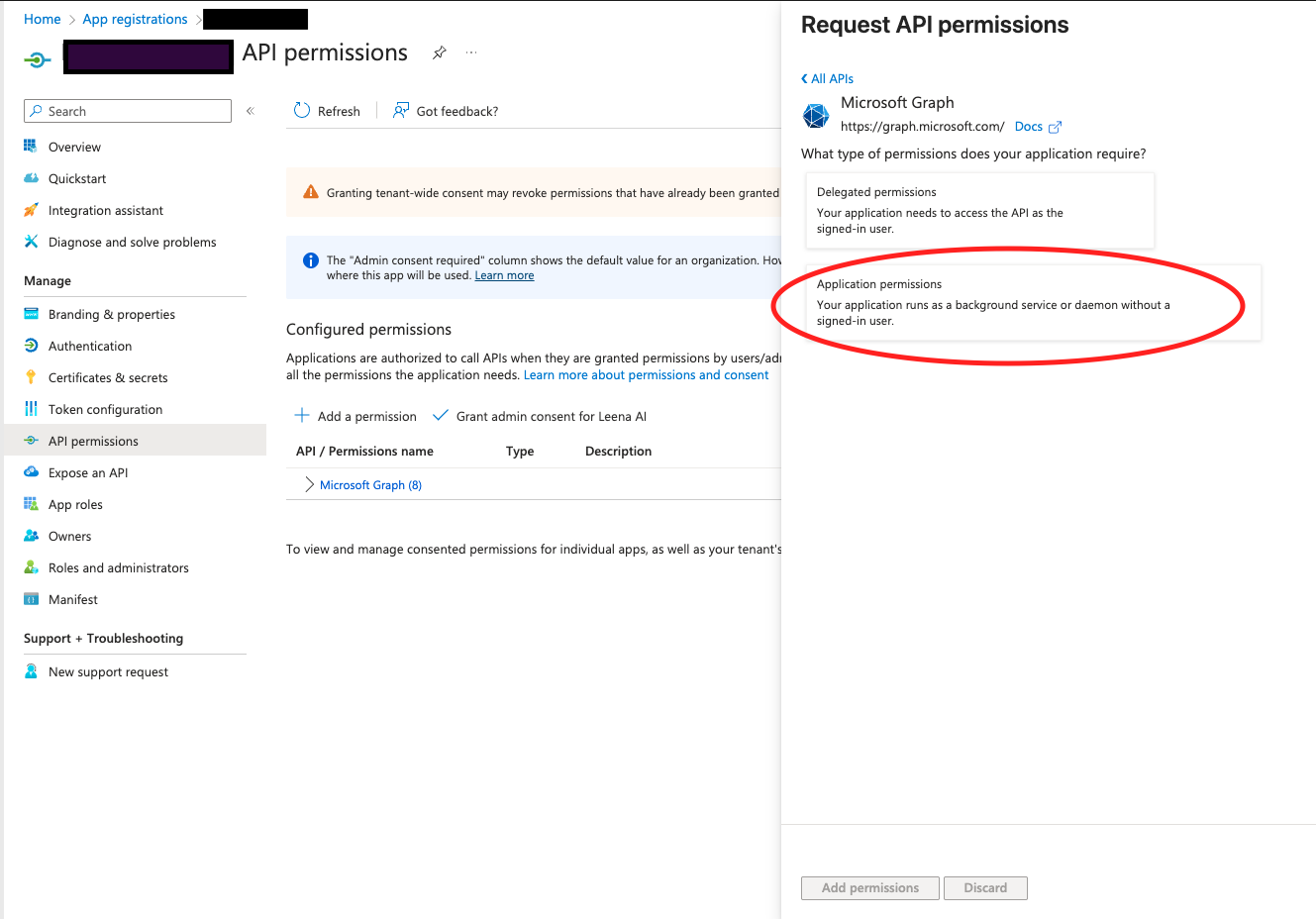
Click + Add a permission, then select Microsoft Graph.
-
Select Application permissions .
-
Now, choose the permission level based on your needs. This is the most important step:
- For Tenant-Level Access (Sync all sites): Search for and select
Sites.Read.All. This allows Leena AI to read all site collections in your SharePoint tenant. - For Site-Level Access (Sync only specific sites): Search for and select
Sites.Selected. This permission allows you to grant Leena AI read access to an explicit list of sites, adhering to the principle of least privilege. Note that if you go with site-level access, you will need to follow extra steps detailed at the bottom of this section.
- For Tenant-Level Access (Sync all sites): Search for and select
-
(Required only for article-permission syncing) If you want Leena AI to mirror SharePoint's article-level access in KM ("Fetch article permissions"), also add:
GroupMember.Read.All— reads only group name, members, and owners for audience mapping. Do not useGroup.Read.All; it is tenant-wide and grants read access to the contents of every group-connected site, which bypassesSites.Selectedisolation.User.Read.All(recommended overUser.ReadBasic.Allfor better user mapping).
Article-permission syncing also requires permissions on the SharePoint API resource — see Section C.
If you do not need article-level permissions, you can skip this step and Section C entirely, and run with only the content permission from step 4 plus
User.Read.All. -
After adding the permissions, click the Add permissions button at the bottom.
-
Finally, you must grant consent for these permissions. Click the Grant admin consent for [Your Tenant Name] button and accept the prompt. The status for all permissions should update to show a green checkmark.
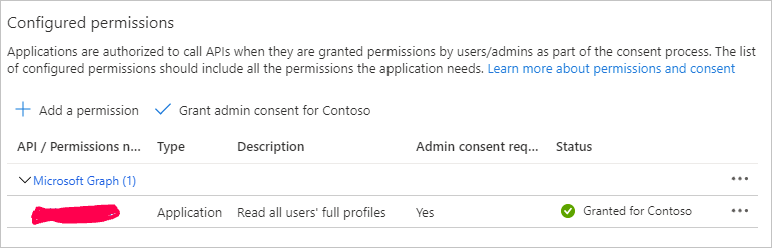
Important Note on
Sites.Selected: Microsoft's configuration forSites.Selectedpermission requires additional steps using API calls or PowerShell to grant the application access to each specific site. This is a Microsoft requirement for this high-security permission type. For detailed instructions, please refer to the official Microsoft documentation: Develop applications that use Sites.Selected permissions.
Reference APIs (for Sites.Selected configuration)
Sites.Selected configuration)a. API to fetch the auth token This token will be used to grant read permissions to the "Leena AI" application. This token has to be generated using another application which has Sites.FullControl.All permission.
curl --location --request GET 'https://login.microsoftonline.com/{{tenant id}}/oauth2/v2.0/token' \
--header 'Content-Type: application/x-www-form-urlencoded' \
--data-urlencode 'client_id={{clientid}}' \
--data-urlencode 'client_secret={{clientsecret}}' \
--data-urlencode 'scope=https://graph.microsoft.com/.default' \
--data-urlencode 'grant_type=client_credentials'
b. API to fetch site ids
curl --location 'https://graph.microsoft.com/v1.0/sites/' \
--header 'authorization: Bearer {{token}}'
c. API to grant the site-level permissions to "Leena AI" application
curl --location 'https://graph.microsoft.com/v1.0/sites/{{site id}}/permissions' \
--header 'Authorization: Bearer {{token}}' \
--header 'Content-Type: application/json' \
--data '{
	"roles": [
		"fullcontrol"
	],
	"grantedToIdentities": [{
		"application": {
			"id": "{{leena ai application id}}",
			"displayName": "Leena AI"
		}
	}]
}'
Please noteLeena AI connector performs read operations only. It never creates, modifies, or deletes content, permissions, users, groups, or site settings. Full Control is requested because it is the only level at which SharePoint will return group membership, not because the connector performs any administrative action.
Access remains scoped to the specific sites you grant. With
Sites.Selected, the application can only reach site collections you have explicitly granted, and adding a new site requires a new explicit grant.
C. Granting Access to SharePoint Permissions
This section applies only if you enabled "Fetch article permissions." It grants Leena AI read access to SharePoint security objects (site groups and their members) so that article-level access in KM matches SharePoint. These permissions are on the SharePoint API resource, in addition to the Microsoft Graph permissions in Section B.
Notes
- Microsoft has deprecated the legacy REST method (
appinv.aspx). Configure these directly under API permissions in your app registration.- Users are matched by email address. A SharePoint user with no email address populated against their record cannot be resolved and will be excluded from synced permissions.
-
In your Azure app registration, select API permissions → Add a permission.
-
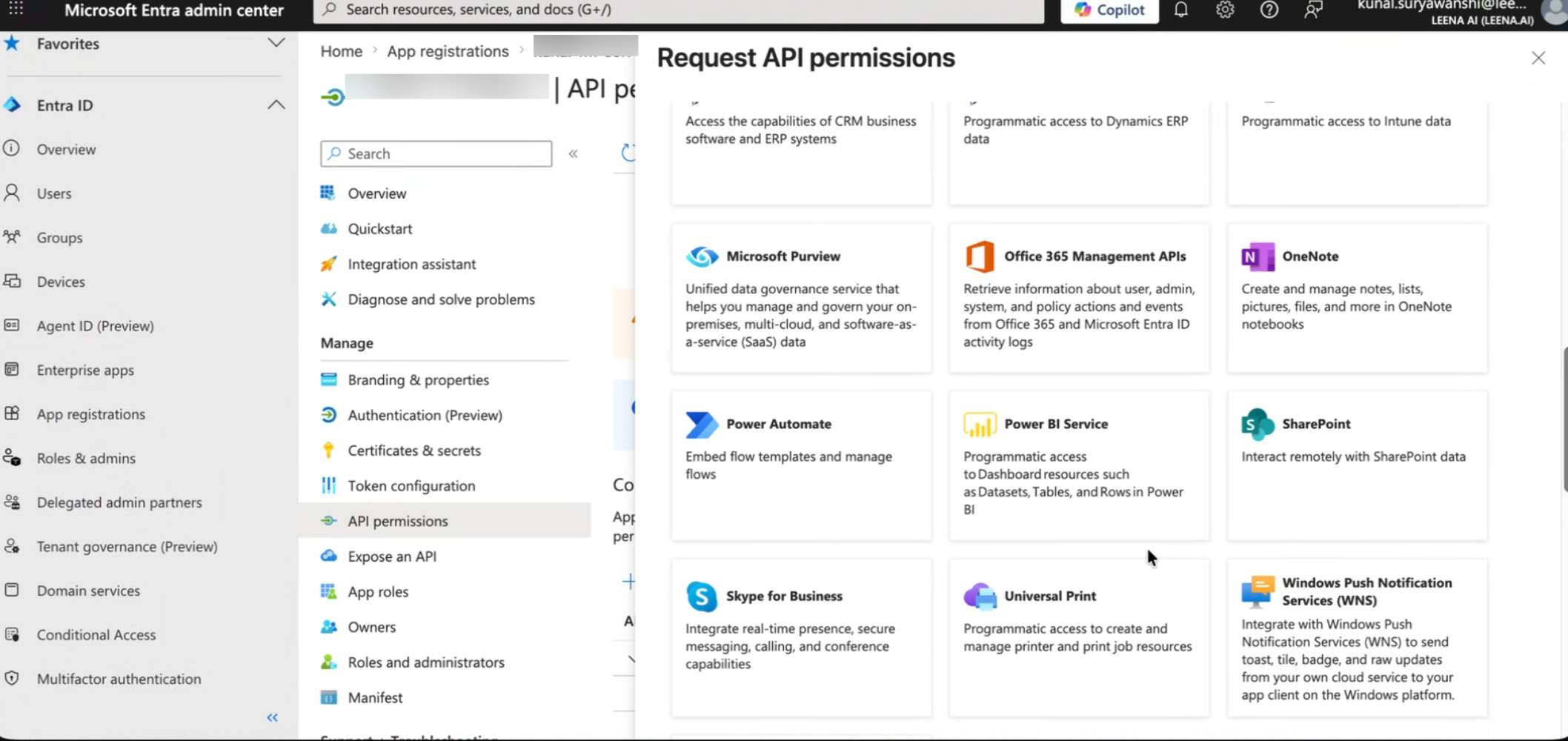
Select SharePoint from the list of APIs.
-
Choose Application permissions (not Delegated).
-
Select permissions based on the access model you chose in the permissions overview:
For Restricted Access (specific sites — recommended):
Sites.SelectedUser.Read.All
Grant the app access to each site using the same per-site steps as the Graph
Sites.Selectedflow.For Full Tenant Access (all sites):
Sites.FullControl.All— required for app-only reading of SharePoint security objects (site groups / role assignments). Lower levels do not expose this data.User.Read.All
-
Click Add permissions, then Grant admin consent for [Your Tenant Name] and confirm the green checkmarks.
D. Configure Certificate-based Authentication
Note: For enhanced security, Leena AI now utilizes certificate-based authentication instead of client secrets.
-
Open a new tab and log in to your Leena AI Dashboard.
-
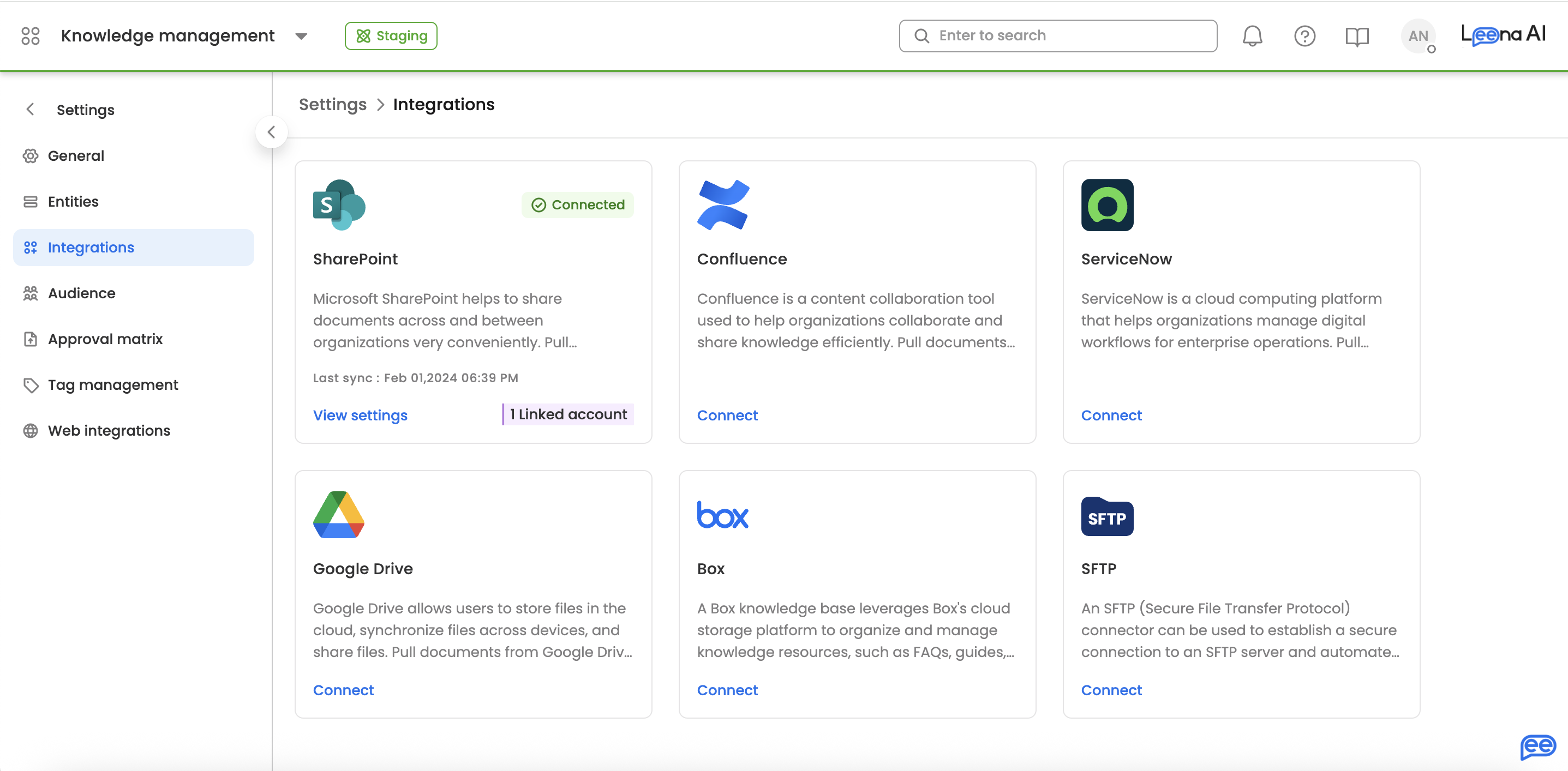
Navigate to the Knowledge Management (KM) Integration settings. You can find this within Settings-->Integrations--->SharePoint.
-
Locate the SharePoint connector and click on 'Connect'. A side-sheet will open. Then click Generate Certificate and subsequently click on Download Certificate. Save this file locally to your computer.
-
Return to your Azure Active Directory app registration portal.
-
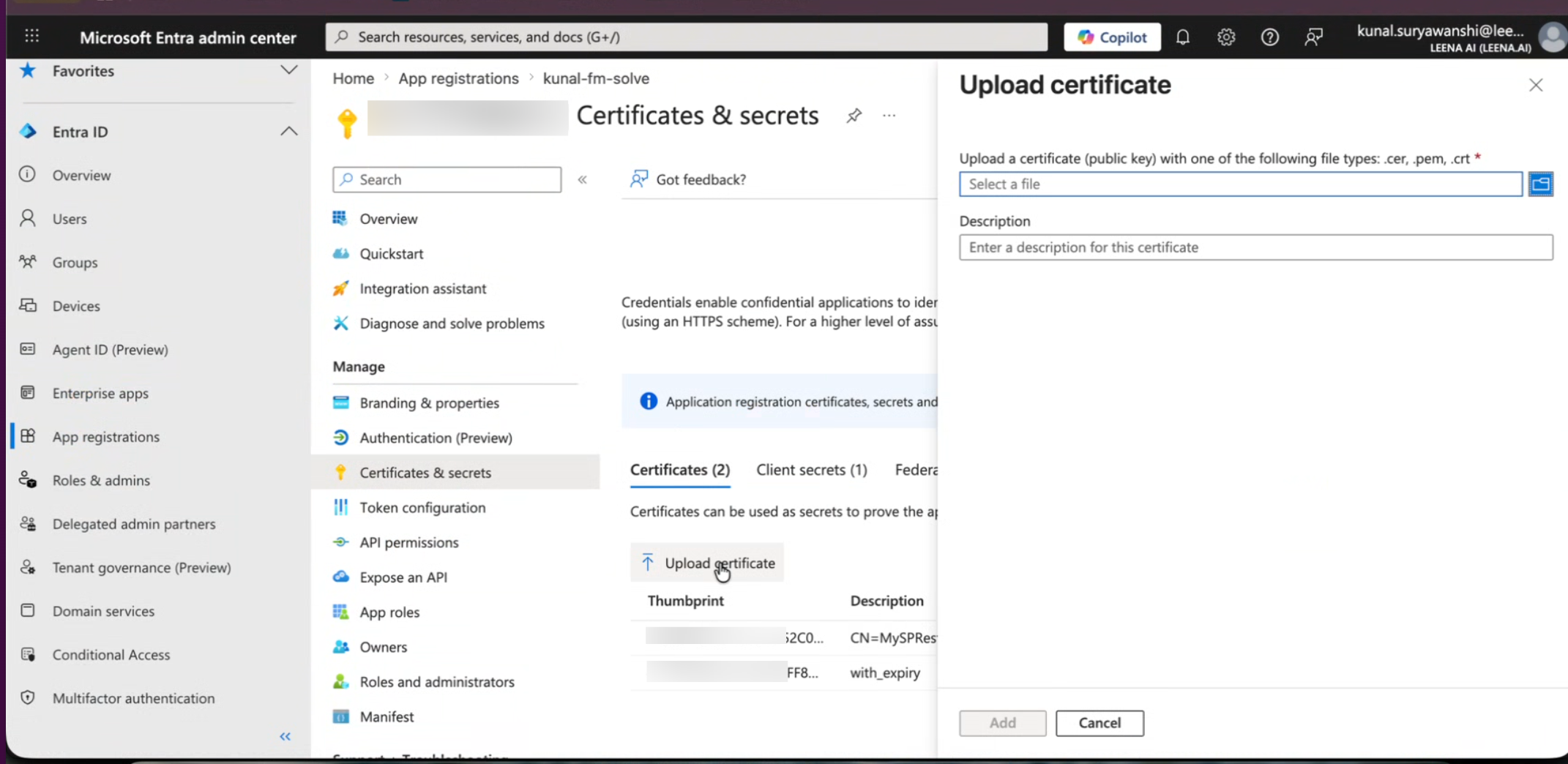
Select Certificates & secrets from the left navigation menu.
-
Click the Certificates tab.
-
Click Upload certificate.
-
Select the certificate file you just downloaded from the Leena AI dashboard.
-
Enter a brief description (e.g., "Leena AI Auth Certificate") and click Add.
⚠️ Important — wait before connecting. After you upload the certificate to Microsoft Entra ID, Microsoft needs a short while (typically a minute or two, occasionally longer) to register and propagate it before it can be used to authenticate. If you click Connect immediately, the connection may fail with an "Invalid Credentials" error even though your certificate is valid. This is expected — wait a couple of minutes after uploading, then connect.
Step 2: Integrating with Leena AI’s KM Dashboard
The “Integration” option under KM settings will enable you to integrate KM with third-party apps so that we can pull documents from there and display them in Leena AI's KM.
For SharePoint Integration via Graph APIs, users need to provide the following details:
-
Navigate to the KM Settings > Integrations page in your Leena AI dashboard.
-
Select the SharePoint connector.
-
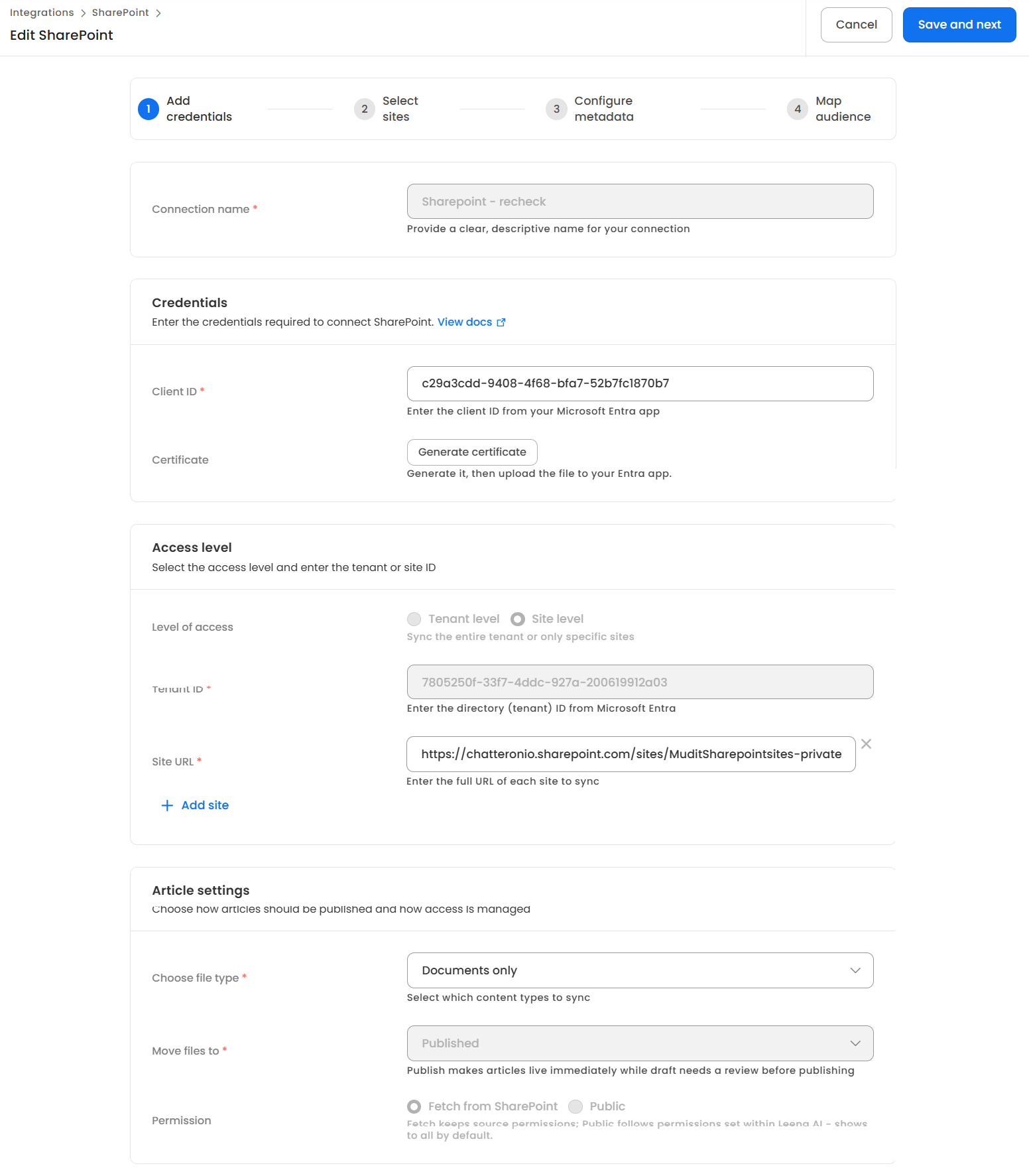
You will see a wizard flow to take you through the configuration.
-
In the first screen, enter the credentials you saved from Azure AD:
- Tenant ID: The Directory (tenant) ID you copied.
- Client ID: The Application (client) ID you copied.
- Certificate: Ensure you have downloaded the certificate from this dashboard and uploaded it to Azure as outlined in Step 1D.
-
In the first screen, also provide your desired access level and article settings.
-
(For Site-Level Access Only) If you used the
Sites.Selectedpermission, you must provide the list of SharePoint Site URLs you wish to sync. Note, you will have to follow extra steps for ensuring site-level access as mentioned above in Step 1.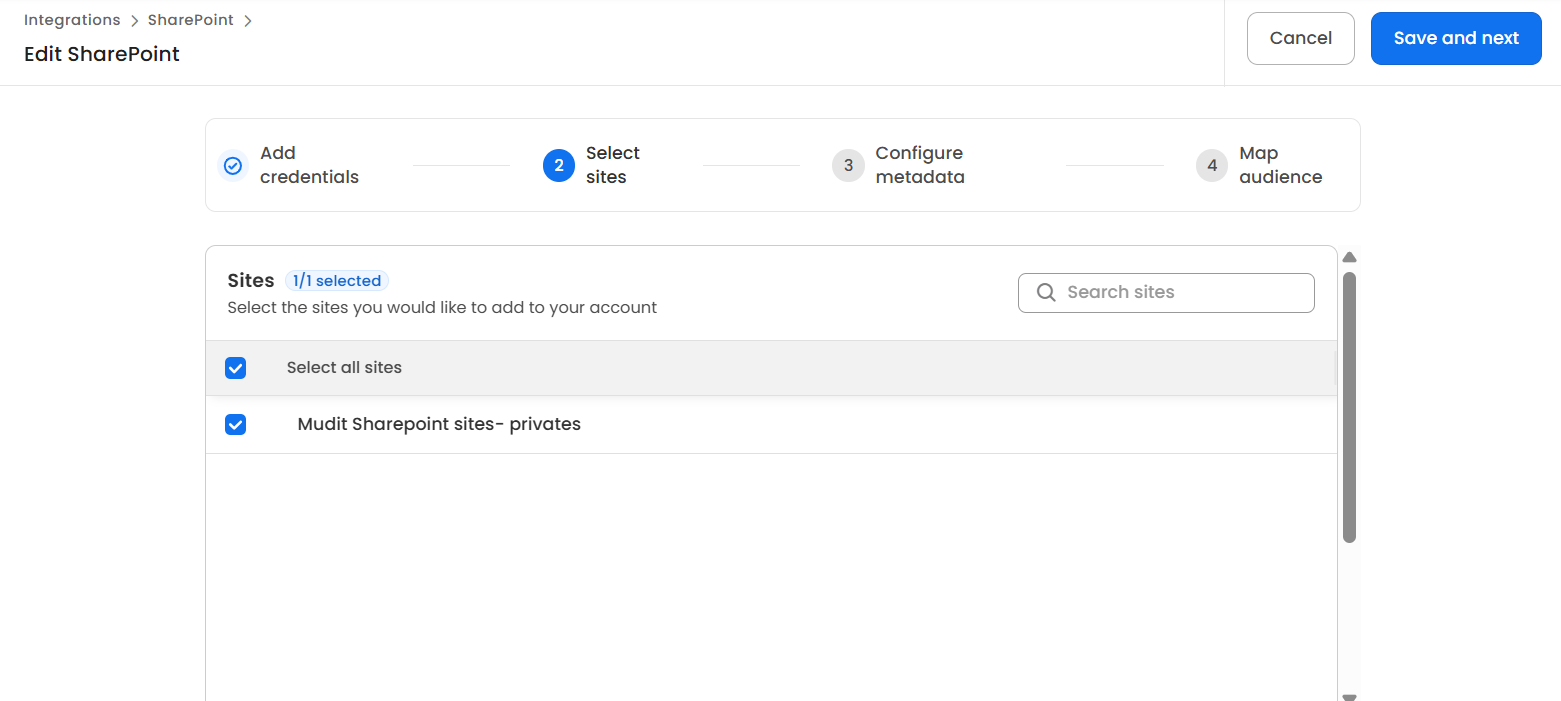
-
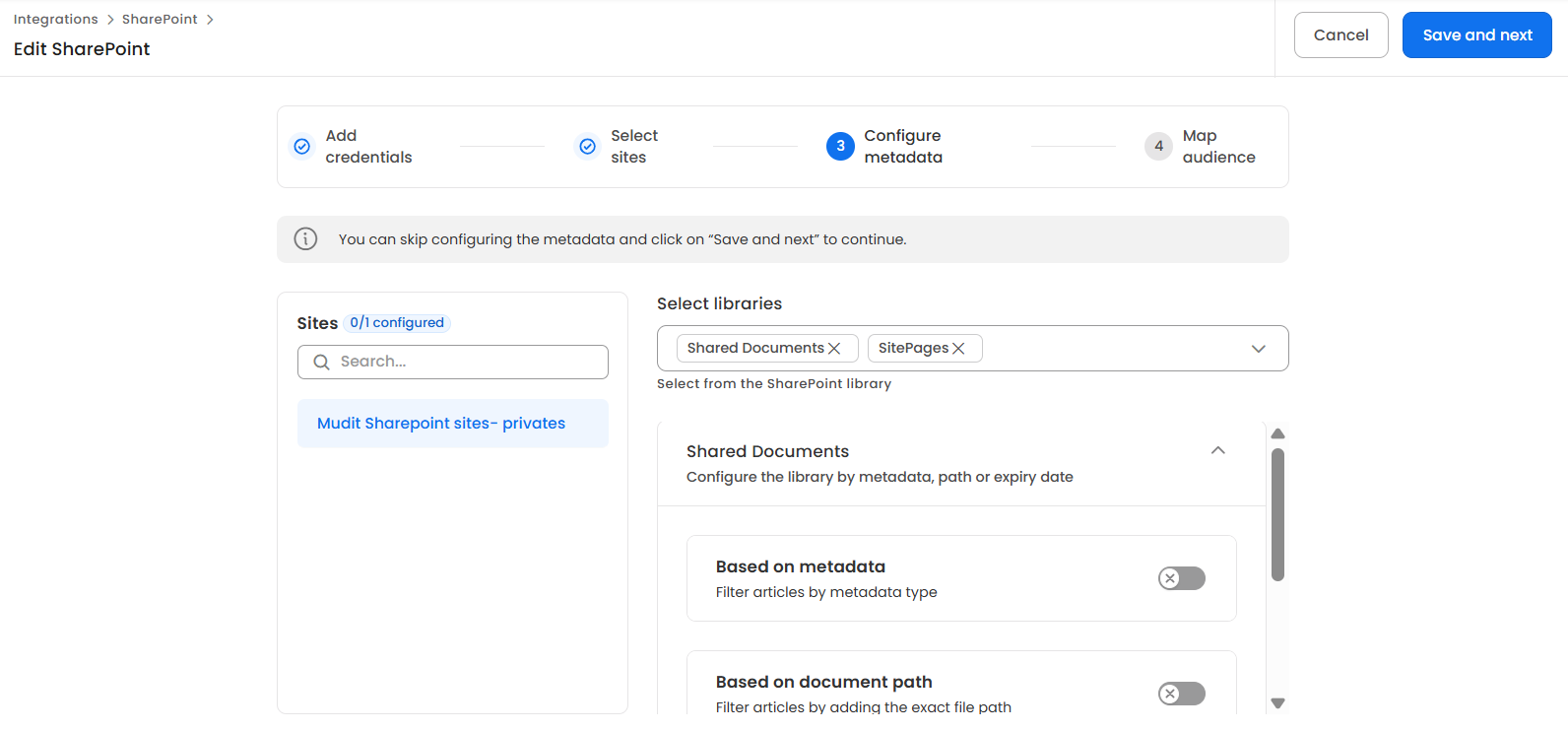
Then you can provide metadata based on which you would want to filter content within SharePoint sites. For configuring sites, you will have to first select libraries and then configure the libraries based on the available metadata filters.
-
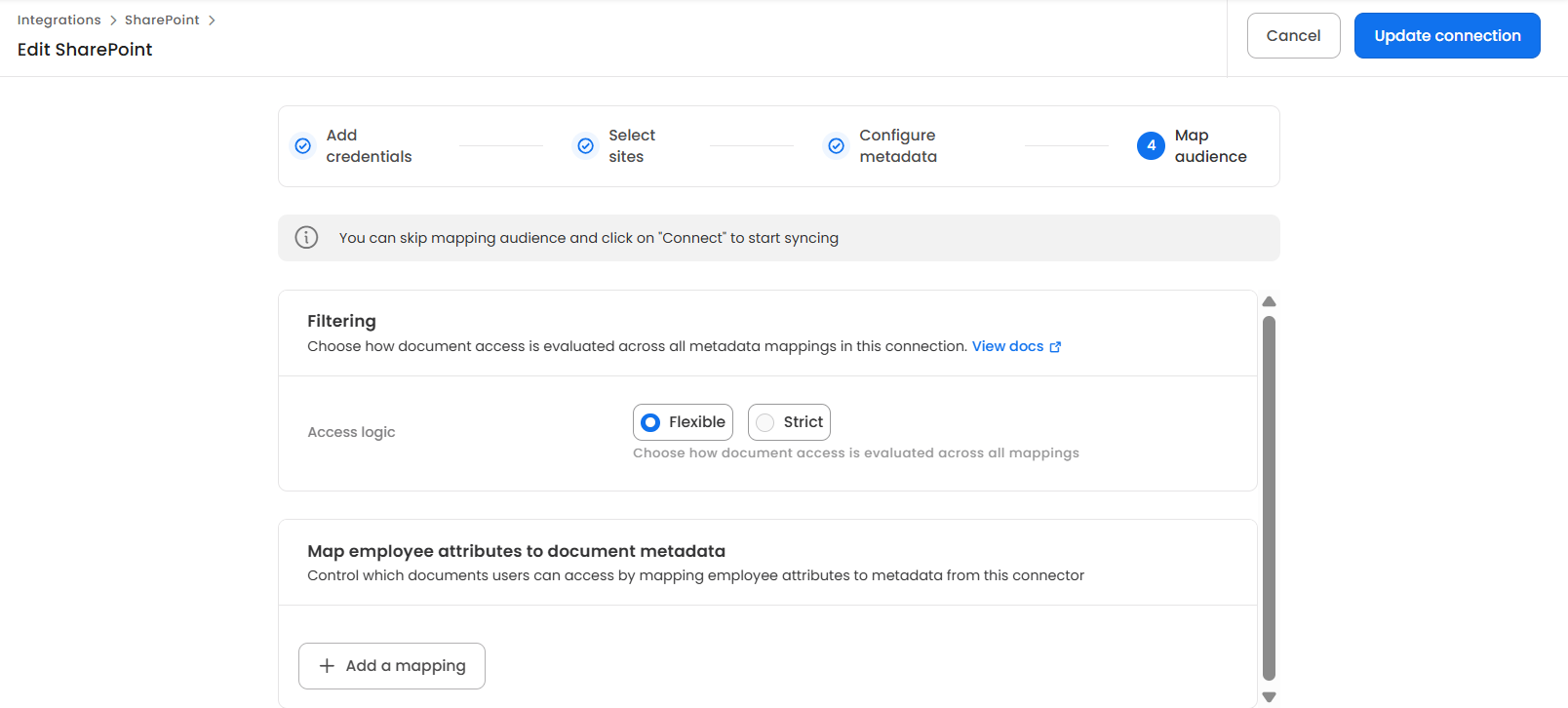
In the final screen, use the options to apply audiences on the articles using metadata if needed.
-
Click the Connect button. The system will verify if your credentials and permissions are correct.
If you uploaded the certificate to Entra ID only moments ago, give it a minute or two to propagate before clicking Connect, otherwise you may see an 'Invalid Credentials' error. -
Once the connection is established, you can proceed to select the sites you wish to sync by choosing the sites and syncing them. You can also choose which libraries to sync within each site by clicking on the Configure Site button for each site and then choosing the libraries to sync. By default, Leena AI will sync the "Shared Documents" library from each site unless otherwise configured.
SharePoint Graph API Integration: FAQs
Configuration & Permissions
Q: What credentials do I need from Azure AD to set up the connection? A: You will need the following values from your Azure App Registration:
- Directory (tenant) ID
- Application (client) ID
Q: What's the difference between the Sites.Read.All and Sites.Selected permissions?
Sites.Read.Allgrants Leena AI permission to read all site collections across your entire tenant.Sites.Selectedis a more restrictive permission that allows Leena AI to read only the specific sites you explicitly grant it access to.
Q: Why do I need to add GroupMember.Read.All and User.Read.All permissions?
A: These permissions are required to ensure that document access rights are synced correctly from SharePoint to Leena AI. This allows for accurate user mapping and maintains your existing document security.
Q: I used the Sites.Selected permission, but my sites aren't syncing. What did I miss?
A: The Sites.Selected permission requires an additional step. Due to Microsoft's security rules, you must use API calls (as referenced in the documentation) or PowerShell to manually grant your new application read access to each specific site you want to sync.
Q: I uploaded my certificate and clicked Connect/Save straight away, but got an "Invalid Credentials" error. What went wrong?
A: Nothing is wrong with your certificate. After a certificate is uploaded to Microsoft Entra ID, Microsoft takes a short time (usually a minute or two) to register and propagate it. Connecting during this window can fail with "Invalid Credentials" even though the certificate is valid. Wait a couple of minutes after uploading, then click Connect / Save again.
Q: A user can open a document in SharePoint but cannot see the corresponding article in Leena AI. What went wrong?
A: Check whether an email address is populated against that user's record in SharePoint or Entra ID. Leena AI resolves SharePoint users by email address, so a user without one cannot be matched to a Leena AI identity. Such a user is skipped during permission sync — omitted both from the article's user list and from any group membership that is synced — and therefore receives no access to the article in Leena AI. Populate the email address in Entra ID and re-run the sync.
SharePoint Sync Guidelines & Capacity Limits
This document outlines the capacity limits for synchronization and provides the standard operating procedure (SOP) for batching large amounts of data to prevent sync failures.
System Limits
If either of the following conditions is not met, the sync may fail.
- Maximum articles per library: 3,000
- Maximum new articles per sync: 10,000
Please note that end to end sync time can take 5-6 days for 10,000 articles
Site-Level Batch Sync Procedure
If you have more files than the limits listed above, you must process them in batches at the site level. Please follow these steps:
- Organize Content: Divide your files into libraries within your sites, ensuring no single library exceeds the 3,000 article limit.
- First Batch Sync: Select your first batch of sites to sync. Ensure the total number of new articles being processed in this batch does not exceed 10,000.
- Subsequent Batches: Once the first batch has successfully synced, prepare to sync the next batch of sites.
- ⚠️ CRITICAL RULE: You must always 'Select All' sites in every sync operation. This means you must include the sites from your previous syncs alongside your new batch. Just ensure the batch of newly added articles in the current sync operation remains under the 10,000 limit.
Repeat steps 3 and 4 until all sites and articles are fully synced.
⚠️ Please Note : We don't sync your domain groups from SharePoint !!
Updated about 2 months ago