
Tools Mapped to an AI Colleague
Learn how to view and understand the tools mapped to your AI Colleague.
Overview
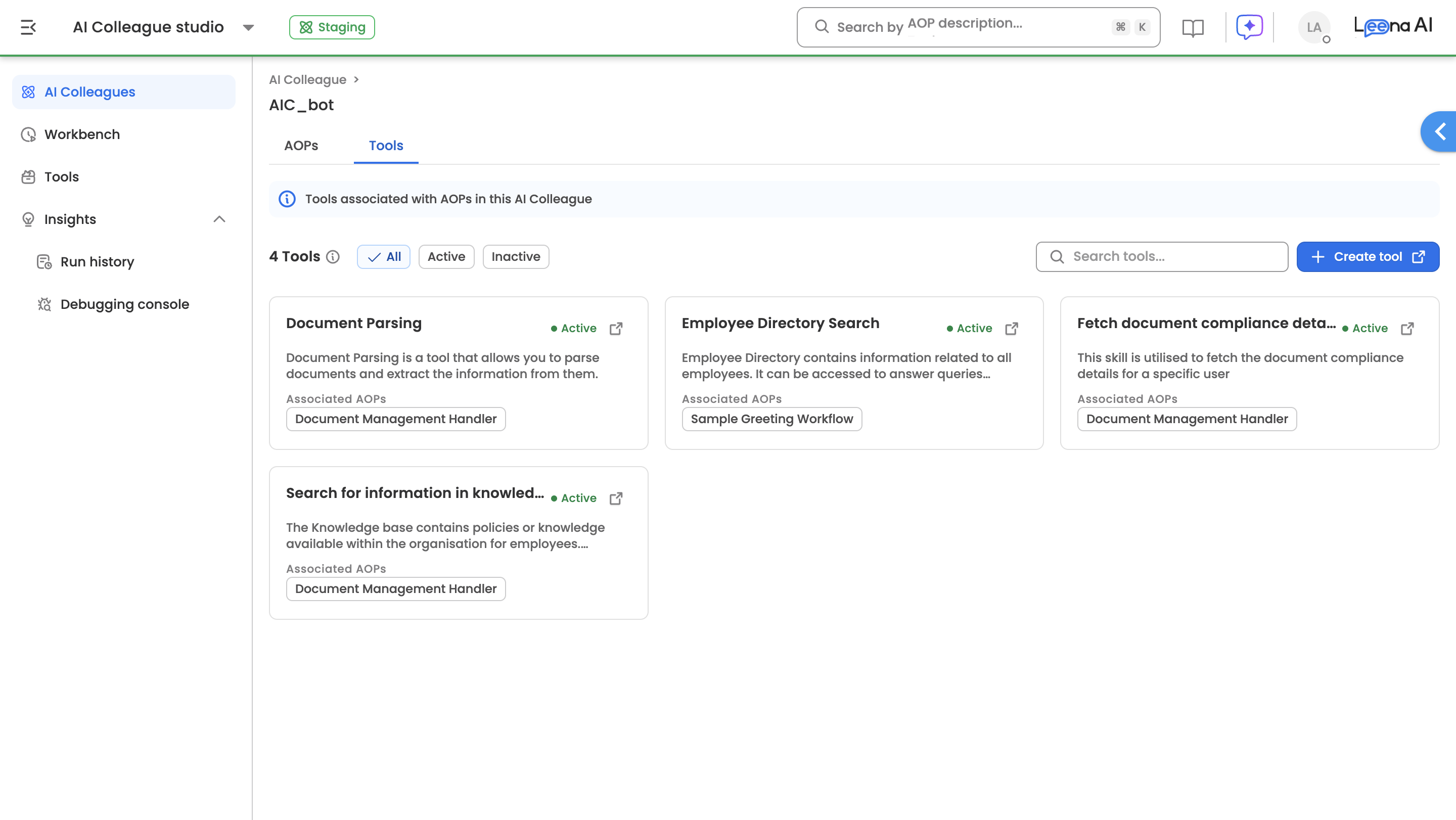
The Tools tab within an AI Colleague provides a consolidated view of all tools that are associated with the AOPs configured for that colleague.
Advantages
- Consolidated status view— See the status of all tools being used by the AI Colleague in one place, making it easier to monitor and manage tool configurations
- Quick navigation — Easily navigate to individual tools directly from this tab to make changes or update configurations
Accessing the Tools Tab
- Navigate to AI Colleagues from the left sidebar
- Select the AI Colleague you want to view
- Click on the Tools tab (next to the AOPs tab)
Understanding the Tools View
What You'll See
Each tool card displays:
- Tool Name — The name of the tool
- Status — Whether the tool is Active or Inactive
- Description — A brief explanation of what the tool does
- Associated AOPs — Tags showing which AOPs within the AI Colleague use this tool
Filtering Options
Use the filter buttons to narrow down your view:
| Filter | Description |
|---|---|
| All | Displays all tools regardless of status |
| Active | Shows only tools currently enabled |
| Inactive | Shows only tools that are disabled |
| You can also use the Search bar to find a specific tool by name. |
Key Points
- This tab only displays tools that are linked to AOPs within the AI Colleague
- Tools not associated with any AOP will not appear here
- Click on any tool card to view its complete configuration
- The tool count is displayed at the top of the tab for quick reference
Related Articles
Updated about 2 months ago
Did this page help you?