
Create Workflows via Templates
The Template Catalog is Workflow Studio's built-in collection of pre-built workflow templates. Instead of building a workflow from scratch, you can pick a ready-made template that already contains the forms, workflow logic, permissions, and integrations for a common business process — and use it as the starting point for a new workflow.
This page explains how to browse the catalog, preview a template, review its change history, understand the missing connections warning, and map the required variables while creating a workflow from a template.
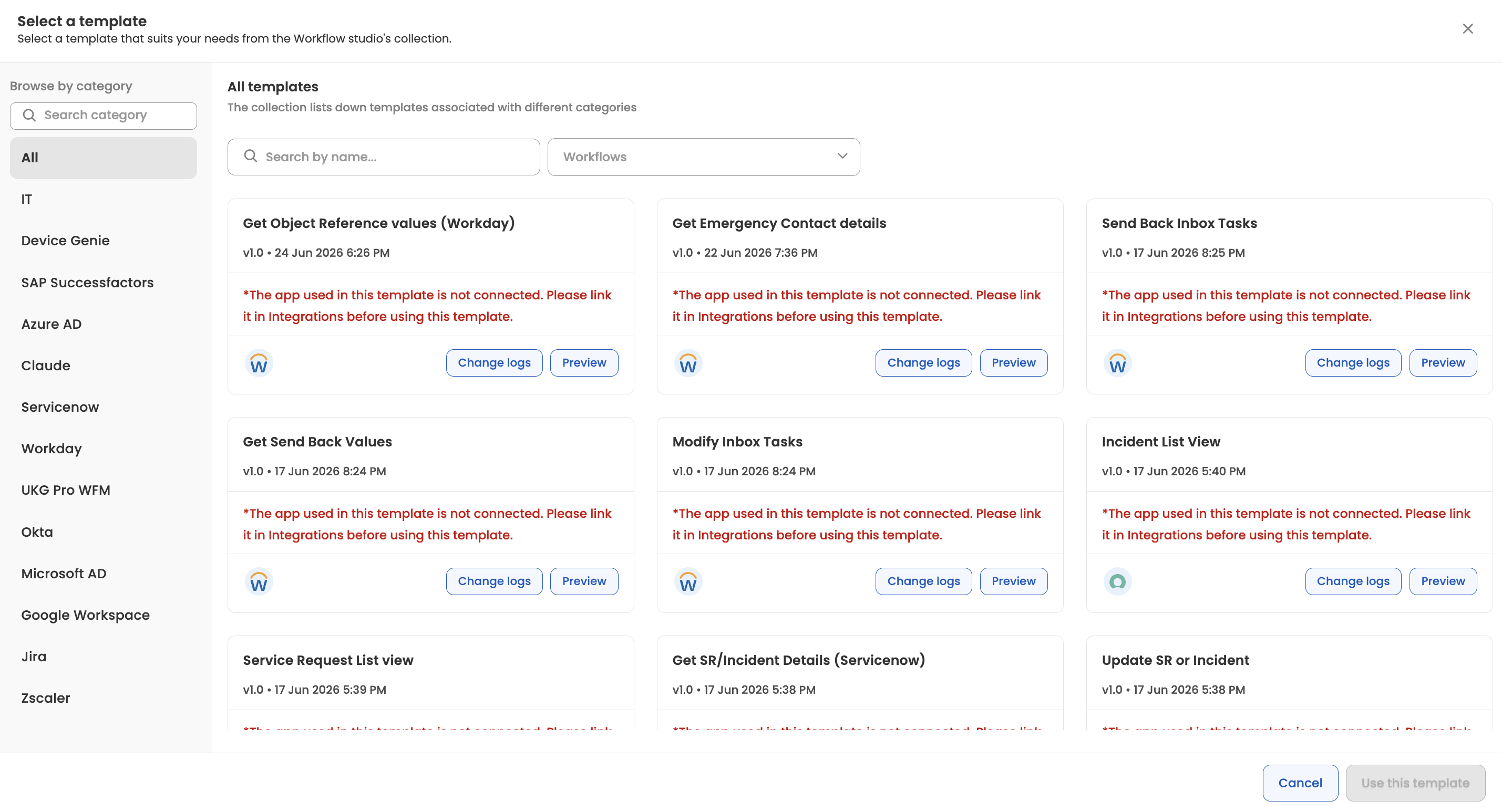
Where you'll see itThe Template Catalog opens as the "Select a template" panel when you create a new workflow in the Workflows module. Each template is a blueprint published from a validated workflow, so the workflow you create is immediately functional once its environment-specific references are mapped.
Key terms
- Template — a reusable blueprint published from a validated workflow, containing its forms, workflow logic, permissions, and integration references.
- Associated apps — the third-party integrations (for example, Workday or Jira) a template's action nodes call. Each needs an active connection in your bot.
- Master Tables — reference data tables (for example, a list of departments, cost centers, or approvers) that forms and nodes look up dynamically.
- Audience — a segment of users that controls who can access the workflow and who tasks are assigned to.
- Variables — the environment-specific references inside a template (connections, master tables, audiences, users, constants) that you map to your bot's resources when using the template.
Browse the catalog
-
In Workflows Studio, open Workflows › Custom workflows from the left navigation. The Custom workflows page lists all existing workflows and shows two entry-point cards at the top: Create custom workflow and Create via template.
-
Click the Create via template card. The Select a template panel opens with the message "Select a template that suits your needs from the Workflow studio's collection."
-
The panel has three ways to narrow down the list:
- Categories (left rail) — Templates are grouped into categories such as HR, Finance, or IT Support. All templates is selected by default; click a category to filter to it.
- Application filter — Filter templates by the third-party integrations they use (for example, Workday, Jira, ServiceNow). Only templates that use the selected app(s) are shown.
- Search — Type to search across the template name, description, and change log.
Each result is shown as a template card displaying the template name, version, creation date, a short description, and the icons of the integrations (associated apps) the template relies on. Only active templates appear in the catalog.
Permission-aware listingThe catalog only shows templates you are allowed to see. Workflow admins see all templates; other builders see templates for the workflows their role grants them visibility into, as governed by Permissions (RBAC). If you don't have any applicable permissions, the catalog will appear empty.
Preview a template
Before committing to a template, you can inspect what's inside it.
-
On a template card, click Preview. The template opens in a new tab in read-only mode.
-
The preview lets you inspect the template's components without creating a workflow first, including its:
- Workflow — the node-and-edge graph (logic, approvals, actions, loops, and so on)
- Forms — form fields and their configuration
- Permissions — node-level access rules
- Global constants, reports, master tables, and audience associations
Use the preview to confirm the template matches your process before you proceed.
Review change logs (version history)
Templates are versioned, and every published version is recorded in a timeline.
- On a template card, click Change logs.
- The version history drawer opens, listing each published version (latest first) with its version number, change log notes, and the source workflow version it corresponds to.
This helps you understand what changed across versions before adopting a template.
Missing connections warning
A template often depends on one or more integrations (associated apps). When you browse the catalog, the platform checks each template's required integrations against the connections already configured for your bot.
If a required integration is not connected, the template card shows a warning in place of the description:
The app used in this template is not connected. Please link it in Integrations before using this template.
To resolve it, connect the required app under Integrations, then return to the catalog. The associated-app icons on the card indicate which integrations the template needs.
Connect prerequisites firstYou can still select a template that has missing connections, but the resulting workflow won't be fully functional until the required integrations are linked. Connecting them beforehand avoids broken action nodes at runtime.
Use a template (variable mapping)
When you've found the right template:
-
Select the template card (it highlights when selected).
-
Click Use this template in the footer. (The button stays disabled until a template is selected; use Cancel to exit without creating anything.)
-
Because a template is environment-agnostic, the system extracts its variables — the references that must point to resources in your bot — and asks you to map them. These typically include:
- Integration connections — choose which configured integration connection each action should use.
- Master Tables — the reference data tables (for example, a list of departments, cost centers, or approvers) that forms and nodes look up. Reuse an existing table or let the system create a copy of the template's table in your bot.
- Audiences — the user segments that control who can access the workflow and who tasks are assigned to. Map each to the equivalent audience in your bot.
- Users and environment-specific global constants — map to the equivalent values in your environment.
Each variable is shown with a human-readable label (for example, the integration name and icon) so you can map it confidently.
-
Once mapping is complete, a new workflow is created from the template as a Draft, pre-populated with the template's workflow logic, forms, data models, and permissions. You can then edit it like any other workflow before publishing.
Templates vs. cloning vs. migrationUse a template to start a new workflow from a reusable blueprint in the catalog. Use Clone to duplicate an existing workflow within the same bot, and Migration to move a configured workflow between environments (for example, Sandbox to Production) — both covered under App Migrate & Clone options. All three share the same variable-mapping engine for remapping environment-specific references.
Updated 3 months ago