
API credentials
API credentials are what external systems use to connect to Leena AI APIs. Each credential is issued as a self-contained set of keys, restricted to the scopes you select at creation.
Issuing one credential per connecting system means access can be traced to that system and revoked independently, without disturbing other integrations.
Where to find it
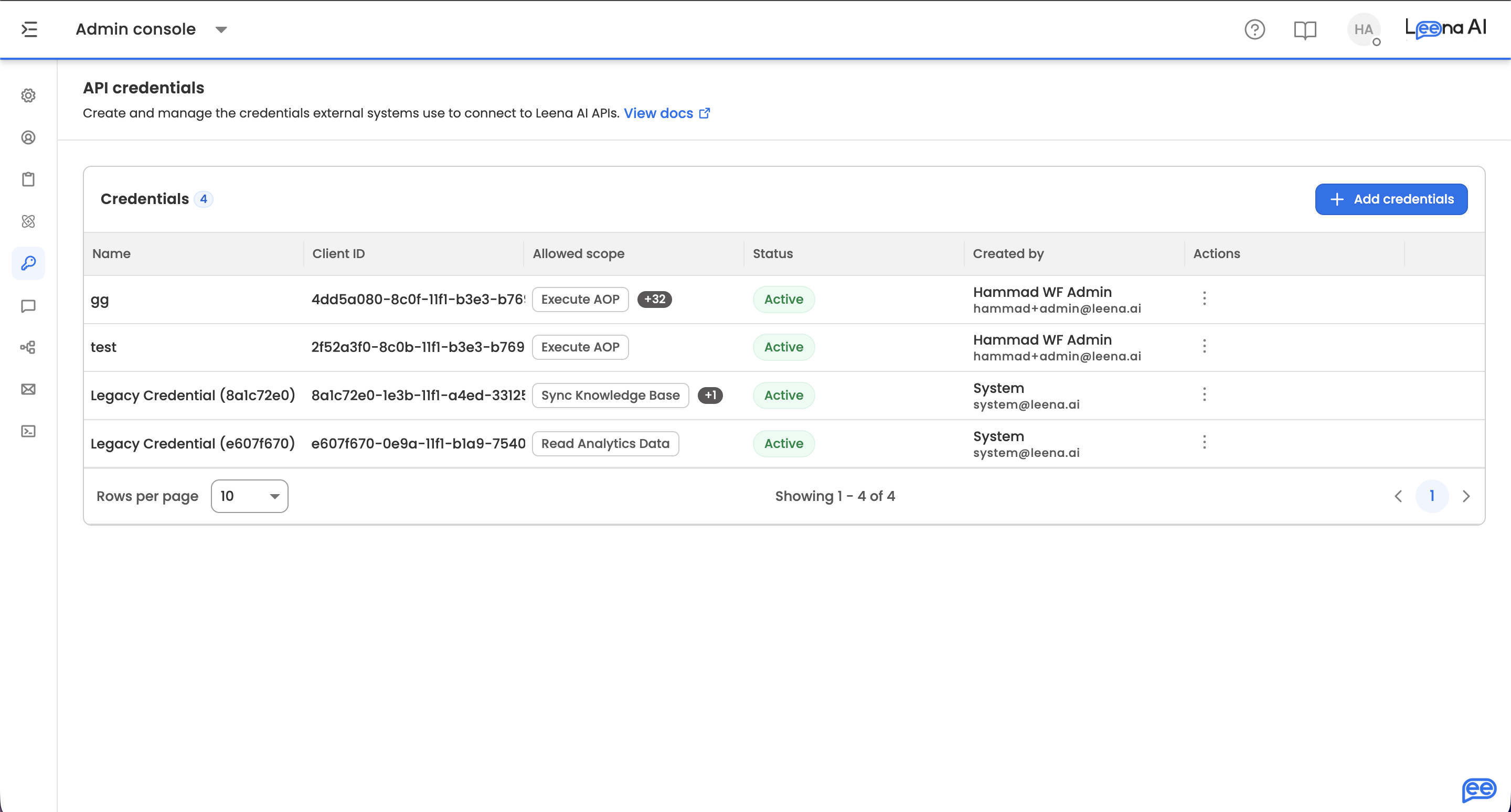
Open the Admin Console, then select API credentials.
AccessAvailable to dashboard users whose role includes the API credentials permission. If you can't see the menu item, check your role first.
Credentials are scoped to a single workspace — Staging, UAT and Production each need their own.
The credentials list
The list shows every credential issued in the workspace, with a count against the Credentials heading.
| Column | What it shows |
|---|---|
| Name | The label given at creation, identifying which system the credential belongs to |
| Client ID | The public identifier. Safe to share with the integrating team |
| Allowed scope | The permissions granted. A single scope shows as one chip; several show with a +N overflow |
| Status | Active — usable. Revoked — permanently disabled |
| Created by | Name and email of the dashboard user who created it |
| Actions | Row menu containing Revoke access. Not offered on revoked rows |
Page through longer lists with the rows-per-page control (10 / 20 / 50). Before any credential exists, the page shows a No API credentials available empty state with a shortcut to create the first one.
Creating a credential
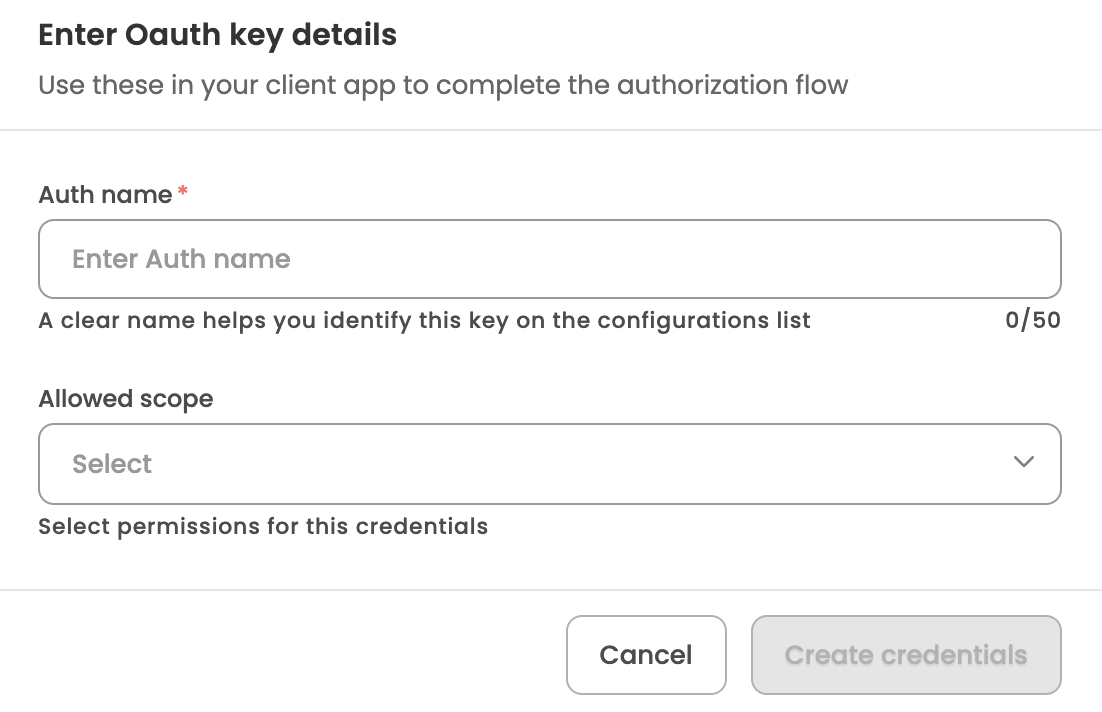
Click Add credentials to open the Enter Oauth key details dialog.
| Field | What to enter |
|---|---|
| Auth name | A clear name identifying the consuming system and environment, such as Workday UAT. This appears in the Name column. Mandatory, up to 50 characters |
| Allowed scope | The permissions this credential is granted. Select one or more. Only the selected permissions are honoured — calls outside them are rejected. Mandatory |
Click Create credentials to generate it.
Copying the credentials
On creation, the detail screen opens with four values across two sections:
| Section | Values | When it's used |
|---|---|---|
| OAuth 2.0 credentials | Client ID, Client secret | When the integration authenticates with the OAuth 2.0 client credentials grant |
| Basic authentication | Username, Password | When the integration authenticates with HTTP basic auth instead |
The screen also carries a How to use this key section with a ready-to-run command that exchanges these values for an access token, pre-filled with your Client ID and secret already encoded. Copy it now, while the secret is visible — it saves reconstructing the Base64 header by hand later.
Beneath the Client secret, the screen shows when that secret expires. Note the date and plan rotation before it lapses.
Secrets are shown only onceThey cannot be retrieved after you leave this page — not by you, and not by Leena AI support. Copy all four values and store them in your secrets manager before finishing.
Leaving triggers a Have you saved your credentials? confirmation. If the page is refreshed or opened directly by URL, it shows These credentials can't be shown again, and your only option is to create a new credential.
Generating an access token
Leena AI APIs are not called with the client secret directly. Your integration exchanges its credentials for a short-lived Bearer access token and sends that token on every subsequent call.
The four values map onto the request like this:
| Value | Where it goes |
|---|---|
| Client ID | Basic authorization header, before the colon |
| Client secret | Basic authorization header, after the colon |
| Username | Request body |
| Password | Request body |
The Authorization header is the Base64 encoding of clientId:clientSecret.
Step 1 — Request a token
- Method:
POST - Endpoint:
/api/v1.0/oauth/token - Content-Type:
application/json - Authorization:
Basic <base64 of clientId:clientSecret>
Request body:
{
  "username": "<username>",
  "password": "<password>",
  "grant_type": "password"
}
Example:
curl --location 'https://acl.leena.ai/api/v1.0/oauth/token' \
  --header 'Content-Type: application/json' \
  --header 'Authorization: Basic <base64 of clientId:clientSecret>' \
  --data '{
    "username": "<username>",
    "password": "<password>",
    "grant_type": "password"
  }'
The host is region-specificUse the host shown in the How to use this key command on your credential detail screen rather than copying the example above.
The response returns:
| Field | What it is |
|---|---|
access_token | The Bearer token to send on API calls. Short-lived |
refresh_token | Used to obtain a new access token without re-sending the password |
token_type | Always Bearer |
Step 2 — Call a Leena AI API
Send the access token as a Bearer token on each request:
Authorization: Bearer <access_token>The token carries the scopes assigned to the credential. A call to an API outside those scopes is rejected as unauthorized even though the token itself is valid.
Step 3 — Refresh the token
Access tokens are short-lived. Use the refresh token rather than repeating the password grant on every call.
- Method:
POST - Endpoint:
/api/v1.0/oauth/refresh-token
Request body:
{
  "refresh_token": "<refresh_token>"
}
A new access token is returned. Build refresh handling into your middleware so long-running jobs don't fail when a token expires mid-run.
Token and credential lifecycle
| Behaviour | Detail |
|---|---|
| Access token validity | Short-lived. Refresh before expiry rather than re-authenticating |
| Refresh token validity | Long-lived, but tied to the credential that issued it |
| Client secret expiry | Each secret has a fixed lifetime, shown beneath the Client secret field at creation |
| On revoke | Revoking the credential invalidates its access and refresh tokens immediately |
| On rotation | Changing the client secret or password invalidates all refresh tokens issued earlier. Re-run Step 1 for a fresh pair |
Revoking access
Open the row menu against the credential and click Revoke access, then confirm on the Revoke this auth key? dialog.
The credential stops working immediately for any system using it, along with any tokens already issued against it. The row moves to Revoked and stays in the list as a record.
Revoking cannot be undoneA revoked credential cannot be reactivated. To restore access for that system, create a new credential and update the integration with the new values.
Troubleshooting
| Symptom | Likely cause |
|---|---|
401 Unauthorized on the token call | Wrong clientId:clientSecret in the Basic header, wrong username or password in the body, or the credential has been revoked |
Invalid grant type | grant_type must be password for the initial token call |
401 on the refresh call | The refresh token has expired, or the credential's secret or password was rotated after that token was issued |
401 or 403 on a data API with a valid token | The credential doesn't hold the scope that endpoint requires. Create a new credential with the correct scope |
Good practice
One credential per system. Reusing a single credential across integrations means revoking it breaks all of them at once.
Name for the consumer, not the person. ServiceNow Prod is easier to audit than Test 1.
Grant the minimum scope. Select only the permissions the integration actually needs.
Rotate in sequence. Create the replacement credential first, cut the integration over, then revoke the old one.
Clean up. Revoke credentials for decommissioned integrations, and for keys created during testing.
Updated 2 months ago