
Best practices for ServiceNow access & audiences
A practical guide for configuring who can see your ServiceNow knowledge articles once they sync into Leena AI Knowledge Management (KM). Set access up the recommended way and the KM audience will match exactly what a user would see in the ServiceNow portal.
Companion to the integration pageThis is the "how to set it up well" companion to the ServiceNow integration page. For the full resolution rules, connector setup, and troubleshooting, see that page — especially Sync scope and supported permissions.
How access works, in one line
A user can read an article in KM only if they could read it in the ServiceNow portal. They must satisfy the Knowledge Base's read rules and the article's read rules and any role required on the article.
Each layer is a filter that can only narrow the audience, never widen it. Anyone explicitly denied is then removed:
Who can read = (KB "Can Read") filtered by (Article "Can Read") filtered by (Article Role), minus anyone in "Cannot Read", plus the custodians who always keep access.
One condition sits above all of this: every applicable rule has to produce an answer. Where a rule applies and the answer cannot be established — in practice, a scripted criterion that cannot be evaluated — the article is withheld rather than published to a guessed audience. See Scripted ("Advanced") User Criteria.
Before anything else: is permission sync on?
Permission syncing is controlled by a master setting on the Leena AI side.
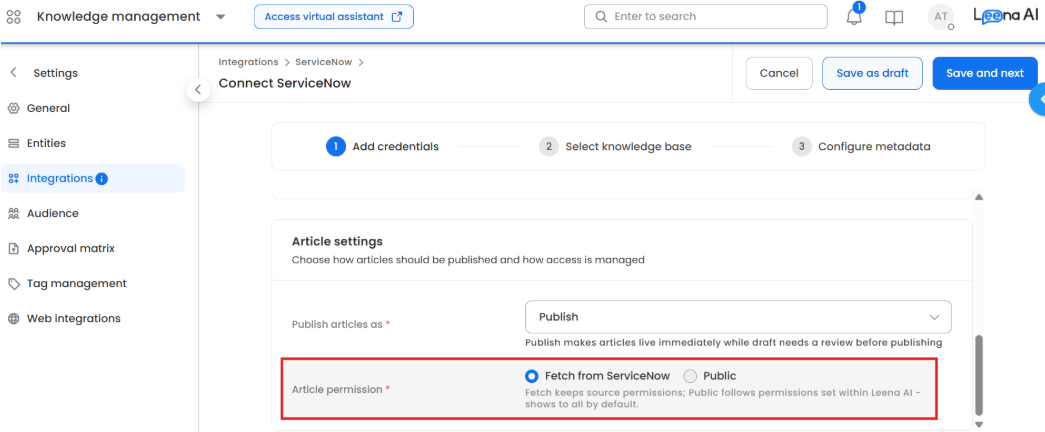
- On (recommended): audiences are calculated and applied as described here.
- Off: no permissions are synced, and every article becomes visible to all KM users. Use this only if the Knowledge Base is meant to be fully public.
First thing to checkIf articles are unexpectedly visible to everyone, ask your Leena AI contact to confirm permission sync is enabled for your account.
Set the baseline: Knowledge Base–level access
This is the primary and recommended control. It sets the default audience for every article in the Knowledge Base.
In ServiceNow:
-
Go to Knowledge → Knowledge Bases and open your KB.
-
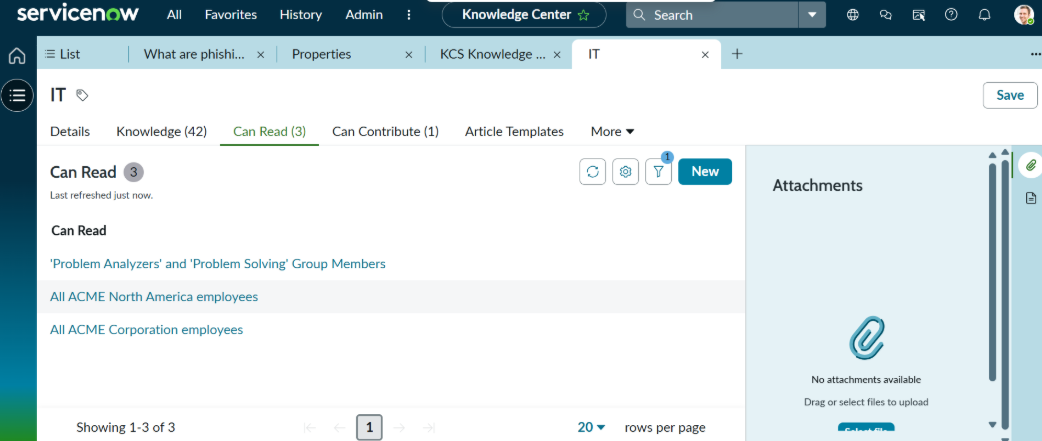
In the Can Read field, add one or more User Criteria.
-
Optionally use Cannot Read to explicitly exclude people.
-
Can Contribute / Cannot Contribute work the same way for the contributor audience.
If a KB has no Can Read criteria at all, the baseline is treated as everyone (then still narrowed by any article-level rules). To lock down no-criteria articles instead, see ServiceNow settings that change the outcome.
Note that the Knowledge Base is also the level at which a single misconfigured criterion does the most damage. A rule that cannot be resolved here affects every article in the KB, not one. Keep that in mind when attaching criteria at this level.
Narrow it per article (optional)
Use this when a specific article needs a tighter audience than its Knowledge Base.
In ServiceNow:
- Open the article.
- Set its Can Read field to one or more User Criteria.
- Optionally set Cannot Read to exclude specific people.
Two things to remember:
- Article-level access can only remove people from the KB baseline — it can never add someone the KB didn't already allow. So align the KB baseline too; don't place a sensitive article in an otherwise-open KB and expect one article rule to protect it.
- Article-level Can Read only takes effect if the ServiceNow property
glide.knowman.apply_article_read_criteriais on. If it's off, only KB-level rules apply.
What a User Criteria can be built from
User Criteria are the building blocks of access. A single User Criteria can grant access by any combination of the dimensions below (members of every filled-in dimension are combined):
| Dimension | Grants access to |
|---|---|
| User | those specific users |
| Group | all active members of the group and members of its sub-groups (subgroup members are inherited up to the parent) |
| Role | all users who hold that role |
| Company | all users in that company |
| Location | all users at that location |
| Department | all users in that department |
A criterion built from these dimensions is declarative — its answer is stored as data, so Leena AI can read it and work out the audience directly. No extra setup is needed, and these should remain your default choice wherever you are authoring criteria yourself.
A criterion with the Advanced checkbox ticked is different: its answer comes from a script, and the dimensions above are left empty. These are covered in the next section.
Scripted ("Advanced") User Criteria
A criterion is not a list of people — it is a test applied to one person at a time. For the declarative dimensions above, the test is stored as data and the list can be reconstructed. For an Advanced criterion the test is arbitrary JavaScript, and ServiceNow never stores who passes it; the platform works it out per user, at the moment someone opens an article.
Leena AI now resolves these by asking ServiceNow to evaluate the criterion for each user. That requires two things to be in place:
- A Scripted REST resource deployed inside your ServiceNow instance. ServiceNow's evaluator is only callable from inside the instance, and Leena AI cannot install code into your ServiceNow — so this piece is yours to deploy. The request and response contract it must satisfy is documented on the integration page.
- The resource path configured on the connection, and the capability enabled for your bot. Provide the path to your Leena AI contact first, then ask for the capability to be switched on. Doing it in that order also forces the full re-scan that existing articles need in order to pick up their new audience.
An unevaluable criterion withholds contentWhere a scripted criterion applies and Leena AI cannot get an answer for it — no endpoint deployed, endpoint unreachable, or a response that breaks the contract — the affected articles are withheld rather than released to a guessed audience.
At Knowledge Base level this withholds every article in that Knowledge Base, not a single article. That is also where advanced criteria most often live: HRSD wraps its HR Criteria this way by default, so an HR instance can carry several hundred without anyone having authored one.
Audit before you enable
Do this before asking for the capability to be switched on, so you know what is in scope.
A ServiceNow administrator can open the User Criteria list and filter where the Advanced field is true, or query the table directly:
/api/now/table/user_criteria?sysparm_query=advanced=true
  &sysparm_fields=sys_id,name,sys_updated_on
Anything returned is script-based. For each one, check where it is attached — Knowledge Base level or article level — and decide which of the two options below applies.
Two ways to handle each one
| Option | When it fits | What it costs |
|---|---|---|
| Deploy the endpoint and let ServiceNow evaluate the criterion | The script's logic genuinely needs to be live, or there are too many criteria to convert by hand (typical on HRSD instances) | A one-off ServiceNow development and change-management effort; the endpoint is then called on every sync |
| Convert the criterion to a group kept current by a scheduled job, and point a declarative Can Read criterion at that group | The audience changes slowly (department, manager level, location), or a Scripted REST resource cannot be deployed in your instance | The audience is only as fresh as the job's schedule, rather than evaluated live |
If you convert a criterion to a group, remove the scripted criterion from the article or Knowledge Base. Leaving it attached means it is still evaluated, and can still withhold content.
Verify the script convention for your releaseIf you are authoring an advanced criterion, note that most instances expect the script to assign
answer, while some expect a returned value. Check one of the criteria HRSD ships out of the box and copy its shape. A criterion that does not resolve to a boolean will not evaluate cleanly.
Restricting by role (optional extra gate)
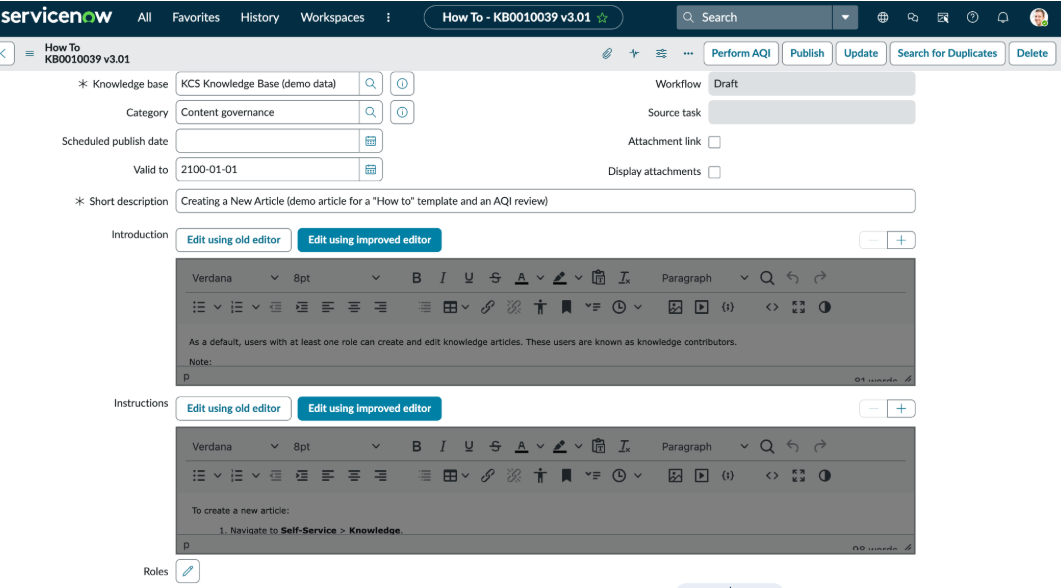
ServiceNow lets an article additionally require a role to read it. On the article, set the Roles field to one or more role names. Leave it empty (or use public) to mean "no role restriction."
How it behaves:
- The role is an extra filter on top of the User Criteria — only users who both satisfy the criteria and hold the role keep access. A role narrows the audience, never widens it.
publicmeans "everyone" / no restriction. Never usepublicas a placeholder when you actually want to restrict.- If a role has no users assigned (e.g. a typo or an empty role), the article collapses to custodians only. Keep the gating role's membership accurate and granted to exactly the people who should see the content.
- This gate is enabled per account on request. If you rely on article roles, tell your Leena AI contact so it can be switched on. When it isn't enabled, the Roles field is ignored.
NOTE: If you don't see the Roles, follow the steps below
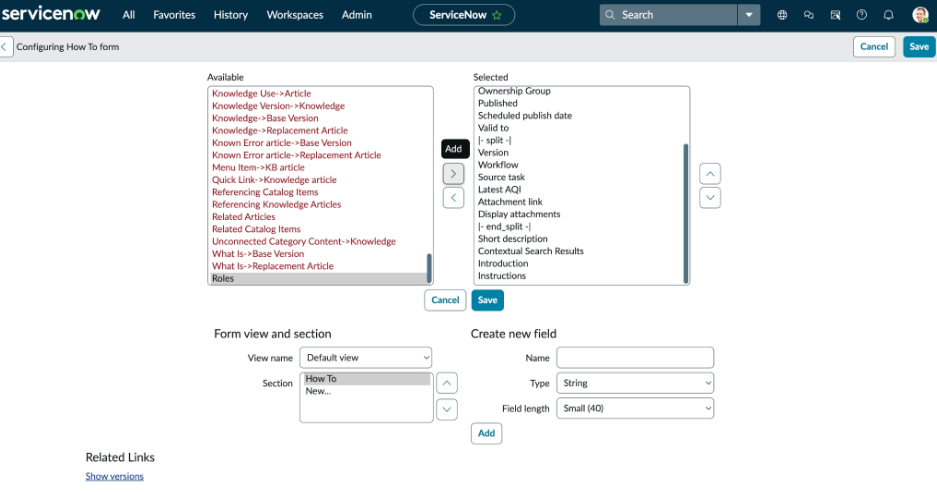
- Click the hamburger menu (three lines / additional actions icon) at the top of the form.
- Choose Configure → Form Layout.
- Find and select "roles" in the Available list.
- Highlight them and click the right arrow (>) to move them to Selected.
- Save
Who always keeps access (custodians)
These users always retain access to an article regardless of any criteria or role — this is automatic and needs no configuration:
- The article Author
- The Knowledge Base Owner
- The Knowledge Base Managers
- All users with the admin role
Don't rely on criteria or roles to exclude these people — they'll always see the article. Control who the custodians are by setting the Owner and Managers fields on the Knowledge Base record.
Custodian access applies to articles that reach KM. It is not a fallback for an article that was withheld because a rule could not be evaluated.
ServiceNow settings that change the outcome
Two ServiceNow instance properties (under Knowledge Management settings) are read live and honored, so KM matches the portal. Set them to match the access posture you want:
| Property | What it does |
|---|---|
glide.knowman.apply_article_read_criteria | Must be ON for article-level Can Read rules to narrow the audience. If off, only KB-level rules apply. |
glide.knowman.block_access_with_no_user_criteria | When ON, articles/KBs with no criteria are locked down to the configured criteria plus custodians, instead of being open to everyone. |
How changes take effect
- Article content changes are picked up automatically on the next sync.
- Permission changes (User Criteria, group membership, KB criteria, roles) don't change an article's last-modified date in ServiceNow, so they're detected separately and recomputed automatically. Allow one sync cycle for permission edits to appear in KM.
- Scripted criteria are evaluated afresh on every sync, so a change to a criterion's script takes effect on the next sync with nothing to change on the Leena AI side. If the endpoint is down for a cycle, the affected articles are withheld and return on the next successful sync.
- A short cache (up to ~30 minutes) on directory lookups means very recent group-membership or criteria edits may take one additional sync to settle.
For exactly how each change type propagates, see How changes propagate on the integration page.
Best-practice do's
- Make User Criteria your primary control. Prefer KB and article Can Read / Cannot Read over dropping a bare role on an article — criteria are richer and always evaluated.
- Reference roles/groups inside a User Criteria where you can. This keeps a single, predictable access definition rather than splitting intent across a criteria and a separate article role.
- Restrict at the right level. Set the KB baseline first, then narrow specific articles — and keep the two aligned.
- Prefer declarative criteria when you're authoring new ones. They need no endpoint and no per-sync evaluation. Reach for a scripted criterion only where the logic genuinely can't be expressed through the standard dimensions.
- Audit for existing Advanced criteria before enabling the capability, and pay particular attention to any attached at Knowledge Base level — that is where an unresolved criterion costs you a whole KB.
- Deploy and verify the endpoint before the capability is switched on, not after. Setting the path first also triggers the re-scan existing articles need.
- Set the two ServiceNow properties deliberately so your intended default (open vs locked-down, article-level rules on/off) is what actually happens.
- Never use
publicas a placeholder for a restriction. - Keep role and group membership accurate and current; review periodically, since stale or over-broad membership directly inflates who can see content.
- Use Cannot Read carefully — it subtracts from Can Read, so double-check you aren't removing intended readers.
- Set the KB Owner and Managers so the right custodians retain access.
- For groups, rely on active membership, and remember subgroup members are inherited up to the parent.
Setup checklist
For a Knowledge Base that should be access-controlled:
- ☐ Confirm with Leena AI that permission sync is enabled for your account.
- ☐ Set Can Read User Criteria on the Knowledge Base (the baseline).
- ☐ Query
user_criteriaforadvanced=trueand list every scripted criterion in scope, noting which are attached at KB level. - ☐ For each scripted criterion, decide: deploy the endpoint, or convert it to a group and remove the criterion.
- ☐ If deploying the endpoint, confirm it satisfies the response contract, give the path to Leena AI, and only then ask for the capability to be enabled.
- ☐ For tighter per-article control, set Can Read on the article and ensure
glide.knowman.apply_article_read_criteriais ON. - ☐ If you gate articles by Role, ask Leena AI to enable the article-roles feature for your account.
- ☐ Set the KB Owner and Managers so custodians retain access.
- ☐ For groups, rely on active membership; remember subgroup members are inherited to the parent.
- ☐ After the first sync with the capability on, spot-check a few articles behind scripted criteria against what the same users see in the ServiceNow portal.
Updated about 2 months ago