
Softwares
Overview
The Softwares section within the IT Automation module on the Unified Dashboard enables IT admins to manage the list of software available for employees to install directly via the bot.
Software packages are supported on both Windows and macOS devices. The operating system you select while creating a software determines which installer file types you can upload, how the installation script is produced, the execution options available, and which devices you can test on — so pick it carefully. Once saved, the operating system cannot be changed for that software.
New software addition
Here's how IT admins can add new software using the dashboard:
- Click the "Add software" button in the top-right corner of the dashboard.

-
Enter basic details such as the software name, version, description, and operating system. You can also add tags to categorize the software.
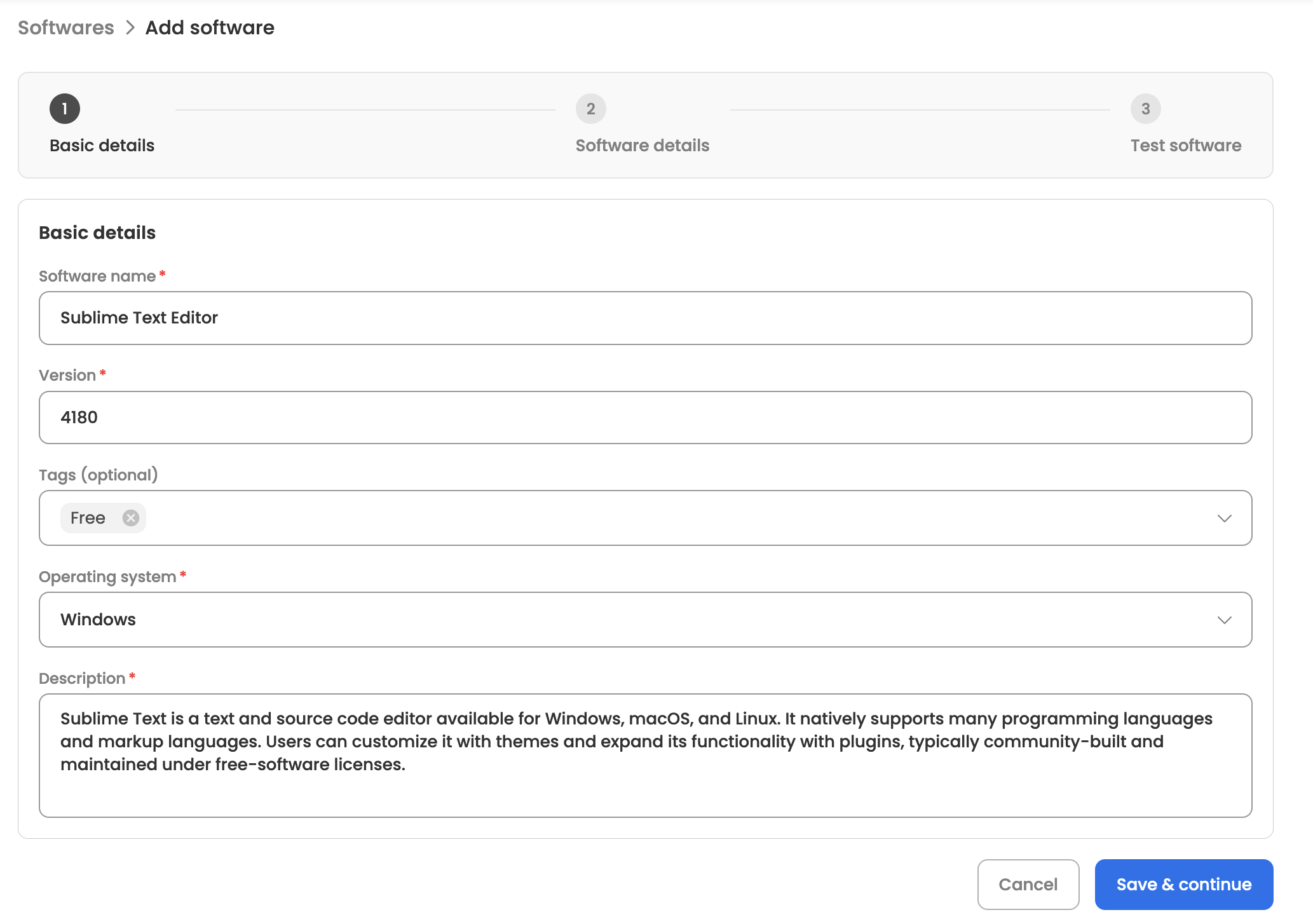
-
Now add software details by either selecting from over 1,000 popular options available on the platform or by entering your own software information.
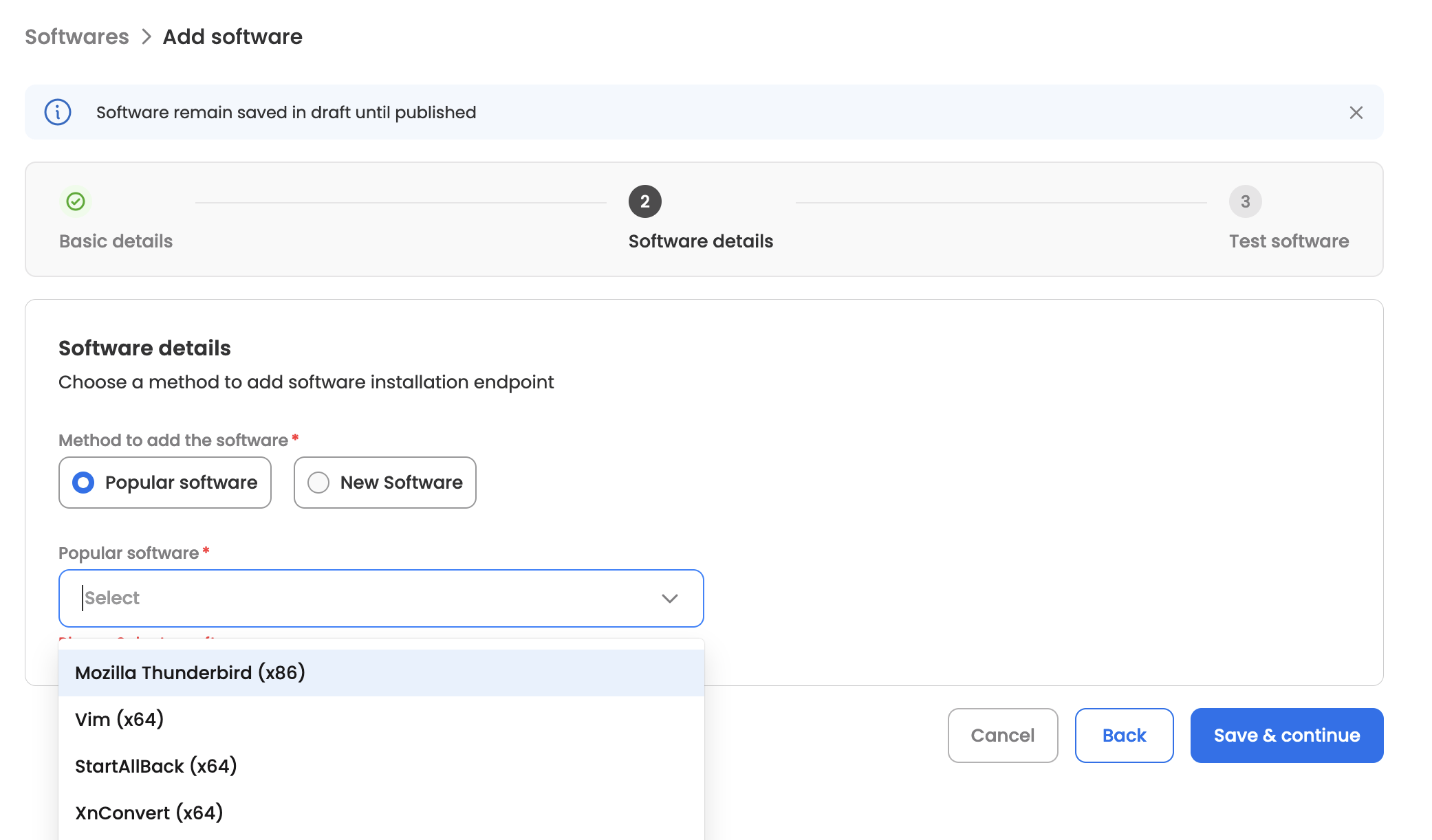
To add software from scratch, please provide the following details:
- Mode: Indicate the installation type—whether it should proceed silently or require user interaction.
- Account type: Specify whether the software should be installed system-wide or for a specific user (note that not all software supports both options). The options are labelled per operating system:
- Windows — System (machine-wide) or User (installs into the mapped employee's context)
- macOS — Root (installs into
/Applications) or Local (installs into the mapped employee's home directory)
- Software file: Upload the software's installation file. Accepted file types depend on the operating system — see Windows configuration and macOS configuration.
- Installation Script: Once the file is uploaded and the parameters are updated, an installation script is generated automatically. On Windows the script is generated by AI; on macOS a default script is derived from the uploaded file type. You can edit the script as needed, but ensure the file name variable (
{{fileName}}) remains unchanged. - Uninstallation Script: Once the toggle is enabled, the script will be auto-generated using AI. You can edit the script as needed.
-
Finally, test your software by choosing a test device from the list mapped to the bot. The device list only shows devices matching the operating system selected in step 2. If testing succeeds, publish the software for end users. If testing fails, update the software details or select a different test device to try again.
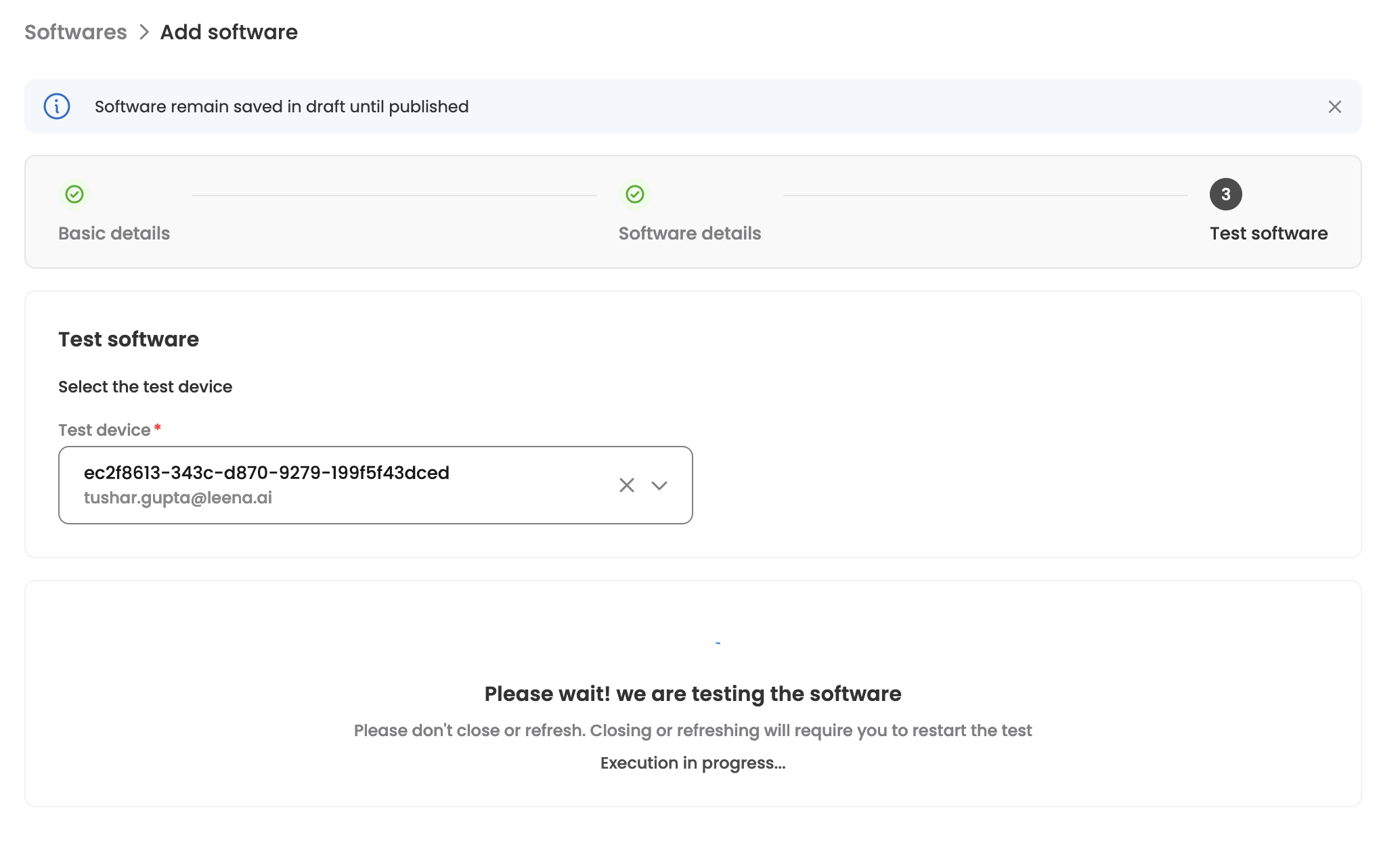
A software can only be published after a successful installation test. If an uninstallation script is configured, a successful uninstallation test is also required. Both must reflect the current scripts — if you edit a script after testing, run the test again before publishing.
Windows configuration
Supported installer files
All file types are accepted for Windows, including .exe, .msi, and self-extracting archives. Large installers are uploaded in parts, so multi-hundred-megabyte packages upload reliably.
Installation script
The installation script is generated by AI once Mode, Account type, and the installer file are all set. It regenerates whenever you change any of those parameters, and stays editable afterwards.
-
Silent mode — the generated command adds the installer's silent switches so nothing is shown to the employee. For example:
{{fileName}} /VERYSILENT /NORESTART -
Interactive mode — the installer is launched as-is so the employee walks through the installer's own UI:
{{fileName}}
Silent switches differ between installer technologies (Inno Setup, MSI, NSIS, InstallShield). Review the generated command against the vendor's documentation and edit it if needed — for example, an MSI usually needs /qn /norestart rather than /VERYSILENT.
Mode and account type
| Account type | Mode | Behaviour on the device |
|---|---|---|
| System | Silent | Installs machine-wide with full system privileges, entirely in the background. |
| System | Interactive | Installs with full system privileges, with the installer UI surfaced into the signed-in employee's session. Requires an active user session — if nobody is signed in, the execution fails with "No active user session". |
| User | Silent / Interactive | Runs as the employee mapped to the device, so the software installs into that employee's profile. Requires that specific employee to be signed in and active — otherwise the execution fails with "No user session found" or "Found non-active user session". |
For unattended fleet deployment, System + Silent is the reliable combination — it does not depend on anyone being signed in.
macOS configuration
Supported installer files
macOS accepts only the following file types: .dmg, .pkg, .app, and .zip. Other extensions are rejected at upload.
Installation script
Unlike Windows, macOS installations do not go through AI for known file types. A default installation script is generated based on the uploaded file type, which you can review and edit before continuing. AI generation is only used as a fallback if the uploaded file type has no default template.
The default script varies by file type and Account type:
| File type | Account type: Root | Account type: Local |
|---|---|---|
.pkg | sudo installer -pkg {{fileName}} -target / | Installs into the mapped employee's home directory (/Users/<username>) |
.app | Copies the app bundle into /Applications/ | Copies the app bundle into /Users/<username>/Applications/ |
.dmg | Mounts the image with hdiutil attach, locates the .pkg or .app inside, installs it into /Applications, then detaches the volume | Same, but installs into the employee's home directory |
.zip | Extracts with ditto -xk, locates the .pkg or .app, installs it into /Applications | Same, but installs into /Users/<username>/Applications/ |
For Local installations the script resolves the mapped username at execution time and fails with a clear message if no username is mapped to the device.
Interactive mode on macOS
- For
.pkgand.dmg, Interactive mode replaces the script withopen {{fileName}}, which launches the native macOS installer UI on the device for the employee to complete. .appand.zippackages are installed the same way regardless of mode, since there is no interactive installer to open.
Mode and account type
| Account type | Mode | Behaviour on the device |
|---|---|---|
| Root | Silent | Installs into /Applications with root privileges, in the background. |
| Root | Interactive | Opens the installer UI for the signed-in employee. In this combination, the Account type field is hidden on the dashboard because the install always runs as Root. |
| Local | Silent / Interactive | Installs into the mapped employee's home directory. |
macOS installation scripts always run as root, with the folder containing the downloaded installer as the working directory. Targeting the employee's home directory is expressed inside the script itself rather than by impersonating the employee — so a Local silent install still succeeds on a device where nobody is currently signed in. This is different from macOS scripts, where Local always requires an active session.
Existing macOS software
macOS software packages created before installation-script support was introduced do not carry a script. For these, the installation script editor stays hidden when you edit the software, and installation continues to follow the earlier per-file-type handling. Newly created macOS software always has an editable script.
Uninstallation
The Enable uninstallation toggle appears once an installer file has been uploaded.
- Choose an Uninstall mode — Silent or Interactive.
- The uninstallation script is generated by AI for both operating systems, and remains editable.
- Uninstallation is executed as a script, not through the installer file handling — Windows runs it as a Batch script, macOS as bash.
Examples
:: Windows
"C:\Program Files\Sublime Text\unins000.exe" /SILENT
# macOS
sudo rm -rf "/Applications/Sublime Text.app"Uninstallation executions are tracked separately from installations and are reported under Reports → Softwares → Uninstallations.
Popular software
Selecting Popular software instead of New software lets you adopt a pre-validated package from the platform's central catalogue. The list is filtered to the operating system you chose in step 2.
- Pick the software, then pick a version.
- Auto update — when enabled, the software version is updated automatically as newer versions are published to the catalogue.
- Mode, Account type, the installer file, and the installation script come from the catalogue entry and are read-only. Account type is still labelled per operating system (System/User for Windows, Root/Local for macOS).
- The installation script preview is shown for Windows. It is not shown for macOS, where installation is driven by the file type.
- If the catalogue entry includes an uninstallation script, the uninstallation toggle is available and the uninstall script can be edited.
Variables in scripts
Installation and uninstallation scripts support placeholders written as {{variable}}, resolved just before the script is dispatched to the device:
{{fileName}}— replaced with the name of the uploaded installer file. Preserve this exact spelling and casing; do not rename it.{USERNAME}— replaced with the operating system username of the employee mapped to the target device.- Custom variables — any other
{{placeholder}}you add is detected automatically, and the dashboard prompts for a value when the software is triggered.
If a placeholder cannot be resolved, the execution is rejected before anything runs on the device.
Software details
The module's landing page displays a list of software with key details at a glance, including version, operating system, current status, addition method, whether an uninstallation script is configured, tags, and who last updated it. It also offers filter and search options for quick discovery — including a filter by operating system. Clicking on any software item opens a detailed view with all configured information.
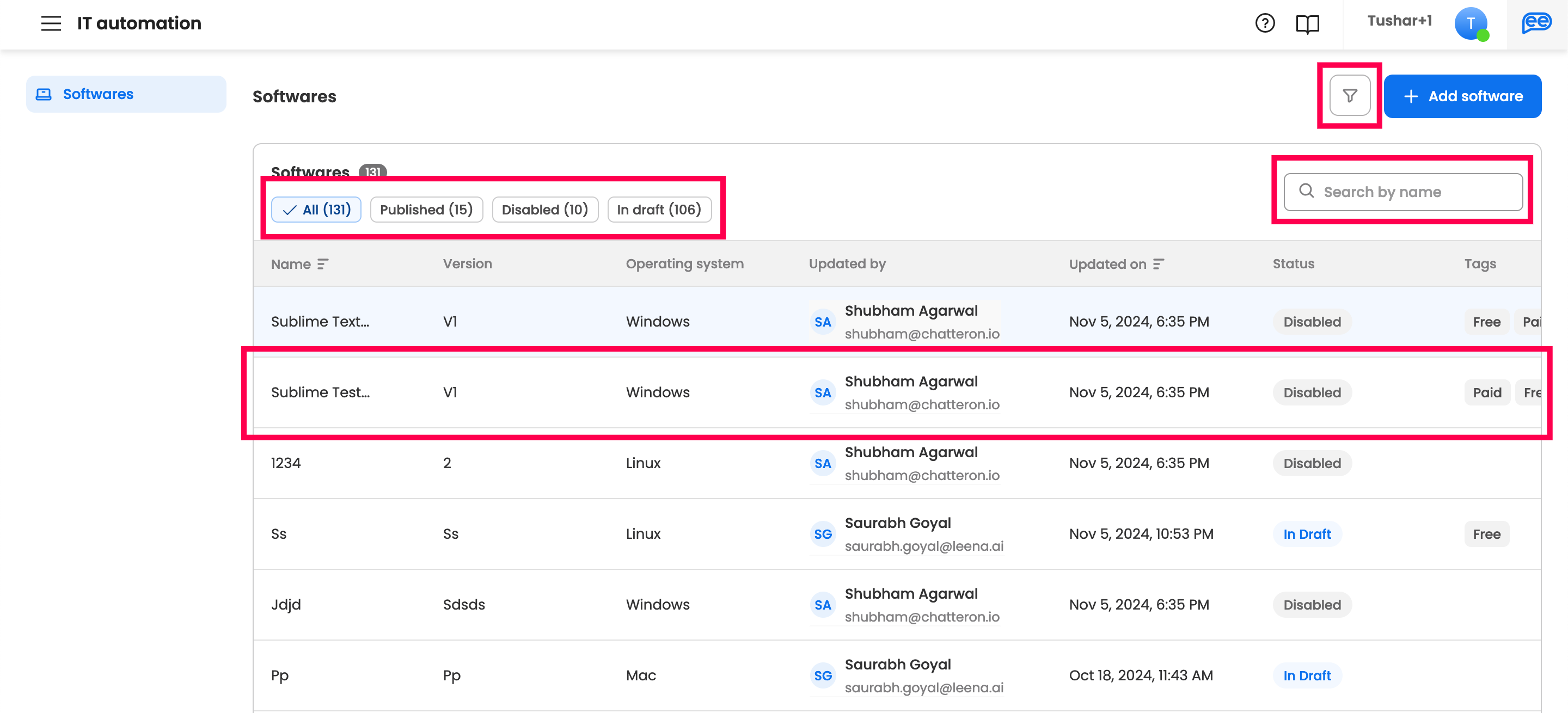
In the detailed view, the fields shown adapt to the software's operating system:
- Account type is shown as System/User for Windows and Root/Local for macOS, and is hidden altogether for macOS software in Interactive mode.
- The installation and uninstallation scripts are syntax-highlighted as Batch for Windows and shell for macOS.
- The installation script is not shown for older macOS software that predates script support.
Versioning
Once a software is published, its scripts and installer file become immutable to protect deployments already in use. Editing the installation script, uninstallation script, or installer file of a published software creates a new version instead of overwriting the existing one, and you will be asked for a new version number. All versions stay linked to the same software, so past executions can always be traced back to the exact script and binary that ran on the device.
Disabling a software
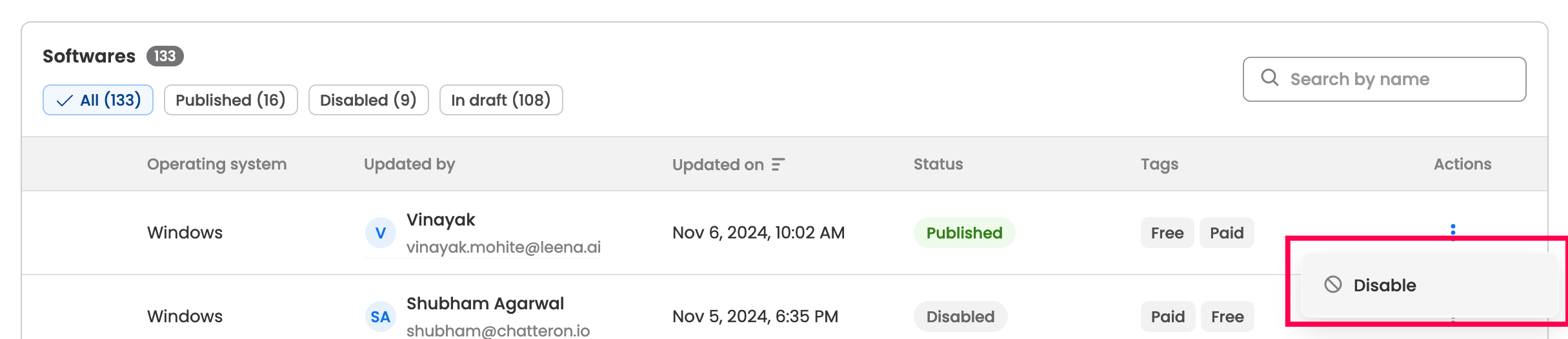
Published software can be disabled by selecting the "Disable" option from the three-dot menu on either the software row on the landing page or the details page. Once disabled, the software will no longer be available to employees on the bot, and any executions still pending for it are failed. Likewise, disabled software can be re-enabled in the same way.

Drafts
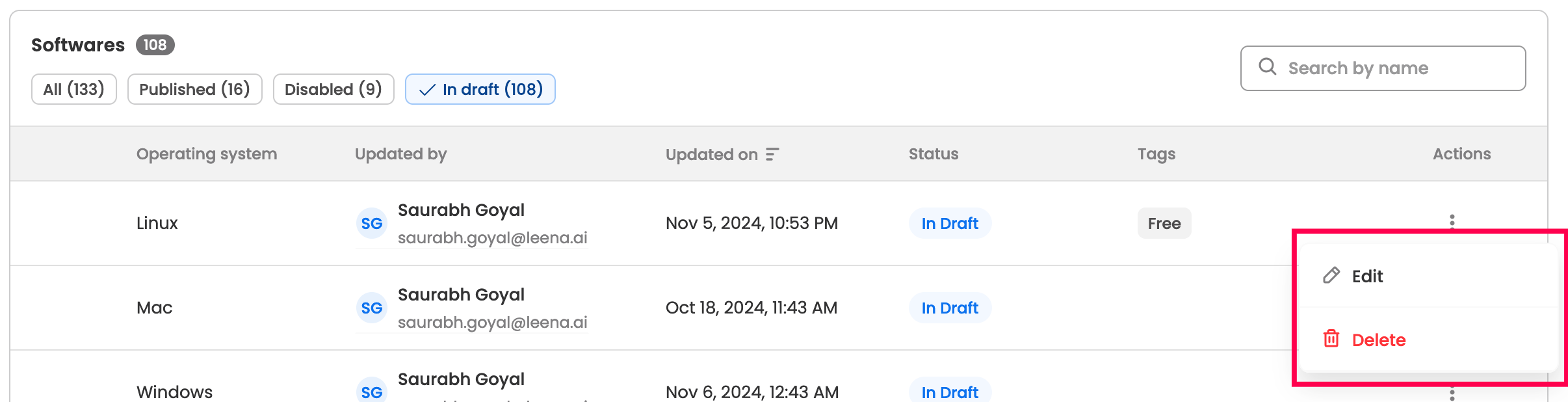
A software remains in draft state until it's published. During this time, details can be edited, or the software can be deleted from the three-dot menu on either the software row on the landing page or the details page.

Edit basic details
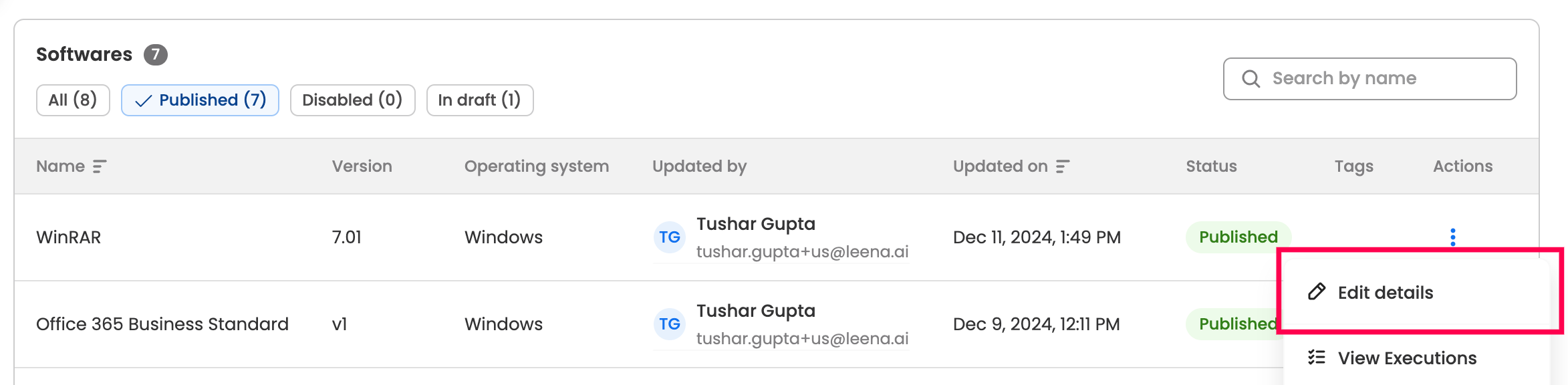
Basic details of published software can be edited by selecting the "Edit details" option from the three-dot menu, accessible on the software row on the landing page or the details page. The operating system cannot be changed once the software has been created.

Troubleshooting
Execution failures that relate to the operating system configuration usually map to one of the following:
| Status / message | What it means | How to resolve |
|---|---|---|
| No active user session | An Interactive installation (Windows System, or macOS Root) was dispatched to a device where nobody was signed in. | Retry when the employee is signed in, or switch the software to Silent mode. |
| No user session found | A Windows User installation was dispatched, but no session exists for the mapped employee. | Verify the device-to-user mapping under Configurations → Device mappings. |
| Found non-active user session | The mapped employee's session exists but is disconnected or locked. | Retry when the employee is actively signed in. |
| "No username mapped for this device" | A macOS Local installation ran but no username was mapped to the device serial number. | Add or correct the mapping under Configurations → Device mappings. |
| "No .pkg or .app found to install" | A macOS .dmg or .zip was mounted or extracted but contained no installable bundle at the expected depth. | Check the archive layout and edit the default script to point at the correct path. |
| Agent not installed | No automation agent is registered against the device serial number. | Ensure the Leena desktop app is deployed on the device. |
| Agent not active / Offline | The agent is registered but currently has no connection to the platform. | Retry once the device is online; the request stays queued until the configured execution expiry. |
| Non-zero exit code | The installer ran but reported failure — most often the wrong silent switch for that installer technology. | Open the execution in Reports and inspect the logs, then correct the installation script. |
Large installers can exceed the default execution timeout. If installs are being cut off mid-download, raise Execution timeout under Configurations → Timeouts.
Updated about 1 month ago