
Web authentication
Web authentication controls how employees prove who they are when they open the assistant in a browser — through the web app or an embedded widget.
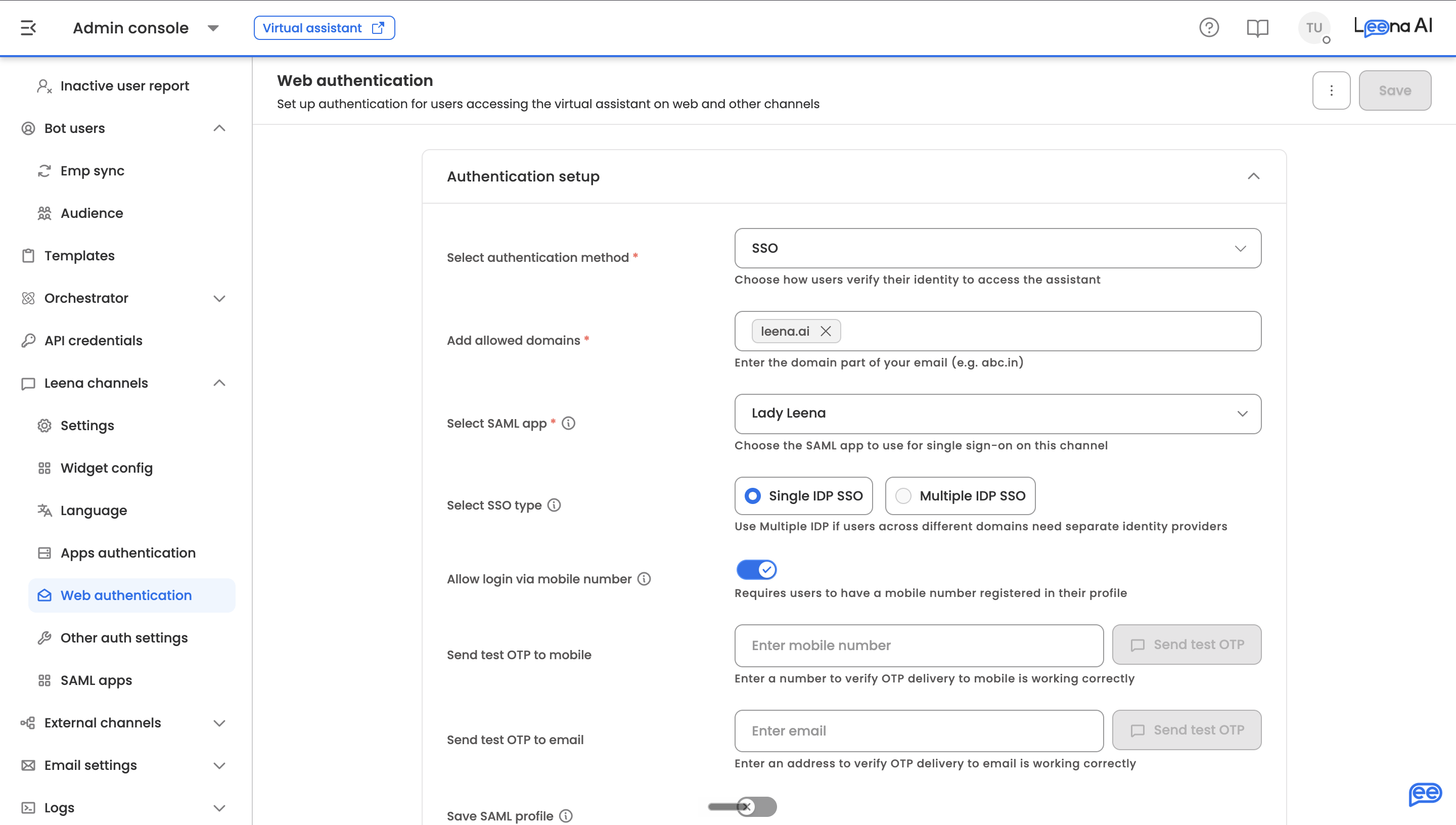
Where to find it
Open the Admin Console, then go to Leena Channels → Web authentication.
Each surface is configured separatelyWeb authentication covers browser access only. The mobile and desktop apps are configured on Apps authentication, and access rules that apply after sign-in live on Other auth settings.
The page has two sections, Authentication setup and Channel authorization expression. Save sits in the page header and becomes available once you change something; Remove authentication is in the ⋮ menu beside it.
Authentication setup
Start by choosing a Select authentication method. The rest of the section changes to match.
| Method | When to use it |
|---|---|
| OTP | A one-time code sent to the employee's email or mobile. No identity provider needed. This is the default |
| SSO | SAML-based single sign-on against your identity provider |
| OAuth | OAuth sign-in with Azure or Google |
| Custom | Access is decided by your own channel authorization expression, which becomes mandatory |
Settings shared by OTP, SSO and OAuth
Add allowed domains is required. Enter the domain part of an email address, such as abc.in, and press Enter. Only employees with an email on these domains can sign in, so this is the main control on who can reach the assistant. Duplicates and invalid entries are flagged as you type.
The same list appears in Employee SyncThese are the same allowed domains shown under Bot users → User Sync → Sync setup → Authorize users. Changing the list in either place changes it in both.
Allow login via mobile number lets employees enter their phone number to receive the one-time code. It only works for employees who have a mobile number on their profile.
Send test OTP to email verifies delivery end to end without leaving the page. Enter an address and click Send test OTP; the button stays unavailable until the entry is a valid email. Once mobile login is on, Send test OTP to mobile appears as well. Test both if you've enabled both — email and SMS delivery fail independently.
SSO
Choose a Select SSO type:
| Type | What it does |
|---|---|
| Single IDP SSO | One SAML app for everyone. Pick it under Select SAML app. This is the default |
| Multiple IDP SSO | Several SAML apps, each serving the employees on its own email domains |
The SAML app dropdown lists Live apps only — drafts don't appear. Create SAML app at the top of the dropdown opens the SAML app creator in a new tab. SAML apps themselves are managed on SAML apps, not here.
With multiple IDPs, each row takes a SAML app and its Allowed domains for SAML app. Use Add more for further providers, and the × on a row to remove it. The rows are checked on save:
- Every row needs a SAML app.
- Either give every app its own domains, or leave exactly one app without domains and tick Set this app as default on it. The default app catches anyone whose domain doesn't match another app, so it can't have domains of its own.
Profile and field mapping
These SSO-only options decide what the assistant knows about an employee once they've signed in.
| Setting | What it does |
|---|---|
| Save SAML profile | Stores selected SAML attributes, such as department or location, on the employee's profile at each login. Turning it on reveals Add SAML profile fields, which is then required |
| Create integrations user | Available once Save SAML profile is on. Also creates the integrations user after a successful SSO login, mapping each SAML profile field to an Integration profile field |
| Login field mappers | Uses a SAML attribute other than email to identify the employee — useful when your IdP sends a unique ID or employee number. Each row maps an Auth field to a Profile field |
| Successful login message | What employees see once they're signed in. Up to 200 characters |
Get the login field mapping right before launch. If the identity returned at login doesn't resolve to an employee, sign-in succeeds but the assistant can't personalise anything or run workflows on that person's behalf.
OAuth
Pick an OAuth provider — Azure or Google. The page won't save without one.
Custom
Selecting Custom hides the domain, mobile number and test OTP fields, and makes the Channel authorization expression below mandatory.
Sessions
These apply whichever method you choose.
| Setting | What it does |
|---|---|
| Enable token refresh | Required for the two settings below to take effect. When off, the session falls back to a single long-lived token and both are ignored |
| Session duration | The longest a session can last before the employee must sign in again. Default 180 days; set in minutes, hours, days, weeks or years |
| Access token rotation interval | How often the session is silently renewed in the background. Employees aren't signed out. Default 1 hour, and must be shorter than the session duration |
| Enable inactivity timeout | Signs the employee out after a period of inactivity. Turning it on reveals Inactivity duration |
| Inactivity duration | Idle time after which the session is revoked and a fresh sign-in is required. Default 30 minutes, maximum 30 days |
When both are on, the session duration can't be shorter than the inactivity duration.
Restrict access by IP
Restrict access by IP only lets the assistant be reached from approved addresses. Turning it on reveals Allowed IP list, where each row takes an IP address or CIDR range (IPv4 or IPv6, such as 10.0.0.0/8) and an optional Description, such as Corp VPN.
Add at least one entry. Empty rows must be filled or removed before saving — a blank entry would allow every IP.
Check who's outside the rangeEmployees working from home without a VPN, or on mobile data, are blocked in the browser once this is on. Confirm the list covers every network employees actually use before saving.
Channel authorization expression
A JavaScript expression evaluated to decide whether a signed-in employee is authorised on this channel. The editor offers Prettify and flags formatting errors as you type.
It's optional for OTP, SSO and OAuth — but once saved, it's evaluated whatever the method. Clear it and save to remove it. With Custom, it's required.
Not the same as the rules on Other auth settingsOther auth settings has a section with the same name, but it's a no-code rule builder stored separately. The JavaScript expression here is for advanced cases the rule builder can't express.
Saving and removing
Save applies the configuration, and a confirmation appears. If anything is invalid, the affected fields are highlighted and nothing is saved.
Remove authentication, in the ⋮ menu, clears the setup entirely after a confirmation prompt. Employees can't sign in on this channel until a new authentication method is configured, so treat it as a change to make deliberately rather than a way to reset the form.
Updated 13 days ago