
Internal Notes
Internal notes let agents leave private context on a ticket — investigation notes, handoff comments, or the reasoning behind an action — without the requester ever seeing them.
Who can see internal notes: only agents and admins in the dashboard. End users never see notes in the portal, email replies, or chat webviews.
Add a note
-
Open the ticket from your queue or the Tickets list.
-
Scroll to the comment composer at the bottom of the ticket timeline.
-
Click the Internal note chip in the tab switcher above the editor. The composer switches to note mode and the placeholder changes to "Add an internal note...".
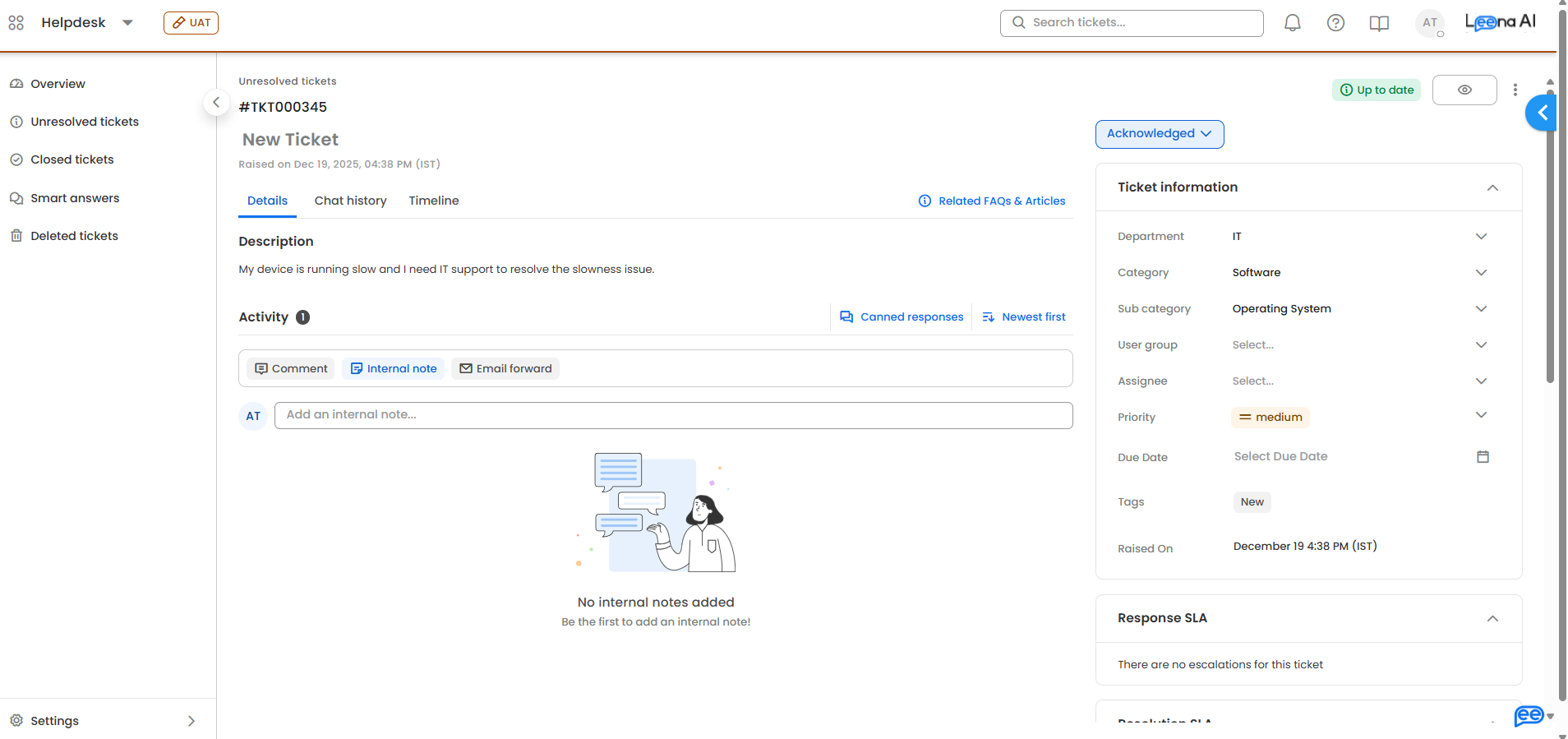
-
Type your note. The editor supports:
-
Rich text formatting (bold, italics, lists, links) from the toolbar
-
File attachments — drag and drop, or use the attachment button
-
Canned responses from the insert menu
-
Dynamic field placeholders — type
#to autocomplete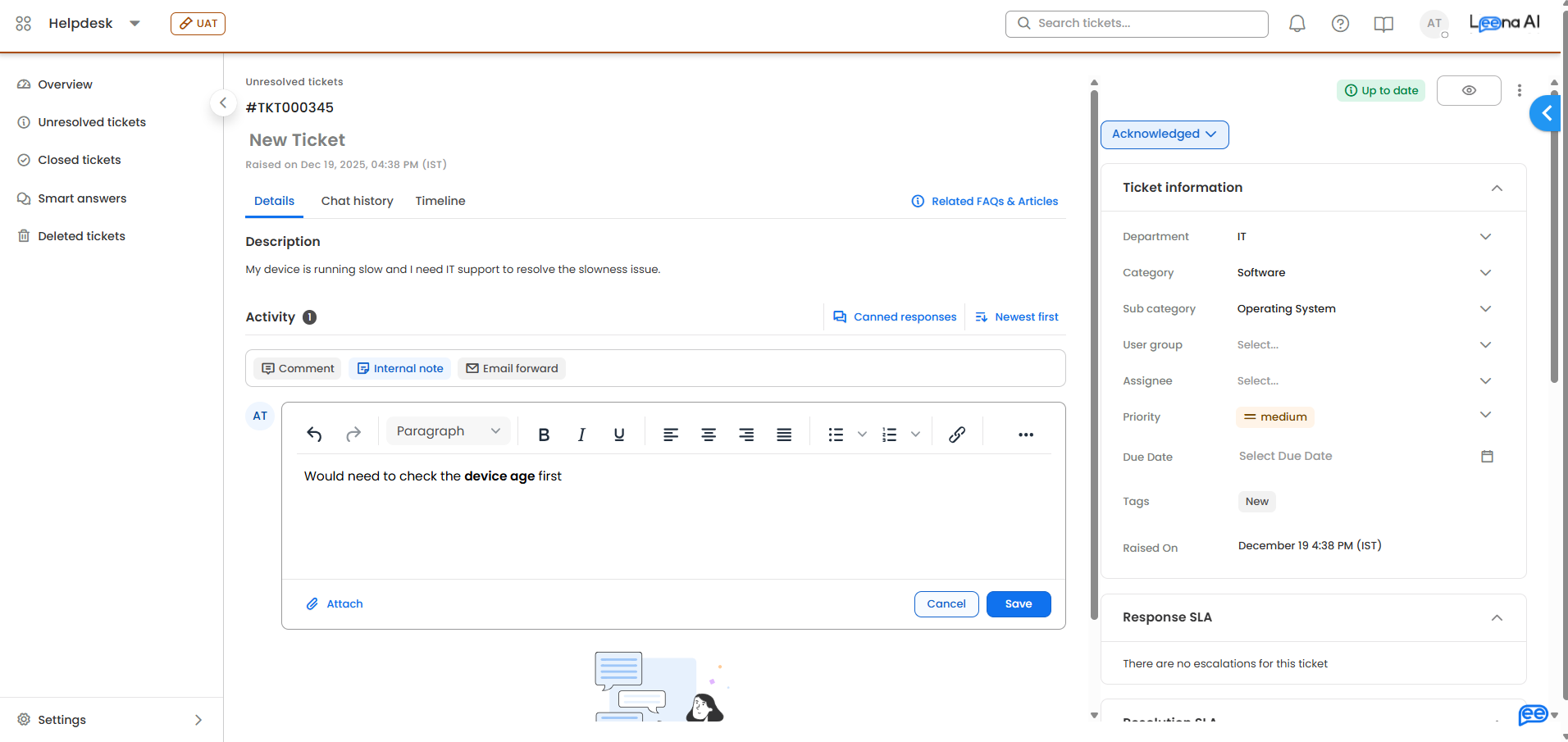
-
-
Click Save to post the note.
After saving
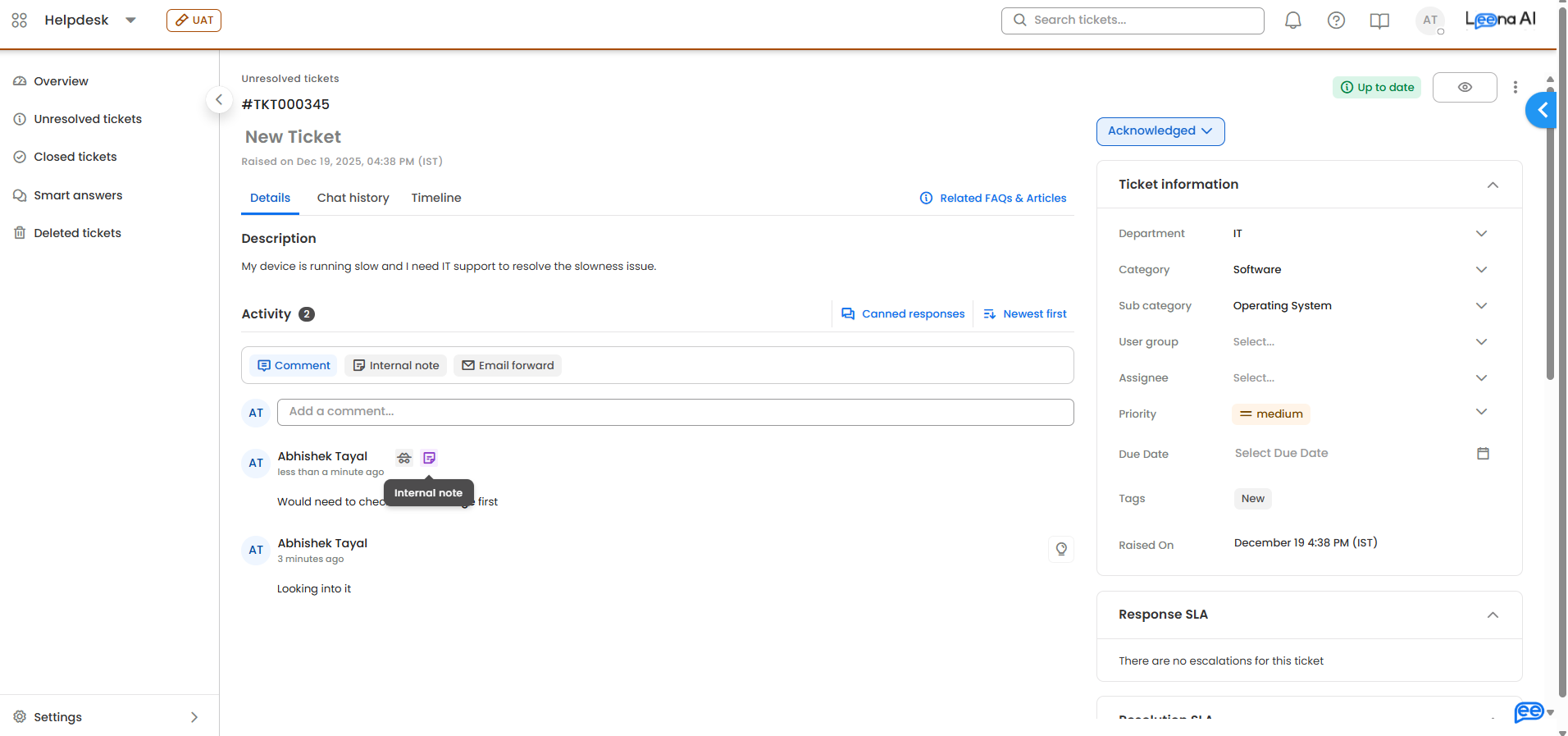
The note appears inline in the ticket timeline with a violet Note icon so it's easy to tell apart from public comments. It's filtered out of every end-user surface automatically.
Drafts and unsaved changes
- The composer auto-saves what you type as a local draft. If you refresh or come back to the ticket later, your unsaved note is restored.
- If you try to navigate away with unsaved content, you'll get a confirmation prompt.
Edit or delete a note
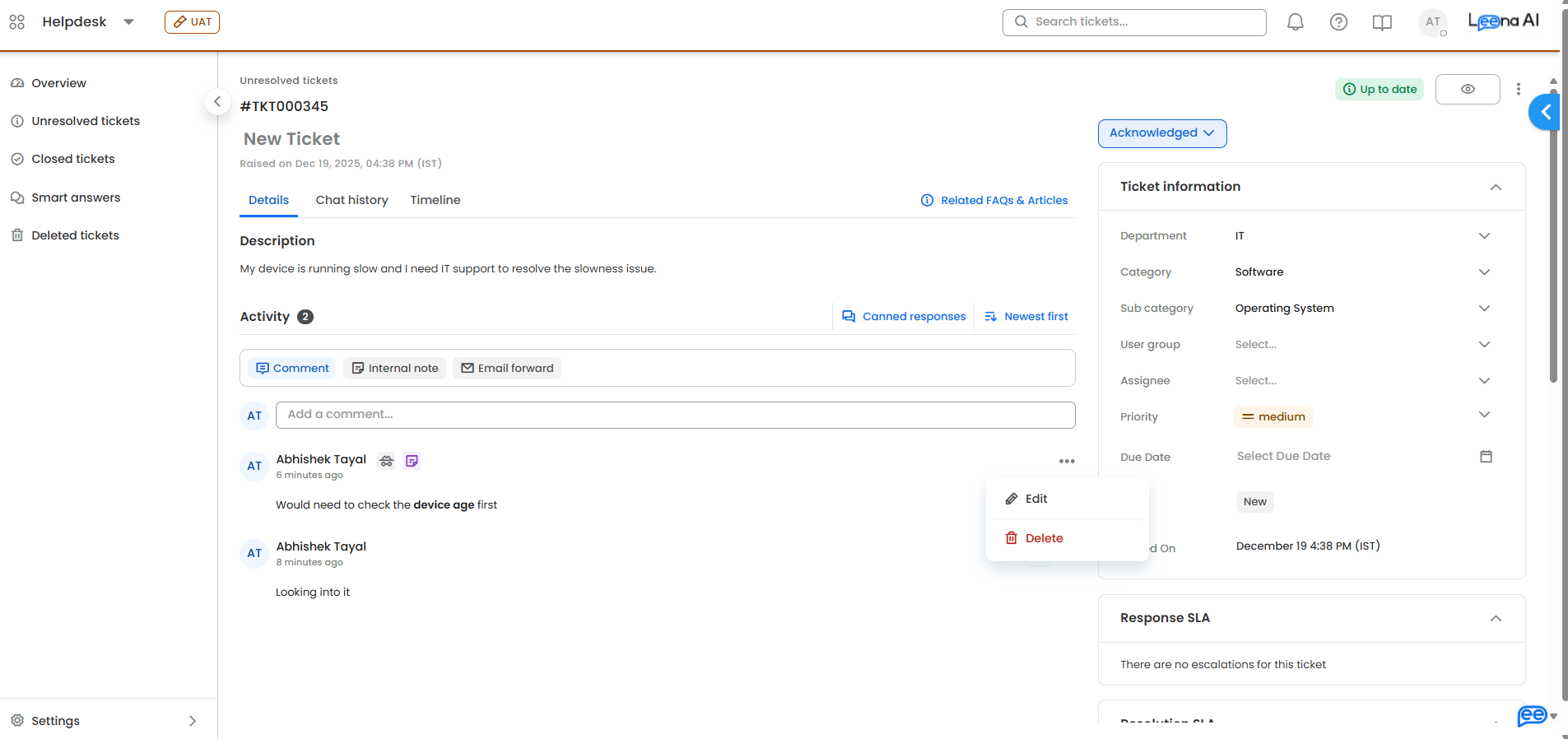
Hover over the note in the timeline to reveal the ⋯ menu.
- Edit reopens the editor with the note's contents.
- Delete asks for a reason, then removes the note permanently. This can't be undone.
Edit and delete for internal notes are controlled at the department level. An admin needs to turn on Allow Comment Edit And Delete in the department's settings, and edits/deletes are only allowed within the configured time limit (default 24 hours). If you don't see the ⋯ menu options on your note, check with your admin.
A note on reassignment
When you reassign a ticket, the comment you leave with the reassignment is automatically saved as an internal note — the new assignee gets your handoff context, but the requester doesn't see it.
Related: Ticket details · Canned responses
Updated 3 months ago