
Inactive user report
The Inactive User Report is a security and governance control. It audits people who still hold an active dashboard account but should no longer have one — employees marked as terminated in the Employee Master, and accounts with no matching Employee Master record at all.
Enable it, choose who receives it, and the report is emailed on a schedule so access reviews happen without anyone remembering to run them.
Where to find it
Open the Admin Console, then go to Dashboard settings → Inactive user report.
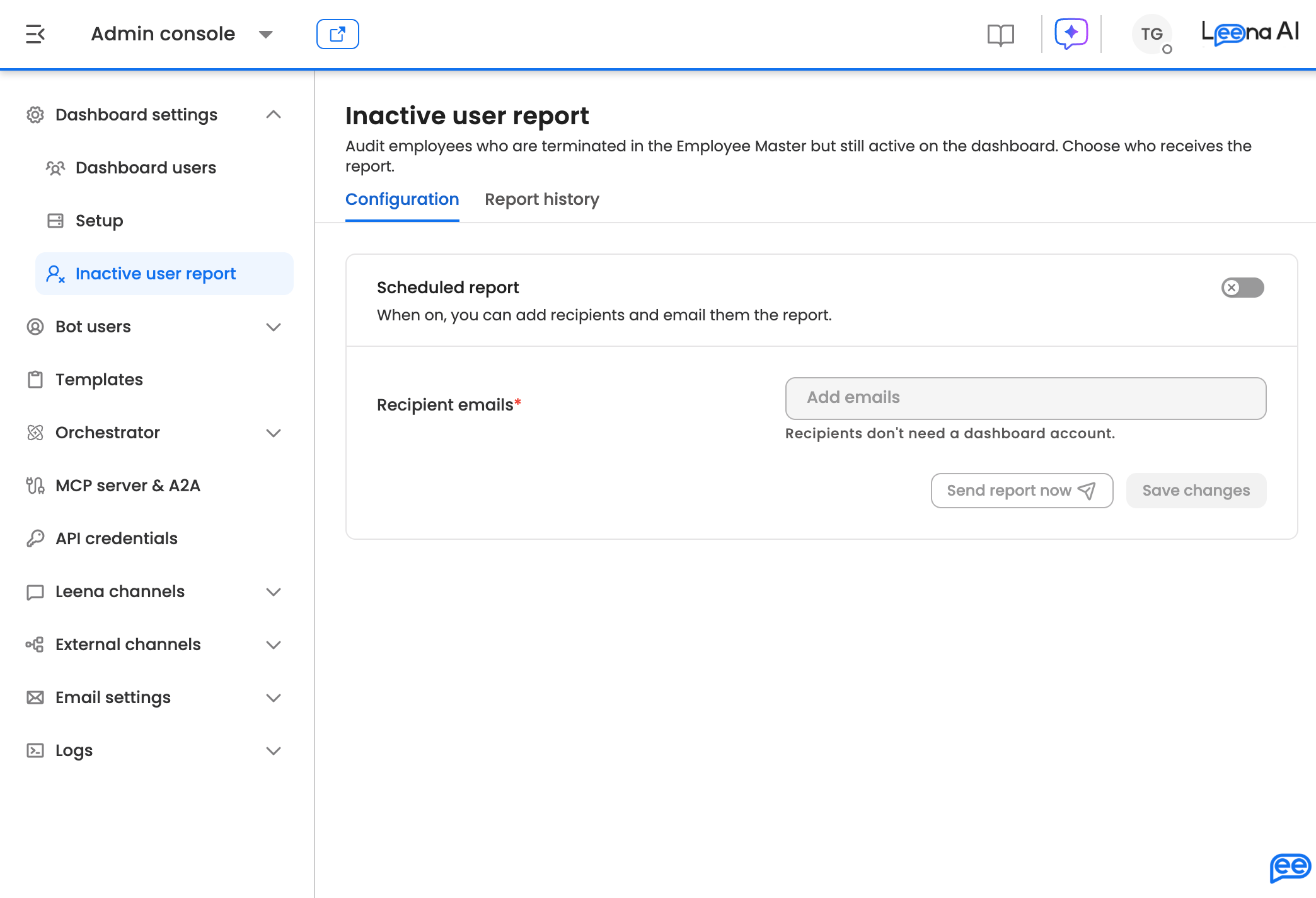
Inactive user report, Configuration tab
Access is tied to the same permission as Dashboard users, so anyone who can manage dashboard accounts can also configure this report.
The page has two tabs: Configuration and Report history.
Configuration
Turn on the scheduled report
Switch Scheduled report on. This is what enables recipients and scheduled delivery — with it off, the recipient field is greyed out and no reports are sent.
The toggle doesn't apply until you saveFlipping the switch only changes the form. Nothing takes effect until you click Save changes, so leaving the page immediately after toggling will discard it.
Add recipients
Enter the email addresses that should receive the report. Add as many as you need — they're entered as chips, so type an address and confirm it to add each one.
Recipients do not need a dashboard account. External addresses work, which is useful for auditors or a security distribution list outside your Leena AI users.
Recipients are mandatory when the scheduled report is on. Saving with the toggle on and the list empty is rejected, and an invalid address is called out by name so you can correct it.
Save
Click Save changes to commit the toggle state and the recipient list together. The button stays inactive until something actually differs from what's saved.
Send a report immediately
Send report now generates and emails the report straight away, to the currently saved recipients. Use it for an ad-hoc audit rather than waiting for the next scheduled run.
Save before you sendSend report now is unavailable while you have unsaved edits. It needs the scheduled report switched on, at least one saved recipient, and no pending changes. If the button looks inactive after editing recipients, save first.
Report history
The Report history tab lists recent reports under Recent reports, covering both scheduled and manually triggered runs.
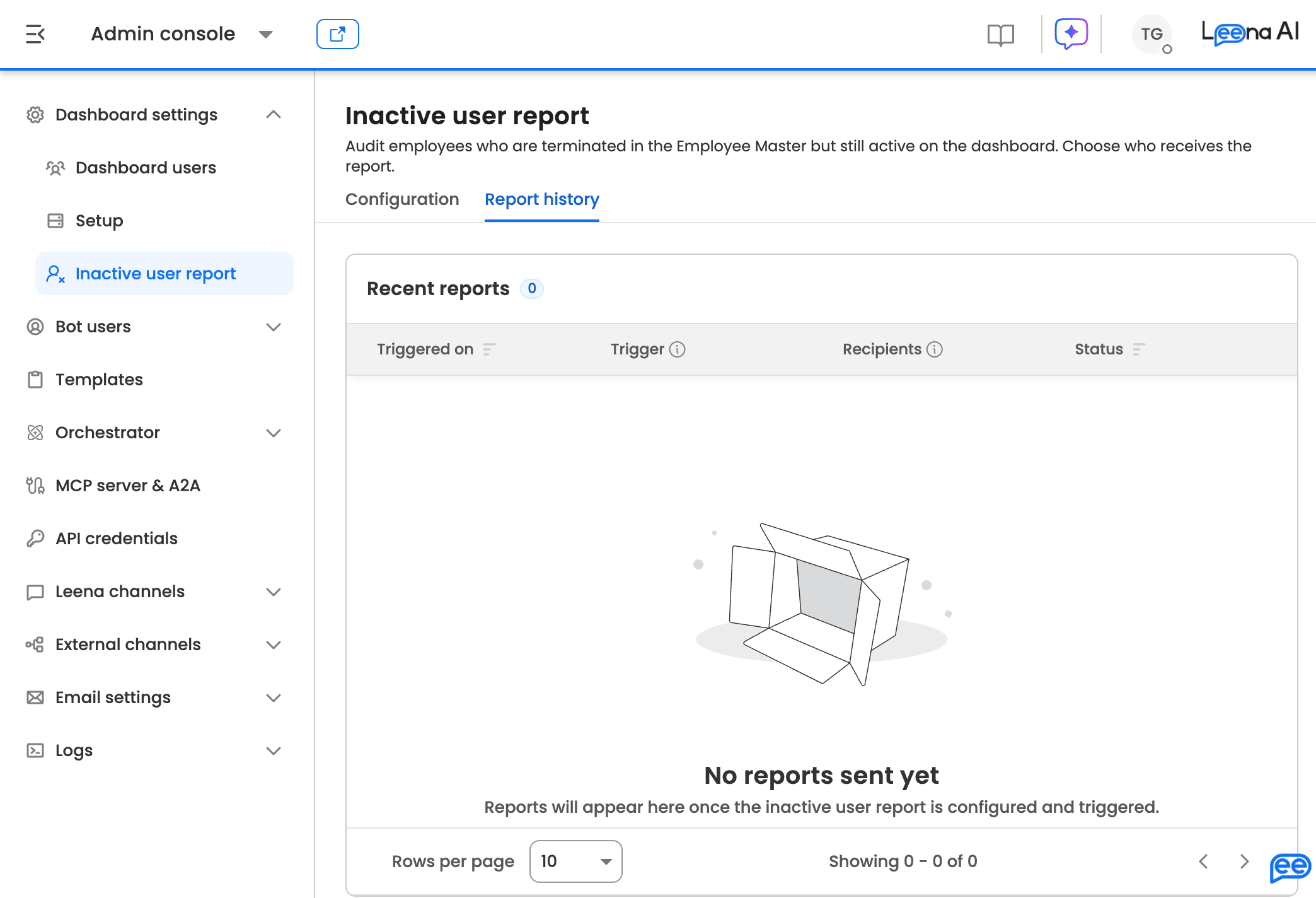
Report history
| Column | What it shows |
|---|---|
| Triggered on | When the report ran. Sortable |
| Trigger | Whether it ran on a schedule or was sent manually |
| Recipients | How many addresses it went to. Click the count to see the full list |
| Status | Delivered or Failed. Sortable |
Until the first report runs, the tab shows an empty state rather than a table.
Recipients are recorded as they were at the timeThe recipient list against each row reflects the addresses configured when that report was triggered — not your current recipient list. Changing recipients today does not rewrite past entries, which is what makes this usable as an audit trail.
What the report contains
Each report lists the dashboard users that need review:
| Field | What to do with it |
|---|---|
| User name | Identify the individual |
| Cross-reference against your HR records | |
| Status | Whether the person is terminated in the Employee Master, or has no Employee Master record at all |
| Roles | The dashboard roles they currently hold — this is the access you would be revoking |
Anyone appearing on this report holds live dashboard access. Treat terminated employees as the priority: review whether the account should be deactivated or removed, and do it from Dashboard settings → Dashboard users.
Updated about 22 hours ago