
Multi-lingual Support
The Virtual Assistant renders its interface — buttons, labels, status indicators, sign-in screens, system messages — in the user's own language, based on a user parameter. This page explains what gets translated, how the language is decided, which languages are supported, and what you still need to configure yourself.
What counts as "static text"
Static text is everything the assistant says that isn't part of the conversation itself. It falls into two groups, and both are handled automatically.
Assistant interface (the shell around the chat)
- Header, composer, and footer labels
- Sign-in and OTP screens
- Notification centre strings
- Error and permission screens
- Settings panel, feedback and rating prompts
- Form validation messages
Conversational answers, knowledge article content, and ticket data are not static text. They are handled by AIC's multilingual response behaviour, which is configured separately.
How the language is decided
Every user's language comes from a single parameter: user.language.
This is a standard user parameter, populated the same way as user.department or user.location — usually synced from your HRMS, and optionally set by the user through an in-chat language selector if you have enabled one. The resolved value is then normalised to a standard two-letter language code before any lookup happens.
Please note: if no user language is set in the employee master, then it defaults to English.
Accepted values for user.language
user.languageThe parameter is deliberately forgiving.
- Example - All of the following resolve to French:
Value in user.language | Resolves to |
|---|---|
fr | fr |
French | fr |
french | fr |
Français | fr |
- Native-script language names work too —
हिन्दीresolves tohi.
Please note: A value that matches neither a language code nor a language name cannot be resolved, and the user falls back to English. If a whole population is unexpectedly seeing English, the value being synced into user.language is the first thing to check.
How a translation is found
Once the language code is resolved, the assistant looks for each string in order and stops at the first match.
For assistant interface strings:
-
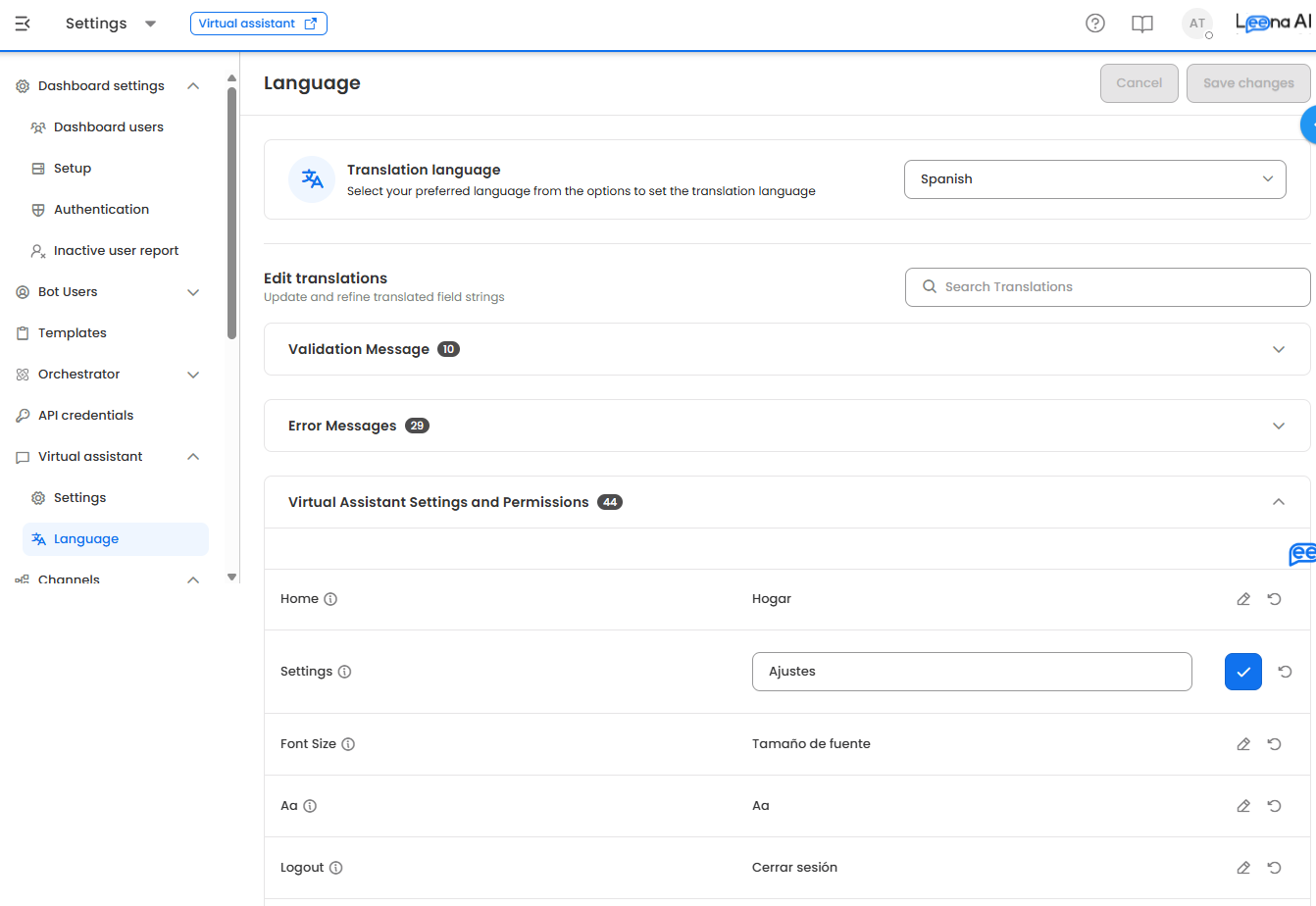
Your overrides. Any string you have customised for that language in Web Channel → Translations is used first. This is how you change the header title, sign-in copy, or any other interface string for a specific language.
-
The bundled language pack. If you haven't overridden the string, the assistant uses its own translation for that language.
-
English. If the language has no pack, everything falls back to English.
Layout direction
Arabic and Hebrew render right-to-left. The assistant switches layout direction automatically along with the language — you do not need to configure it.
Placeholders
Many system strings contain placeholders in curly braces, such as Hi {name}! or {field_name}. Placeholders must be preserved exactly in any translation you upload. Translating {name} into {nom} breaks the substitution and the assistant will fall back to English for that string.
Correct: Bonjour {name} !
Incorrect: Bonjour {nom} !
Supported languages
Assistant interface
The Virtual Assistant ships with interface language packs for the following 30 languages.
| Code | Language | Code | Language | Code | Language | ||
|---|---|---|---|---|---|---|---|
ar | Arabic | it | Italian | pt | Portuguese | ||
cs | Czech | ja | Japanese | ru | Russian | ||
de | German | kn | Kannada † | si | Sinhala | ||
el | Greek | ko | Korean | ta | Tamil | ||
en | English | ml | Malayalam | te | Telugu | ||
es | Spanish | mr | Marathi | th | Thai | ||
fr | French | ms | Malay | tl | Tagalog | ||
he | Hebrew | ne | Nepali | tr | Turkish | ||
hi | Hindi | nl | Dutch | vi | Vietnamese | ||
hu | Hungarian | pl | Polish | zh | Chinese |
Two things determine what a user actually sees, and they are configured separately:
- The language pack must exist — the table above. A language outside this list falls back to English, whatever
user.languagesays. - The language must be enabled on your assistant. The dashboard translations editor lists only the languages configured for that specific assistant, not the full set above. If a language you expect is missing from the dropdown, add it to the assistant's language configuration first.
Because these are independent, it is possible to configure an assistant with a language that has no pack — the assistant will accept the configuration and then quietly render English. Confirm against the table above before enabling a language.
Overrides are stored per assistant and per language, so different assistants can carry different copy in the same language.
What is not translated automatically
Anything you author is stored exactly as you typed it and is served to every user who can see it, regardless of their language. The translation layer never touches it.
This includes:
- Side menu items, menu groups, and sub-menu items
- Menu item titles and webview page titles
- External link titles
- Quick reply labels
- Any URLs pointing at a localised destination
This is by design — these are your words, and translating them automatically would be wrong more often than it would be right. But it means a French-speaking user sees a correctly translated interface wrapped around an English side menu unless you configure the menu for French yourself.
Note for older assistants: if you are on an earlier Virtual Assistant version, you may see
persistentMenuentries in the translations editor. These apply only to the legacy interface and have no effect on the current left-panel navigation.
Recommended: configuring the side menu for multiple languages
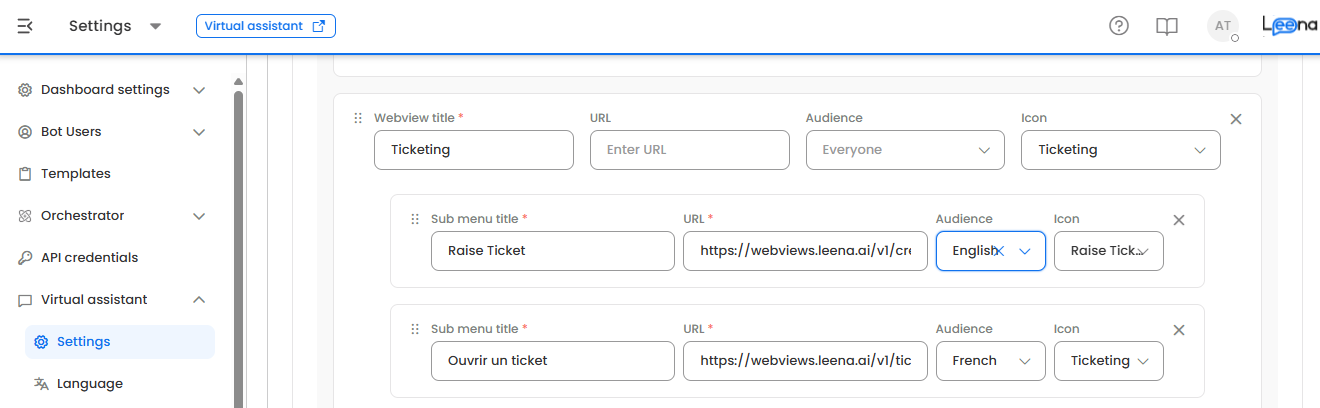
The pattern is straightforward: create one menu item per language, and gate each one behind an audience built on user.language. Each user then sees exactly one variant — the one written in their language.
Step 1 — Create a language audience for each language
Create one audience per language you support, using user.language as the filter attribute.
| Audience name | Condition |
|---|---|
Language – French | user.language is French |
Language – Spanish | user.language is Spanish |
Language – Arabic | user.language is Arabic |
Match the values your HRMS actually sends. This is the step that most often goes wrong. The assistant normalises user.language when it picks a language pack, so fr, French, and Français all produce a French interface. Audiences do not normalise — they match the stored value. If your HRMS sends a mix of formats, include every variant in the audience condition, or standardise the values at the sync layer before you build audiences on them.
Step 2 — Duplicate each menu item per language
For every item in your menu, create one copy per language, with the title written in that language, and assign the matching language audience.
| Title | Audience |
|---|---|
| Raise a Ticket | Language – English |
| Créer un ticket | Language – French |
| Crear un ticket | Language – Spanish |
Keep the icon and the destination URL identical across variants unless the destination itself is localised — if the linked webview or portal supports a language parameter, set it per variant.
Step 3 — Make English the catch-all
Users with a blank user.language, or with a value you haven't built a variant for, need somewhere to land. Target your English variant at everyone outside your other language audiences, so no user ends up with a menu item missing.
Step 4 — Keep language variants adjacent in the menu order
The menu is stored as one ordered list, and items the user isn't eligible for are simply hidden. Placing all variants of the same item together in the order means every user sees the same menu sequence, whatever their language.
Things to watch
- Sub-menu limit. Each menu group holds a maximum of five sub-menu items, and only one chat-type item is allowed in the whole menu. Per-language duplication multiplies your item count quickly — keep the menu shallow before you translate it.
- Title length. Titles are limited to 40 characters. Translations run longer than English in most European languages; check that your longest translation still fits.
- Maintenance cost. Adding a new supported language means adding one new item for every existing item. Trim the menu to what genuinely earns its place first.
- Quick replies work the same way. They accept an audience too, so apply the same per-language pattern.
Troubleshooting
Q. A user sees English even though their language is set.
A. Check the exact value stored in user.language on their profile. Values that aren't a recognisable language code or name can't be resolved and fall back to English.
Q. An uploaded translation isn't appearing.
A. Translations are matched on the exact source string. Thinking and thinking are different entries. Confirm the source text matches character for character, including capitalisation and punctuation.
Q. A translated string is showing in English with a visible {placeholder}.
A. A placeholder was altered during translation. Re-upload the translation with the original placeholder preserved exactly.
Q. The side menu is in English for a translated user.
A. Menu items aren't translated automatically. Configure per-language variants as described above.
Updated about 2 months ago