
Whatsapp logs
WhatsApp logs records every WhatsApp message Leena AI has sent and its delivery status, so you can confirm a message went out and trace it if it didn't arrive.
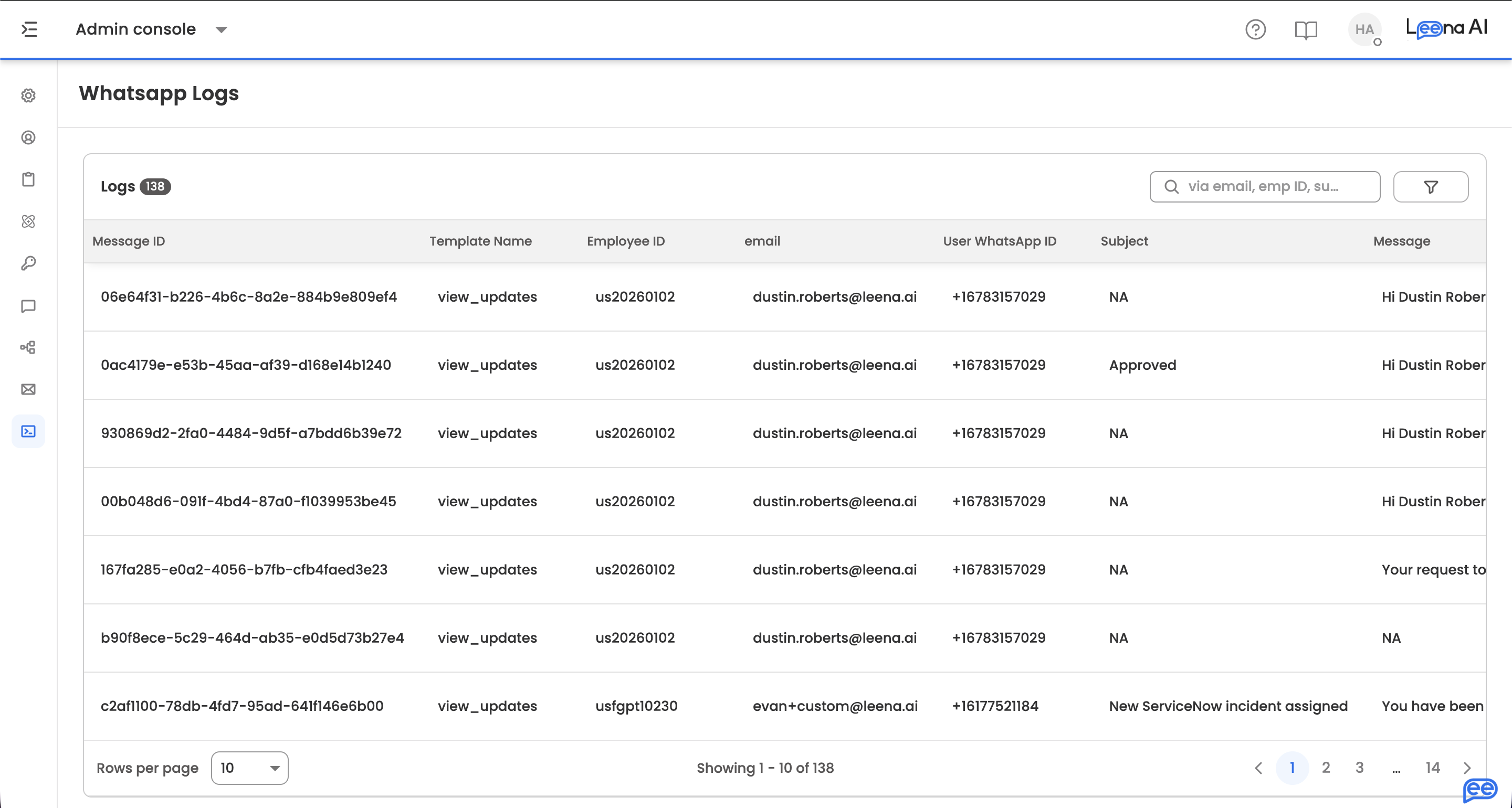
Where to find it
Open the Admin Console, then go to Logs → Whatsapp logs.
The log
| Column | What it shows |
|---|---|
| Message ID | The provider's identifier for the message |
| Template name | Which approved template was used |
| Employee ID | The employee the message was sent to |
| That employee's email address | |
| User WhatsApp ID | The recipient's WhatsApp identifier |
| Subject | The message subject |
| Message | The message content |
| Status | The delivery status group |
| Status description | The provider's fuller explanation of that status |
| Sent at | When the message was dispatched |
Status description is the column that actually explains a failure. The status alone groups outcomes; the description carries the provider's specific reason, which is what you need when a message didn't land.
Template name is the first thing to check on a failureWhatsApp requires an approved template for anything sent outside an active 24-hour session. If messages are failing, confirm the template named here is still approved on Templates → WhatsApp templates — an edit to an approved template returns it to Pending, and sends fail while it's under review.
Common causes of failure
Three things account for most failed sends, and the log distinguishes them:
- No approved template — check template readiness on the WhatsApp channel setup
- Employee not provisioned — a missing User WhatsApp ID means the employee hasn't been provisioned for the channel
- Not opted in — the employee hasn't consented to receive messages
Each is configured on External channels → Whatsapp, in the template readiness, employee provisioning, and consent sections.
Updated about 2 months ago