
Setup
Setup holds the basic identity and session settings for your Leena AI deployment — what your organization and assistant are called, the logo shown in the dashboard header, and how long a dashboard login stays valid.
These are workspace-wide values. Changing them here affects what every dashboard user sees.
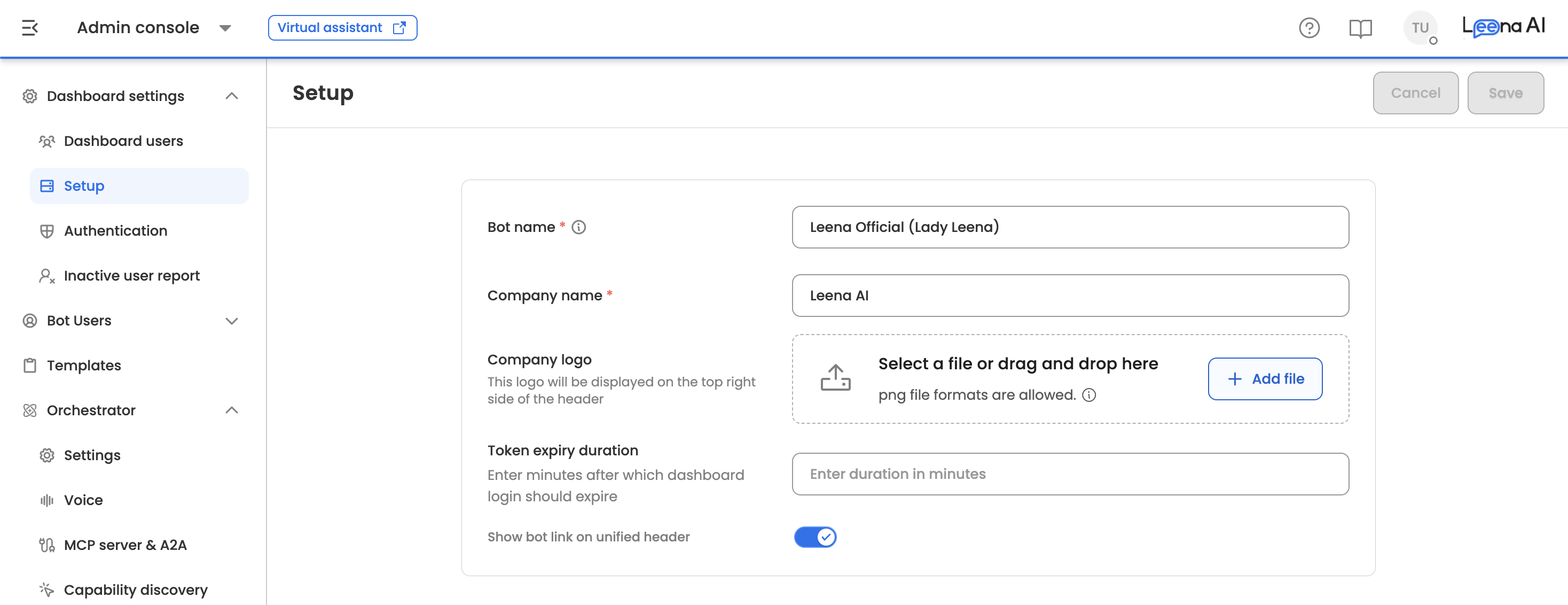
Where to find it
Open the Admin Console, then go to Dashboard settings → Setup.
Setup is restricted to System AdminUnlike the rest of Dashboard settings, Setup is not available to the delegated admin roles. A Channel & Authentication Setup Manager can configure authentication but cannot open Setup, and the page cannot be reached by URL either.
What you can configure
| Setting | Required | What it does |
|---|---|---|
| Bot name | Yes | The name of the assistant in this workspace |
| Company name | Yes | Your organization's name as it appears across the dashboard |
| Company logo | No | The logo shown at the top right of the dashboard header |
| Token expiry duration | No | How long a dashboard login stays valid, in minutes |
| Show bot link on unified header | No | Whether the header includes a link through to the assistant |
Company logo
Upload a single PNG file up to 3 MB. Drag it onto the upload area or select it from your machine. Only one logo can be held at a time — uploading a replacement takes over from the previous one.
The logo appears at the top right of the dashboard header for everyone in the workspace, so use a version that reads clearly at small sizes.
Token expiry duration
Enter the number of minutes after which a dashboard login expires and the user has to sign in again. It must be a whole number greater than zero; anything else is rejected when you try to save.
Leaving this empty keeps the platform default. Setting a shorter duration tightens security but signs people out more often, so it's worth agreeing the value with whoever owns your security policy rather than setting it ad hoc.
Show bot link on unified header
Turn this on to give dashboard users a direct link from the header through to the assistant. It's off by default.
Saving your changes
Save and Cancel sit at the top right of the page and stay greyed out until you change something.
- Save applies your changes and confirms with a success message.
- Cancel discards your edits and restores the values that were last saved.
If you try to navigate away or switch to another settings page with unsaved edits, an Unsaved changes dialog appears first, so changes are not lost silently.
Updated about 2 months ago