
Widget config
Widget config sets up the embeddable chat widget — the bubble that sits in the corner of your own websites and intranet pages, opening the assistant without sending employees elsewhere.
Where to find it
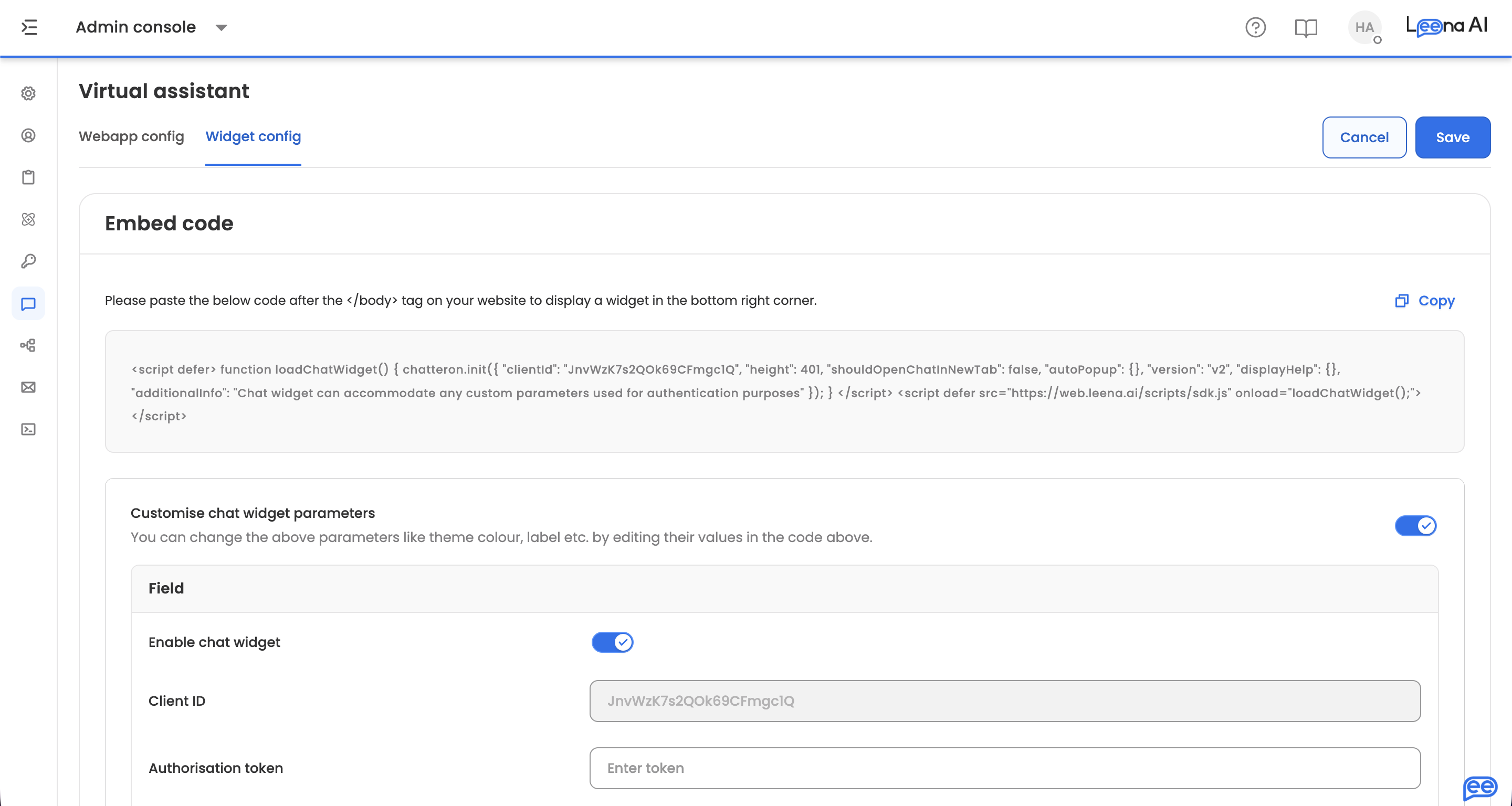
Open the Admin Console, then go to Leena Channels → Widget config.
This is the second tab of the Leena Channels settings screen. The first, Settings, covers the web app itself.
Turning the widget on
Customise chat widget parameters is the master switch for the section. With it on, the full set of parameters below becomes available; with it off, they're hidden.
Enable chat widget then controls whether the widget actually runs on your site.
Connection
| Setting | What it does |
|---|---|
| Client ID | The widget's identifier. Generated for you and read-only — copy it into your embed code |
| Authorisation token | The token the widget authenticates with |
| Div ID | The ID of the element on your page the widget mounts into. Leave empty to use the default corner placement |
| Version | V1 or V2. Determines which widget build loads |
| Additional info | Read-only. Explains that the widget can accept custom parameters for authentication purposes |
Appearance and placement
| Setting | What it does |
|---|---|
| Width | Chat window width, in pixels |
| Height | Chat window height, in pixels |
| Chat widget image URL | The image used for the launcher bubble |
| Allow maximising bubble | Lets employees expand the widget to a larger view |
| Enable header buttons | Shows action buttons in the widget header |
Behaviour
| Setting | What it does |
|---|---|
| Open chat window in new tab | True opens the assistant in a new browser tab rather than in the embedded window |
| Open on mobile | Whether the widget appears for employees on mobile browsers |
| Enable auto pop-up | Opens the widget on its own, without the employee clicking |
| Auto pop-up delay | How long to wait before that happens, in seconds |
| Display help | Shows a help prompt beside the launcher |
| Help text | The wording of that prompt |
Auto pop-up is worth testing before you roll it outA widget that opens by itself is effective for a service desk landing page and intrusive on a page people visit to do something else. If you enable it, set a delay long enough that employees have started reading first.
Embedding the widget
Once configured, the page generates the embed code. Paste it after the closing </body> tag on your site to place the widget in the bottom-right corner.
Parameters such as theme colour and label can be adjusted directly in that code, which is useful when one site needs a variation without changing the configuration for everyone.
Saving
Use Save to apply your changes or Cancel to discard them. A confirmation appears once the widget configuration updates.
Updated about 2 months ago