
Apps authentication
Apps authentication controls how employees sign in to the Leena AI mobile apps. It mirrors web authentication, with additional device-level unlock options that only make sense on an installed app.
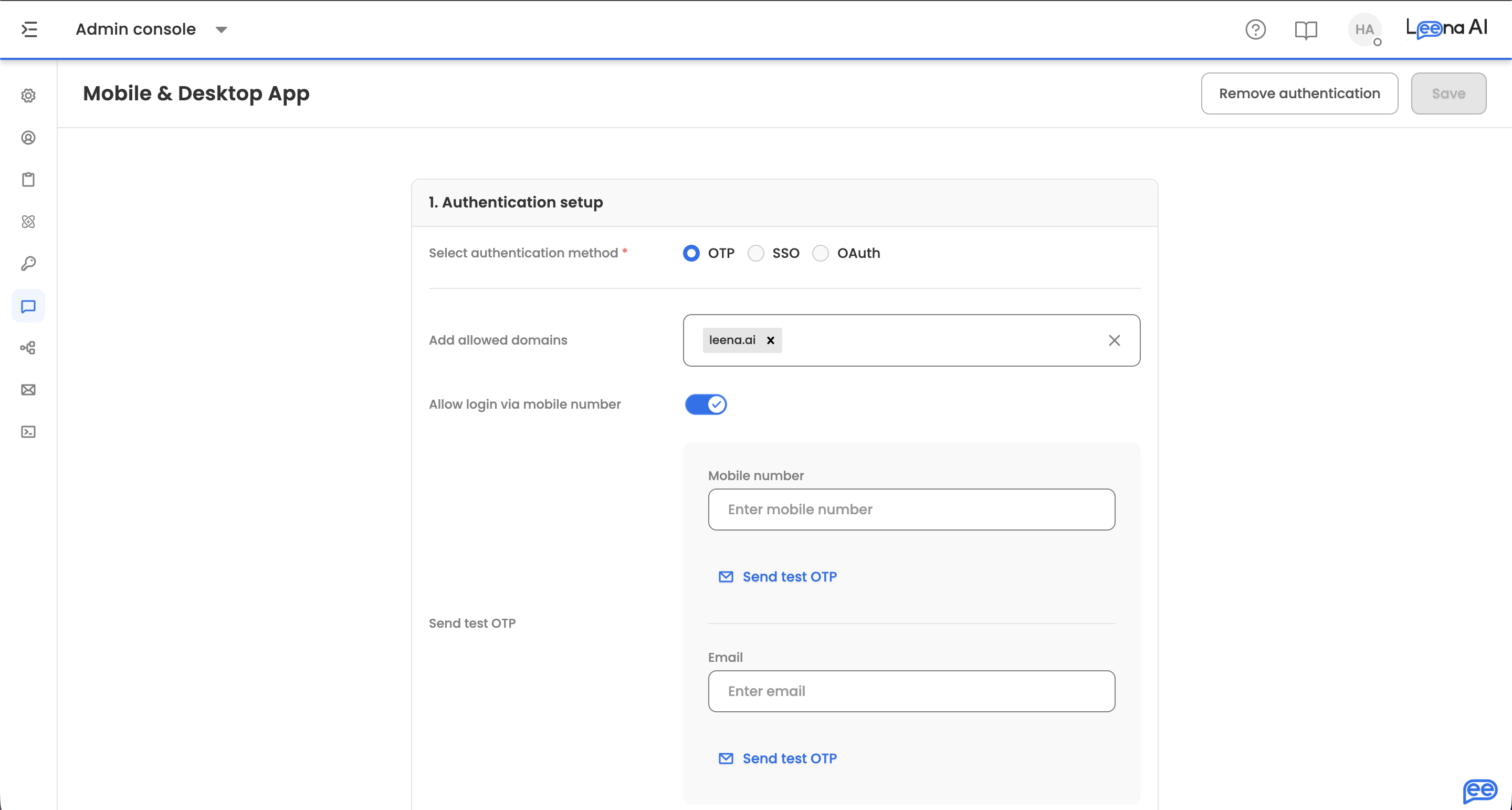
Where to find it
Open the Admin Console, then go to Leena Channels → Apps authentication.
Separate from browser accessThis page covers the installed apps only. Browser access is configured on Web authentication, and settings shared across both live on Other auth settings.
The two can use different methods — SSO in the browser and OTP on mobile, for instance — but employees will experience them as separate sign-in journeys.
1. Authentication setup
Choose a Select authentication method. The rest of the form changes to match.
| Method | When to use it |
|---|---|
| OTP | A one-time code sent to the employee's email or mobile. No identity provider needed |
| SSO | SAML-based single sign-on against your identity provider |
| OAuth | OAuth sign-in with Azure or Google |
OTP
Add allowed domains restricts which email domains can request a code — anything outside the list is refused.
Allow login via mobile number lets employees use a mobile number instead of email, which often suits a mobile-first deployment better than email.
Send test OTP verifies delivery without leaving the page. Enter a Mobile number or an Email and trigger a real code. If no valid recipient is found, the page says so rather than failing silently.
SSO
Choose a Select SSO type:
| Type | What it does |
|---|---|
| Single IDP SSO | One SAML app for everyone. Pick it under Select SAML app |
| Multiple IDP SSO | Several SAML apps, each serving different employees |
With multiple IDPs, each entry takes a SAML app and Add allowed domains for SAML app. Mark one Set this app as default to catch anyone whose domain doesn't match, and use Add more for further providers.
SAML apps are created under SAML apps; this page only selects among them.
OAuth
Pick an OAuth provider — Azure or Google. The page won't save without one.
Device unlock
These two options are specific to the installed apps and have no equivalent in the browser.
| Setting | What it does |
|---|---|
| Enable passcode | Lets employees set a passcode to unlock the app |
| Enable biometrics | Lets employees unlock with fingerprint or face recognition |
Biometrics depends on the passcode setting, so treat the passcode as the foundation and biometrics as the convenience layer on top. A device that can't do biometrics still needs a way in.
Neither replaces sign-in. They protect an already-authenticated session on the device, which matters most on shared or personally-owned hardware.
Profile and field mapping
| Setting | What it does |
|---|---|
| Save SAML profile | Stores the profile returned by the identity provider. Turning it on reveals Add SAML profile fields |
| Create integrations user | Creates a matching user record for downstream integrations, mapping each SAML profile field to an Integration profile field |
| Login field mappers | Maps an Auth field to a Profile field, so the identity returned at login resolves to the right employee record |
If the login field doesn't resolve to an employee, sign-in succeeds but the assistant can't personalise anything or act on that person's behalf.
Session and messaging
| Setting | What it does |
|---|---|
| Successful login message | What employees see once they're signed in |
| Allow token expiry timeout | Enables a session limit. Turning it on reveals Session timeout (seconds) |
Session timeout is worth more thought here than in the browser. A phone stays signed in in someone's pocket for weeks, so the tolerance for a long session is lower than on a managed desktop.
Custom API input is available where your authentication service needs additional inputs, including a Service Name.
Saving and removing
Save applies the configuration, and a confirmation appears.
Remove authentication clears the setup entirely, after a confirmation prompt. Employees will no longer be challenged in the apps.
Updated about 2 months ago