
Dashboard users
A dashboard user is anyone who signs into the Leena AI dashboard to build, operate, or administer the platform. This is distinct from a bot user — the employee who talks to the assistant. This page covers how to add and manage dashboard users, how to organize them into groups, and what each role grants.
Watch the tutorial
Where to find it
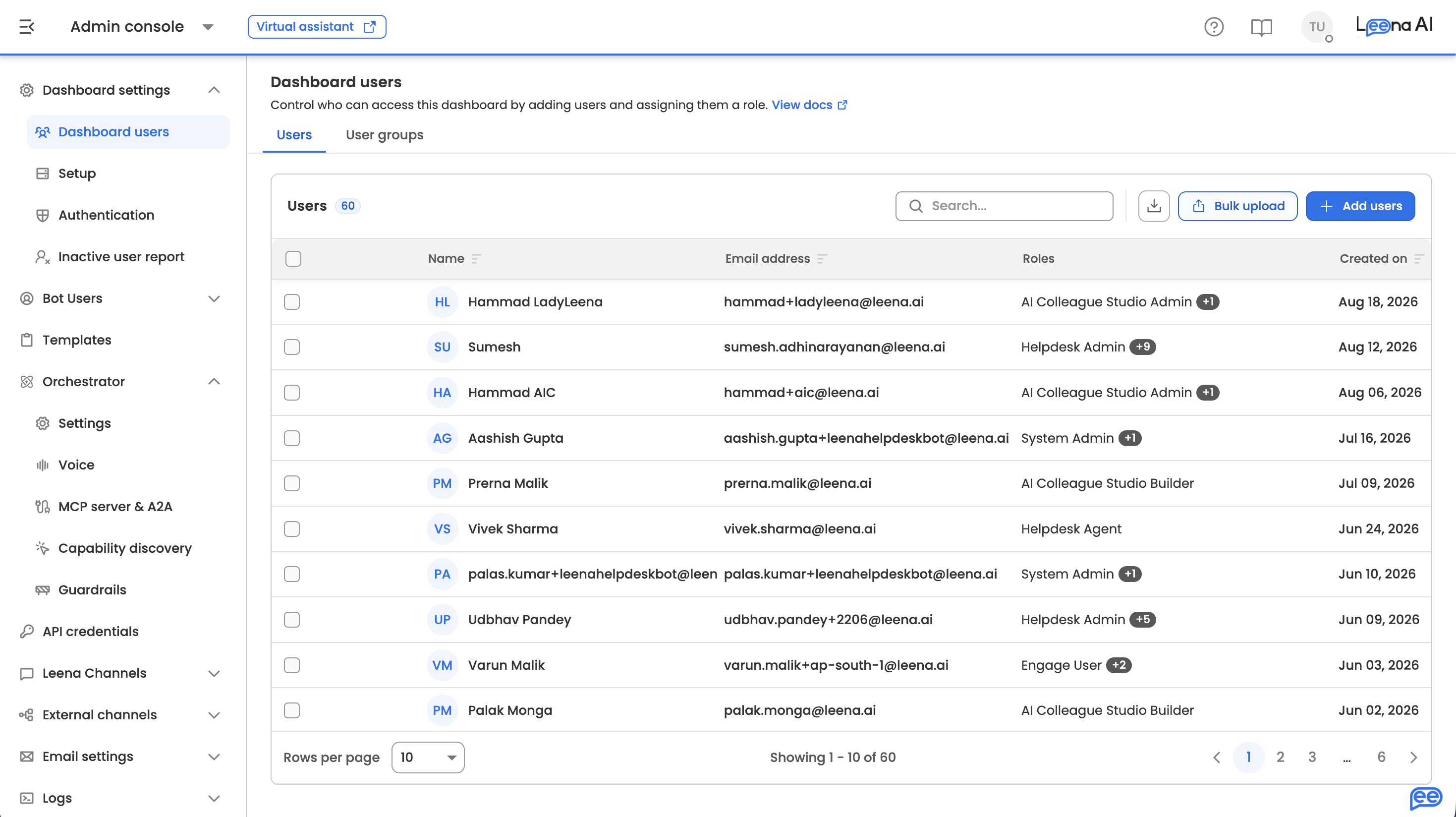
Open the Admin Console from the hamburger menu at the left of the Unified Dashboard, then go to Dashboard settings → Dashboard users.
The page has two tabs:
- Users — individual dashboard accounts
- User groups — named collections of users that share a set of roles
You need the right permission to see this pageDashboard users is available to roles holding the dashboard-users permission — in most deployments, System Admin. If you can't see it, check your own role first.
Adding dashboard users
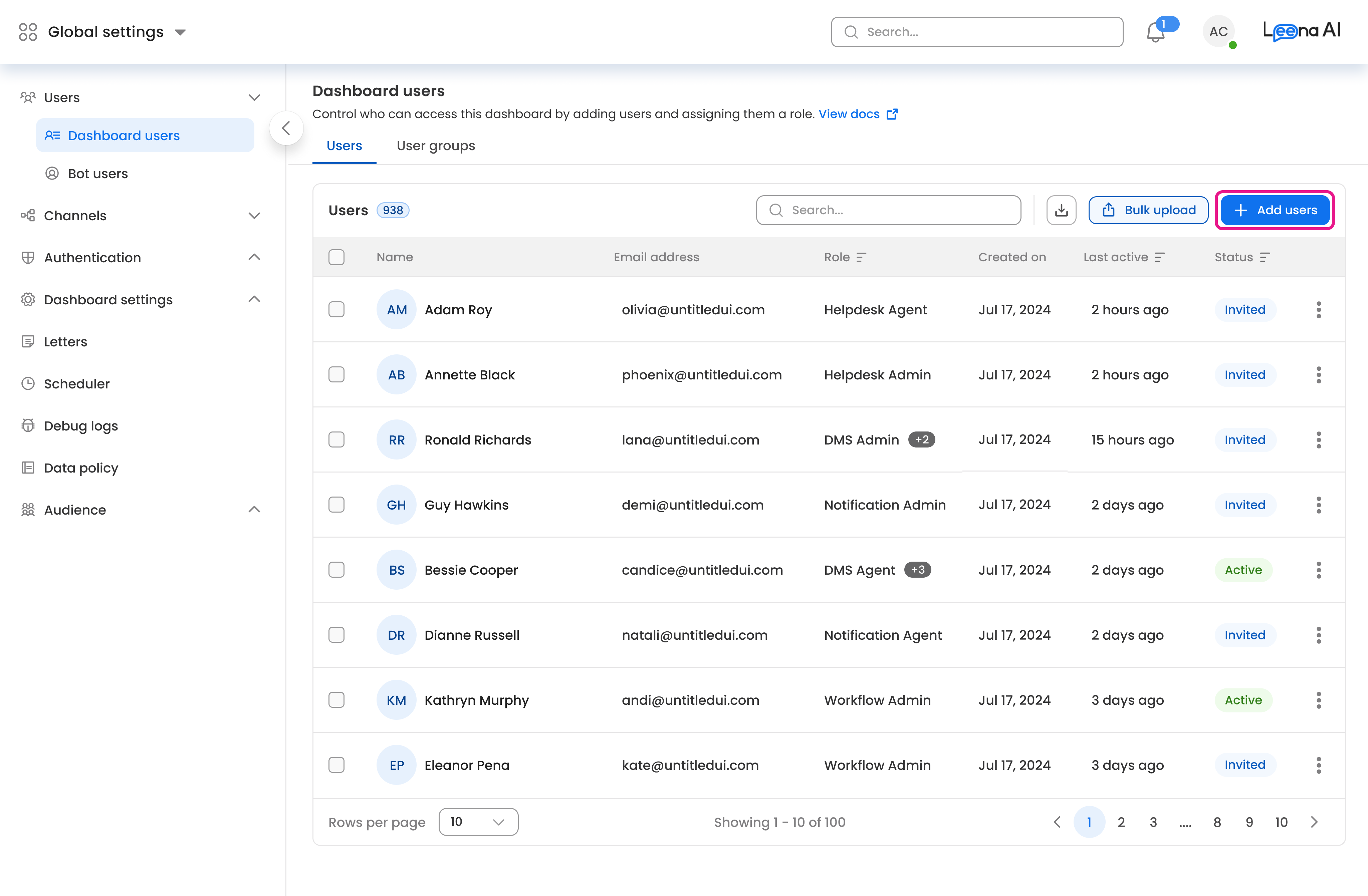
Users can be added one at a time or in bulk. Both options sit at the top right of the page.
Adding users one at a time
-
Click Add user.
-
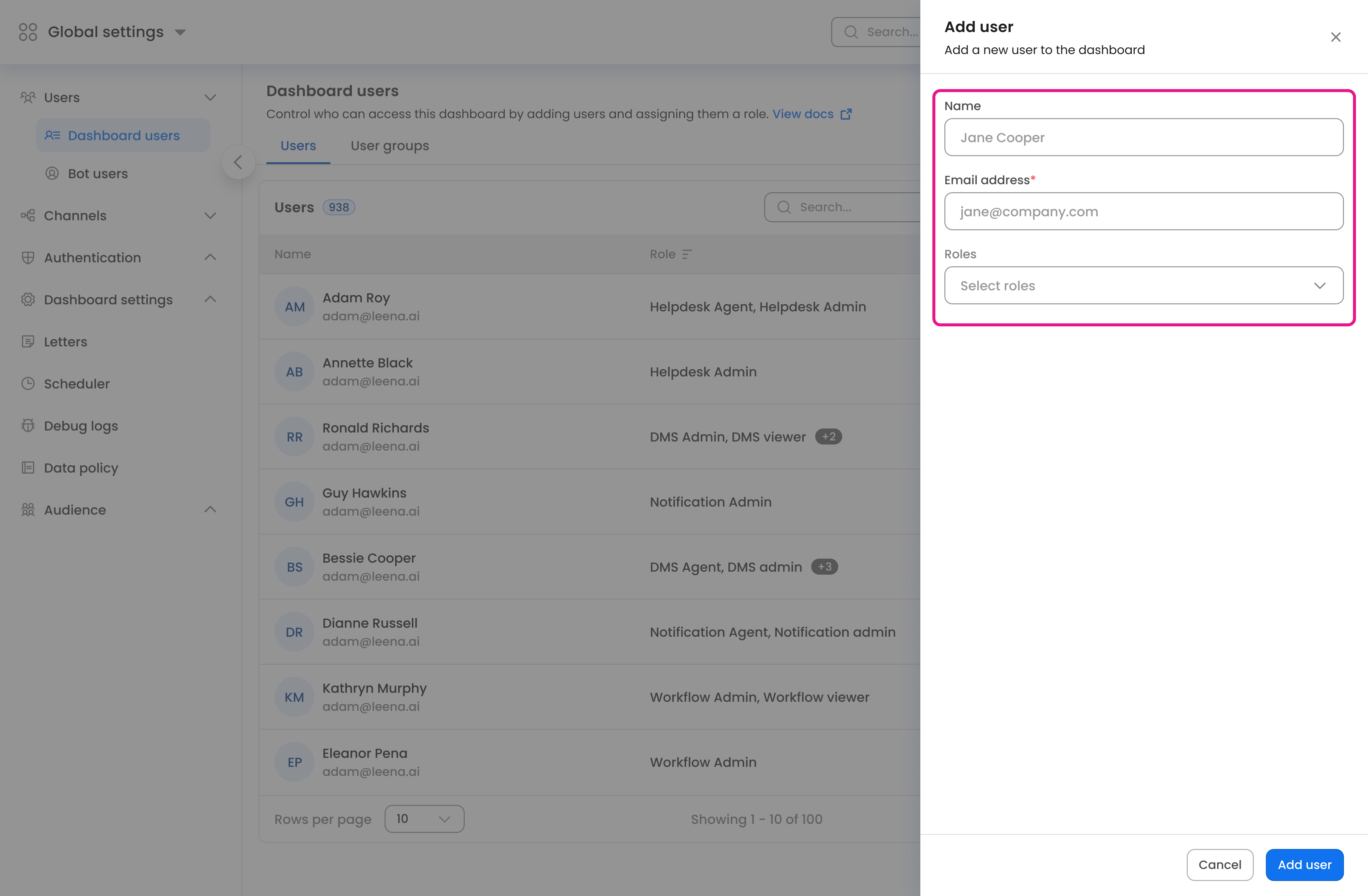
Fill in the user's details and assign at least one role.
-
Click Add user to save.
The account is created and an invitation email goes out. The user appears in the table with Invited status until they complete verification.
Adding users in bulk
-
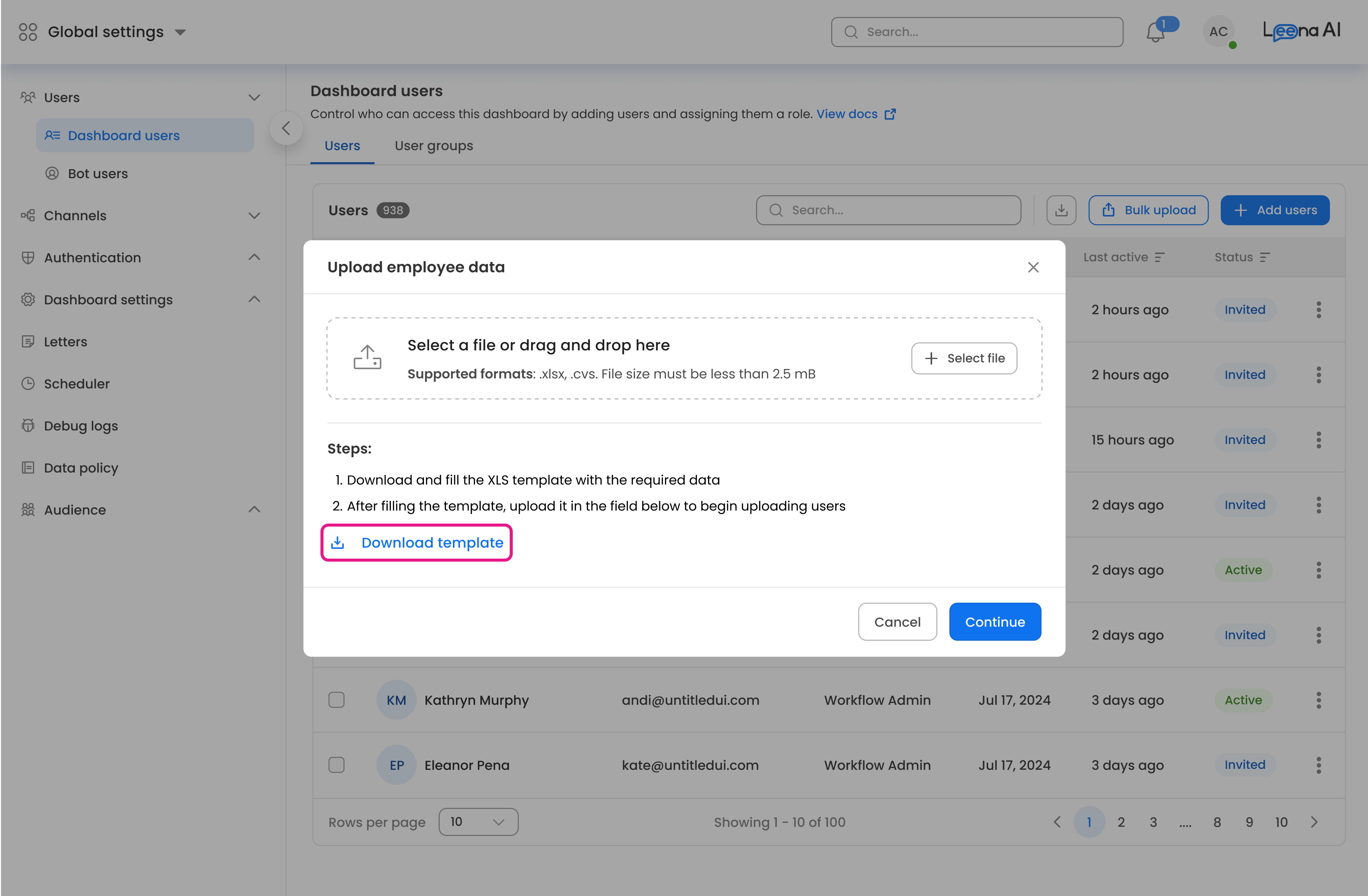
Click Bulk upload.
-
Download the template and fill in the details of the users you want to create.
-
Upload the completed file using Select a file or drag and drop here.
-
The file is validated as soon as it's selected. You'll see a confirmation of how many rows passed — for example, 18 of 20 employees data validated successfully.
If every row is valid
The upload proceeds directly. Accounts are created and invitation emails are sent to all of them.
If some rows have errors
The primary button changes to Preview, which opens a review screen showing every row from your file alongside the specific errors found. On that screen you can:
- Filter the list by All, rows with no errors, or rows with errors
- Search for a specific row
- Import only the rows that passed validation
Importing while errors are present asks you to confirm first. Rows with errors are skipped — correct them in your file and upload again to add those users.
Fix errors before importing rather than afterSkipped rows aren't queued or remembered. If you import a partial file, you'll need a second upload for the remainder, so it's usually faster to correct the source file and re-upload once.
User status
Each user's status appears in the table:
| Status | Meaning |
|---|---|
| Invited | Account created; the user hasn't completed verification yet |
| Claimed | Account verified and in use |
| Active | Account in good standing |
| Deactivated | Explicitly deactivated; the user cannot sign in |
| Blocked | Access blocked, typically by security policy |
An account can additionally be locked after repeated failed sign-in attempts. Locked accounts get an Unlock user action in the row menu.
Actions on a user
Click the context menu (vertical dots) on any row.
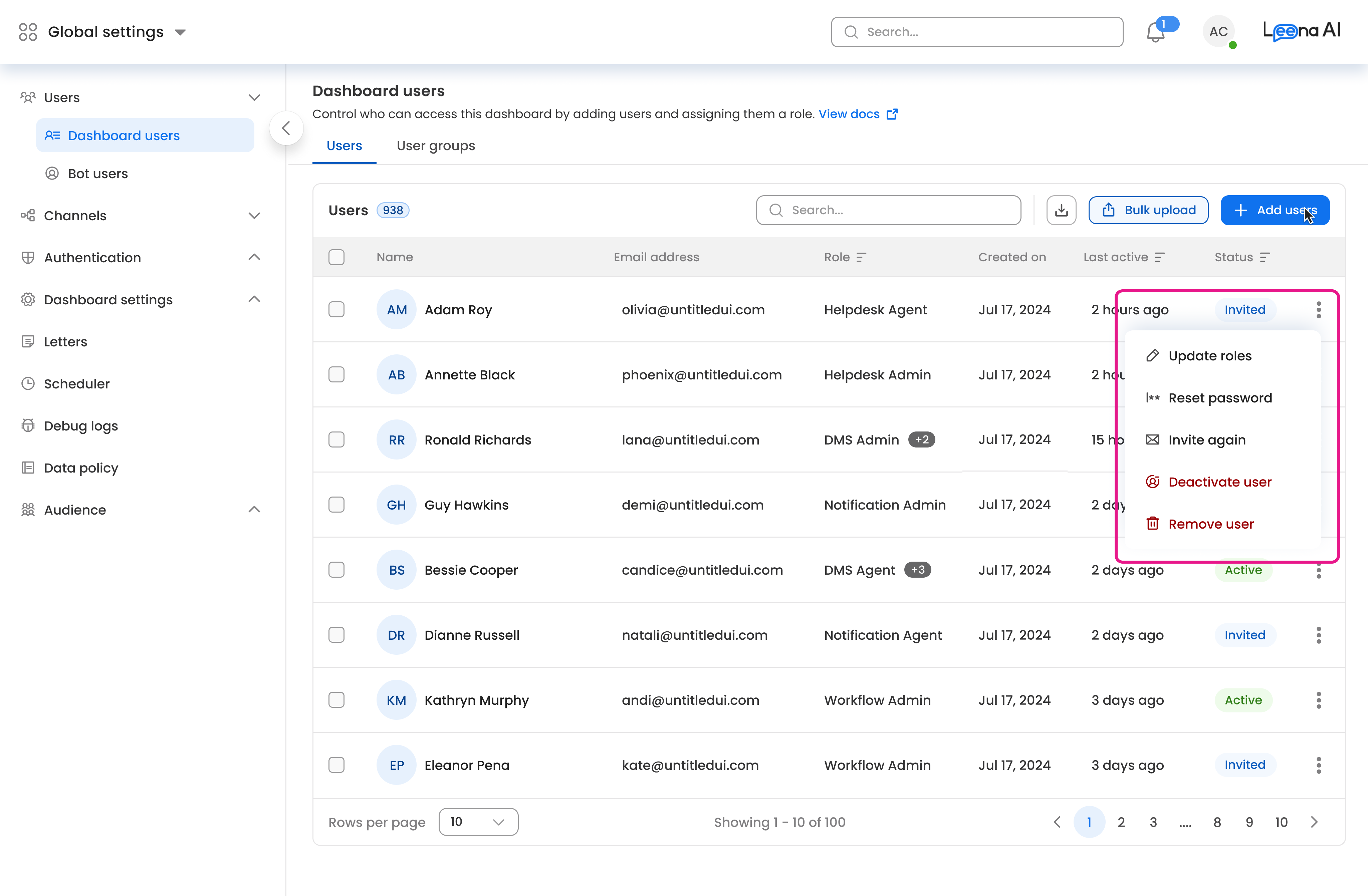
| Action | What it does |
|---|---|
| Edit roles | Change which roles the user holds |
| Reset password | Trigger a password reset for the user |
| Invite again | Resend the invitation email or link |
| Unlock user | Restore access to an account locked by failed sign-in attempts. Appears only when the account is locked |
| Deactivate account | Revoke sign-in access while keeping the record. Status changes to Deactivated |
| Remove user | Permanently delete the user from the list. They must be added again from scratch if needed |
A deactivated user's menu collapses to a single Activate action — the other options return once the account is active again.
Acting on several users at once
Select users with the checkboxes to reveal a bulk action bar.
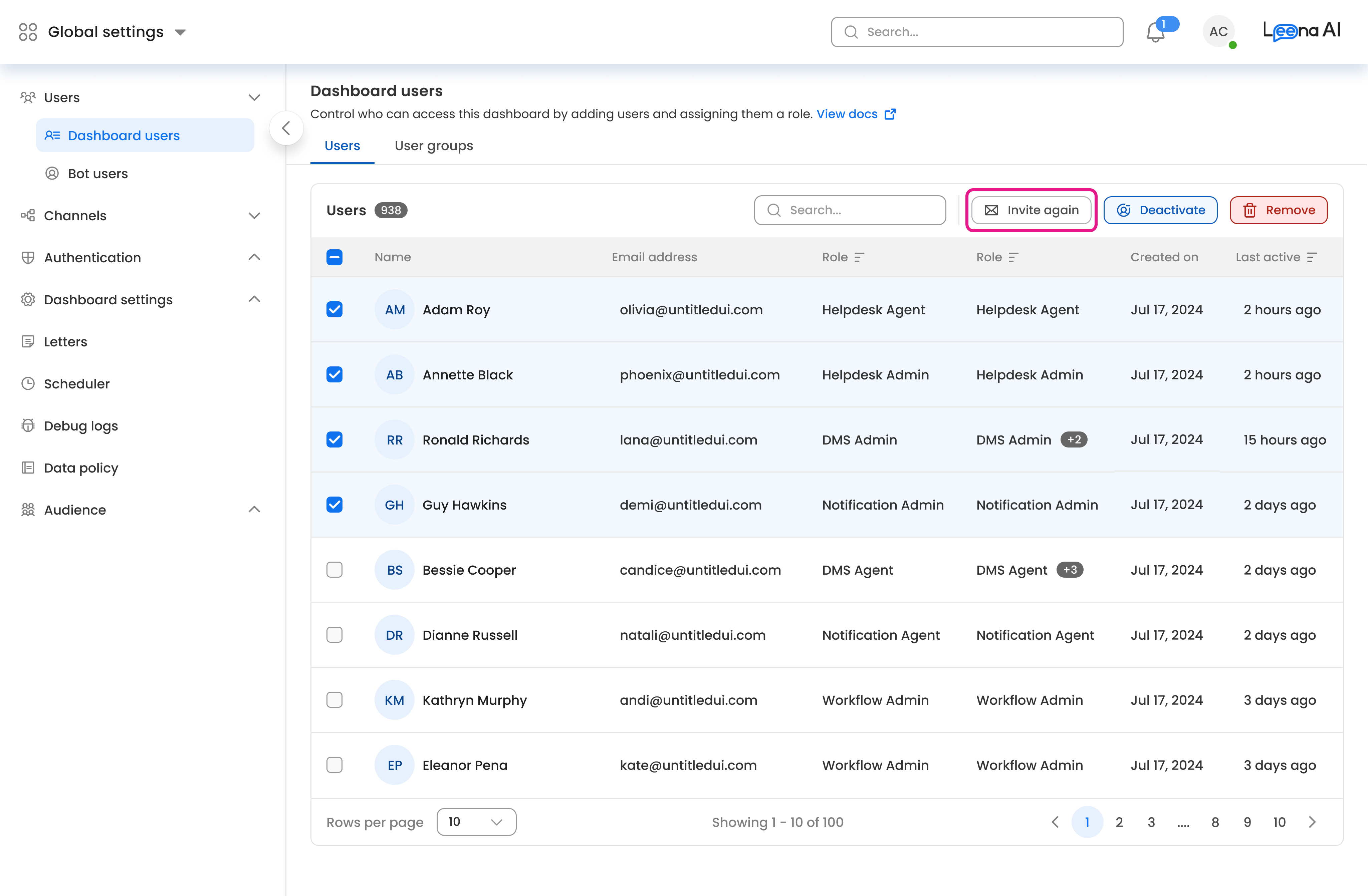
- Invite again — resends invitations to everyone selected
- Activate or Deactivate — the button shown depends on your selection. Activate appears when every selected user is deactivated; otherwise Deactivate appears, and it stays disabled unless all selected users are currently active. Mixed selections can't be toggled in one go
- Remove — permanently deletes the selected users
Editing roles, resetting passwords, and unlocking are per-user actions and aren't available in bulk.
User groups
Groups let you assign roles once and have every member inherit them. This is the recommended approach for teams and departments — adding someone to the group grants their access, and removing them revokes it, with no per-user edits.
Switch to the User groups tab to see all groups, with their description, assigned roles, creation date, and member count.
Creating a group
- Click to create a group.
- Enter a Group name (required) and an optional Description.
- Select the Roles the group grants — at least one is required.
- Create the group, then assign members to it.
Editing and removing groups
Each row offers Edit and Delete. Editing lets you change the name, description, roles, and membership. Groups can also be deactivated, which revokes the access they grant while preserving the group and its history for audit purposes.
Permissions add upA user's effective access is the union of their directly assigned roles, any roles inherited from groups, and any individual permissions granted to them. Removing a role from a group won't restrict a user who also holds that role directly.
Roles and permissions
The dashboard uses Role-Based Access Control (RBAC). Permissions come from roles that are scoped to specific applications — Case Management, Analytics, AI Colleague Studio, Knowledge Management, and so on.
Two foundational principles:
- Roles are module-specific. Access to one application does not grant access to another.
- Modules add their own fine-grained controls on top of platform roles — ownership, assignment, department or group membership, and audience filters further shape what a user can see and do.
Enablement comes firstEven a fully privileged user cannot open a module unless that application is enabled for the workspace. Assigning a role has no effect until the module is turned on.
How access is evaluated
Access is checked in three layers:
- Application access — whether the user can open a module at all
- Module actions — which granular operations they can perform inside it
- Data-level access — which specific records they can see, through ownership, assignment, and audience filters
Role catalog
Admin Console administration
Admin Console access is delegated through job-based roles. Each opens a defined set of sections, so channel setup, compliance work, and template management can be handed to different people without granting full platform administration.
| Role | Sections it opens |
|---|---|
| System Admin | Every Admin Console section |
| Channel & Authentication Setup Manager | Dashboard settings → Authentication · all of Leena Channels (Virtual Assistant settings, Widget config, Language, Apps authentication, Web authentication, Other auth settings, SAML apps) · External channels · Email settings |
| Audit & compliance manager | The entire Logs section — Web login errors, Email logs, WhatsApp logs, Audit Logs, and Data Subject Requests |
| Template manager | Admin Console → Templates |
Two boundaries are worth knowing, because both are enforced rather than cosmetic:
- Setup belongs to System Admin alone. Channel & Authentication Setup Manager configures authentication but cannot open Dashboard settings → Setup.
- Logs belongs to Audit & compliance manager alone. No other delegated role reaches the log screens.
Hiding a section also blocks it. Opening a restricted page by typing its URL returns an access-denied screen rather than an empty page, so a bookmark shared between admins with different roles will not work for both.
Templates is one section with filtered tabsTemplates opens for any role granted at least one template type, and the tab strip then shows only the types that role holds. A role granted a single type lands directly on that tab — a Notification Admin, for example, opens Templates on WhatsApp templates and sees no others. Letter templates additionally require the capability to be enabled for the bot.
Case Management
| Role | Scope | Permissions |
|---|---|---|
| Helpdesk Admin | Case Management | Manage all tickets, delete/restore tickets, smart comments, configure assignments, bulk-create and link tickets, full admin settings (schema, SLAs, departments, automation), helpdesk analytics |
| Helpdesk Agent | Case Management | Manage tickets assigned to them or to users under them (view, post, edit); no delete/restore, no admin settings |
| Helpdesk Insights Admin | Helpdesk Insights | Use Insights, manage bot settings, view and manage all cluster information, generate knowledge articles, notify on open tickets |
| Helpdesk Insights Agent | Helpdesk Insights | Use Insights, view cluster information, generate knowledge articles, notify on open tickets |
Employee onboarding / offboarding
| Role | Scope | Permissions |
|---|---|---|
| Onboarding Admin | Onboarding | Manage onboarding of all employees |
| Onboarding Agent | Onboarding | Manage onboarding of employees they added |
| Onboarding Viewer | Onboarding | View employee onboarding |
| Offboarding Admin | Offboarding | Manage offboarding of all employees |
| Offboarding Agent | Offboarding | Manage offboarding of employees they added |
| Offboarding Viewer | Offboarding | View employee offboarding |
Knowledge & documents
| Role | Scope | Permissions |
|---|---|---|
| Knowledge Management Admin | Knowledge Management | Manage all knowledge content regardless of owner. Bypasses content-level ownership and audience filters; manages KM settings, connectors, sync, approval matrix, and KM reporting |
| Knowledge Management Agent | Knowledge Management | View content; create articles; manage the content they own or collaborate on. No global settings, connectors, or organization-wide reporting |
| Document Hub Admin | Document Hub | Manage documents across the organization |
| Policy Search Admin | Policy Search | Manage policies |
| DMS Admin | Document Management System | Create, update, delete, and view all DMS resources, including tags, attributes, and retention policies |
| DMS Agent | Document Management System | Day-to-day file and folder operations without admin-level configuration (cannot create or delete tags, attributes, or retention policies) |
AI Colleague Studio (including workflows)
| Role | Scope | Permissions |
|---|---|---|
| AI Colleague Studio Admin | AI Colleague Studio | Full Studio access: create, edit, and delete AI Colleagues; build and manage all workflows regardless of scope; manage connections, tools registry, Studio settings, and the debug console; full run history and reporting |
| AI Colleague Studio Builder | AI Colleague Studio | Scoped build access: full build rights on the AI Colleagues they are assigned to as builders and on the workflows scoped to those colleagues; read-only visibility of global workflows; run history limited to their own colleagues |
Workflow roles are now part of AI Colleague StudioWorkflow (V2) Admin and Workflow (V2) Agent are superseded by AI Colleague Studio Admin and AI Colleague Studio Builder. Existing assignments continue to work, but new users should be given the AI Colleague Studio roles. See AI Colleague Studio access in detail.
Analytics
| Role | Scope | Permissions |
|---|---|---|
| Analytics Admin | Analytics (V2) | Full analytics access: all dashboards, drill-downs, exports, custom dashboards (creator becomes dashboard Owner), Analytics settings, and scheduled reports |
| Analytics Viewer | Analytics (V2) | View analytics and dashboards shared with them; cannot create dashboards, change settings, or manage other users' access |
Employee Relationship Management
| Role | Scope | Permissions |
|---|---|---|
| ERM Admin | ERM | Manage ERM settings; view employees they have access to, view individual profiles, view and create notes |
| ERM Viewer | ERM | View employees they have access to, view individual profiles, view and create notes |
Engagement & notifications
| Role | Scope | Permissions |
|---|---|---|
| Notification Admin | Notifications | Schedule notifications and manage their audiences. Also manages the WhatsApp templates tab in Admin Console → Templates |
| Engage User | Engage | View the employee engagement tab. Partial access only — dashboard-specific access must additionally be enabled from the Engage dashboard; contact your CSM before using this role |
| Adhoc User | Adhoc Surveys | Create and manage all adhoc surveys |
Roles no longer assigned
These roles are retired and should not be given to new users. Existing holders keep their access through the replacement role:
| Retired role | Replaced by |
|---|---|
| Config Manager | System Admin, which already carries its access |
| Audit Logs – Admin | Audit & compliance manager |
| Audit Logs – Agent | Audit & compliance manager |
Legacy & special-purpose roles
Available for backward compatibility with existing deployments, but not recommended for new rollouts:
| Role | Scope | Status |
|---|---|---|
| Workflow (V2) Admin | Workflow Builder (V2) | Superseded by AI Colleague Studio Admin; existing assignments keep working |
| Workflow (V2) Agent | Workflow Builder (V2) | Superseded by AI Colleague Studio Builder; existing assignments keep working |
| Workflows Admin / Workflows Agent | Workflows (V1) | Legacy workflow module |
| FlowGPT Admin / FlowGPT V2 Admin | Flow GPT / Flow GPT V2 | Legacy conversational-flow modules; superseded by AI Colleague Studio |
| TA Admin | Ticket Analysis | Predecessor of Helpdesk Insights; use Helpdesk Insights roles instead |
| Knowledge Base Admin | Knowledge Base (legacy) | Predecessor of Knowledge Management |
| Help Support Admin / Agent, Tasks Admin / Agent, Change Request Admin / Agent, Analytics v0 Admin, Vaccination Tracker Reviewer | Various | Special-purpose or deprecated modules; assign only where the corresponding module is in active use |
| Engage Leena Admin | Engage | Restricted to Leena administrators |
AI Colleague Studio access in detail
AI Colleague Studio consolidates AI Colleagues, workflow building, connections, and tools under a single access model with two roles — Admin and Builder.
- AI Colleague Studio Admin has full control over everything in the Studio: every AI Colleague, every workflow, all connections and settings, and the complete run history.
- AI Colleague Studio Builder is a scoped creator. Each AI Colleague has a list of builders (owners); a Builder's rights extend to the colleagues they're assigned to and the workflows belonging to those colleagues. Role changes and builder assignments take effect on the user's next dashboard request.
Workflow scoping
Every workflow carries a scope:
| Scope | Meaning |
|---|---|
| AIC-scoped | Belongs to a specific AI Colleague and is exposed as that colleague's skill or tool |
| Global | Available platform-wide as a shared tool |
| Unscoped | Standalone, not attached to any AI Colleague — includes workflows created before scoping was introduced |
Access by role and scope:
| Workflow scope | Studio Admin | Studio Builder |
|---|---|---|
| Global | Full control | Read-only (view app and reports), plus any permissions explicitly granted per application |
| AIC-scoped | Full control | Full control only for AI Colleagues they build |
| Unscoped | Full control | Full control only over workflows they created |
Additional rules:
- Scope changes are restricted. Only an Admin can promote an AIC-scoped workflow to Global. An unscoped workflow can be attached to an AI Colleague by anyone who can edit it, or promoted to Global by an Admin. Reassigning a workflow between AI Colleagues, or demoting a Global workflow, is not permitted.
- Connections are scoped too. Connections are either global or scoped to an AI Colleague, and a workflow can only be published if its connections are compatible with its scope. Managing connection settings is Admin-level.
- Per-application grants still apply. An Admin can give an individual user fine-grained permissions on a specific workflow — access to one app's reports or admin actions, say — without making them an Admin.
- Run history follows scope. Builders see run history and debug detail only for their own AI Colleagues; entries involving other colleagues' skills are withheld or redacted. Admins see everything.
Migrating from workflow roles
| If a user has… | They map to… |
|---|---|
| Workflow (V2) Admin | AI Colleague Studio Admin |
| Workflow (V2) Agent | AI Colleague Studio Builder |
Legacy assignments are still honored, and workflows that existed before scoping remain accessible to the users who could already reach them.
Controls inside each module
On top of platform roles, individual modules apply their own logic:
- AI Colleague Studio — role plus ownership. Access combines the platform role with per-colleague builder assignments and per-workflow scope, as described above.
- Analytics — per-dashboard roles. Beyond the Analytics Admin role, individual dashboards have Owner / Co-owner / Viewer tiers and visibility levels (Restricted, Shared, Public).
- Knowledge Management — ownership and audiences. Content has an owner and can have collaborators and reviewers, and knowledge targets specific audiences, so different users see different content.
- Case Management — departments and groups. Agents belong to departments and user groups; ticket visibility is the intersection of role and group membership.
Data-level access
Audience filters provide row-level governance that operates separately from roles. Where roles decide which features a user can open, audiences decide which records appear inside those features.
The practical consequence: two people holding an identical role can see entirely different data. Regional managers with the same role, for example, each see only their own region's tickets.
Auditing
All significant access changes — user creation, role changes, and permission modifications — are recorded in an immutable change log. See Audit Logs.
Good to know
- Trial and sandbox workspaces ship with a starter set of roles: Helpdesk Admin, Knowledge Management Admin, Analytics Admin, and System Admin.
- Role names are stable identifiers. Renaming default roles requires a controlled migration.
- When access doesn't behave as expected, check enablement first — confirm the application is enabled for the workspace, then confirm the user holds the right role.
Updated about 2 months ago