
Managing Performance Insights
Once a report is live, the Performance insights screen is where you keep it healthy — find any report by its stage, open the AOP whose report needs attention, edit what it captures, turn reporting off and back on, and accept the new version it produces when the underlying AOP changes.
The Performance insights screen
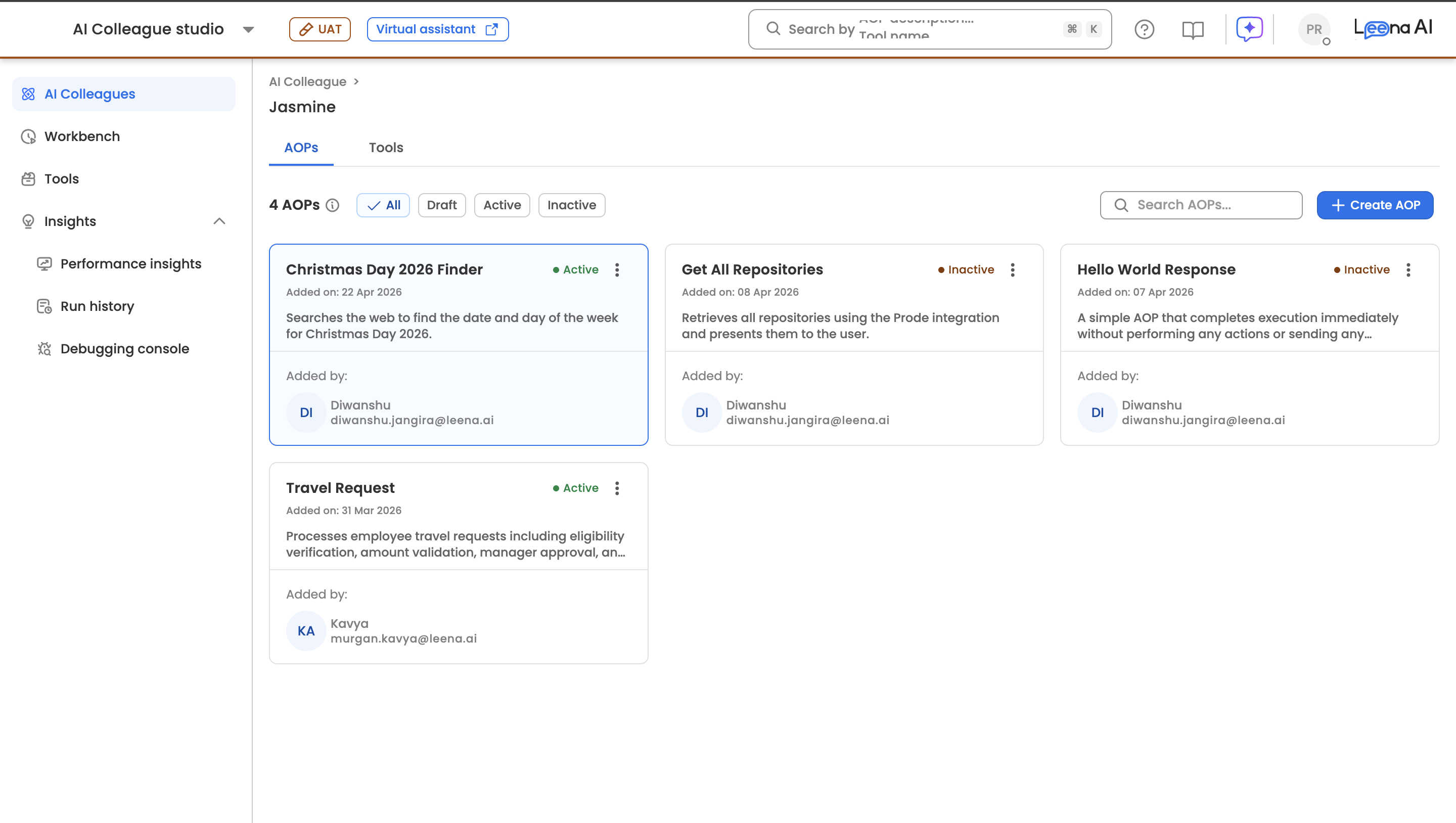
Insights → Performance insights lists every AOP in the workspace, grouped by where its report sits in the reporting lifecycle. Each section header carries a count.
| Section | What's in it |
|---|---|
| Live | Performance insights generated and capturing from every run — including a report built from a slightly older AOP version. |
| Action needed | A proposed report to accept — either a first one, or one proposed after the AOP changed — or a setup that didn't complete. |
| Ready for reporting | AOPs you could report on: still accumulating runs, ready to configure, or being analysed. |
| Paused | Reporting stopped — turned off by a person, or auto-stopped while the report rebuilds after an AOP change. |
Each entry is a card showing the AOP name, one short line describing its exact condition, and — for any report with captured runs — a metrics line (6 insights · 482 runs). Cards with no captured runs show no metrics line rather than zeroes.
The conditions you'll see, by section:
| Section | Condition |
|---|---|
| Live | Capturing normally |
| Live | AOP changed, but not substantially |
| Live | Accepted, nothing captured yet |
| Action needed | First report awaiting acceptance |
| Action needed | Rebuilt report awaiting acceptance |
| Action needed | First-time analysis produced nothing |
| Ready for reporting | Run requirement met, ready to configure |
| Ready for reporting | Run requirement not yet met |
| Ready for reporting | Being analysed now |
| Ready for reporting | Nothing measurable in this AOP |
| Paused | Turned off, resumable |
| Paused | Reporting turned off |
| Paused | Rebuilding after a substantial change |
The whole card is the action. Clicking a card opens that AOP's own Insights tab, which is where every specific action lives: accept a proposed report, resume reporting, retry a failed setup, read the report, or see why the AOP changed. Cards don't carry per-action buttons — they take you to the one place all the actions live.
Note: An AOP showing 2 of 5 runs required cannot be configured yet — the run requirement is enforced. See Setting up Performance Insights for what counts as an eligible run.
Finding a report
- Search by AOP name.
- Filter by AI Colleague to narrow to one colleague's AOPs.
Both apply across the whole screen, and the section counts always reflect what's left after filtering.
Note: Helper AOPs, deactivated AOPs, and unpublished drafts don't appear on this screen — a helper's data is already captured into its parent's report, and the other two can't own a report. A deactivated AOP can still have a real, readable report; you reach it from that AOP's own Insights tab.
Actions on a report
All of the following are done from an AOP's Insights tab (open it by clicking the AOP's card).
| Action | What it does |
|---|---|
| Open / read | View the report — charts, reliability cards, rows table, schema, and the Insights Agent. |
| Accept a report | Approve a proposed report — a first one, or a rebuilt one after a change — so it goes live. |
| Change a chart type | Switch an insight between bar, donut and funnel. Other types need a different calculation — describe the change instead. |
| Add, edit or remove an insight | Add or delete insights, or describe the change you want in plain language and let the system rewrite the configuration. |
| Regenerate | Rebuild the proposal from fresh evidence. After a substantial AOP change this happens automatically; the manual option is a fallback. |
| Retry a failed setup | Re-run analysis for an AOP whose first-time setup didn't produce anything. |
| Turn reporting off / on | Stop capturing new runs, then start again. Data already captured is retained and the report stays readable. |
Note: A paused or turned-off report keeps its numbers — stopping capture doesn't remove rows already captured. Both appear under Paused on the Performance insights screen, with their metrics intact.
Note: The two built-in reliability cards — Run completion rate and Why runs didn't complete — can't be edited, renamed or deleted. They're identical on every report by design, so "completion rate" means the same thing everywhere.
Note: Editing is locked while a report is rebuilding itself after a substantial AOP change. Until the rebuilt report is proposed, the insight-editing controls are unavailable — the report you'd be editing is about to be replaced. The tab shows the rebuild's progress instead.
When you change the AOP
Reports don't go stale silently. After a report is live, Performance Insights watches for changes to the AOP and reacts based on how big the change is:
- Cosmetic change (a typo or reworded instruction that doesn't change what a run produces) — nothing happens; the report keeps running and stays plainly Live.
- Minor change (a renamed field with the same reporting intent) — the report's configuration is updated in place, immediately, with no new runs needed and no review gate. At most you'll see an AOP changed note on the card, still under Live.
- Substantial change (the report is now about different things — for example the AOP switched from "track these 5 named vendors" to "top 5 vendors by spend") — the report rebuilds itself:
- Capture pauses for the new version. The report keeps showing the previous version's data — it never goes blank or fills with mismatched numbers. New runs are counted but held back.
- The report regenerates automatically once 5 eligible runs of the new AOP version have happened. As with first-time setup, only real, terminal, lineage-stamped runs count — eval runs don't.
- You review and accept the rebuilt report on the same preview page, now with each insight and column marked added, modified, deleted or unchanged so you can see exactly what moved.
- The held-back runs are back-filled into a new report version that goes live, while the previous version is frozen and kept viewable.
Throughout a substantial rebuild the report sits under Paused, showing a Baseline k of 5 runs count while it collects and Updating the report once it starts regenerating. It moves to Action needed the moment the rebuilt report is ready to accept — the first point where there's something for you to do.
Note: There is no email or Slack notification when a rebuilt report becomes ready. The Performance insights screen and the AOP's own Insights tab are where you'll see it, so check Action needed rather than waiting to be told.
Note: If a minor change can't be resolved unambiguously, it falls back to the same path as a substantial one and will ask for runs of the new version before it can regenerate.
Report versions
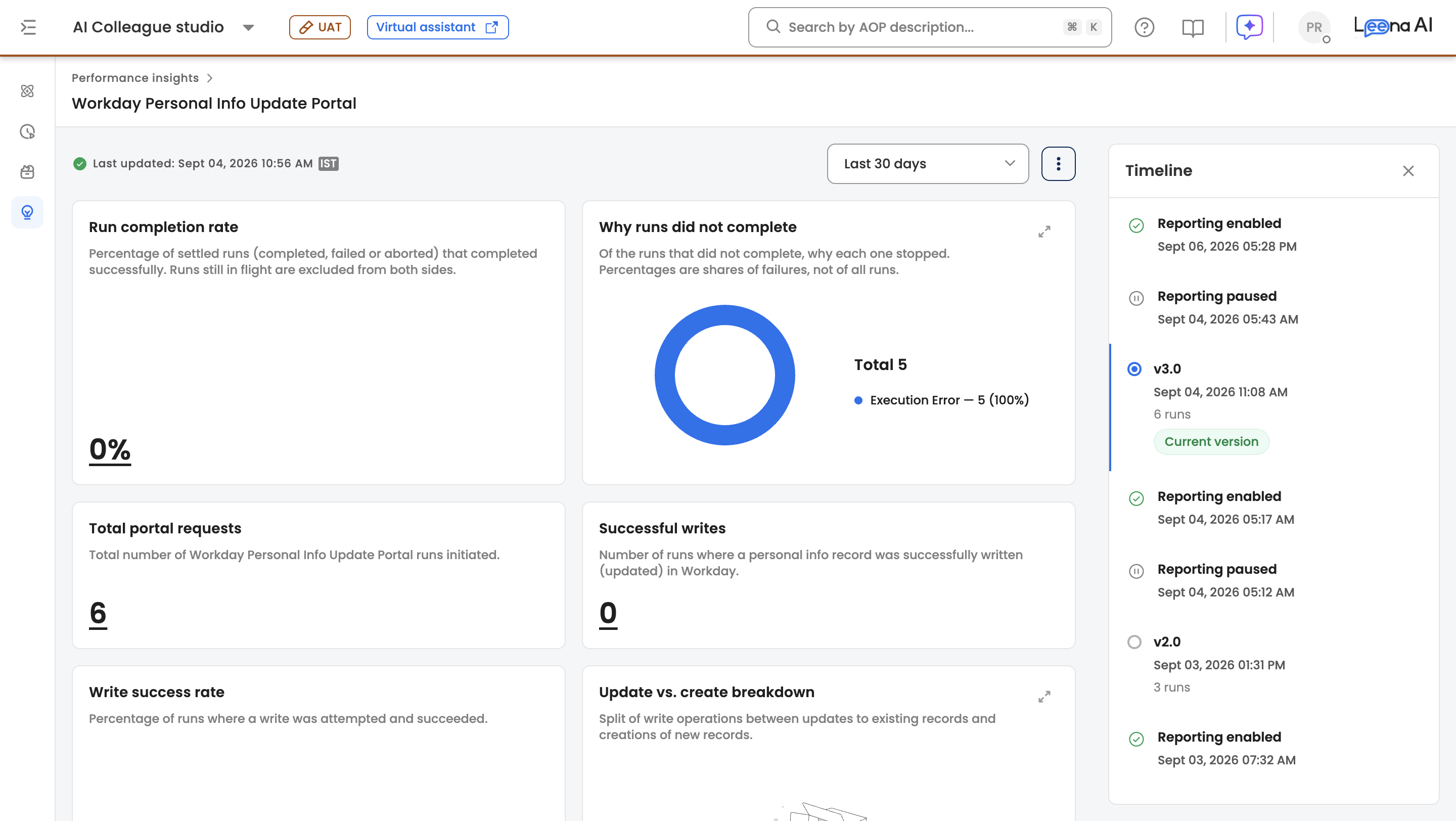
A new version is created only when a substantial change is accepted. Each version has its own schema, its own insights, and its own data. Minor edits and ordinary configuration tweaks stay in the same version, so most reports have exactly one.
The versions list shows, newest first:
| Field | What it is |
|---|---|
| Version | The identifier you pick to view that version. |
| Status | active for the live version, frozen for a retained historical one. |
| Created | When the version was cut. |
| Runs | How many runs' worth of data that version holds. |
The report shows the live version by default; picking a frozen one reloads every chart, row and export under that version's own schema and insights. Only user-facing versions appear — in-progress and superseded internal generations are hidden.
Note: The built-in reliability cards are computed at read time rather than stored with a version, so they're unaffected by rebuilds, versioning and back-fill.
Updated about 2 months ago