
Unavailability Management
Manage Unavailability
Manage Unavailability lets you record a period when you will not be handling cases. A System Admin approves it and names someone to cover for you, so your cases go to them instead of sitting unattended.
Use it for planned absence — leave, travel, training. For a short break during the day, use the online/offline toggle instead.
Every request needs approval, and must be raised before the absence starts.
Who can do what
Two things decide what you can do: whether you are the agent, and whether you hold the System Admin role.
| You are | Raise for yourself | Raise for someone else | Approve or reject | Assign cover |
|---|---|---|---|---|
| Dashboard user | Yes | Yes | No | No |
| System Admin | Yes | Yes | Yes | Yes |
Approving and assigning cover needs the System Admin role specifically. Anyone chosen as a cover agent must be an active user.
Raise a request
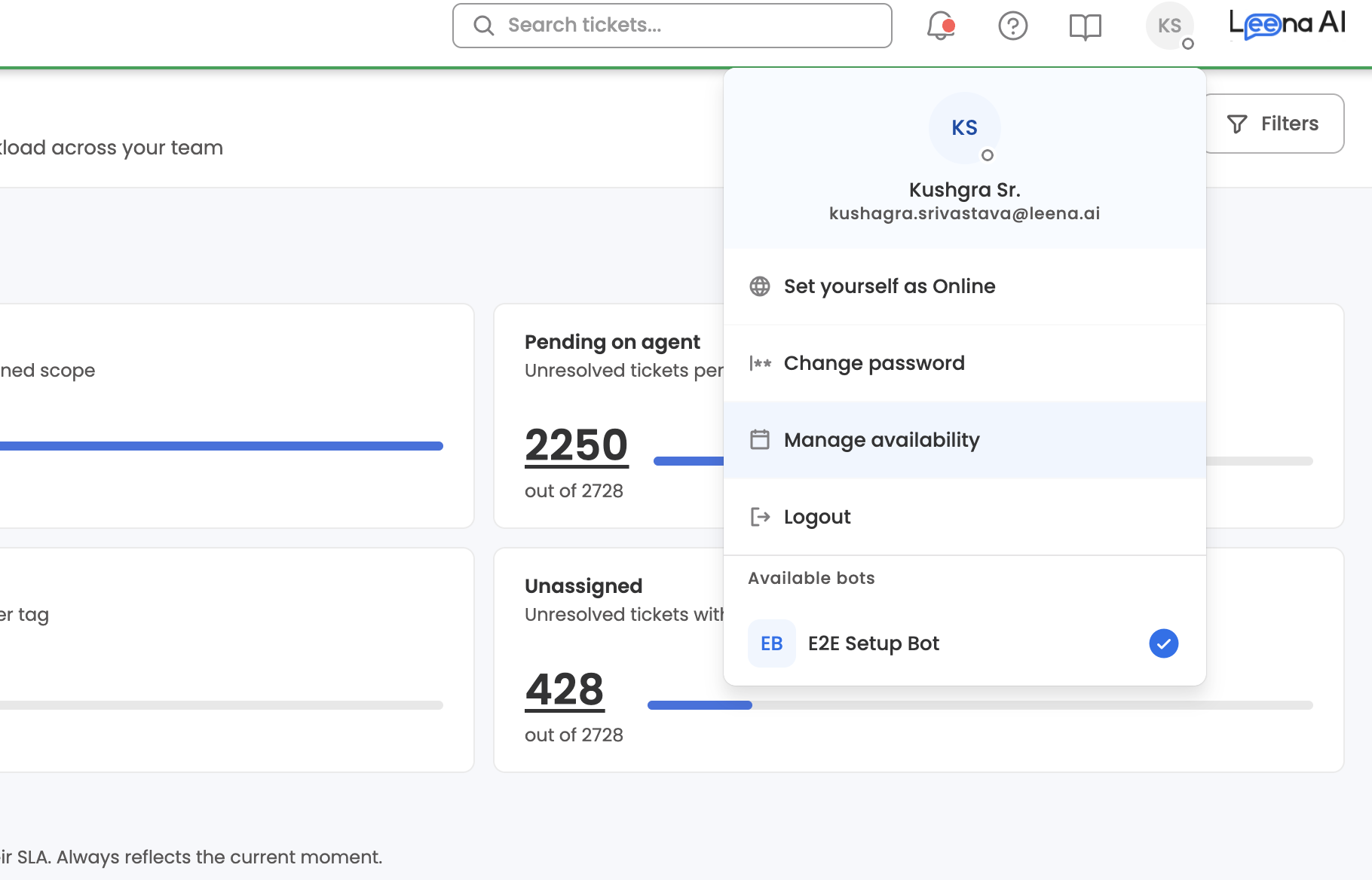
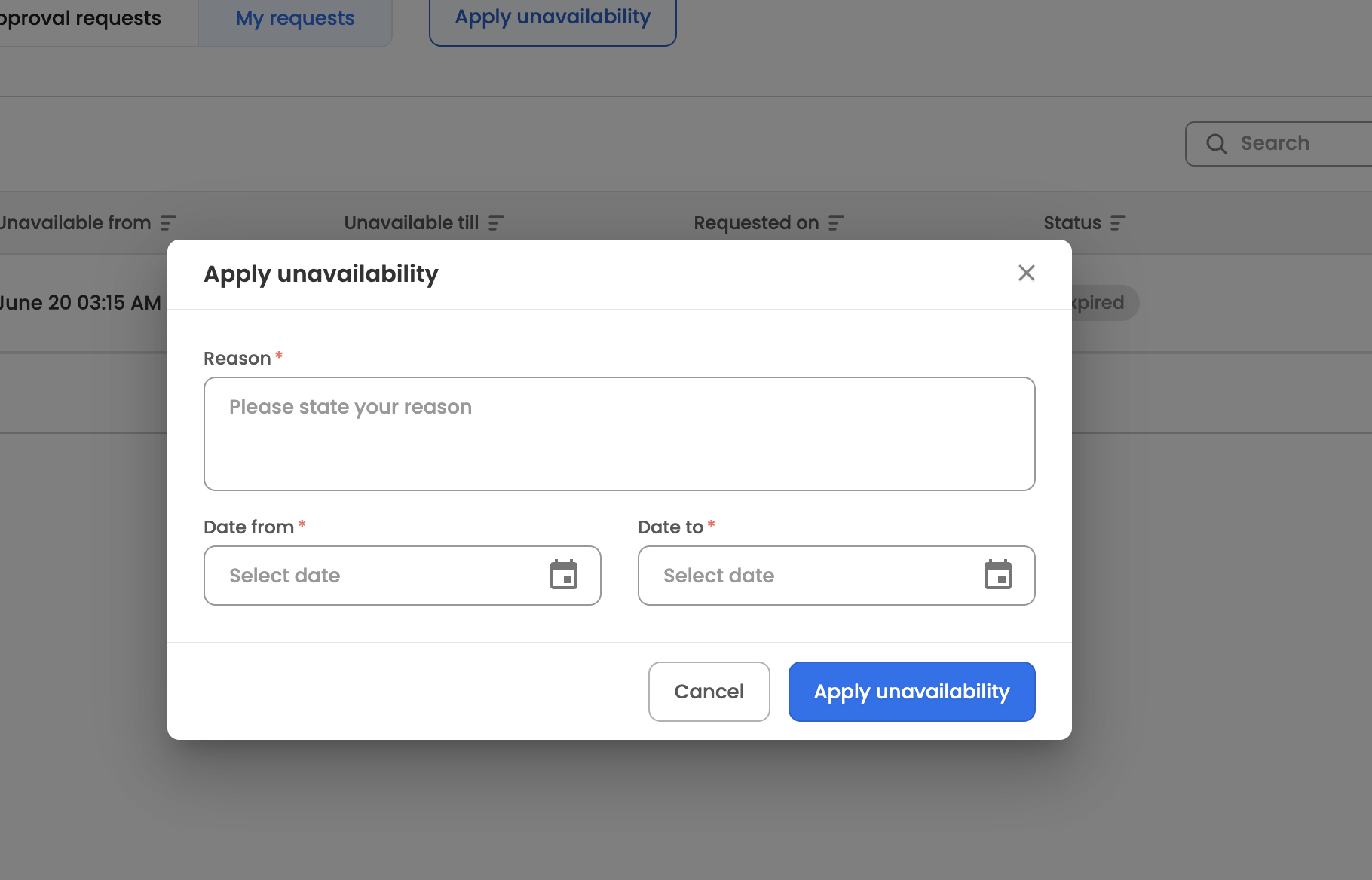
- Open Unavailability and start a new request.
- Set the start and end date and time. The start must be in the future, and the end must be after the start.
- Check the timezone.
- Enter a reason.
- Submit.
Your System Admins are notified, and you get an email once they approve or reject it. You are not marked unavailable until it is approved.
You do not need to say which products are affected — that comes from your roles.
You cannot have two overlapping requests. If you already have one covering these dates, withdraw or shorten it first.
Raising one for someone else: search for the agent first, then fill in the same details.
Approve a request
System Admins work from the approval queue, which lists every request in the workspace and can be searched and filtered.
- Open the request and check the dates and the products listed.
- Choose a cover agent for each product. This is required — a request cannot be approved with any product left uncovered.
- Decide whether to move the agent's existing open cases to the cover agent, or leave them where they are.
- Approve, or reject.
Rejection is final. A rejected request cannot be edited, approved or deleted, so the agent has to raise a new one.
What happens to your cases
Once the absence starts, new cases go to your cover agent instead of you. Allow a few minutes after the start time for this to take effect.
Your existing open cases move too, if that was chosen at approval. Closed cases are never touched.
If a case belongs to a group your cover agent is not in, the group is removed from the case and it goes to them directly.
Every move is recorded on the case timeline, so anyone can see why the case changed hands.
Change or cancel
| Status | User can | System Admin can |
|---|---|---|
| Pending | Edit the dates or reason, or withdraw | Approve, reject, edit, delete |
| Approved | Shorten the end date | Change the end date, or change the cover agents |
| Rejected | Nothing | Nothing |
| Expired | Nothing | Nothing |
Coming back early — shorten the end date yourself.
Staying away longer — ask a System Admin. You cannot extend your own end date once the request is approved.
A request that is not approved before its start time expires and is frozen. Raise a new one for the days you still need.
Updated 1 day ago