
Code Tools
A Code tool is a tool built from a small piece of Python code. Use one when an AI Colleague needs logic that an API, Workflow or MCP tool can't express on its own — for example, combining data from two systems, reshaping a response, or running a calculation.
Code tools are built by Forge: you describe what the tool should do, and Forge writes the code and adds the tool to your Tools list. Once created, a Code tool works like any other tool — you can map it to AI Colleagues, reference it in AOP instructions and control where it runs.
Code tools are created through ForgeCode is not offered as a tool type in Create tool. To create a Code tool, describe it to Forge. See Forge.
Creating a Code tool
- Open Forge from any AI Colleagues page.
- Describe what the tool should do, the system it should connect to, and the inputs it needs — for example, "Build a tool that looks up a ServiceNow incident by number."
- Forge shows a plan. Approve it, and Forge builds the tool step by step.
- When the plan completes, the tool appears in Tools with the type Code.
You can attach files to your message, such as instructions or sample data, and Forge uses them while building the tool.
Finding Code tools
In the Tools list, Code tools show Code in the Tool type column. To see only Code tools, open Filters, select Custom under Category, then choose Code under Type.
Tool details
Opening a Code tool shows the same Tool details as other tools, plus cards only Code tools have.
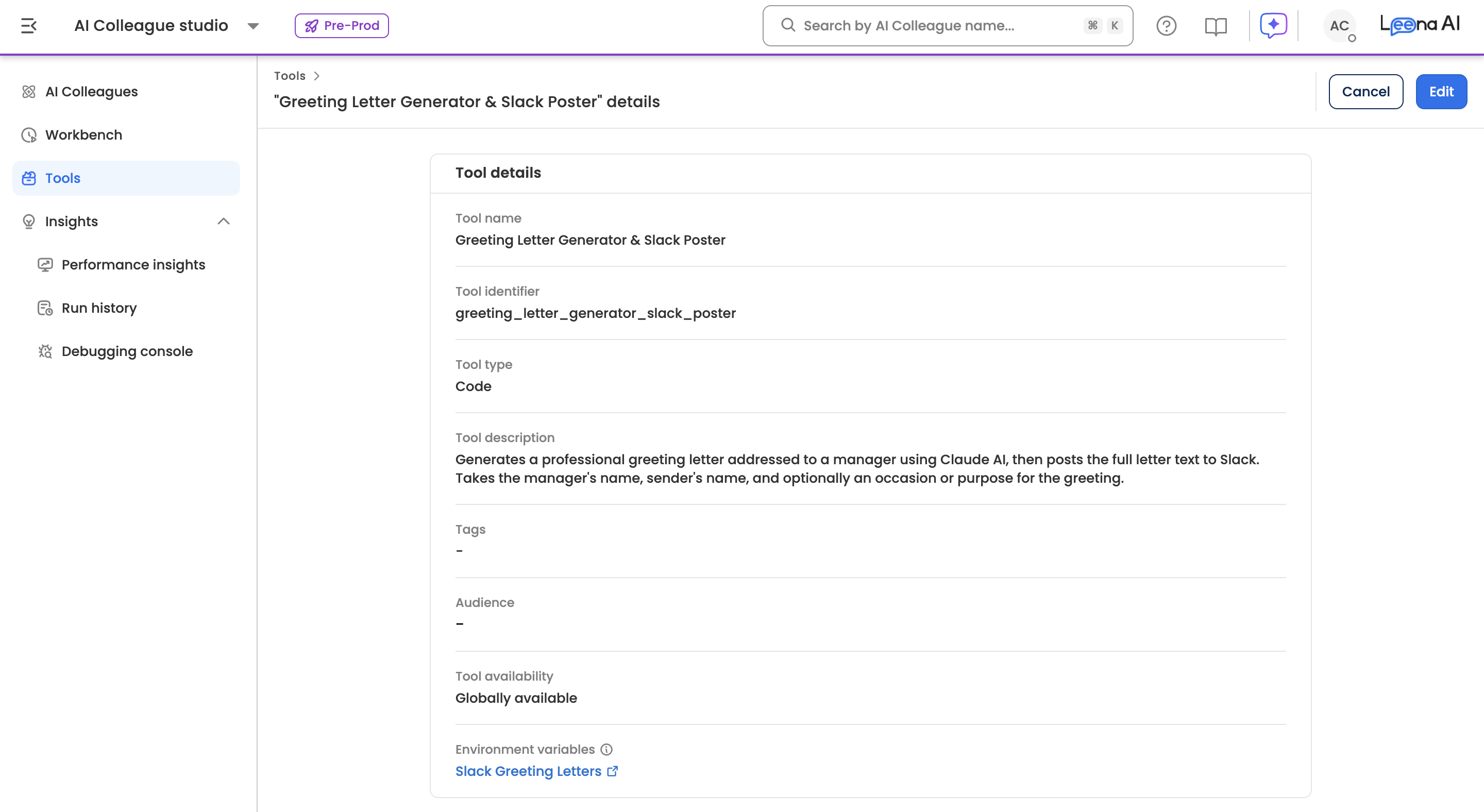
| Field | What it shows |
|---|---|
| Tool name | The tool's display name |
| Tool identifier | The tool's unique identifier |
| Tool type | Code |
| Tool description | What the tool does — the AI Colleague reads this to decide when to use it |
| Tags | Tags used to organise and filter tools |
| Audience | Who the tool is available to |
| Tool availability | Global, or limited to a specific AI Colleague |
| Environment variables | Links to the variable groups this tool reads (see below) |
Response handling rules and Sample queries are not shown for Code tools.
Connectors
The systems this tool connects to, and the connection each one uses.
Each row shows the application and the name the code uses for it (for example, ServiceNow · servicenow), followed by the connection it currently uses. The card appears only when the tool connects to another system.
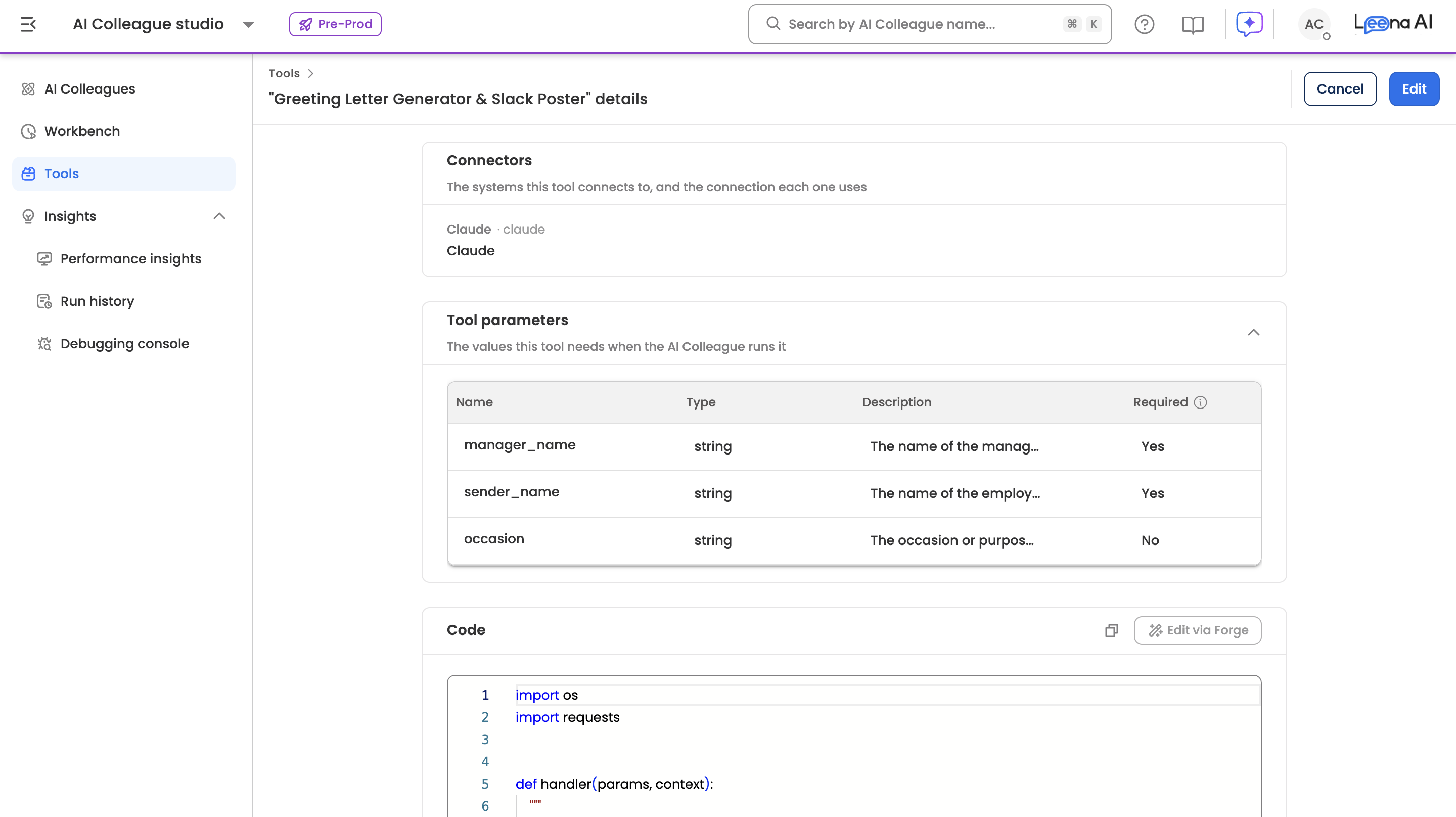
Tool parameters
The values this tool needs when the AI Colleague runs it.
| Column | What it shows |
|---|---|
| Name | The parameter name |
| Type | string, number, integer, boolean, object, array or file |
| Description | What the parameter is for |
| Required | Yes if the AI Colleague must supply it before the tool can run, otherwise No |
An array of simple values shows its element type, for example array<string>. Objects and arrays of objects expand to show their fields. The card appears only when the tool takes inputs.
Code
The tool's Python source, shown read-only. Use the copy icon to copy it.
| Message | What it means |
|---|---|
| This code is stored externally and cannot be shown here. | The code is too large to display on this page |
| No code has been added to this tool yet. | The tool has no code saved |
Edit via Forge appears on this card but is not active yet — "Editing code with Forge is coming soon".
Execution details
Where to execute tool and Always execute work the same as for any other tool. See Understanding Tool Execution Details.
Editing a Code tool
Edit a Code tool from its details page, as with any other tool. A few things differ:
- Tool type can't be changed.
- Code can't be edited — "Code cannot be edited manually."
- Connectors — for each connector, you can choose a different connection for that application. Use Add connection to open that application's connect form in Integrations. Connectors can't be added or removed here, because the code decides which systems the tool uses.
- Tool parameters — only the Description of each parameter can be edited, up to 200 characters. The section is collapsed by default.
All other fields work as they do for other tools.
Environment variables
Environment variables are configuration values your code tools read at runtime, like URLs and settings. They live in Integrations → Environment variables, grouped into variable groups, rather than on the tool itself.
On a Code tool's details page, the Environment variables row links to each variable group the tool uses. You need access to Integrations to see this row and open the groups.
The Variable groups list shows each group's Name, Description, Variables, Availability (Global or the AI Colleague it belongs to), Created by, Created on and Last updated on.
A variable group shows:
- Tools associated with this variable group — every tool that reads these values
- Variables — each variable's Name and Value
When you save a change, the confirmation reads "Changes apply to every tool call that uses this variable." Review the associated tools before saving.
New variable groups are set up through Forge when it builds a tool that needs them. Forge opens the group with its values filled in, and nothing is created until you save it.
Moving a Code tool to Production
Code tools move to Production like other tools — on their own, as part of an AOP migration, or through Forge. The mapping page shows two extra sections for each Code tool.
Connections — Select the PROD connection each connector binding should use after migration.
- Each connector shows its Source connection and a Destination connection to choose. Only existing PROD connections can be picked here.
- If the connection you need doesn't exist yet, choose + Create new connection at the top of the list. It opens the destination bot's Integrations page for that application in a new tab.
Environment variables — one block per variable group, showing its name, a Global badge or the AI Colleague it belongs to, and a summary such as "3 variables. Affects every tool sharing this collection." (Global) or "AIC-scoped. 3 variables."
Each variable shows its Prod value and a status:
| Status | What you can do |
|---|---|
| Already in sync | Keep Existing, or Enter new |
| Values differ | Keep Prod, Use UAT, or Enter new |
| New to Prod | Enter the value — Prefilled from UAT. Edit before migrating. |
Sensitive values are never shown: they appear as Hidden, a differing value shows Values differ, redacted, and a new one notes Stored securely. Not shown again after saving.
Required variables that are new to Production are marked with *. You can migrate once every connector has a destination connection and every required variable has a value. If the tool has nothing to map, you'll see "This tool has no connections or environment variables to configure."
See AOP Migration.
Troubleshooting
| What you see | What to do |
|---|---|
| Code isn't in the Tool type list | Code tools are created through Forge |
| Code cannot be edited manually. | Code editing isn't available yet |
| The Environment variables row is missing | The tool uses no variables, or you don't have Integrations access |
| No destination connection to pick during migration | Choose + Create new connection, create it, then pick it |
Related pages
Updated about 2 hours ago