
Overview
What are Tools
Tools are the fundamental building blocks that enable AI Colleagues to perform specific tasks and operations. Think of tools as individual capabilities that can be combined and orchestrated within Agent Operating Protocols (AOPs) to create comprehensive business process automation.
Key Characteristics of Tools
Reusable Components: Tools are designed to be modular and reusable across multiple AOPs and AI Colleagues.
Atomic Operations: Each tool performs a specific, well-defined task such as:
- Parsing documents
- Analysing data
- Making API calls to 3rd party applications
- Sending notifications
- Performing calculations
Input/Output Defined: Every tool has clearly defined inputs (parameters) and outputs (results), making them predictable and reliable components for process automation.
How Tools Work in the AI Colleagues Ecosystem
Tools registered within the AI Colleagues studio serve below purposes:
- AOP Integration: Tools can be directly utilised within AOPs as individual steps in business process workflows
- Master Orchestrator Access: The master orchestrator can also leverage these tools for general query resolution and task execution
- Identifying the User: User identity is never determined by the AI Agent itself. System integrations are exposed to the AI Agent as tools configured through our Workflow Builder. When an action is triggered (such as a password reset), the user parameter is taken directly from the authenticated session of the logged-in user - not inferred, passed, or determined by the AI model. This means:
- The AI Agent cannot specify, modify, or override which user an action applies to
- User context is injected at the platform level, outside the AI's control
- There is no pathway for the AI to substitute one user's identity for another
Types of Tools
The AI Colleagues platform supports two distinct types of tools, each serving different automation needs:
1. Built-in Tools
Built-in tools are pre-built capabilities that come out-of-the-box with the AI Colleagues platform. These tools are ready to use immediately and cover common business automation needs.
2. Custom Tools
Custom tools are organization-specific capabilities created within the Workflows Studio and imported into the AI Colleagues Tools registry. These tools extend the platform's capabilities to meet unique business requirements.
Organising Tools with Tags
Tags let you group and find tools by theme — for example, all Salesforce actions or everything belonging to one process — which matters once a workspace holds hundreds of tools.
Adding Tags to a Tool
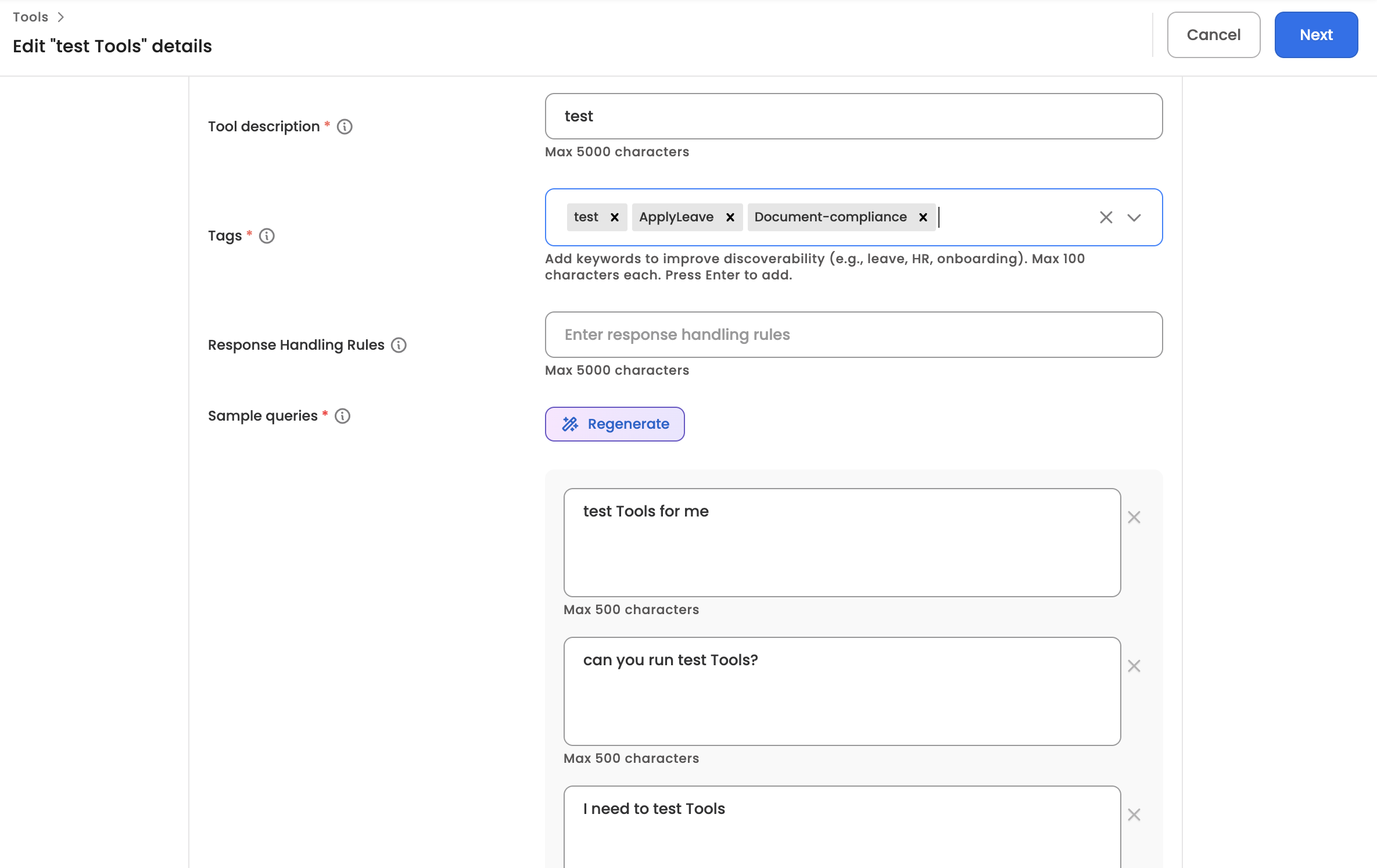
- Add tags from the Tags field in the tool create/edit form. Type a keyword and press Enter to add it.
- As you type, suggestions are drawn from tags already in use across the AI Colleague's tools.
- Tags are free-text keywords, up to 20 characters each; duplicates are removed automatically.
- Tags are optional for API and MCP tools. Workflow-type tools always carry at least one tag (see Tag Sync below).
Tags in the Tools List
- The Tools list shows a Tags column — a few tag chips per tool, with a "+N" indicator for the rest.
- Search matches tags as well as tool names — searching a tag term surfaces every tool carrying that tag, even if the term doesn't appear in the tool's name.
- Tools can also be filtered by one or more tags (see Filtering the Tools List below); results include tools matching any selected tag.
Tag Sync for Workflow-Type Tools
Workflow-type tools stay in two-way tag sync with their source workflow:
- When a workflow is registered as a tool, the workflow's tags are copied onto the tool.
- Editing tags on the tool in AI Colleagues Studio updates the source workflow's tags to match — and tag edits on the workflow reflect on the tool. Both always show identical tags.
- Existing workflow-type tools were backfilled with their source workflow's tags automatically.
NoteTags on workflows that are not registered as Tools remain workflow-only — they never appear in the Tools list, suggestions, or filters. API/MCP tool tags and workflow tags are otherwise independent vocabularies.
Filtering the Tools List
As tool counts grow, the Filters panel on the Tools list helps you locate any tool in seconds.
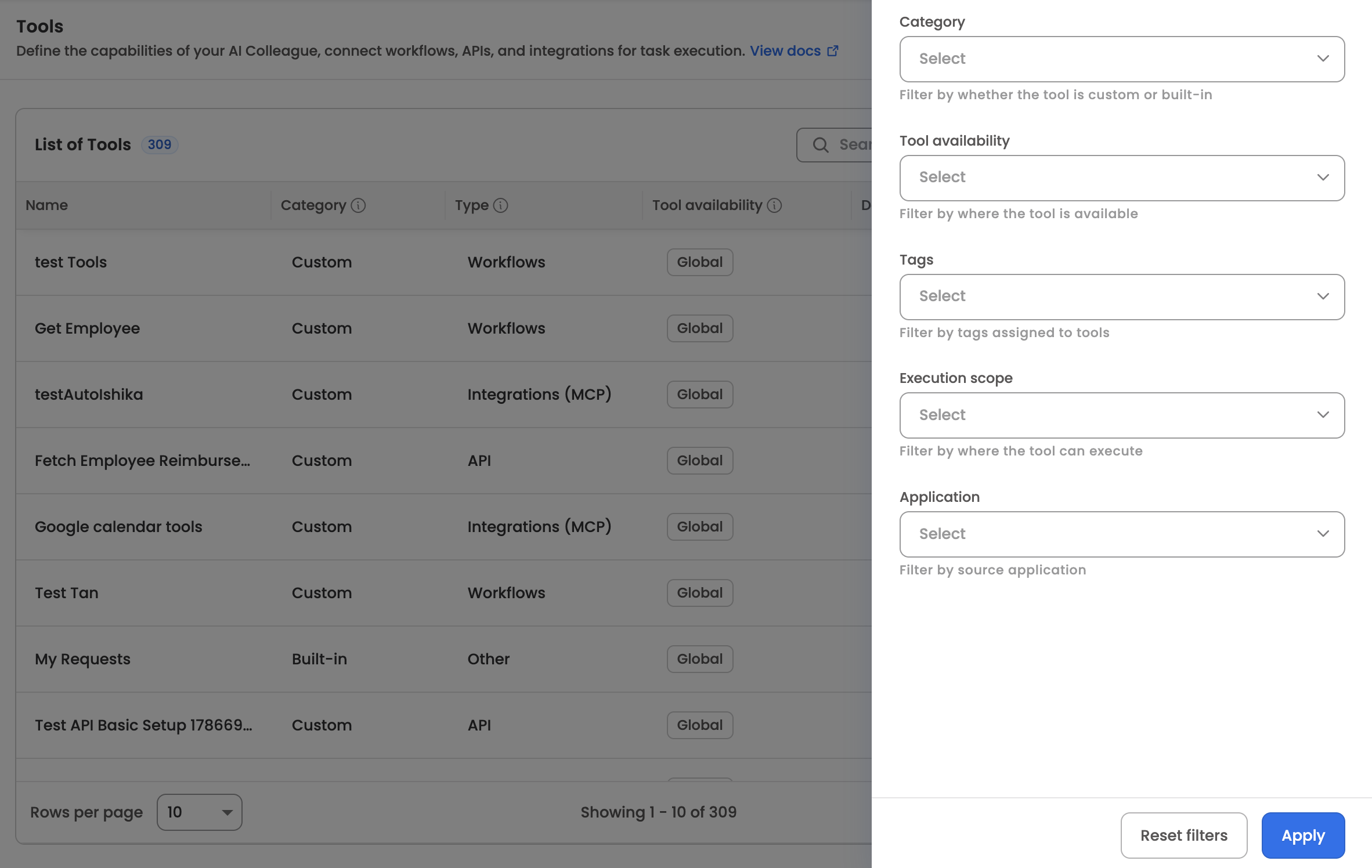
Available Filters
| Filter | Options |
|---|---|
| Category | Custom / Built-in |
| Type | Workflow / API / MCP. Shown only when Category = Custom; hidden (and any selection cleared) otherwise |
| Tool availability | Global, or specific AI Colleagues — the list shows the actual AI Colleagues of your workspace |
| Tags | One or more tags; results include tools matching any selected tag |
| Execution scope | MO & AOP execution / AOP-only execution |
| Application | The source application behind a tool — the MCP app for MCP tools, and the application(s) used by the workflow for Workflow tools |
Filter Behaviour
- Filters combine with each other (AND across filter groups) and with search — results satisfy the search term and all applied filters.
- Use Apply to apply the selection and Reset filters to clear everything and restore the full list.
- Applied filters persist in the URL, so refreshing the page or sharing the link keeps the filtered view.
Updated about 2 months ago