
Forge
Forge
BETA — Forge (previously Studio Assist) is available in AI Colleague Studio. It can investigate and explain, and it can also build and change things for you — every change is shown to you first and needs your approval.
Forge is a conversational assistant built into AI Colleague Studio. It already knows which bot, AI Colleague or run you are looking at, answers questions in plain language — with charts, tables and timelines instead of raw logs — and builds AI Colleagues, AOPs, tools and Workbench triggers from a description.
Watch the tutorial
It is designed for the people who build and operate AI Colleagues: implementation teams, support engineers, and admins who need to answer "why did this fail?", "how are we doing this month?" or "build me an onboarding AOP" without stitching screens together by hand.
Opening Forge
| Action | How |
|---|---|
| Open / close the panel | Click the Forge icon in the top bar (left of your profile avatar) |
| Keyboard shortcut | Cmd + J (Mac) / Ctrl + J (Windows) |
| Switch view | Click Full page / Exit full page in the panel header |
| Close | Click the close icon, or press Esc |
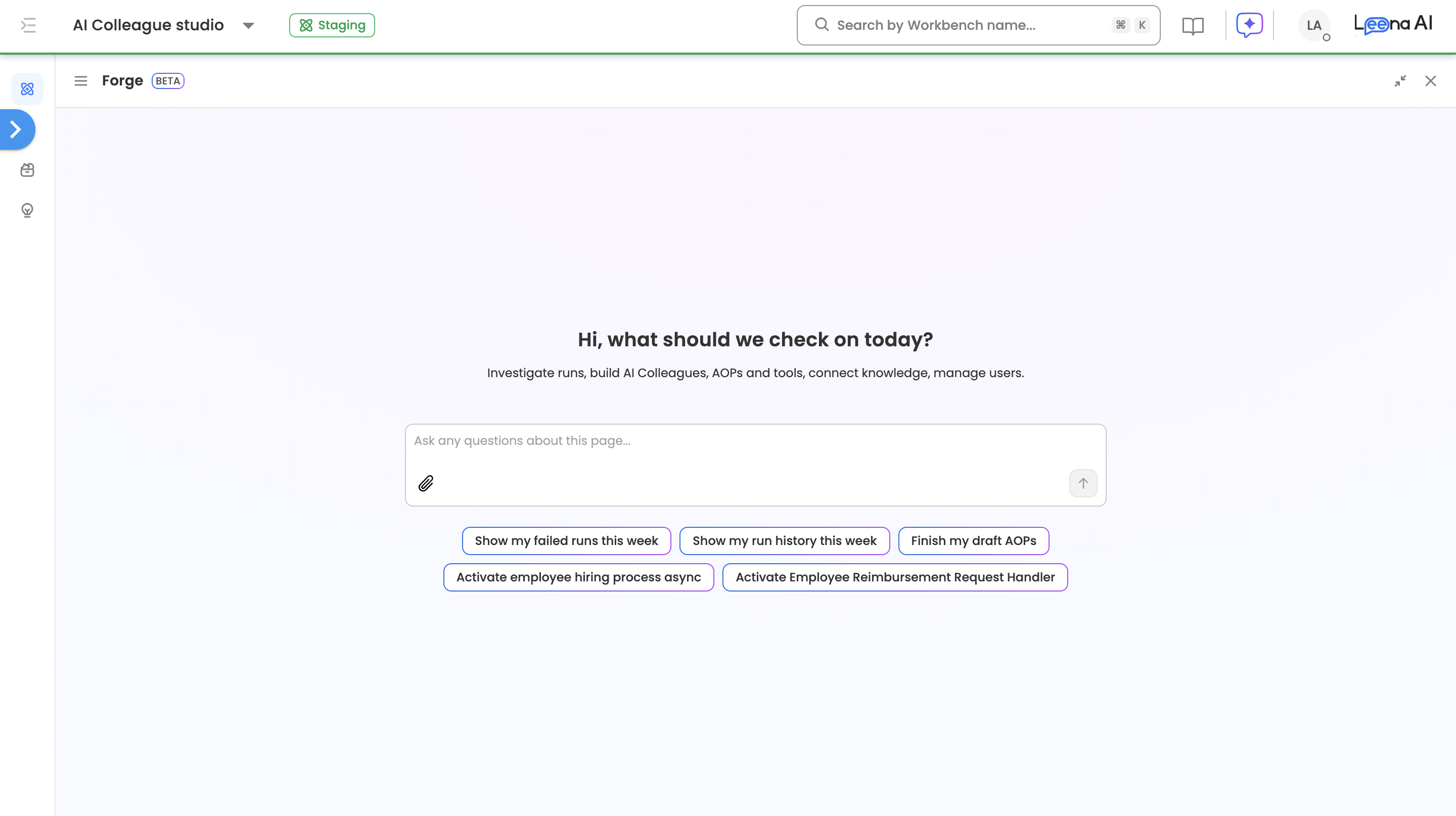
Forge always opens as a full page. When it opens a screen for you — an AOP, a tool, a form — the screen appears on the left and the chat moves to the right, so you can work on both. Several screens can be open at once as tabs. While Forge is open, the side menu is locked; close Forge to expand it.
A new conversation opens on the welcome screen — "Hi, what should we dig into?" with "Investigate runs, build AI Colleagues, AOPs and tools, connect knowledge, manage users." — and suggestion chips based on your setup. Once the suggestions load, the greeting may change to match them.
Other ways in
- AOPs → Create via Forge — "Describe the AOP you need and Forge builds it." Choose Create manually via form to build it yourself instead.
- Improve AOP — now handled through Forge. Save the AOP as a draft first.
- Code tools → Edit via Forge — shown on a Code tool's Code card but not yet active; editing code with Forge is coming soon.
- Forge appears on AI Colleagues pages for users with access to AI Colleague Studio.
Page awareness
Forge reads the context of the page you are on and uses it to resolve what "this" refers to. You do not have to paste IDs. The composer placeholder — "Ask any questions about this page..." — reflects exactly that.
What it picks up:
- The bot and environment you are working in
- The AI Colleague open on screen
- The run / request open on screen
- The AOP, Tool or Workbench open on screen
So on a run detail page you can simply ask "why did this fail?" or "summarise this run", and on an AI Colleague page you can ask "how many runs did this handle last week?".
If you switch pages mid-conversation, Forge picks up the new context on your next message.
What Forge can do
1. Build AI Colleagues, AOPs and tools
Describe what you need and Forge builds it in one conversation.
- AI Colleagues — create or update name, job title and job description. Escalation contact and owners are optional; you own it by default.
- AOPs — create or edit an AOP under an AI Colleague from the bot's existing tools, validate it and publish it.
- Code Tools — Forge writes the tool, tests it in a sandbox and publishes it. Code tools can only be created through Forge.
- MCP tools — expose selected actions of an existing MCP connection as a tool.
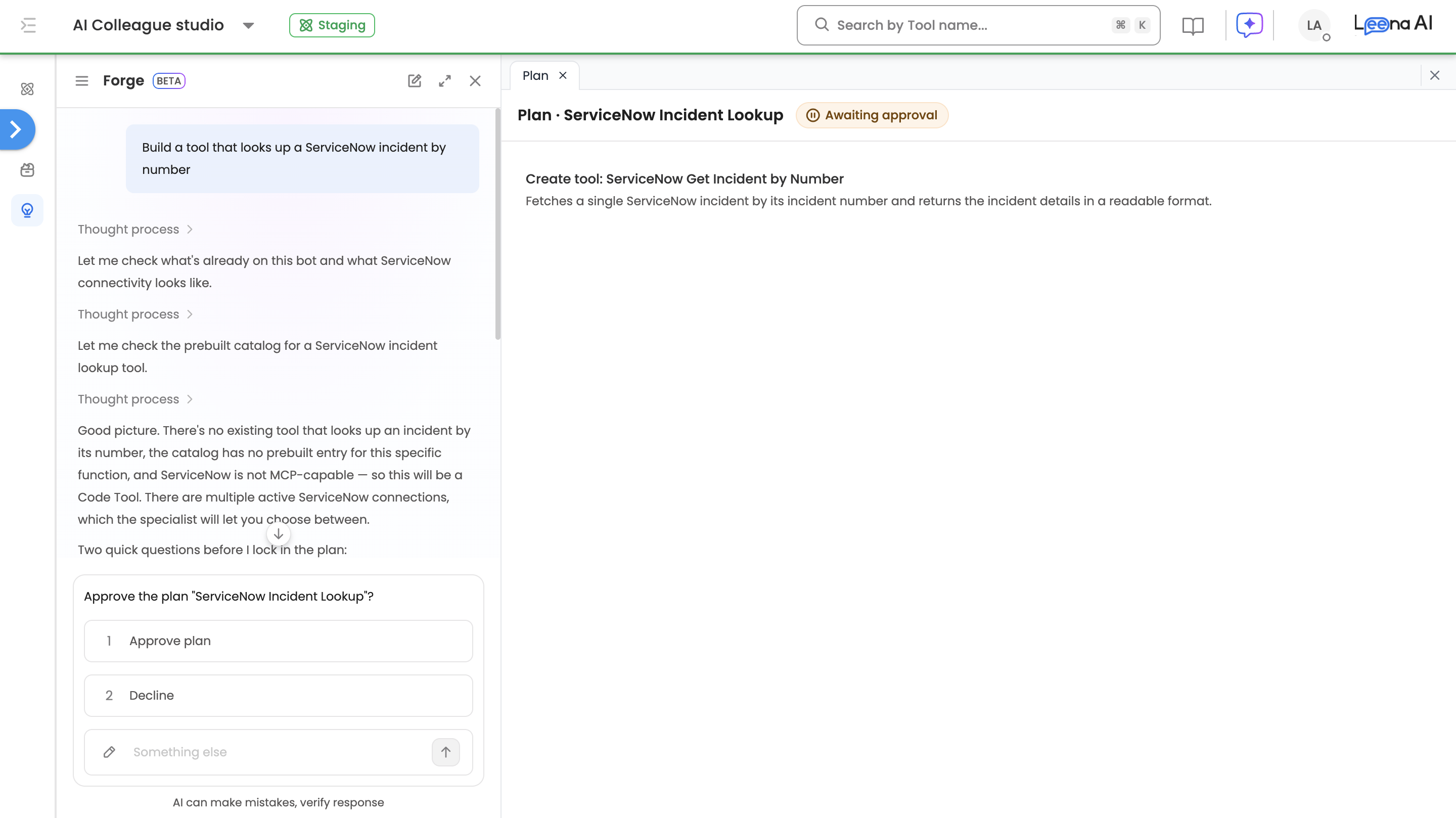
- Bigger requests — Forge plans first, then builds step by step in the right order, reusing what already exists.
Example questions
- "Create an IT helpdesk colleague owned by me"
- "Create an onboarding procedure for the HR colleague"
- "Build a tool that looks up a ServiceNow incident by number"
- "Build an onboarding procedure; create any tools it needs"
2. Set up and check Workbench
Create, edit, pause or turn on a Workbench that runs an AOP on a schedule or from an external trigger. Forge opens the pre-filled Workbench form for external triggers. It also answers questions about your workbenches — cadence, next run, status, who created them.
Example questions
- "Run the Onboarding procedure every Monday at 9am"
- "Pause the weekly payroll workbench"
- "When is the payroll workbench scheduled to run next?"
- "Which workbenches did I create?"
3. Debug runs
Forge can pull the full evidence trail for any run, request or conversation and explain what happened. Debugging only reads data — it never changes anything.
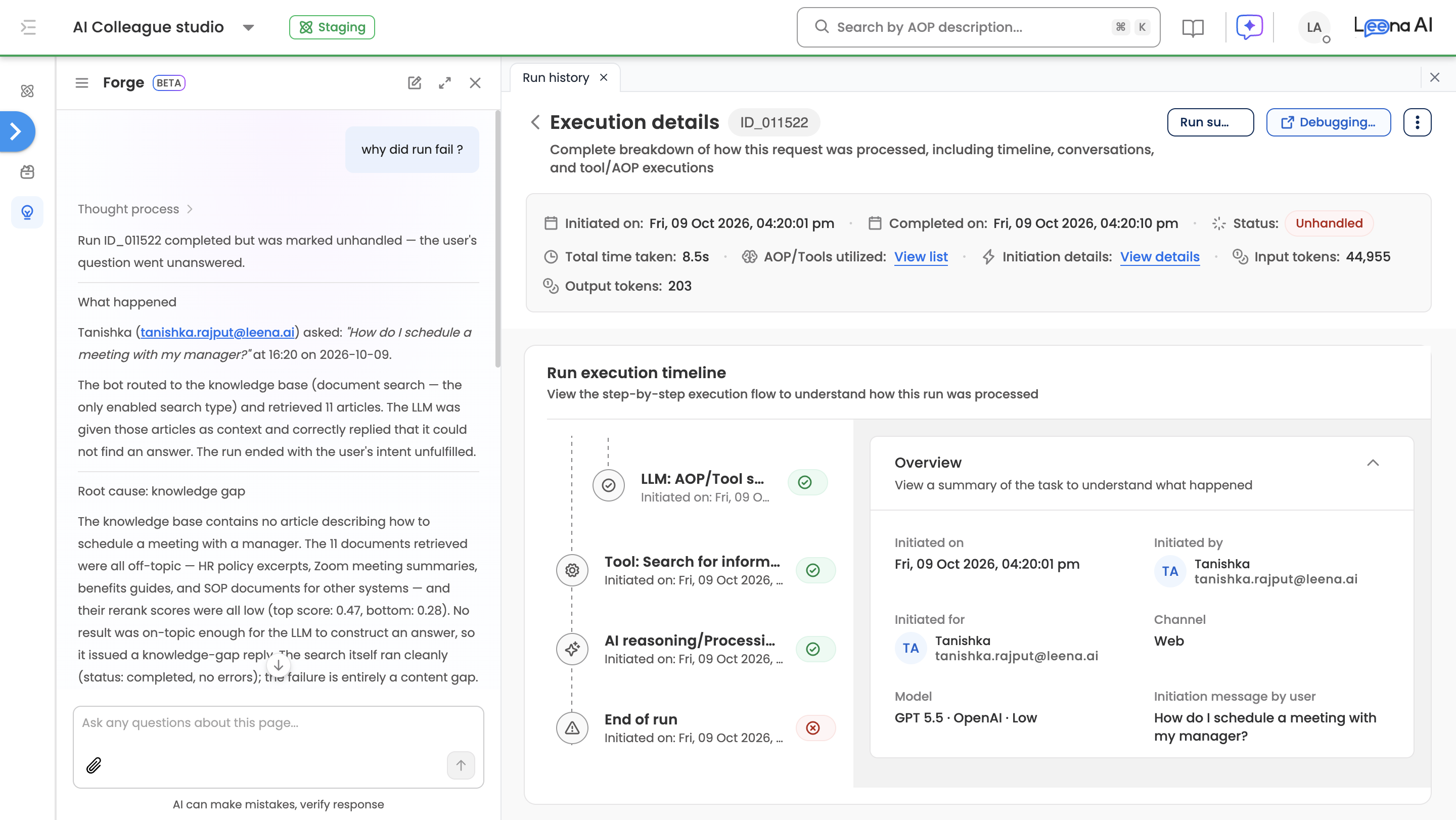
- Explain a run — root cause for one run: why it failed, answered wrongly or was escalated
- Find runs — search by status, channel, trigger, AOP, tool, user or time window
- Run analytics — handled rate, failure reasons, and breakdowns by AOP, tool or AI Colleague
- Tool selection — why a tool was or wasn't picked, and whether it is available
- Knowledge-base and workflow trace — why a knowledge answer was served, and the path a workflow took
- Bot configuration — the bot's capabilities, AOP definitions and orchestrator flags
Example questions
- "Why did run ID_015028 fail?"
- "How many runs failed in the last 7 days?"
- "Why didn't the leave-balance tool get picked here?"
- "Trace the workflow nodes for this run"
4. Move to Prod
Move an AOP — or a single tool — from UAT or Staging to a production bot. Forge runs readiness checks, shows what will change, works through the mappings, then opens the migration screen beside the chat. Several AOPs move one at a time, and progress is saved if you step away.
Example questions
- "Migrate the Direct deposit change AOP to prod"
- "Is Benefits enrollment ready to move to prod?"
- "Why did yesterday's migration fail?"
5. Manage Knowledge Management
- Find KM connectors and open KM's form to add or update one
- Start a connector sync and check how recent syncs went
- Set or turn off a connector's auto-sync schedule
- Copy a KM connector or the KM settings from UAT to production, after you approve
Example questions
- "Which KM connectors do we have?"
- "Did last night's Confluence sync work?"
- "Sync the HR Wiki connector every day at 9am"
6. Check settings
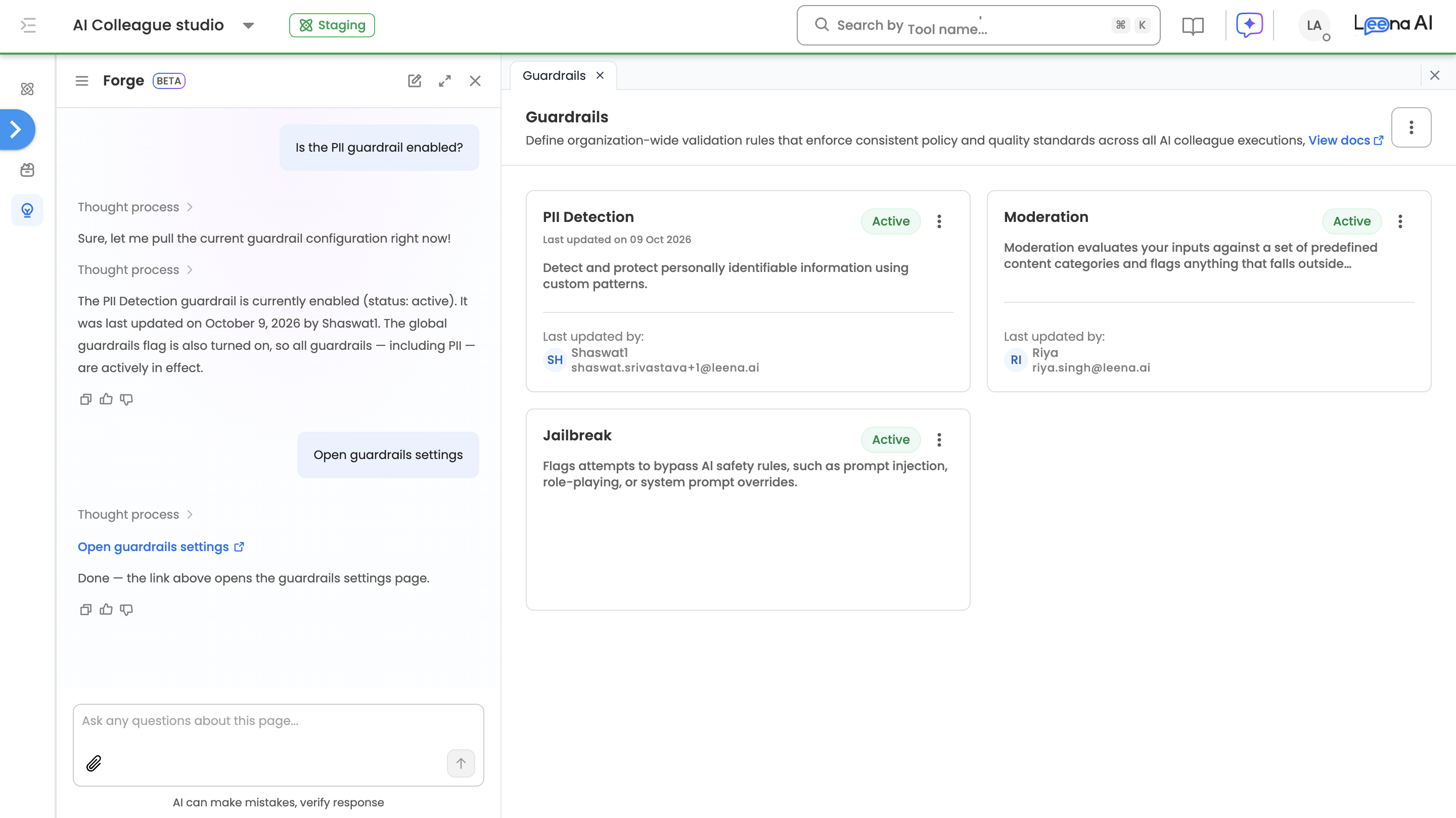
Forge tells you what the orchestrator settings, guardrails (PII, moderation, jailbreak) and capability discovery are currently set to, and opens the right settings page — including Voice — beside the chat. You make the change on the page; Forge never changes a setting itself.
Example questions
- "Is the PII guardrail enabled?"
- "Turn off the PII guardrail"
- "Take me to the orchestrator settings page"
7. Manage workspace access
Available to System Admins only.
- Invite a dashboard user by email. Roles default to Knowledge Management Admin and AI Colleague Studio Admin, and can be changed. Forge confirms with you before sending the invite.
- Check whether someone already has an account, and their roles.
- Open the dashboard users or audience pages.
8. Answer product "how do I" questions
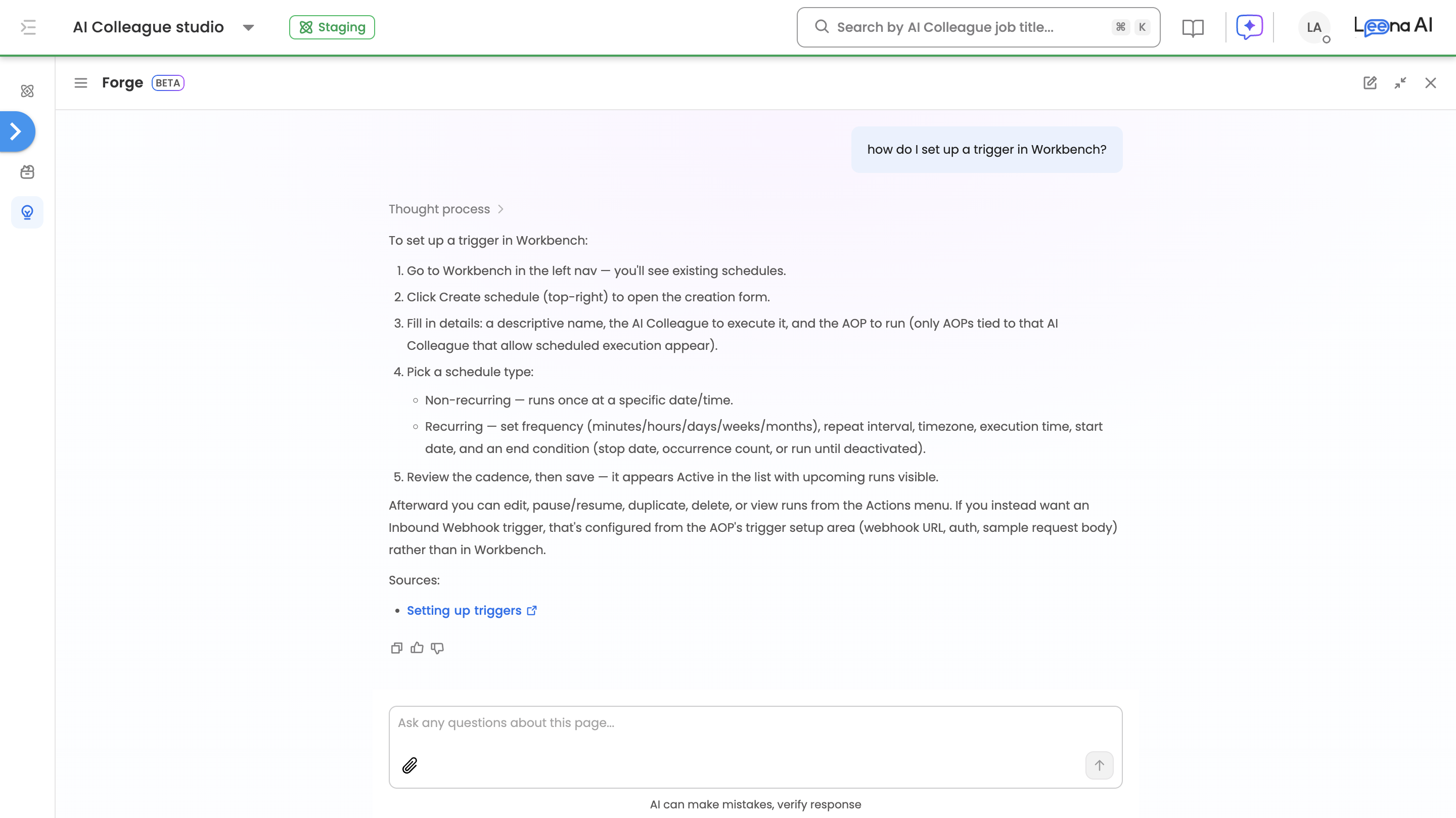
Forge can search Leena AI product documentation and answer setup and configuration questions in context — "how do I set up a trigger in Workbench?", "what does AOP type Conversational mean?".
How answers are presented
Forge streams its answer as it works, so you see progress rather than a spinner. You can expand Thought process to see how it arrived at the answer, or ignore it if you just want the answer.
Rich cards. Where a visual is clearer than prose, the answer includes an inline card:
| Card | Used for |
|---|---|
| KPI tile | A single headline metric with a period-over-period change |
| Chart | Line, bar or pie — trends and distributions |
| Table | Lists and comparisons (up to 25 rows / 8 columns). Rows can link to the right screen |
| Timeline | Chronological execution traces, with per-step status and duration (about 30 events) |
| Plan | The steps Forge will take for a build, with live status for each step |
| Confirm | Approval before a sensitive change is made |
Plans. For anything it builds, Forge first shows a plan and waits for your approval. Once approved, each step shows its status, and the bar above the composer tells you where things stand — "Your plan is in progress", "Your plan needs your input" or "A step failed — tell Forge how to continue". View full plan opens the plan beside the chat, with links to the AOPs, tools and connections it created.
Forms beside the chat. When something is best done on its own screen — a connection, a Workbench trigger, a guardrail — Forge opens that form beside the chat. The conversation continues once you save it.
Clarifying questions. When your request is ambiguous, Forge asks up to five short questions, usually with tappable options and a Something else box. You can skip a question or answer them all and click Submit answers.
Follow-up suggestions. After an answer, you get up to three follow-up chips based on what was just discussed.
Every answer carries the reminder "AI can make mistakes, verify response" below the composer.
Multiple chats and chat history
Forge is not a single running conversation. You can keep as many separate chats as you like against a bot, switch between them, and come back to any of them later with the full thread intact.
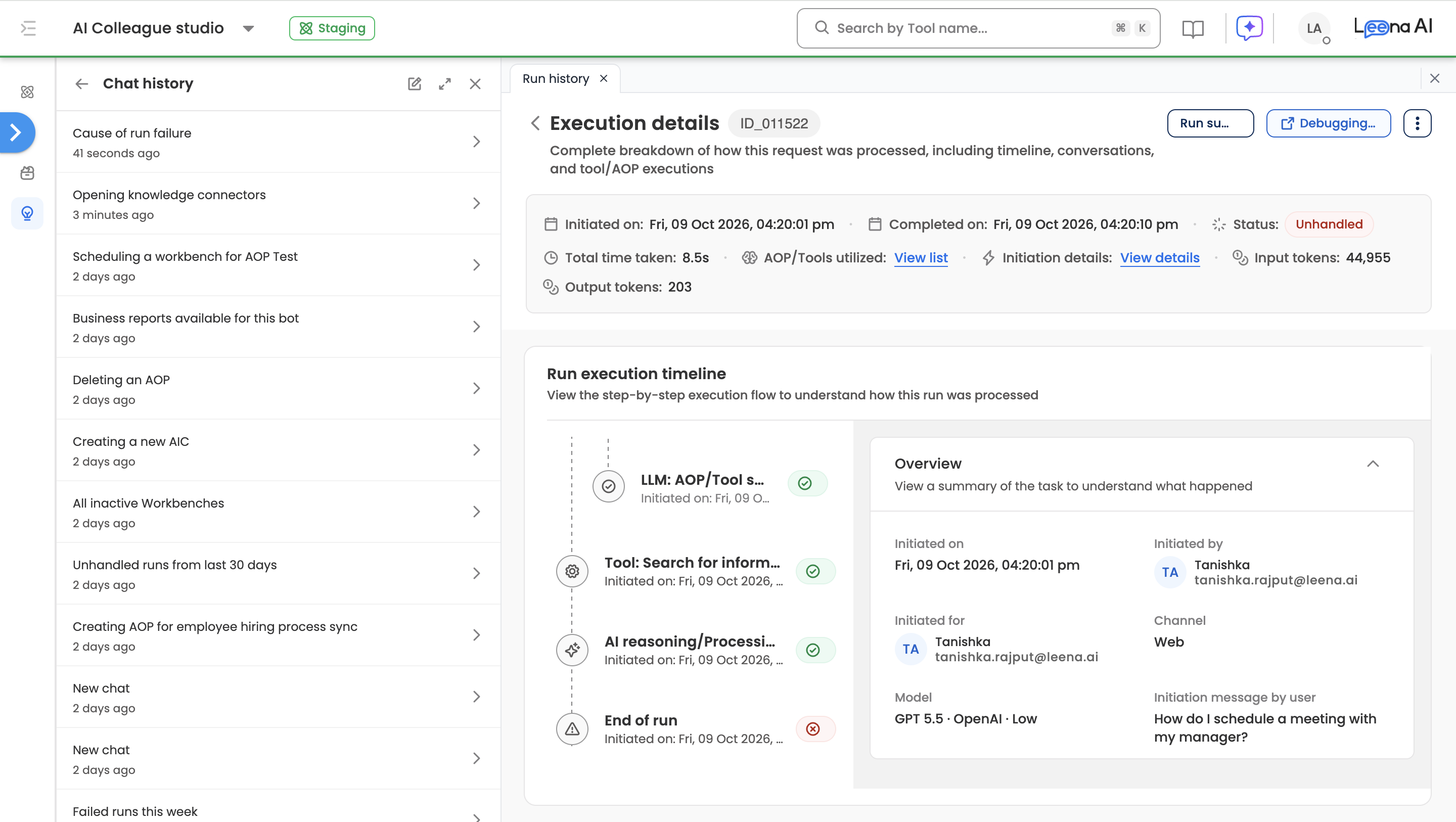
Panel header controls
| Control | What it does |
|---|---|
| History | Switches the panel to the Chat history list. A back arrow returns you to the current chat. |
| New chat | Starts a fresh conversation. Your current chat is not lost — it stays in history. |
| Full page | Switches between full page and the side-by-side view. |
| Close | Closes the panel. Your conversation is preserved. |
Starting a new chat
Click New chat whenever you move to a new problem. Each chat carries its own context and its own thread, so a run-failure investigation does not get tangled up with a build request.
The Chat history list
Opening Chat history shows every conversation you have had with Forge on the current bot, newest activity first. Each row shows its title — generated automatically from the conversation — and when it was last active.
Scope. The list is scoped to you and to the bot you are currently in. You will not see other users' conversations.
Reopening a chat. Clicking a row loads the full conversation back into the panel, and you can continue from there.
States you may see:
| State | Meaning |
|---|---|
| New chat as the row title | The title has not been generated yet — it fills in shortly, or on the next exchange |
| No chats found | You have not started a conversation on this bot yet |
| Couldn't load older chats — Retry | Older conversations could not be loaded — click Retry |
Keeps working when you leave. If you reload or close the tab while Forge is working, the request keeps running and reappears when you come back.
Composer and feedback
Message length. A single message can be up to 5,000 characters. Over the limit, the composer shows "Message exceeds 5000 characters" and sending is blocked until you trim it.
Attachments. Attach up to 10 files per message, up to 25 MB each — PDF, PNG, JPG, GIF, DOCX, XLSX, CSV, TXT, MD or JSON. Forge reads instruction documents while planning, uses test files for Code tools, and passes source documents to the AOPs it builds.
Stop. While Forge is working, the send button becomes a stop button. Press Esc or click stop to cancel the turn. (When nothing is running, Esc closes the panel instead.)
Recall your last message. Press the up arrow in an empty composer to bring back the message you last sent.
Feedback. Every completed answer has a thumbs-up / thumbs-down and a copy control.
- Copy puts the answer on your clipboard as formatted text.
- Thumbs open a short inline flow: "How was the response?" → pick tags and add an optional comment → Submit feedback.
Scope, limits and safeguards
You approve every change. Forge shows a plan before it builds anything, and asks for confirmation before sensitive steps such as sending an invite. Settings are always changed by you, on the settings page.
Scoped to your bot. Every request is bound to the bot you are working in. Forge cannot read data from another bot, regardless of how a question is phrased.
Scoped to your permissions. Forge acts as you. It can only see and do what your dashboard role already allows, and workspace access requests need the System Admin role.
Recorded in Audit Logs. Changes made through Forge are recorded in Audit Logs against your user, marked Initiated Via: Studio Assist.
One question at a time. Each conversation processes one turn at a time — stop the current turn first if you want to change direction.
Response size caps. Very large results are trimmed — narrow the question (add a date range, a status filter, a specific AI Colleague) to get a complete answer.
No inference. Forge reports only what the underlying data actually contains, and it never shows raw flagged PII values from guardrail results.
Troubleshooting
| What you see | What it means |
|---|---|
| The Forge icon is missing | You are not on an AI Colleagues page, or don't have AI Colleague Studio access |
| Agent is not available on this page. | Forge can't be used on the page you are on — move to an AI Colleagues page |
| Response interrupted, please try again | The turn didn't finish. Retry the question or start a new chat |
| That form link has expired | Ask Forge to open the form again |
| Upload failed / Too large — 25 MB max | Re-attach the file, or use a smaller one |
| Message exceeds 5000 characters | Shorten your message |
| An answer looks trimmed | The result exceeded the display cap; narrow the question |
Related pages
Updated 42 minutes ago