
Environments in KM (Production vs UAT vs Staging)
Each Knowledge Management (KM) environment — Staging, UAT and Production — is an independent knowledge base. Content, connections and settings are not copied between environments automatically. You make and test changes in a lower environment, then bring them into a higher environment when you are ready, using Clone from another environment.
This guide explains how environments work, what each one is for, and how to move tested changes up to Production.
Environments became independent on 6 October 2026Until 6 October 2026, Production content, connectors and settings were copied down to UAT and Staging automatically, and changes made in a lower environment were overwritten by the next Production sync. That automatic copy has been switched off for all customers and cannot be turned back on. Each environment kept the content, connections and settings it had at the time of the release.
Environment overview
Environments follow a fixed promotion order: Staging → UAT → Production. If your organisation also has a Pre-Prod environment, it sits between UAT and Production. You can bring changes into an environment only from an environment below it.
| Environment | Typical use | KM access | Can clone from |
|---|---|---|---|
| Staging | Building and early checks of new content, connections and settings. | Full access. | — (lowest environment) |
| UAT | Validating content, permissions and KM features with test users before employees see them. | Full access. | Staging |
| Production | The live knowledge base your employees ask questions against. | Full access. | Any environment below it |
How independent environments work
- Nothing is copied automatically. A sync, edit or deletion in one environment never changes another environment.
- Each environment manages its own:
- Connections — credentials, selected content, filters and auto-sync schedules
- Articles — manually created or uploaded articles, and the articles each of its connections syncs
- Settings — bot settings, dashboard settings and article visibility
- Deletions stay in one environment. Deleting an article removes it only from the environment where you delete it. To remove it everywhere, delete it in each environment.
- Staging is no longer read-only. You can add and edit connections, articles and settings in Staging, as in any other environment.
- Production changes no longer reach UAT. If you test in UAT, make sure UAT has the content you want to test against.
Connecting the same source in more than one environment
You can create a connection in a lower environment using the same credentials as Production — for example, the same SharePoint tenant or ServiceNow instance. This lets you validate new content sources, permissions and KM features in UAT before rolling them out to Production.
Within a single environment, a set of credentials can belong to only one connection. If you try to save a connection with credentials that another connection in the same environment already uses, the connection is not saved, and the error message names the connection that already uses them.
| Connector | Credentials that must be unique within an environment |
|---|---|
| SharePoint | Tenant (site URL for older, non-Graph SharePoint connections) |
| Confluence | Site URL |
| ServiceNow | Instance URL |
| Zendesk | Domain |
| Google Drive | Service account email |
| Box | User ID |
| SFTP | Host and port |
| Workday | Base URL and tenant ID |
| Simpplr | API hostname |
Source system loadEach environment syncs on its own schedule. If more than one environment syncs the same source automatically, your source system receives requests from each of them. Keep auto-sync off in lower environments unless you need it, or stagger the schedules.
Moving tested changes to a higher environment
Changes always move up, and you always start from the environment you are bringing them into: open the higher environment and choose the lower environment to clone from. Cloning copies — the source environment keeps everything it has.
You can clone three things:
| What you clone | Where to start, in the higher environment |
|---|---|
| A connection | Settings → Integrations, on the connector |
| Manually added articles | Home → Add knowledge → Clone from another environment |
| Settings | Settings → General → Clone |
Clone a connection
-
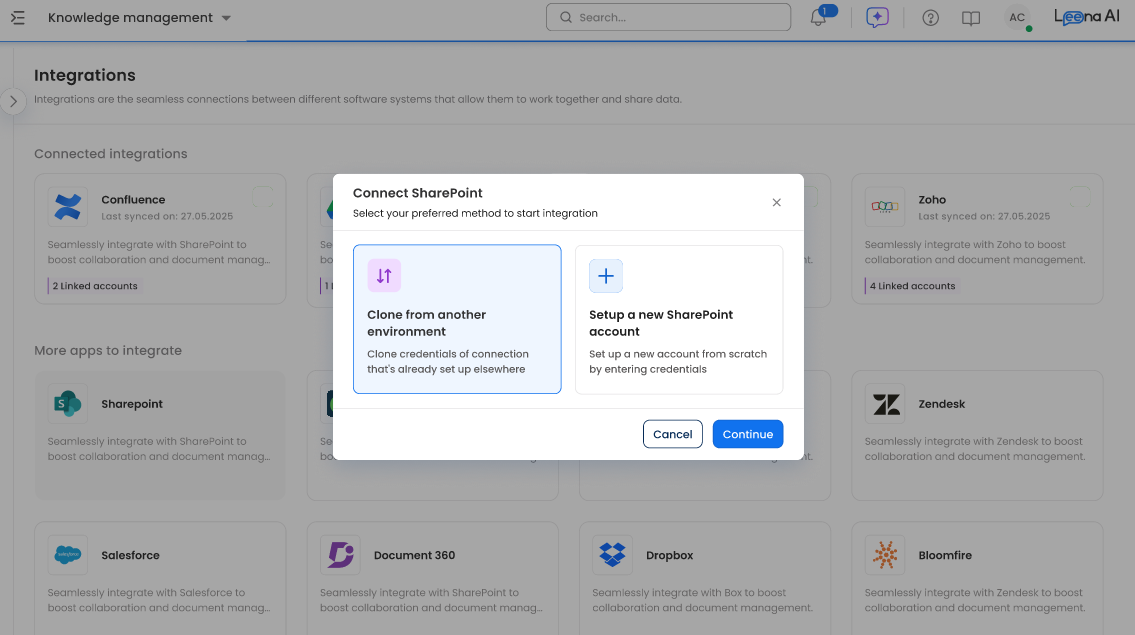
In the higher environment, go to Settings → Integrations and select the connector. If the connector already has a connection, select + Add account.
-
Select Clone from another environment. This option appears only when an environment below this one has a connection for that connector.
-
Select the Source environment and the Connection to clone, then confirm.
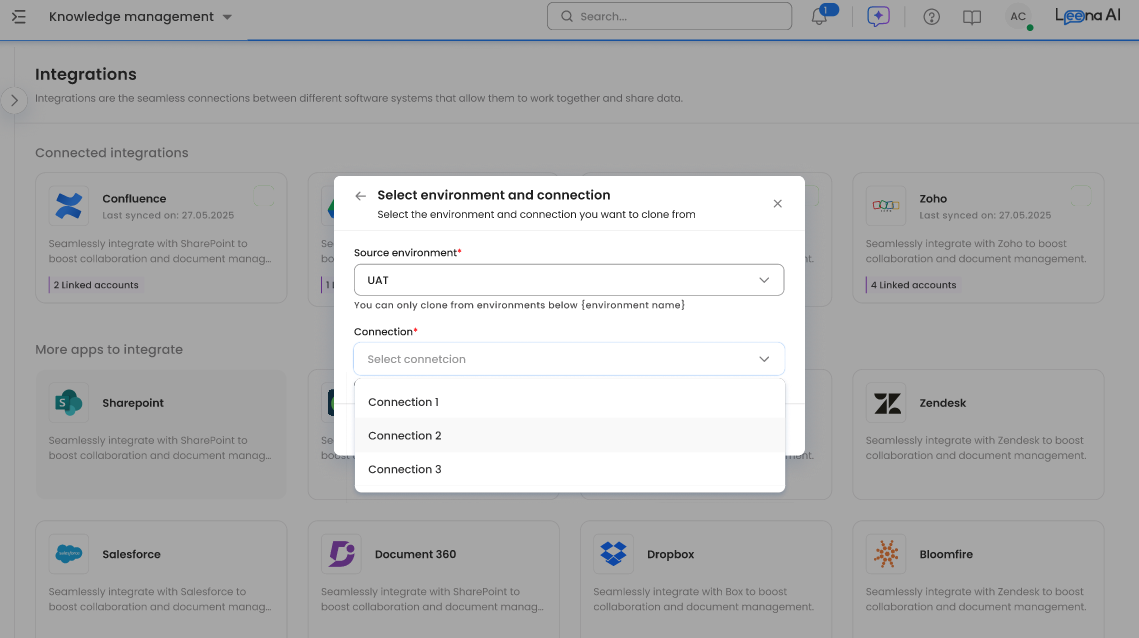
The connection is created in this environment with the source connection's credentials, sync settings and parsing data, and a sync starts right away. Content that was already parsed in the source environment is reused where possible, which speeds up the first sync.
Not copied: the auto-sync schedule (and whether auto-sync is on), and the connection's default owner — you become the default owner. Review the result, then set up auto-sync in this environment if you need it.
A cloned connection shows a Cloned from label with the name of its source environment. To refresh it with the latest credentials and sync settings from the source, select Clone again from source. This overwrites the connection's current settings in this environment.
Keep in mind:
- Only connections that were set up directly in the source environment can be cloned. Draft connections, and connections that were themselves cloned from another environment, are not listed — clone from the environment where the connection was originally set up.
- You cannot clone while a sync is running on the source connection, or while a sync is running in either environment.
- A new clone is blocked if this environment already has a connection with the same name, or a connection that uses the same credentials.
Clone articles
Use this to bring manually created or uploaded articles into a higher environment. Articles that come from a connector are not listed — clone the connection instead.
-
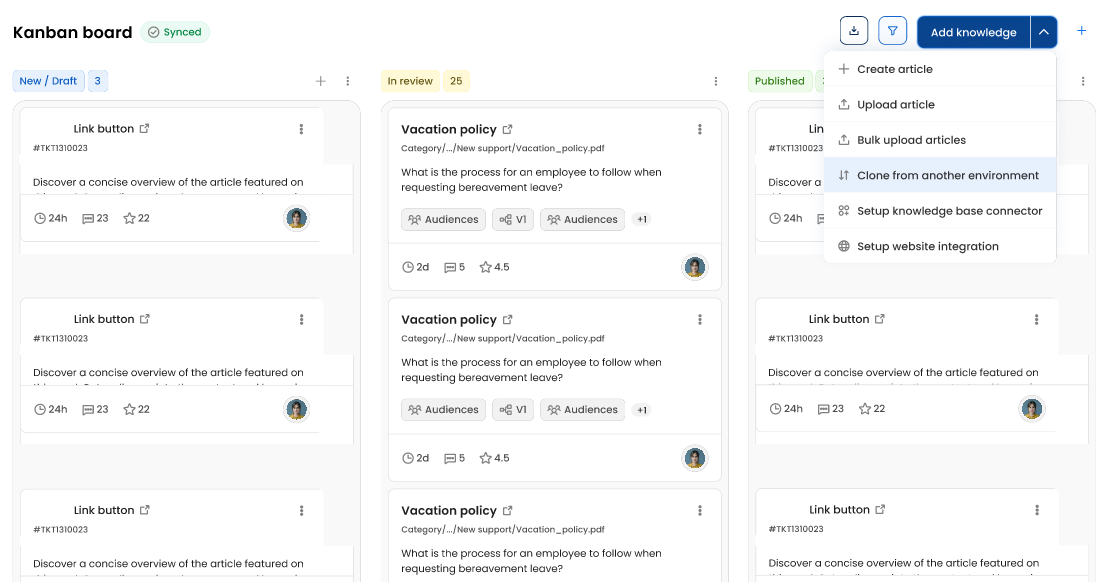
In the higher environment, go to Home → Add knowledge → Clone from another environment.
-
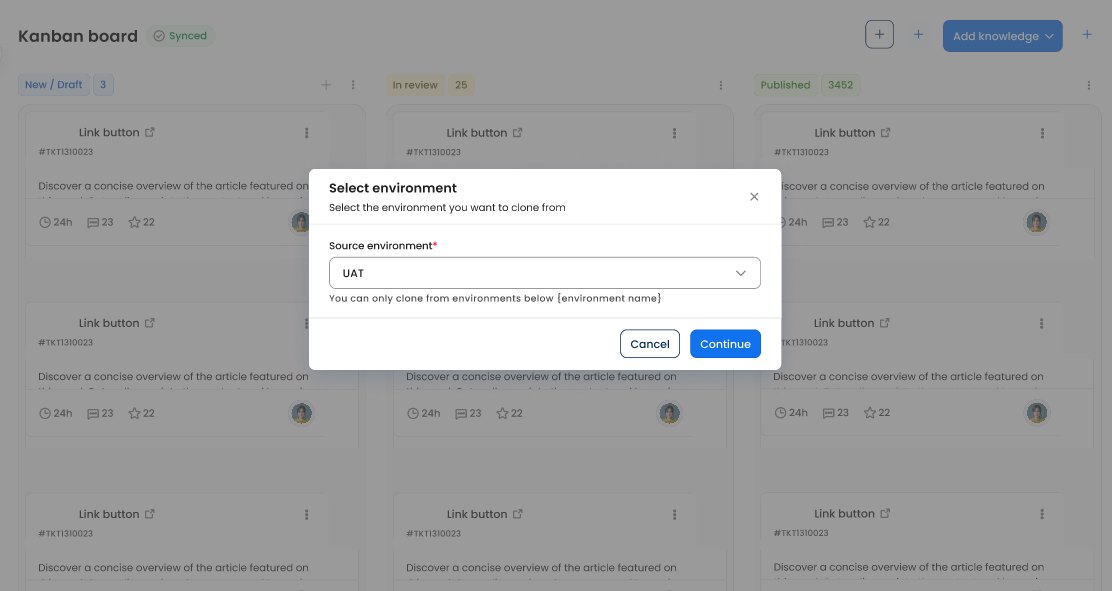
Select the source environment and click Continue.
-
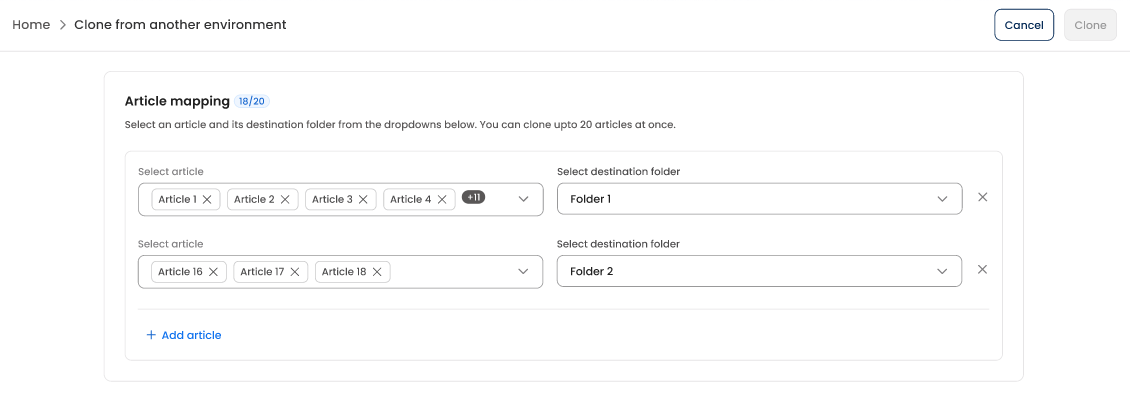
Under Article mapping, select the articles and a destination folder. Use Add article to map more articles to other folders. You can clone up to 20 articles at a time.
-
Click Clone.
What to expect:
- Only published articles are listed.
- Cloned articles arrive as Drafts in the destination folder. They take the destination folder's audience and follow this environment's approval flow — review and publish them as usual. New articles are created with you as the owner.
- Content, attachments, article settings and FAQs are copied.
- An article you have already cloned into this environment is not listed again until a newer version is published in the source environment. Cloning that newer version updates the existing article here instead of creating a duplicate. If the article already has an unpublished draft in this environment, that draft is replaced.
- This option is available to KM admins in UAT and Production. It is not shown in the master segment.
Clone settings
-
In the higher environment, go to Settings → General and click Clone.
-
Select the source environment and the settings to clone:
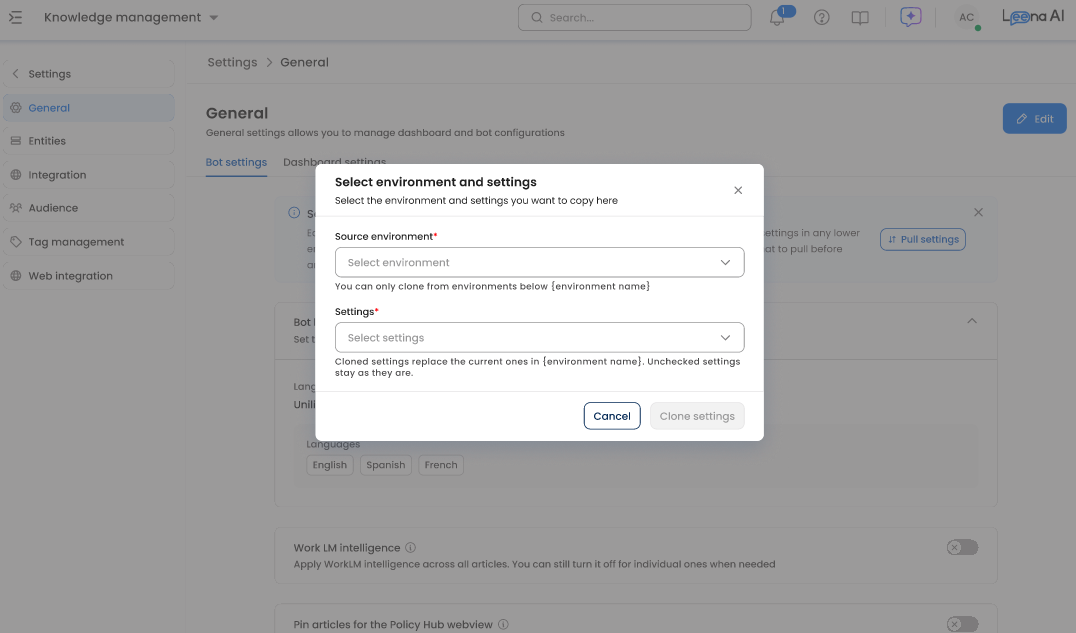
- Bot settings — the settings on the Bot settings page, such as languages and knowledge search configuration
- Dashboard settings — the settings on the Dashboard settings page, such as the approval flow and email notifications
- Article visibility — the path-based filters described in Path-Based Access Control (Connector Filters)
-
Click Clone and confirm.
Selected settings replace the current ones in this environment; settings you leave unchecked stay as they are. Bot settings is not offered in the master segment. The Clone button is available in UAT and Production.
How to use each environment
1. Staging
Staging is the lowest environment and the place to build.
- Set up new connections, create or upload articles, and adjust settings.
- Run early checks before anything reaches test users.
2. UAT (User Acceptance Testing)
UAT is where you validate changes with test users before go-live.
- The workflow:
- Clone the change from Staging, or set it up directly in UAT — for example, a new connection to the same source Production uses.
- Sync and check the articles.
- Test bot responses, permissions and audiences.
- Next step: once you are satisfied, clone the change into Production.
3. Production
This is the live knowledge base your employees use.
- Bring in tested connections, articles and settings with Clone from another environment.
- After cloning, check the sync, article counts and settings, then set up auto-sync schedules where needed.
- Changes made here stay here — they are not copied to UAT or Staging.
Best practices for success
- Test before Production: make and validate changes in a lower environment, then clone them up. Avoid testing directly in Production.
- Clone instead of re-creating: cloning carries over credentials, sync settings and parsing data, so you don't have to re-enter configuration by hand.
- Keep UAT current: Production changes no longer flow down. To bring Production content into UAT, set up the same connection in UAT and run a sync. Settings and manually added articles have to be updated in UAT by hand.
- Check auto-sync in every environment: schedules are never cloned. Keep auto-sync off in lower environments unless you need it.
- Delete everywhere you need to: deletions apply only to the environment where you make them.
- Review sync logs after cloning: use KM Sync Logs to confirm the first sync in the target environment completed as expected.
Frequently asked questions
Q: Can I turn automatic sync from Production back on?
A: No. Environments stay independent.
Q: Can I clone from Production into UAT or Staging?
A: No. Cloning only brings changes from a lower environment into a higher one. To get Production content into a lower environment, set up the same connection there and run a sync.
Q: Does cloning move content out of the source environment?
A: No. Cloning copies. The source environment keeps its connections, articles and settings.
Q: If I delete an article in Production, is it deleted in UAT?
A: No. Delete it in each environment where it exists.
Q: Why don't I see "Clone from another environment"?
A: Staging has no environment below it, so the option is not shown there. For connections, the option appears only when a lower environment has a connection for that connector that was set up directly in that environment. For articles, the option is available to KM admins in UAT and Production, outside the master segment.
Q: Can I use the same SharePoint tenant or ServiceNow instance in UAT and Production?
A: Yes. The same credentials can be used in different environments. Within one environment, each set of credentials can be used by only one connection.
Updated about 2 hours ago