
Notion
Connecting Leena AI Knowledge Management with Notion
This guide walks you through connecting your Notion workspace to Leena AI Knowledge Management (KM), so that Notion pages are automatically synced into Leena AI and can be used to answer employee queries.
The setup has three parts:
- In Notion — create an internal connection to generate an access token.
- In Notion — share the pages you want synced with that connection.
- In Leena AI KM — use the token to configure the integration, choose what to sync, and run the sync.
Before you begin
Make sure you have:
- Workspace Owner access in Notion (required to create a connection for the workspace).
- Full access (or edit access) to the Notion pages you want to sync, so you can share them with the connection.
- Admin access to the Leena AI Knowledge Management dashboard.
Part 1 — Create an internal connection in Notion
Step 1: Open the connections page
Go to https://www.notion.so/my-integrations and log in with your Workspace Owner account.
Note: Notion may redirect this link to its newer developer page (
app.notion.com/developers/connections). Both lead to the same place.
Step 2: Create a new connection
Click New connection.
Step 3: Choose the connection type
You'll see two options. Select Access Token (not OAuth).
Access Token creates an internal connection — a static API token tied to a single workspace. This is the right choice for server-to-server syncing like Leena AI KM.
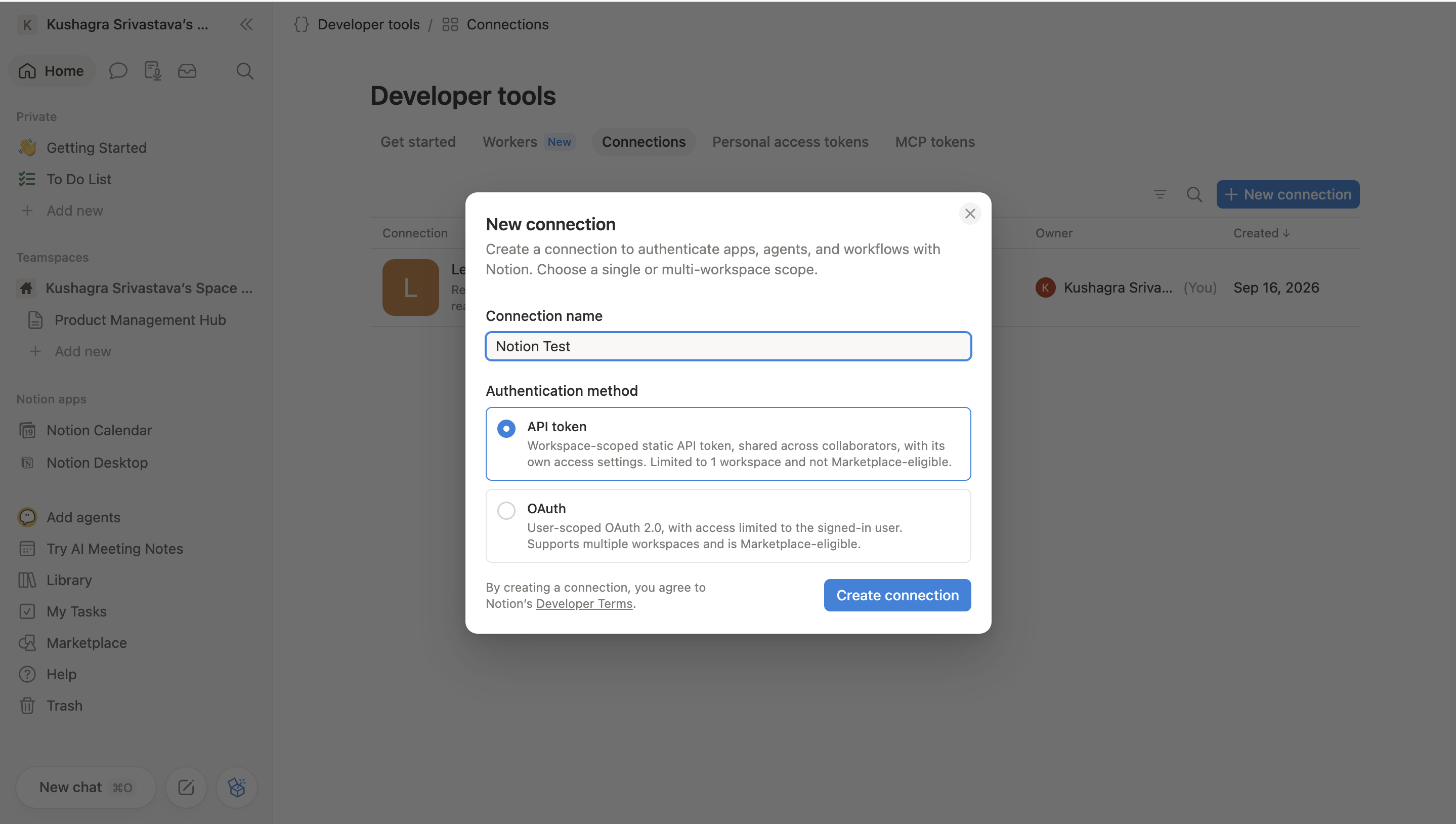
Step 4: Fill in the connection details
| Field | What to enter |
|---|---|
| Name | Any name you like — for example, Leena KM Connector. Use something identifiable, since you'll search for this name when sharing pages in Part 2. |
| Associated workspace | Select the workspace whose content you want to sync into Leena AI. |
| Capabilities | Select Read content, Read comments, and Read user information including email addresses. |
Leave Insert content and Update content unchecked. Leena AI only needs to read your content.
Step 5: Create the connection
Click Create.
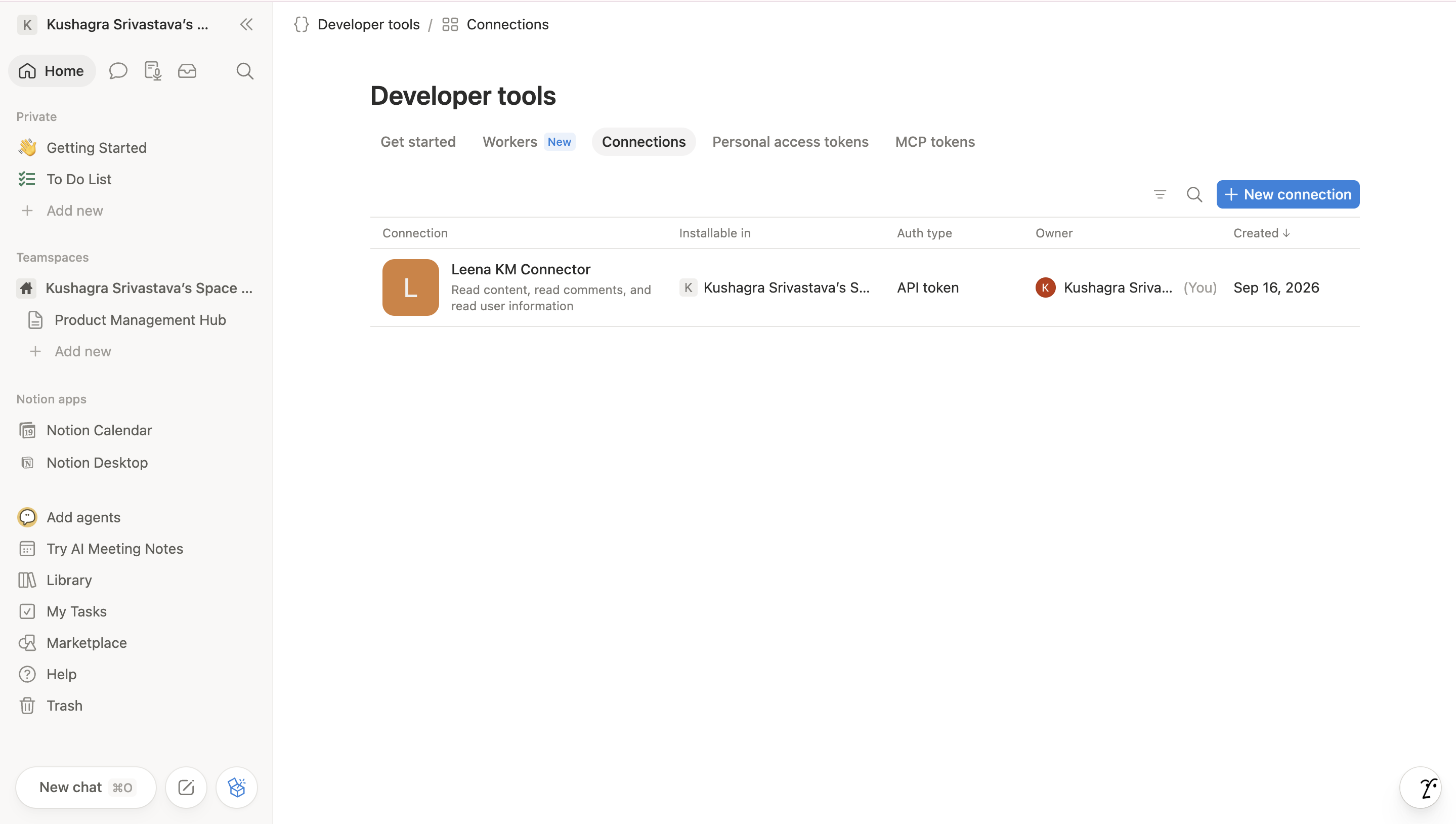
Step 6: Copy your access token
After the connection is created, open the Configuration tab and copy the Installation Access Token. It starts with ntn_.
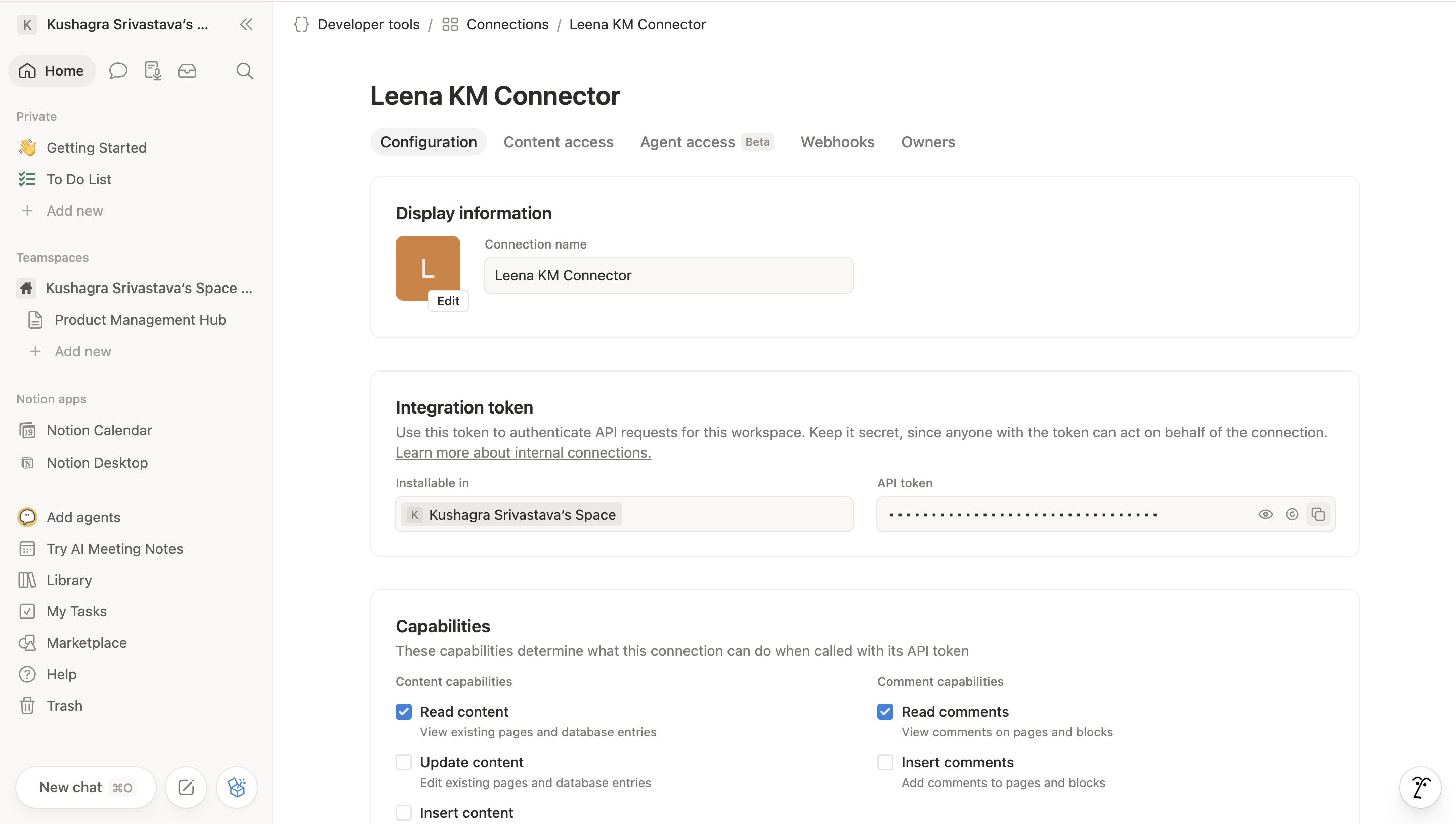
This is the only credential you'll need in Part 3.
Important: This token gives read access to every page shared with the connection. Store it in a secure location and treat it like a password. Don't share it over email or chat.
Part 2 — Share pages with the connection
Notion's access model is opt-in: the connection can only see pages that have been explicitly shared with it. Child pages automatically inherit access from their parent, so you only need to share top-level pages.
Step 1: Open a page you want to sync
Open any Notion page or database you want brought into Leena AI KM.
Step 2: Open the page menu
Click the ⋯ menu in the top-right corner of the page.
Step 3: Add the connection
Click Add connections (on some Notion versions this is called Connect to).
Step 4: Select your connection
Search for the connection name you created in Part 1 (for example, Leena KM Connector) and click it. Confirm access when prompted.
Step 5: Repeat for other top-level pages
Repeat Steps 1–4 for every top-level page or database you want synced. You don't need to share child pages individually — sharing a parent grants access to everything beneath it.
Tip: Share at the highest level possible. If all your knowledge content lives under a single hub page (for example, "HR Policies Hub"), sharing just that one page exposes the entire tree beneath it to Leena AI.
Part 3 — Configure the integration in Leena AI KM
Step 1: Open the Notion integration
In the Leena AI Knowledge Management dashboard, go to:
Settings → Integrations → Notion
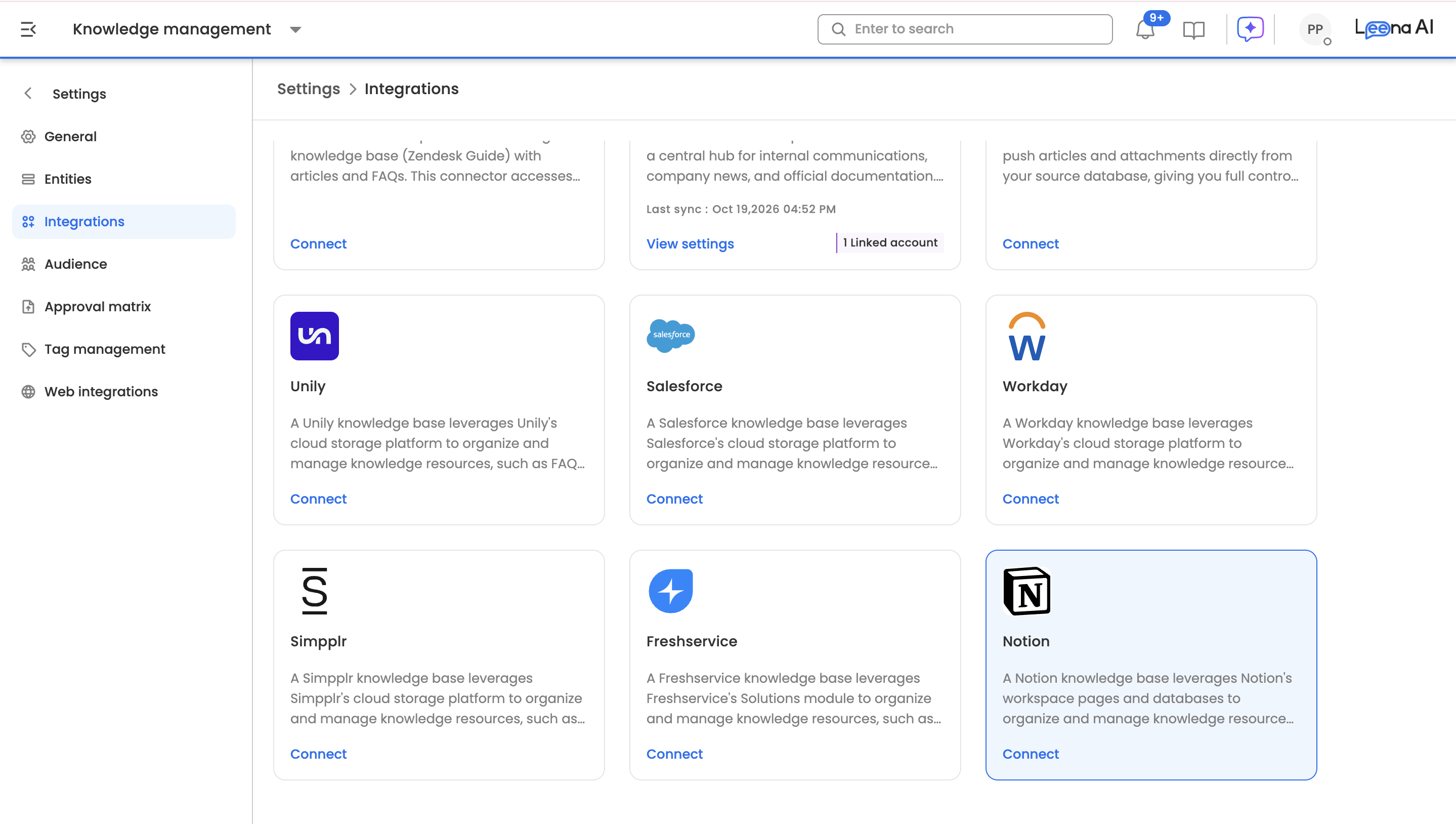
This opens the Connect Notion setup, which has two stages: Add credentials and Configure metadata.
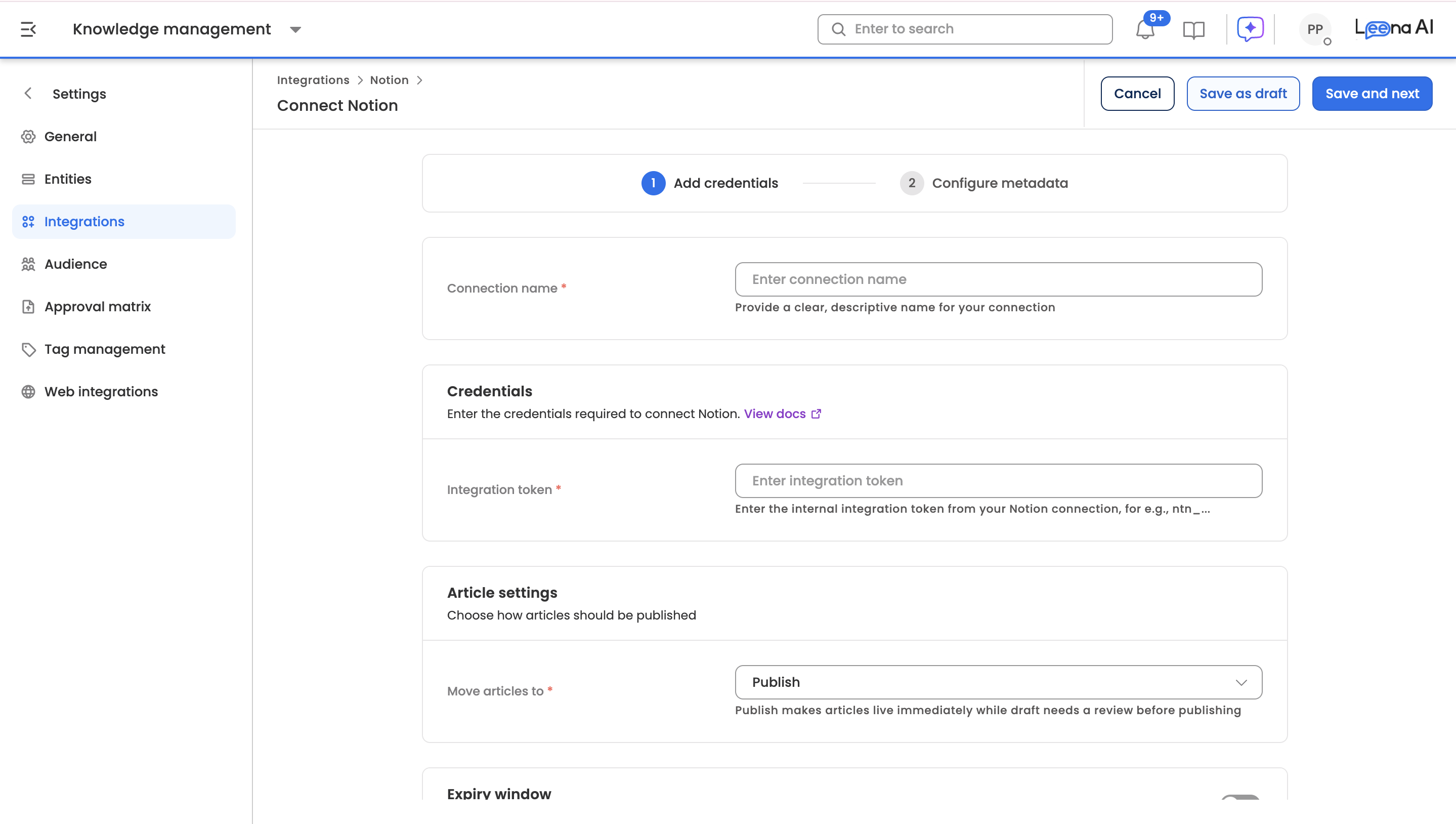
Step 2: Enter the connection name and token
Fill in the following fields:
| Field | What to enter |
|---|---|
| Connection name | A label for this connection — for example, Notion – UAT or Notion – Production. |
| Integration token | Paste the Installation Access Token (starting with ntn_) that you copied in Part 1. |
Step 3: Configure article settings
On the same page, define how synced Notion pages are handled in Leena AI KM:
- Move articles to — choose Publish to make synced articles live immediately, or Draft if you want them reviewed before they're published.
- Expiry window — optionally turn this on to set how long synced articles remain valid in Leena AI KM.
Click Save and next.
Step 4: Configure metadata (optional)
On the Configure metadata page, you can narrow down which Notion pages are synced by page path. This step is optional — skip it if you want to sync everything shared with the connection in Part 2.
To filter by path:
- Turn on Based on page path.
- Choose a filter type:
- Include filter — sync only the pages at the paths you add.
- Exclude filter — sync everything shared with the connection except the pages at the paths you add.
- In Page path, enter the path starting from a top-level shared page (for example,
Engineering/Onboarding), or paste a Notion page link. - Click + Add path to add more paths.
Tip: Paths only work for pages the connection can already see. If a page isn't shared with the connection (Part 2), adding its path here won't bring it into Leena AI.
Step 5: Connect and run the sync
Click Connect to save the integration and start the sync.
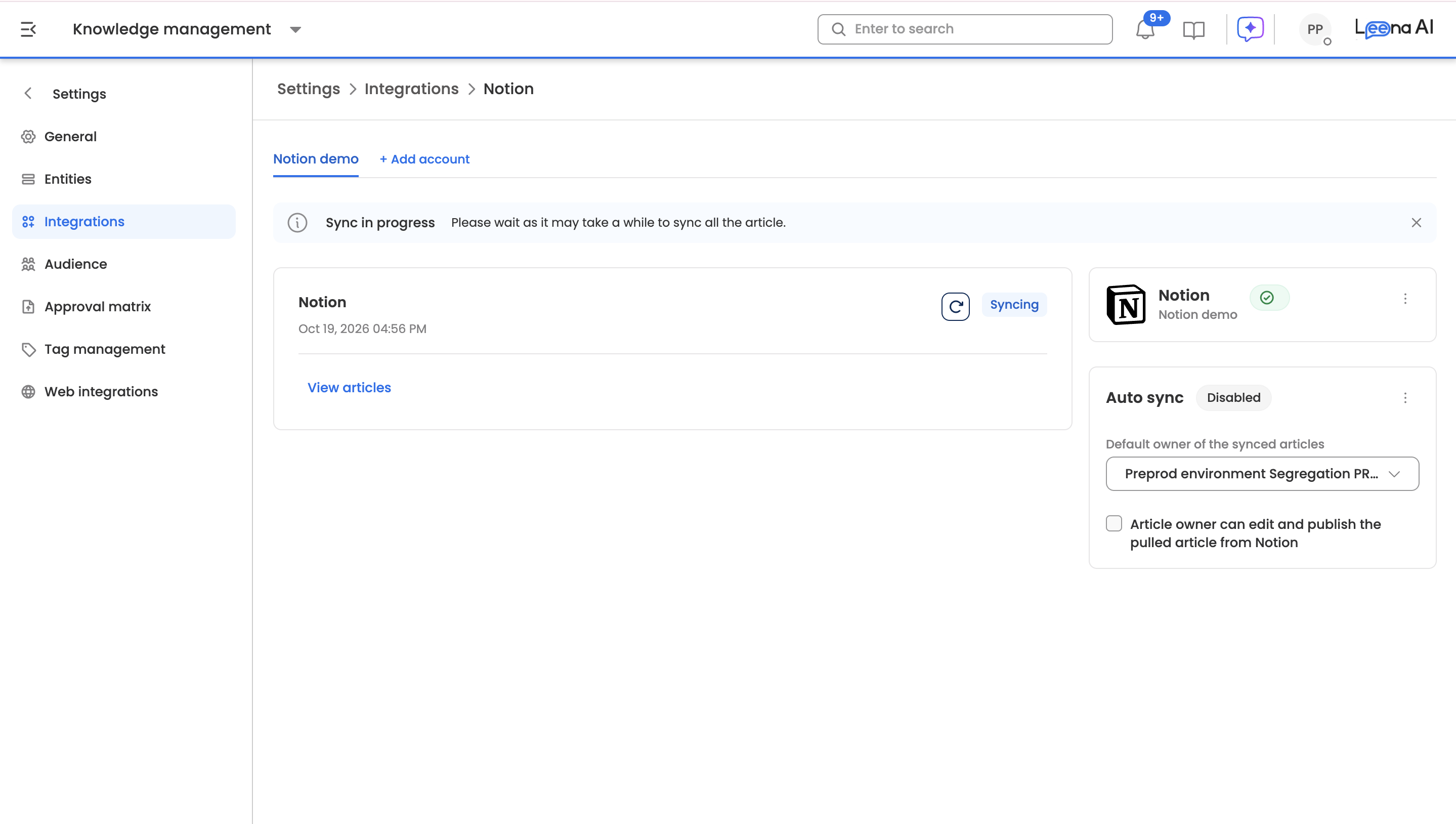
Once the sync completes, your Notion pages will be available in the Leena AI Knowledge Management dashboard.
Quick reference
| Value | Where to get it |
|---|---|
| Integration token | Notion → My integrations → your connection → Configuration tab (starts with ntn_) |
| Pages to sync | In Notion, each page's ⋯ menu → Add connections → your connection |
| Page path (optional filter) | Path from a top-level shared page (e.g. Engineering/Onboarding) or a Notion page link |
Updated 41 minutes ago