
Call history
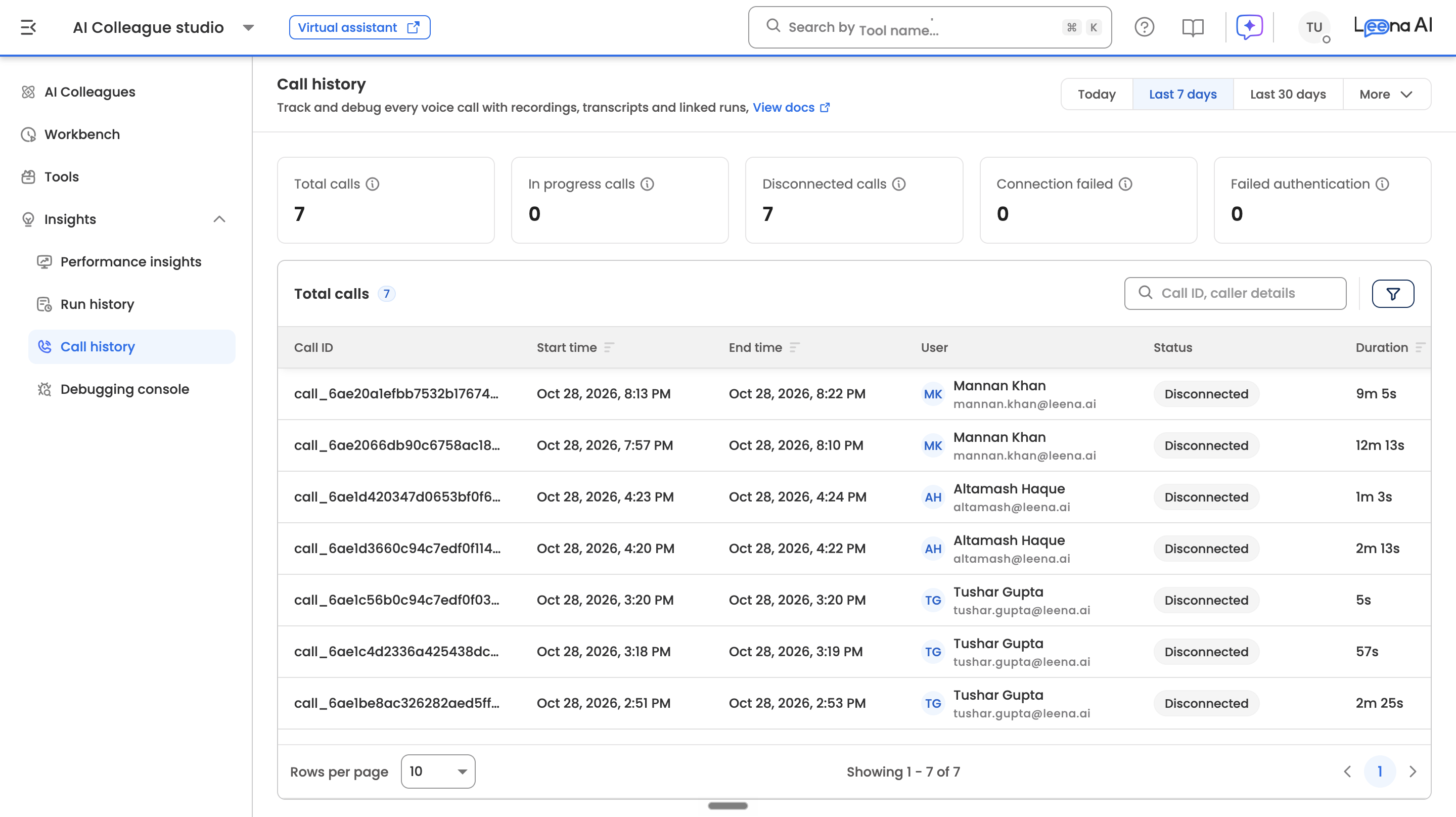
Call history lists every voice call your assistant handles, on the web and on the phone. For each call you can see who called, how it went, why it ended, which runs it started, and — where enabled — listen to the recording. Use it to monitor call quality and to debug a call an employee reports.
Voice 2.0 onlyCall history covers assistants on voice 2.0. For an assistant still on voice 1.0, the Call history menu item doesn't appear, and its calls aren't listed — voice 1.0 call transcripts are in the employee's conversation in the Debugging console.
Voice 1.0, the Retell-based pipeline, is deprecated and will be retired by January 2027. To start using Call history, switch the assistant to voice 2.0 — see Voice orchestrator settings → Switching to voice 2.0.
Where to find it
Open AI Colleagues Studio and choose Call history in the side menu, next to Run history and Debugging console.
The menu item appears when both of these are true:
- Voice is on and the assistant runs on voice 2.0, under Admin Console → Orchestrator → Voice. If you open the page for any other assistant, it says Call history is available only when voice is on and uses the Realtime voice engine.
- Your role has the Debugging console permission. Call history uses the same permission, because calls carry the same conversation data.
Choosing the time range
The page opens on the last 7 days. Change it with the date picker in the header:
| Option | Range |
|---|---|
| Today | From midnight today |
| Last 7 days | Today and the 6 days before (default) |
| Last 30 days | Today and the 29 days before |
| Last N days | Today and the N − 1 days before |
| Custom | Any start and end date, up to 366 days apart. A longer range keeps its end date and is cut to the last 366 days |
Times are shown in your own time zone. The page doesn't refresh on its own — reload it, or come back to it, to see a live call's latest status and duration.
Metric tiles
Five tiles above the table count the calls in the selected range, with the current search and filters applied. Click a tile to show only the calls with that status; click Total calls to show them all again.
| Tile | What it counts |
|---|---|
| Total calls | Every voice call in the selected time range |
| In progress calls | Calls that are live right now |
| Disconnected calls | Calls that connected and then ended |
| Connection failed | Calls where the assistant never joined |
| Failed authentication | Phone calls where the caller couldn't be verified |
Searching and filtering
Search matches the call ID, or the caller's name, email address or phone number. It matches part of a value and ignores case — for example, priya finds Priya Sharma. Searches are limited to 200 characters.
Filters opens a side panel with three filters. Choose values, then click Apply; Reset filters clears them.
| Filter | Shows |
|---|---|
| Status | Calls with the selected statuses |
| Source | Web calls, phone calls, or both |
| Disconnection reason | Calls that ended for the selected reasons |
The calls table
| Column | What it shows |
|---|---|
| Call ID | The call's unique ID. Use it when reporting a call to Leena AI support |
| Start time | When the call started |
| End time | When the call ended. Empty while the call is live |
| User | The employee's name and email. Empty when the caller wasn't identified |
| Status | In progress, Disconnected, Connection failed or Failed authentication — see Statuses |
| Duration | How long the call lasted. For a live call, how long it has been running |
| Source | Web for calls from the web app, Phone for calls to the assistant's number |
| Phone number | The caller's number, for phone calls |
| Disconnection reason | Why a connected call ended — see Disconnection reasons |
| Runs initiated | How many runs the call started. Click the number to see them — see Runs from a call |
| Call recording | Play or download the recording. Shown only when recording playback is enabled — see Call recordings |
| Debug | Opens the caller's conversation in the Debugging console, at the thread the call belongs to. Available when the caller was identified |
Sort by Start time, End time, Duration or Runs initiated. Show 10, 20, 50 or 100 calls per page.
Statuses
| Status | Meaning |
|---|---|
| In progress | The call is live |
| Disconnected | The call connected, then ended. The disconnection reason says why |
| Connection failed | The call never connected — for example, the browser's audio connection couldn't be set up |
| Failed authentication | A phone call where the caller couldn't be verified — the number wasn't recognised, or OTP or KBA verification failed |
Disconnection reasons
Only disconnected calls have a reason.
| Reason | Meaning |
|---|---|
| User triggered | The caller ended the call |
| Ended by assistant | The assistant ended the call after the caller said goodbye |
| Transferred to human | The phone call was handed to the configured transfer number |
| Inactivity | The caller didn't reply after the assistant checked in during a silence |
| Max duration reached | The call reached the 15-minute limit |
| Hold timeout | The call stayed on hold for more than 5 minutes |
| Low network | The connection on the caller's side dropped |
| Internal server error | Something went wrong on the Leena AI side. Report the call ID to Leena AI support |
Spotting problems quicklyA rise in Connection failed on web calls usually points to the network — check calls from your corporate network or VPN. A rise in Failed authentication points to caller identification — check that employee phone numbers or KBA fields are populated. See Voice & SMS → Identifying callers.
Runs from a call
Click the number in Runs initiated to open a side panel listing the runs the call started. The panel shows the call ID, with a button to copy it, and for each run:
| Field | What it shows |
|---|---|
| Run ID | Links to the run in Run history, with its full steps |
| Status | Handled, Unhandled, In progress or Cancelled |
| Triggered on | When the run started |
A call that only had small talk or clarifications starts no runs, and shows 0.
Call recordings
When recording playback is enabled for the assistant, the Call recording column lets you play a call in the page or download it. Each play or download link stays valid for one hour; open the player again for a fresh one.
Recording playback is off by default. When it's off, the Call recording column isn't shown. To turn it on for an assistant, contact your Leena AI implementation contact.
A call can show no recording even when playback is on — for example, a call that never connected.
What Call history doesn't show
- The transcript itself. Use Debug to open the call's conversation in the Debugging console, where the transcript and any cards sent during the call appear.
- Calls on voice 1.0. Only voice 2.0 calls are listed.
- Calls from other assistants. Each assistant has its own Call history.
Updated about 3 hours ago