
Overview
The Notifications module is where your team reaches employees without waiting to be asked: company announcements, policy updates, reminders, polls, birthday wishes and urgent alerts. You write a notification once, choose who gets it and when, and Leena AI delivers it through the assistant, by email, by SMS or on WhatsApp. Afterwards you can see exactly who received it, read it and acted on it.
To open it, choose Notifications from the module switcher at the top left of the dashboard.
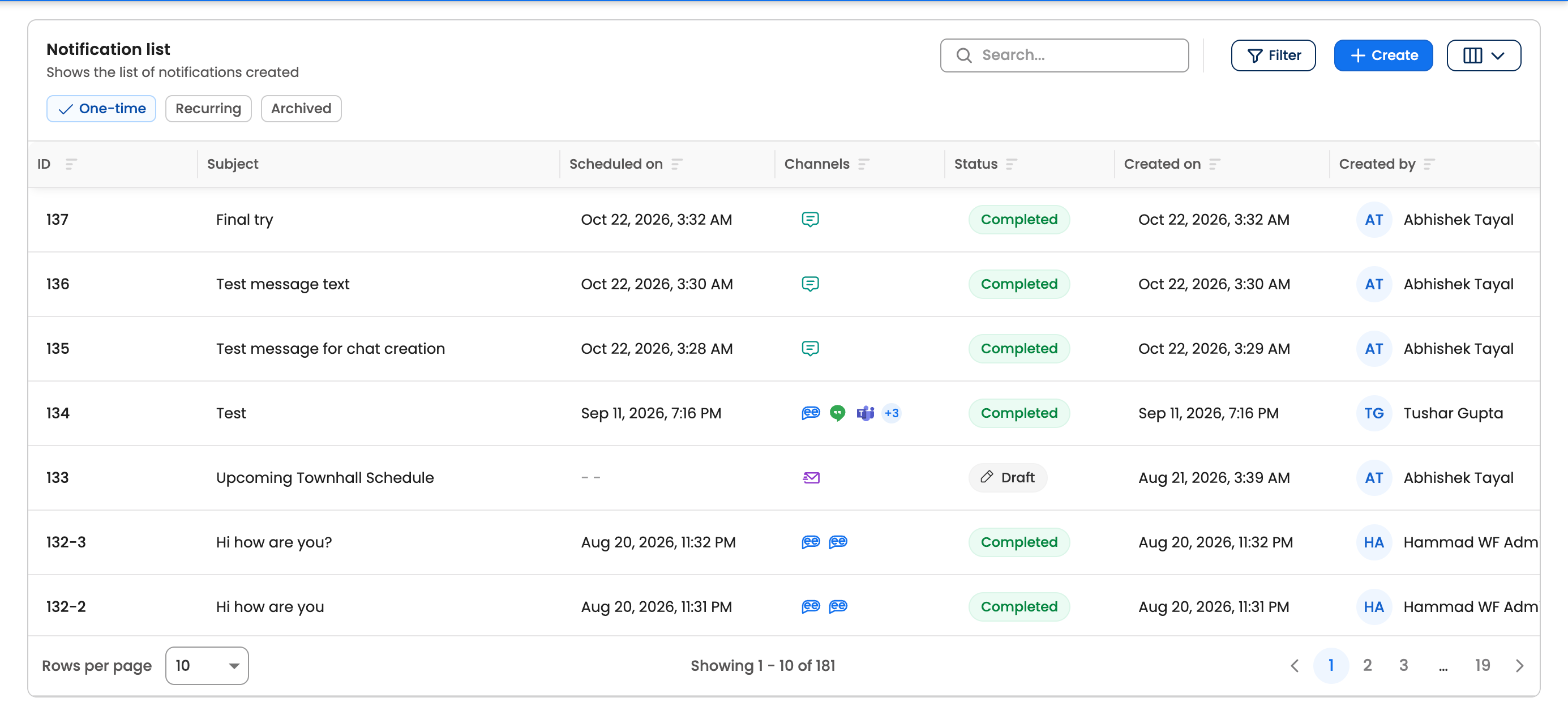
The notification list, the module's home page
What you can do
- Send to any audience. Everyone, employees who have or haven't used the assistant yet, today's birthdays and work anniversaries, or a custom audience built from employee data.
- Use the channel that fits. Bot notifications reach employees wherever they use the assistant: the Leena AI apps, Microsoft Teams, Slack, Google Chat, Workvivo and more. Email, SMS and WhatsApp notifications are available too.
- Send now, later or on repeat. Schedule up to two years ahead, deliver in each employee's own time zone, or set up a recurring series.
- Ask as well as tell. Add buttons that open links, webviews or a longer description, or turn the notification into a poll.
- Measure the result. For every notification, see how many employees it was attempted for, sent to, delivered to, read by and interacted with, down to the individual employee, and download the data.
- Control who does what. Give team members admin or agent roles, and with access control, decide channel by channel what each person can create, see and send, and to whom.
How it works
- Set up the basics. An admin assigns roles, connects the channels you need, and creates any custom audiences, webviews or WhatsApp templates.
- Create the notification. Pick the kind of notification, then work through three steps: Add details, Set schedule, and Review & test. You can save a draft at any point and send yourself a test before it goes out.
- Track it. The notification moves from Scheduled to Running to Completed in the list. Open it to see its Report.
Kinds of notification
| Kind | Delivered to | Good for |
|---|---|---|
| Bot notification | The assistant, on every channel the employee uses it on, plus mobile push | Announcements, reminders and polls employees can act on |
| Email notification | The employee's email address, using a designed template | Longer, formatted communications and newsletters |
| SMS notification | The employee's phone number | Short, time-critical alerts |
| WhatsApp notification | WhatsApp, using a template approved by Meta | Reaching employees who use WhatsApp |
See Types of Notifications for what each one supports.
Who can use it
| Role | What they can do |
|---|---|
| Notification admin | Everything in the module, including Settings |
| Notification agent | Create and manage notifications. With access control on, only what their permission set allows |
Roles are assigned in Admin Console → Dashboard settings → Dashboard users. See Dashboard Roles.
In this section
| Page | Read it to |
|---|---|
| Dashboard | Find your way around the notification list and a notification's page |
| Dashboard Roles | Give your team access and set permissions |
| Types of Notifications | Choose the right channel, frequency and format |
| Audience | Target the right employees and build custom audiences |
| Creating Notifications | Build, test and send a notification step by step |
| Save as Draft | Save your work and come back to it |
| Standard vs Time Zone-Aware Delivery | Choose how scheduled notifications are timed, and what to avoid after scheduling |
| Reporting and Analytics | See who received, read and acted on a notification |
| Notification Settings | Manage access control, webviews and WhatsApp templates |
| FAQs | Get quick answers to common questions |
Before your first notification
- Make sure the channels you want to use are set up for your assistant. A channel only appears in the module once it's configured.
- Check that employee data such as department, location, date of birth and joining date is synced. Audiences and birthday or anniversary notifications depend on it.
- Send a test to yourself from the Review & test step before sending to a large audience.
Updated about 1 hour ago
Did this page help you?