
Overview
The Leena AI Web App is where employees work with your AI colleagues. They ask questions, run workflows, approve requests and catch up on notifications, all in one place. This section walks through each part of the screen: what employees can do there, and which Admin Console settings shape it.
Written for the new Web App designThese pages describe the new Web App design (V3). It has been available since September 2026 for bots with Multiple Chats enabled, and becomes the standard design for those bots in December 2026. Where a bot on the older, classic design behaves differently, look for the notes headed On the classic design.
For the rollout plan, see New Web App design.
The screen at a glance
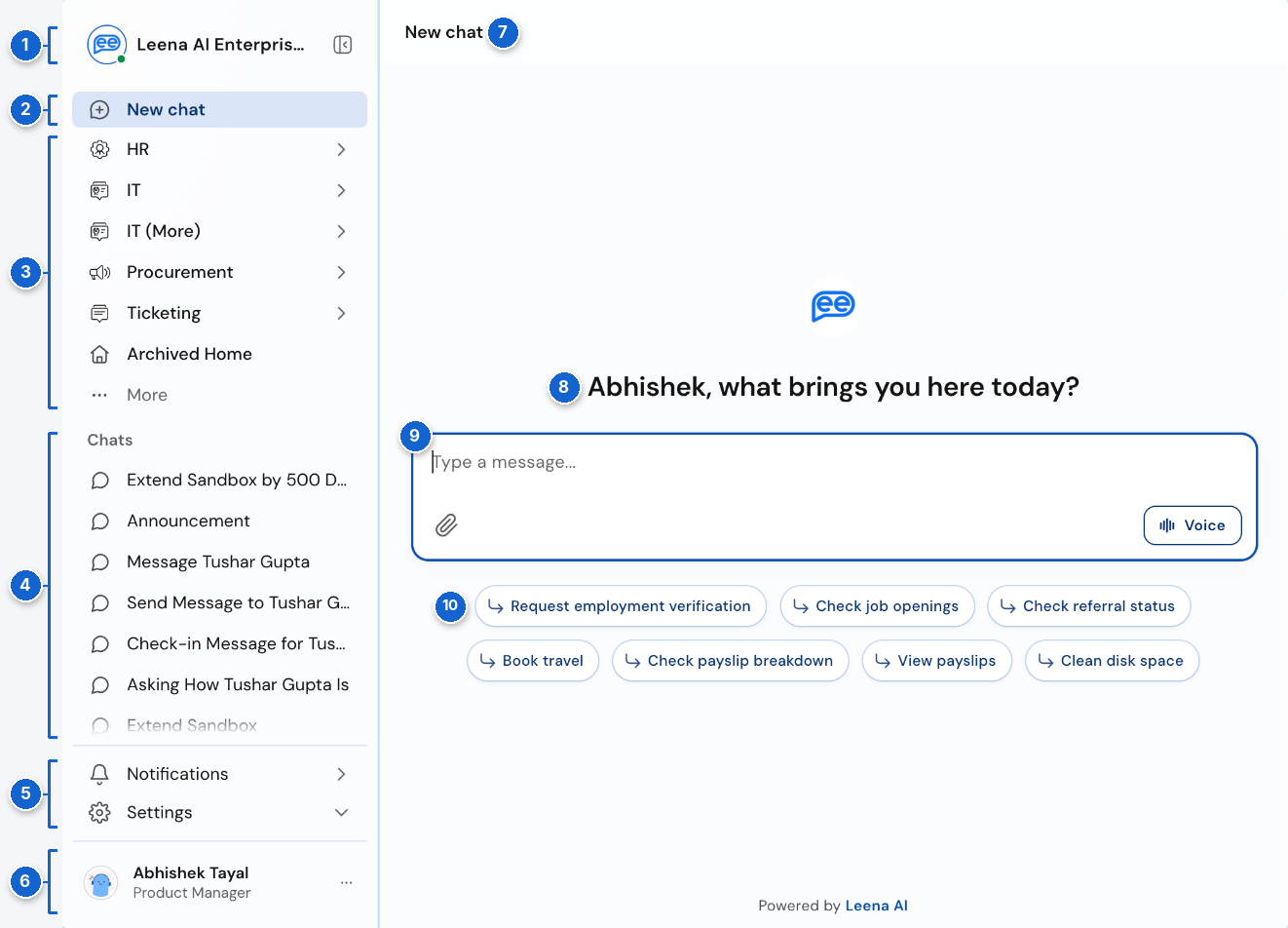
A new chat in the Web App. The numbers match the table below.
| # | Area | What it's for | Read more |
|---|---|---|---|
| 1 | Assistant header | Your assistant's name and avatar. The button beside it folds the side panel into a strip of icons. Employees who use more than one assistant switch between them here. | Navigation & Menu |
| 2 | New chat | Starts a fresh conversation. | Chats |
| 3 | Sidebar actions | The folders, webviews, quick replies and links your admin pins, plus Archived Home and More. | Navigation & Menu, Quick Reply Options |
| 4 | Chats | The employee's conversations, most recent first. | Chats |
| 5 | Notifications and Settings | The notifications panel, with an unread count, and the settings menu. | Notification Panel, Settings |
| 6 | Profile | The employee's name, photo and job title. The ⋯ menu changes the display picture or logs out. | Settings |
| 7 | Chat title | The name of the open chat. Click it to rename or delete the chat. | Chats |
| 8 | Greeting | A personal greeting on every new chat. | Capability discovery |
| 9 | Composer | Where employees type, attach files with the paperclip, or start a voice call with Voice. | Voice Call |
| 10 | Suggested prompts | One-click starting points, picked from what this employee can do. | Quick Reply Options |
In this section
- Login Screen: what employees see when they sign in.
- Product Tour: the onboarding slides shown on an employee's first visit.
- Navigation & Menu: the side panel, how admin-pinned items are arranged, and keyboard shortcuts.
- Quick Reply Options: suggested prompts, quick replies in the side panel, and options inside a response.
- Notification Panel: where notifications arrive and how employees act on them.
- Settings: font size, clearing chat history, the display picture and logging out.
- Chats: running several conversations, Archived Home, and the chats that collect notifications.
- Streaming & Thinking State: answers that appear as they're written, with the steps behind them.
- Multi-lingual Support: showing the interface in each employee's language.
- Voice Call: talking to the assistant instead of typing.
Where employees see it
The design is the same wherever the Web App loads. Only the layout adapts to the space available.
| Where | Layout |
|---|---|
| Browser (web.leena.ai) | Side panel on the left and the conversation on the right. On a small screen the side panel becomes a drawer. |
| Website widget | Drawer layout, sized to the widget. |
| Desktop app (Windows and Mac) | Same as the browser. |
| Mobile app (iOS and Android) | Drawer layout. Employees tap ☰ to open the side panel. |
| Microsoft Teams Tab App | Same as the browser, except that Logout and Change display picture are hidden, because Teams handles the employee's identity. |
Chat-based channels such as Teams chat, Slack, WhatsApp and Google Chat show the assistant inside their own messaging apps. See External Channels Experience.
Switch a bot to the new design
- In the Admin Console, go to Leena channels → Settings.
- Expand 3. Display and interactions.
- Check that Enable multi-chat is on. The new design is only available to bots with Multiple Chats.
- Turn on Enable webapp V3.
- Click Save. Employees get the new design the next time they open the Web App.
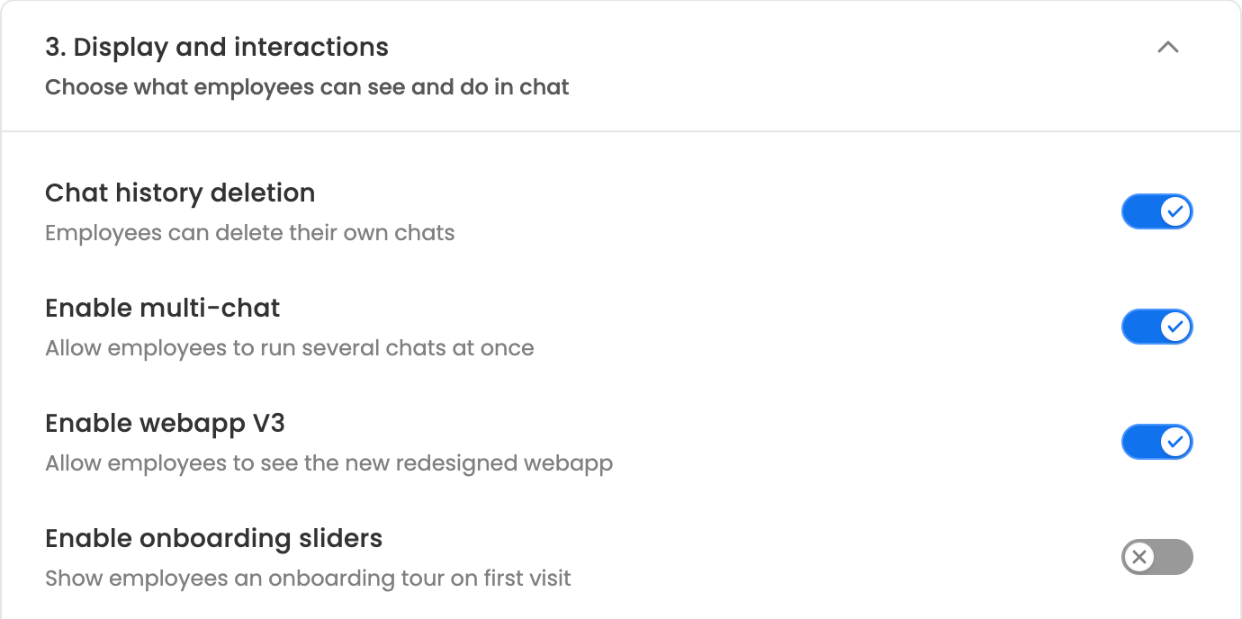
Admin Console → Leena channels → Settings → 3. Display and interactions
Things to know before you switch
- If you don't see Enable webapp V3, contact your Leena SPOC and tell them which bot you want to move.
- Multiple Chats needs the AI Colleagues (AIC) architecture. Onboarding, offboarding and Engage bots aren't on it, so they stay on the classic design, now and after December.
- Try it on UAT first with a small group, so you can check your branding and sidebar actions before employees see the change.
- Your configuration carries across: assistant name and avatar, primary colour, sidebar actions and suggested prompts. A custom chat background is replaced by a plain surface, so review it before you switch.
What changed from the classic design
| Area | Classic design | New design |
|---|---|---|
| Bar across the top | Holds the logo, notifications, settings and profile | Removed. Everything moves into the side panel. |
| Side panel | Shown or hidden | Also folds into a strip of icons, and can be resized by dragging its edge |
| Menu links | One list of quick links | Grouped into folders that open as pop-out menus. Extra items move into More. |
| Home | A permanent Home chat at the top of the list | A read-only Archived Home row, shown only to employees who have Home history |
| Notifications | Bell icon in the top bar | Notifications row in the side panel, which opens a panel beside it |
| Voice | Runs in a separate panel | Call controls take the place of the composer, inside the conversation |
| Colours and background | Brand colour across buttons and loaders; patterned background | Neutral layout with your brand colour as an accent; plain background |
| Keyboard shortcuts | Not available | Ctrl/⌘ + O for a new chat, Ctrl/⌘ + B to fold the side panel, Ctrl/⌘ + , for settings |
Updated about 1 hour ago