
Signing in
Sign in with a password, SSO, Google or Microsoft, reset your password, activate your account and stay signed in.
You sign in to the Unified Dashboard with your work email. What happens next depends on how your company has set up sign-in: a password, your company's single sign-on (SSO), or a Google or Microsoft account.
Signing in
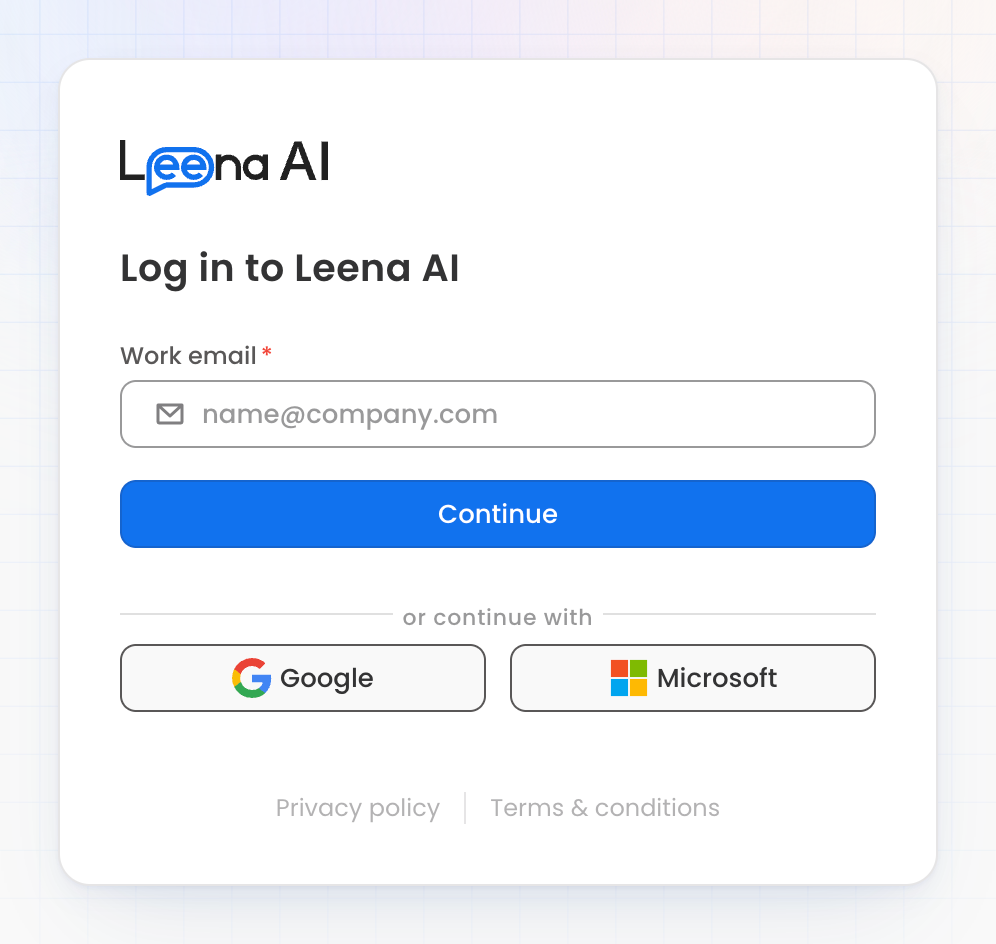
The sign-in screen
- Go to dashboard.leena.ai. The Log in to Leena AI screen asks for your work email.
- Enter your Work email and select Continue.
- If your account exists in more than one region, choose a Region and select Continue. See Choosing a region.
- Finish signing in:
| If your company uses | What happens |
|---|---|
| A password | A Password field appears under your email. Enter your password and select Log In. |
| Single sign-on (SSO) | You're taken to your company's sign-in page. Once you've signed in there, you come back to the dashboard. |
| Google or Microsoft | Select Google or Microsoft under or continue with, and choose your work account. These buttons are on both the email and password screens. |
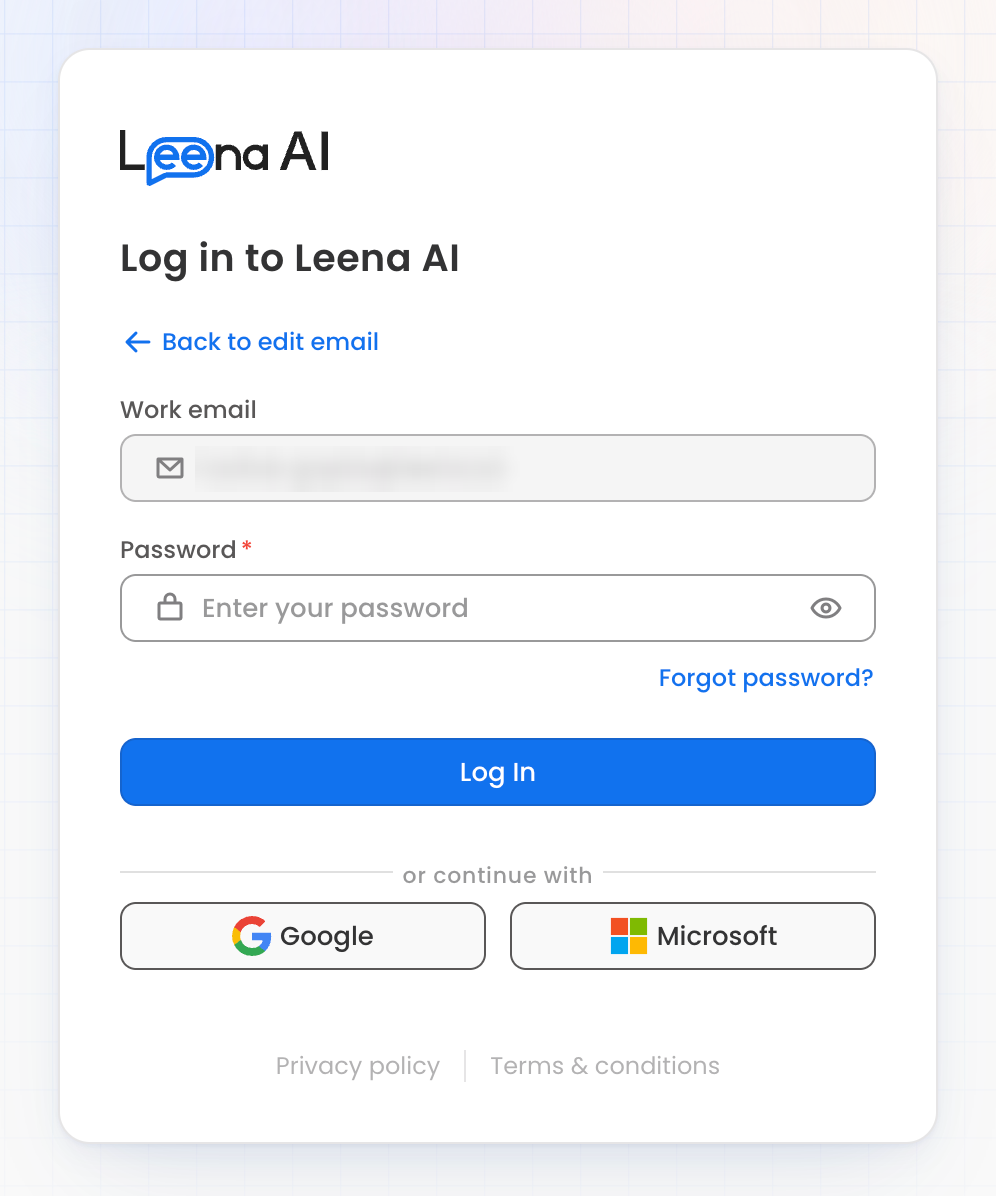
Signing in with a password
On the password screen:
- Select 👁 in the Password field to show what you've typed.
- Select Back to edit email to use a different email.
- Select Forgot password? if you don't remember your password. See Forgot your password.
Choosing a region
Leena AI is hosted in more than one region. If your work email has an account in more than one, the dashboard asks you to Select your region after you enter it.
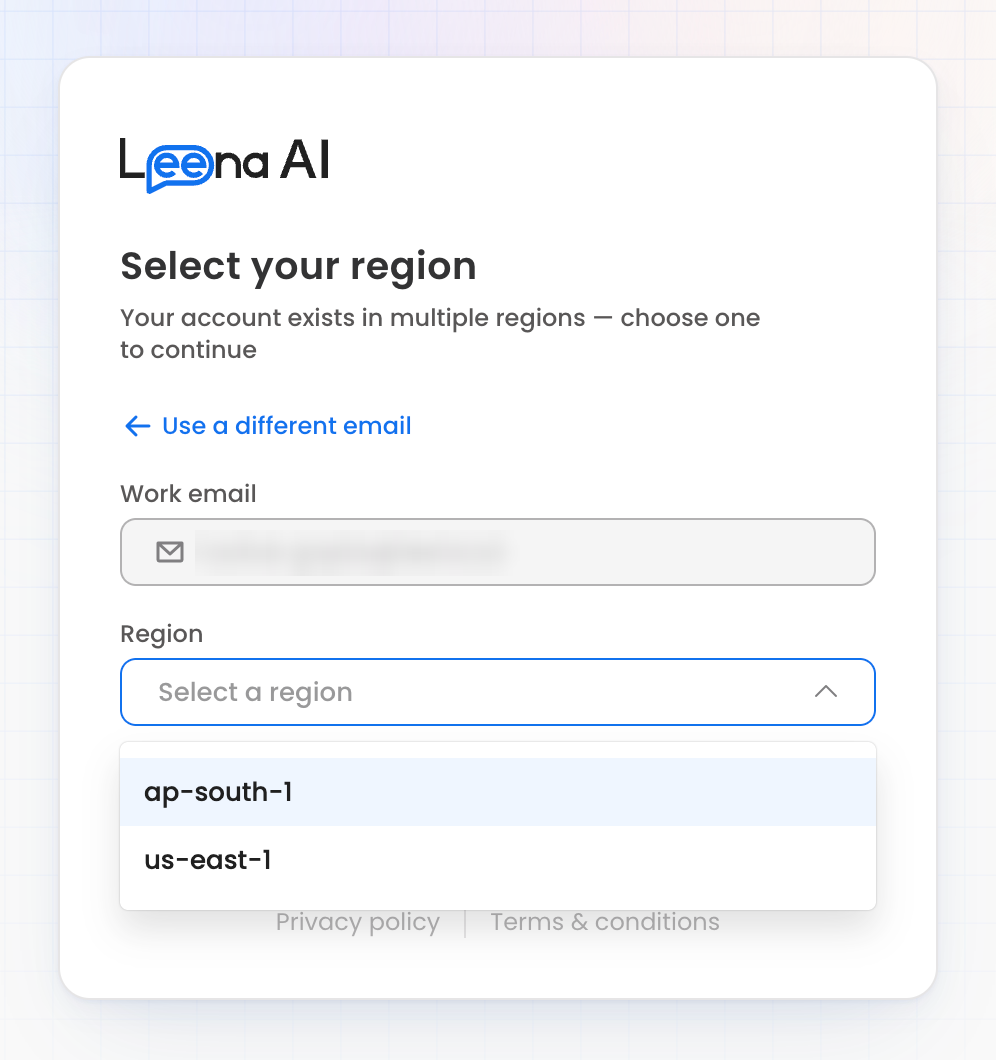
Choosing a region
- Open Region and choose one. Regions are shown by their codes, such as us-east-1 or ap-south-1.
- Select Continue.
Choose the region where the bot you want to work in is hosted. If you're not sure, ask your admin. To go back and enter a different email, select Use a different email.
Which sign-in method you seeYour admin sets how people sign in, in Admin console → Authentication. If you expected SSO and are asked for a password, or the other way round, check with your admin. See Authentication.
Where you land
After you sign in, the dashboard opens:
- The module you last used on this bot, or
- Your bot's default module, if you haven't used one yet, or
- The first module you have access to.
If you opened a dashboard link before signing in, you go straight to that page instead.
Activating your account
When your admin adds you as a dashboard user, you get an email inviting you to activate your account.
- Open the link in the email.
- On Activate your account, create a password.
- Select Activate account.
Invitation links expire. If yours has, the dashboard says the link is invalid or has expired. Ask your admin to send a new invite. If you try to sign in before activating, the dashboard emails you a new activation link.
If your company signs in with SSO, Google or Microsoft, you don't need to create a password.
Forgot your password
- On the password screen, select Forgot password?. The Reset password screen opens.
- Enter your work email and select Send reset link. If your account is in more than one region, choose the region to reset your password in.
- Open the link in the email, choose a new password and select Reset password.
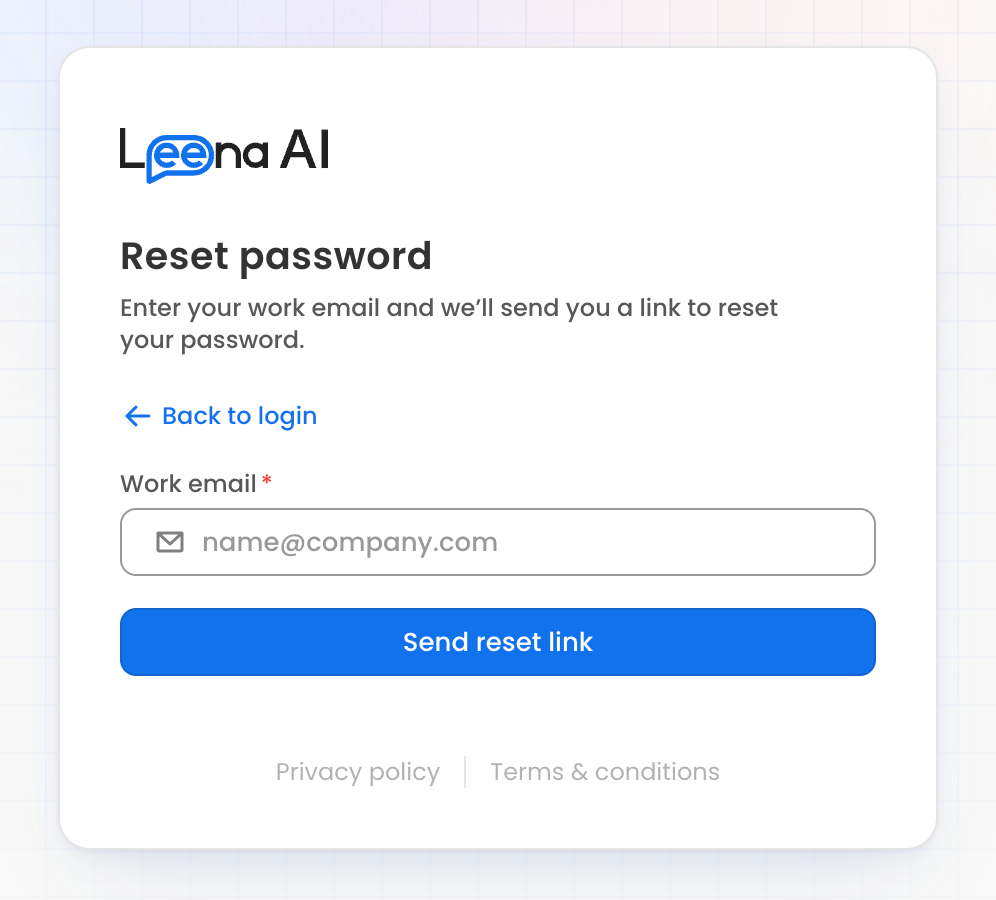
Requesting a reset link
To go back without resetting, select Back to login. A password can't start or end with a space. If the reset link has expired, request a new one from Forgot password?.
If your account signs in with SSO, you can't reset your password here. Contact your admin, or your company's IT team, instead.
To change your password while you're signed in, use Change password in your profile menu. See Your profile and bots.
Staying signed in
For security, your session lasts a set time. Ahead of the end, an hour before unless your company has chosen a different time, a banner counts down how long you have left:
Your session will expire in … Re-authenticate now to stay signed in, or you will be logged out automatically.
Select Re-authenticate to extend your session without losing your work:
- The sign-in screen opens in a new tab.
- Sign in there. That tab then closes by itself.
- Carry on in your original tab, where everything you were doing is still open.
You can close the banner with ×. It comes back in the last five minutes, so you're never signed out without warning. If your session does end, the sign-in screen tells you your session expired. Sign in again to continue.
Save your work before your session endsIf you're signed out, changes you haven't saved are lost. When the session banner appears, re-authenticate or save what you're working on.
Signing in as someone else in the same browser
The dashboard keeps one signed-in account per browser. If you sign in with a different account in another tab, your open tabs show Signed in as a different user. Select Reload to continue as the new account, or Sign out. Changes you haven't saved on that screen are lost either way.
To use two accounts at the same time, use a different browser or a private window for the second one.
Logging out
Open your profile menu, select Logout and confirm. See Your profile and bots.
If you can't sign in
| What you see | What to do |
|---|---|
| Too many attempts. Wait a minute and try again. | Wait a minute, then try again. |
| Your account is locked after too many failed attempts. | Wait an hour, or reset your password with Forgot password?. |
| Your account isn't activated yet. | Open the new activation link the dashboard has emailed you. |
| You can't log in from this network. | Your company only allows sign-in from certain networks. Connect to your company network or VPN, or contact your admin. |
| This account signs in with SSO. | Sign in through your company's SSO instead of a password. To reset it, contact your admin. |
| We couldn't sign you in. | SSO sign-in didn't complete. Try again, and if it keeps happening, contact your admin. |
| Server Under Maintenance. | Leena AI is being updated. Try again later. |
Updated about 1 hour ago