
Working with lists
Search, filter, sort and page through the lists in every module.
Most of your time in the dashboard is spent in lists: tickets, notifications, articles, users, workflows and more. Lists in every module share the same building blocks, so once you know them, you can find your way around any list.
Parts of a list
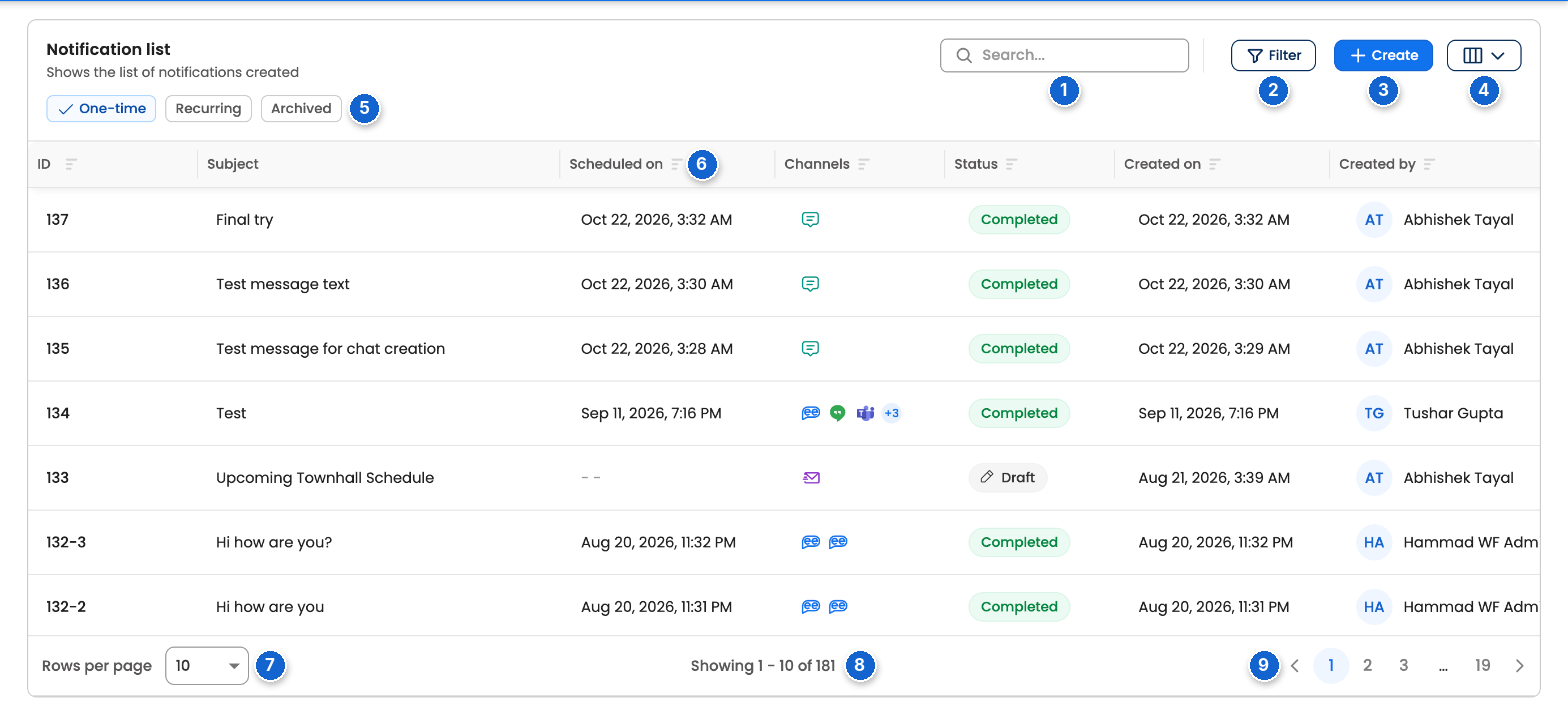
A list, here in Notifications
| # | Part | What it does |
|---|---|---|
| 1 | Search | Finds items in this list, for example by name or ID. |
| 2 | Filter | Narrows the list by fields such as status, type, owner or date. |
| 3 | Main action | Adds something new. Its name depends on the list, such as Create, Raise ticket or Add user. |
| 4 | Columns | Chooses which columns the list shows. |
| 5 | Views | Switches between parts of the list, such as One-time, Recurring and Archived notifications. |
| 6 | Sort | Sorts the list by that column. Select it again to reverse the order. |
| 7 | Rows per page | How many items to show on each page. |
| 8 | Count | Which items you're looking at, and how many there are in total. |
| 9 | Pages | Moves to the next, previous or a specific page. |
Not every list has every part, and some lists add their own, which are described in that module's guide.
Searching a list
Type in the list's search box to find items. Depending on the list, results update as you type or when you press Enter. Clear the box to see the whole list again.
Some modules also have a search box in the header. See Search, help and Forge.
Filtering a list
- Select Filter (or Filters). A panel opens with the fields you can filter by.
- Choose the values you want. Leave a field empty to include everything.
- Select Apply.
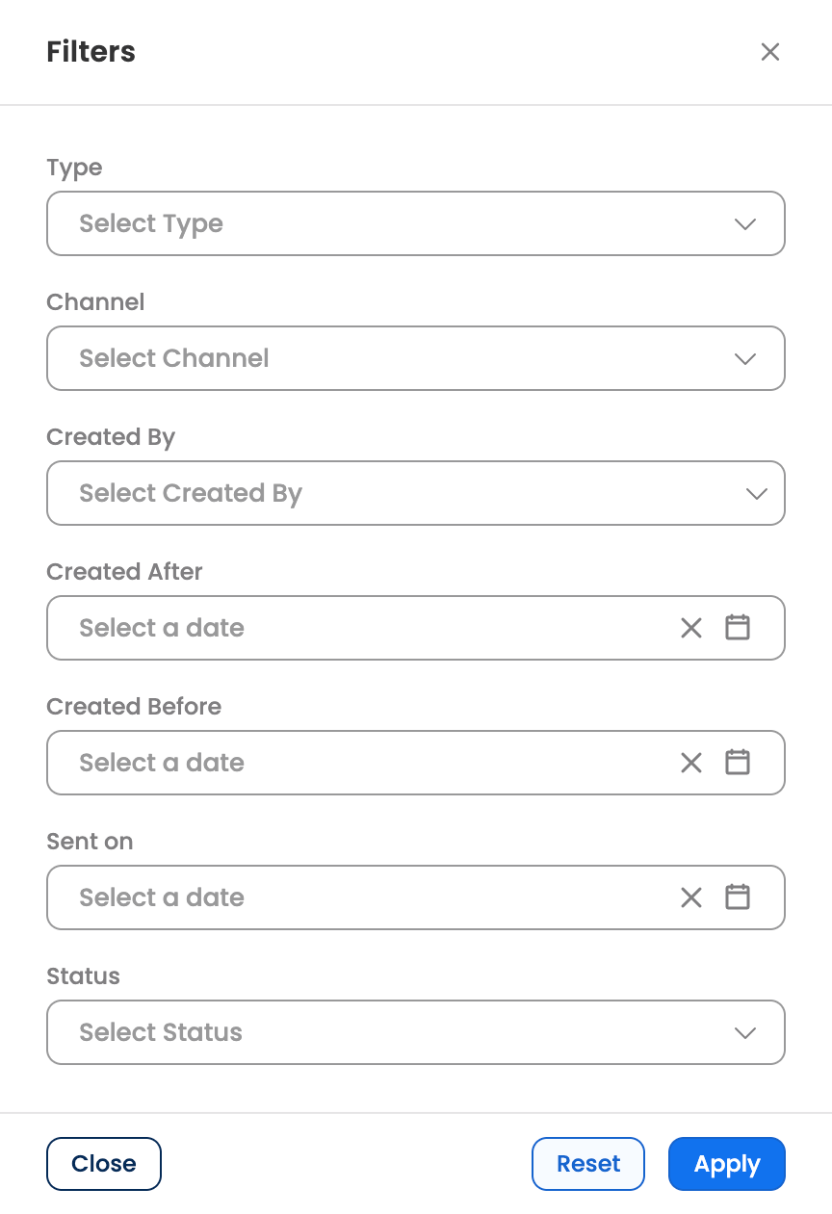
Filters, here for notifications
Select Reset to clear the filters, or Close to leave without changing anything. Filters work together with search, so you can search within filtered results.
Some lists also have quick filters above them, such as Nearing SLA in 4 hours on Helpdesk, with a count on each. Select one to show only those items.
Acting on items
- Open an item. Select a row, or its name or ID, to see its details.
- Row actions. Select ⋮ on a row for actions on that item, such as Duplicate or Archive.
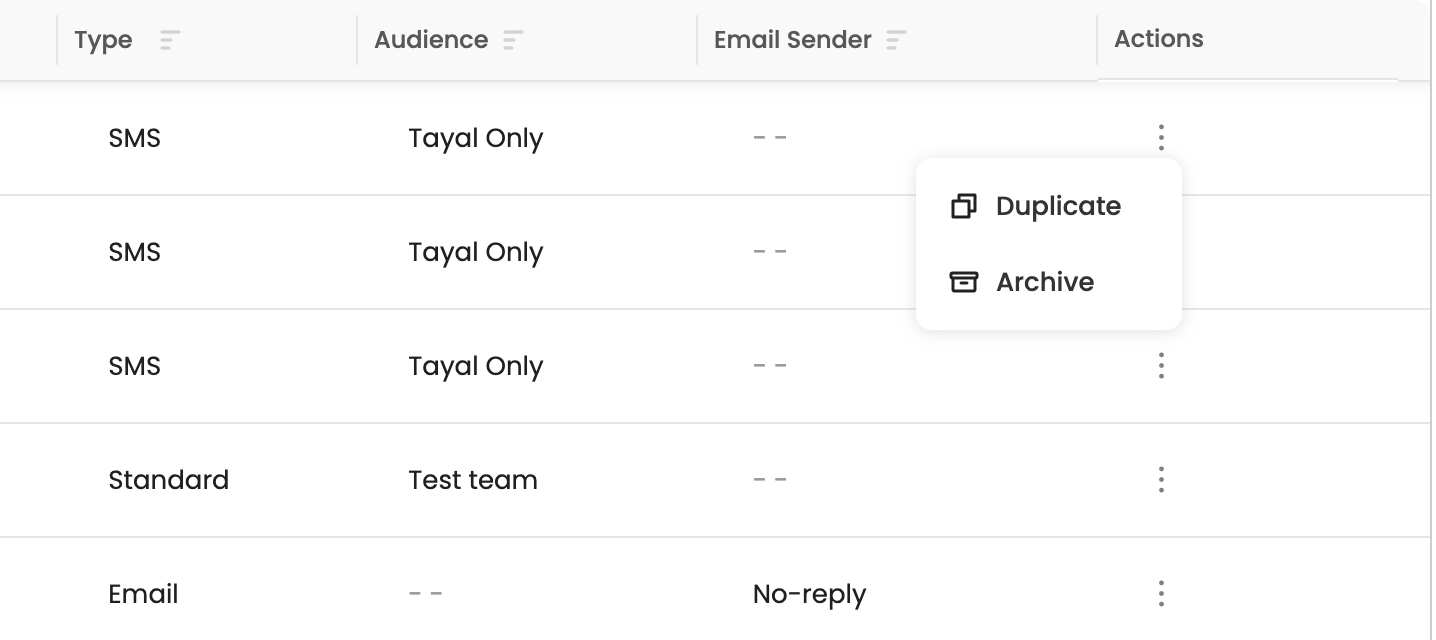
Row actions
- Several items at once. Lists that support it, such as dashboard users, have a checkbox on each row. Select the rows, then choose the action.
- Download. Some lists can be downloaded, such as Helpdesk tickets with Download tickets.
The actions you see depend on your roles. If an action is missing, you may not have permission for it.
Other ways to view a list
Some lists can be shown in more than one way. On Helpdesk, for example, you can switch between a list and a board of cards grouped by status, using the buttons at the top right.
When a list is empty
An empty list usually means there's nothing there yet, or that your search or filters don't match anything. Clear the search and select Reset in Filter to check. If the list should have items and doesn't, check that you're in the right bot and environment.
Updated about 1 hour ago