
Search, help and Forge
Search a module, check notifications, get help and guides, and ask Forge.
The right side of the header has the tools you'll reach for while you work: search for the module you're in, its notifications, help and guides, and Forge, the dashboard's AI assistant.
On a narrower window, Notifications, Help and Guide are grouped under ☰, and search shrinks to a 🔍 icon. Select 🔍 to open the search box.
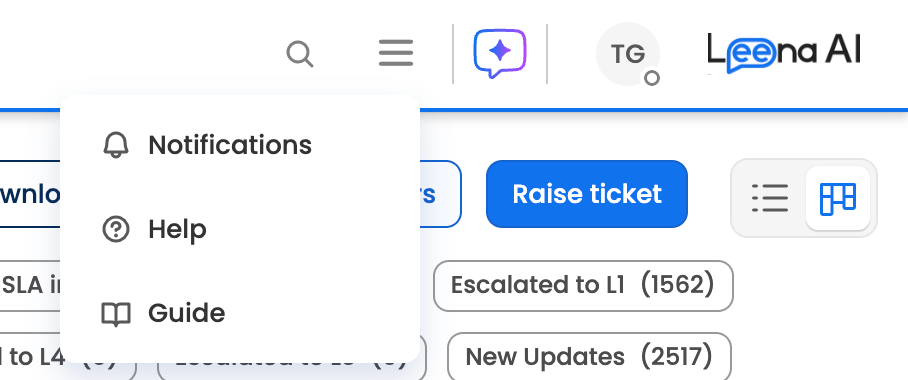
Notifications, Help and Guide under ☰ on a narrow window
Searching a module
On modules that support it, such as Helpdesk, Knowledge management, AI Colleague studio, Notifications, Onboarding and Offboarding, the header has a search box for that module. The placeholder tells you what it searches, for example Search tickets... on Helpdesk.

Searching tickets from the header on Helpdesk
- Type what you're looking for.
- Press Enter. The page shows the matching results.
- To go back to the full list, clear the search box.
Your search is kept in the page's address, so Back and Forward in your browser return to it, and you can bookmark or share a search.
Search only looks within the module you're in. Many pages also have their own search box above a list. See Working with lists.
Notifications
On Helpdesk, Knowledge management, Onboarding and Offboarding, Notifications shows updates for that module, such as changes to tickets on Helpdesk. The icon shows when you have unread updates. You can mark updates as read, or as unread to come back to them later.
These are updates for you as a dashboard user. They're not the same as the Notifications module, which sends messages to employees. See Notifications.
Help and support
Select Help to open the Help & Support panel beside the page.
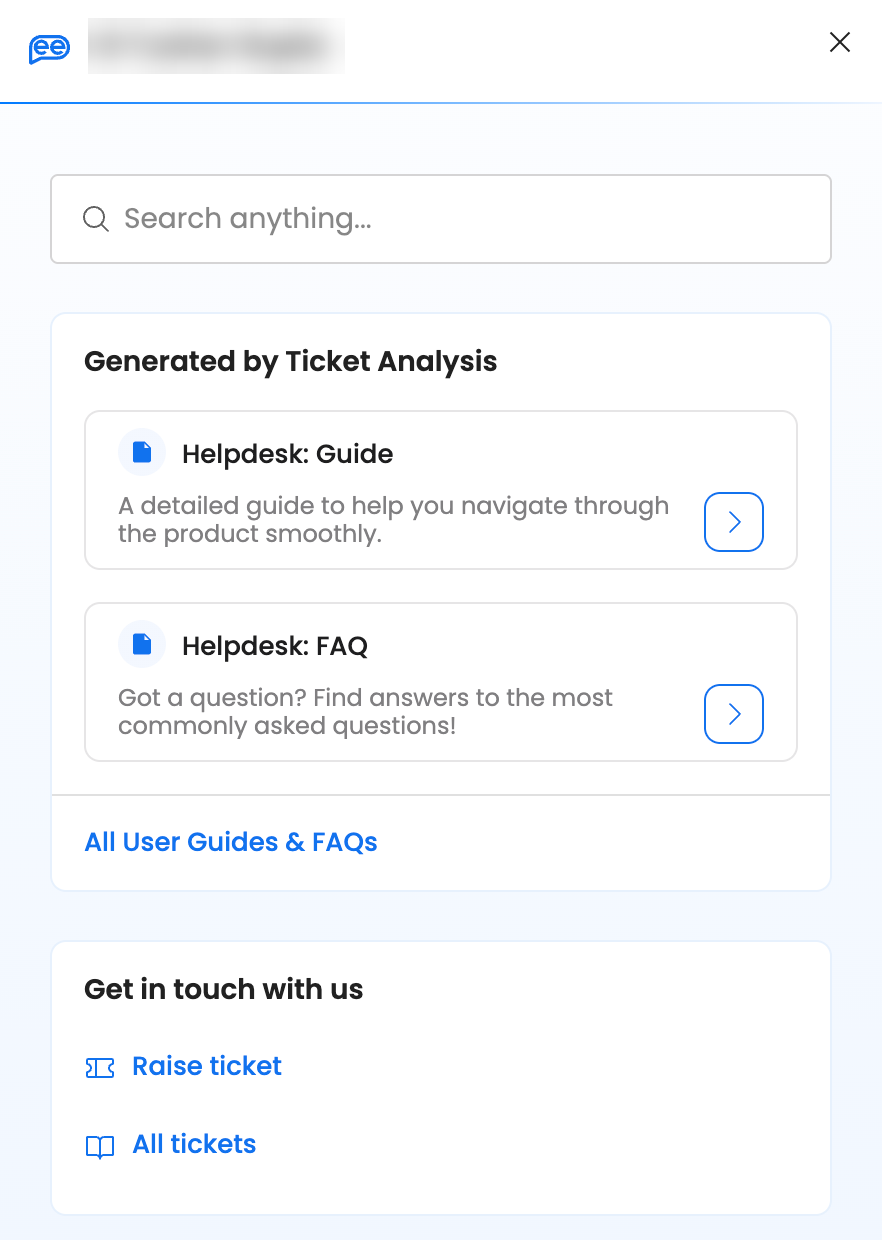
The Help & Support panel on Helpdesk
| Part | What it does |
|---|---|
| Search anything... | Searches Leena AI's user guides and FAQs. |
| Suggested articles | Guides and FAQs for the module you're in. Select one to read it in the panel. |
| All User Guides & FAQs | Every guide and FAQ available to you. |
| Was this useful? | Appears on each article, so you can tell us whether it helped. |
| Raise ticket | Raises a ticket with Leena AI support. |
| All tickets | The tickets you've raised with Leena AI support, with their status and activity. |
Help appears only if your company has it turned on, and isn't shown in Knowledge management.
Raising a ticket with Leena AI support
If you can't find an answer, select Raise ticket under Get in touch with us, or from the search results when nothing matches.
- Choose the Type of incident:
- Bug, to report an error or issue in the design or functionality.
- Service request, to ask for data, a tool enhancement or a change.
- Fill in the details, such as the category, a description and the priority, and attach screenshots if they help.
- Select Send ticket.
You get the ticket's number straight away. Open All tickets to follow it, add comments or reopen it.
If you close the panel while filling in the form, you're asked to confirm, because what you've entered isn't saved.
Your helpdesk, or Leena AI's?Tickets you raise from Help go to Leena AI's support team, about the product itself. They're separate from your company's own helpdesk tickets in the Helpdesk module.
Guides
Select Guide to open the user guide for the module you're in, on this docs site, in a new tab. For example, on Helpdesk it opens the Helpdesk guide. To browse all the docs, select User guide at the bottom of the module switcher.
Forge
Forge is an AI assistant built into the dashboard. It's in beta. Select ✦ in the header to open it beside the page you're on.
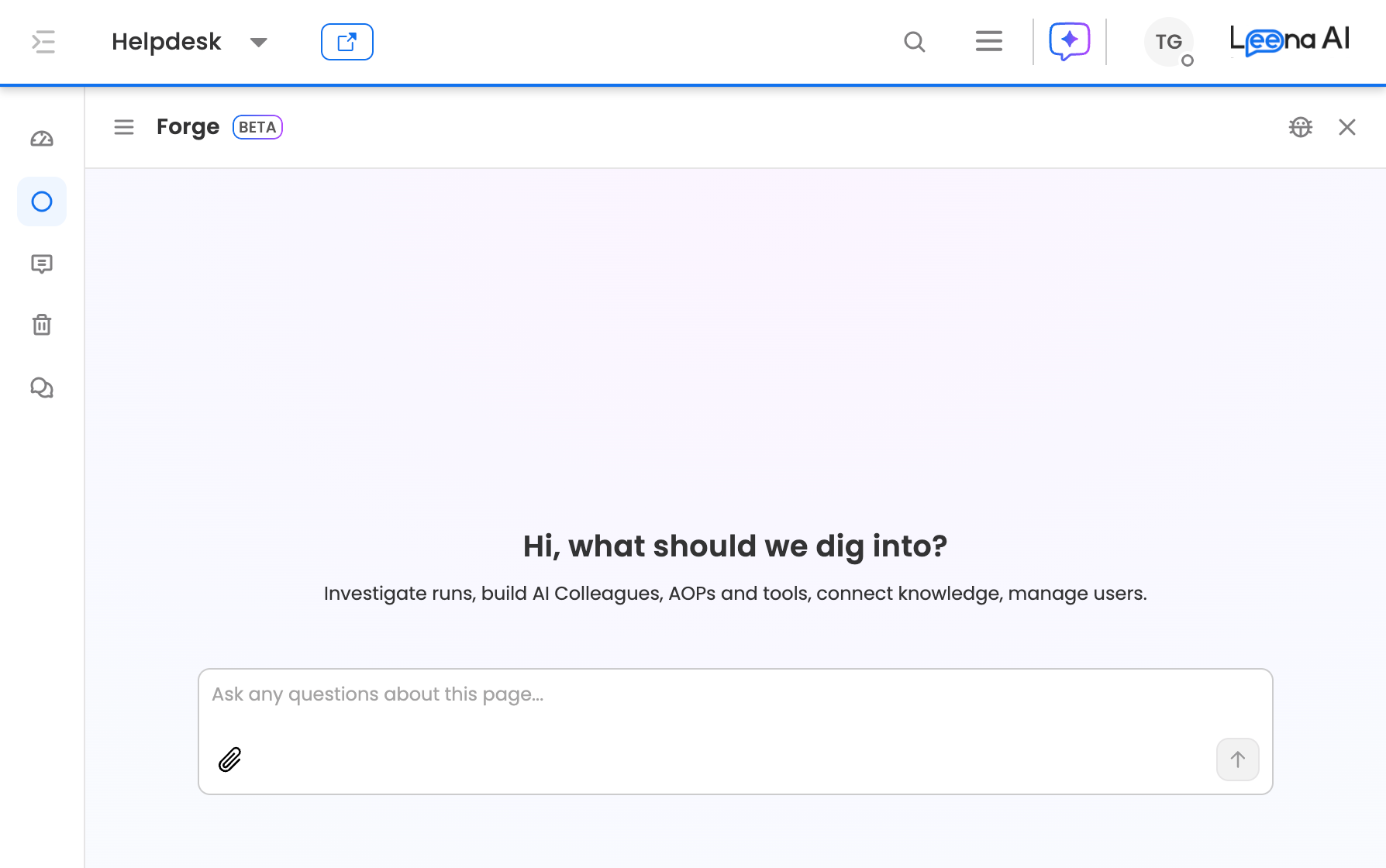
Forge
Ask Forge about the page you're on, or ask it to help with a task. It can help you investigate runs, build AI Colleagues, AOPs and tools, connect knowledge and manage users. Select 📎 to attach a file to your question.
| Control | What it does |
|---|---|
| ☰ | Chat history: your earlier conversations with Forge |
| New chat | Starts a fresh conversation |
| Full page | Opens Forge across the whole page. Select Exit full page to go back. |
| 🐞 | Report a problem with Forge. Tell us what went wrong. The report includes the conversation, the bot name, the screen you were on and the time. |
| × | Closes Forge |
Some controls appear only once you've started a conversation.
Updated about 1 hour ago