
Overview
The Unified Dashboard at a glance: the header, side menu and what you can see.
The Unified Dashboard at dashboard.leena.ai is where your team sets up and runs Leena AI. Admins, helpdesk agents, knowledge managers and builders all work here. Every module, such as Helpdesk, Knowledge management, AI Colleague studio, Workflows, Notifications and Analytics, opens in the same screen, with the same header and the same way of getting around.
This guide covers what works the same in every module: signing in, moving between modules, searching, getting help, your profile, and the lists you'll use everywhere. How each module works is covered in that module's own section of these docs.
You always work in one botEverything you see and change in the dashboard belongs to one bot, which is one Leena AI workspace. The bot decides which modules, settings and data you see. If you have access to more than one bot, you can switch from your profile menu. To learn how bots and the dashboard relate, see Bot & Unified Dashboard.
The dashboard at a glance
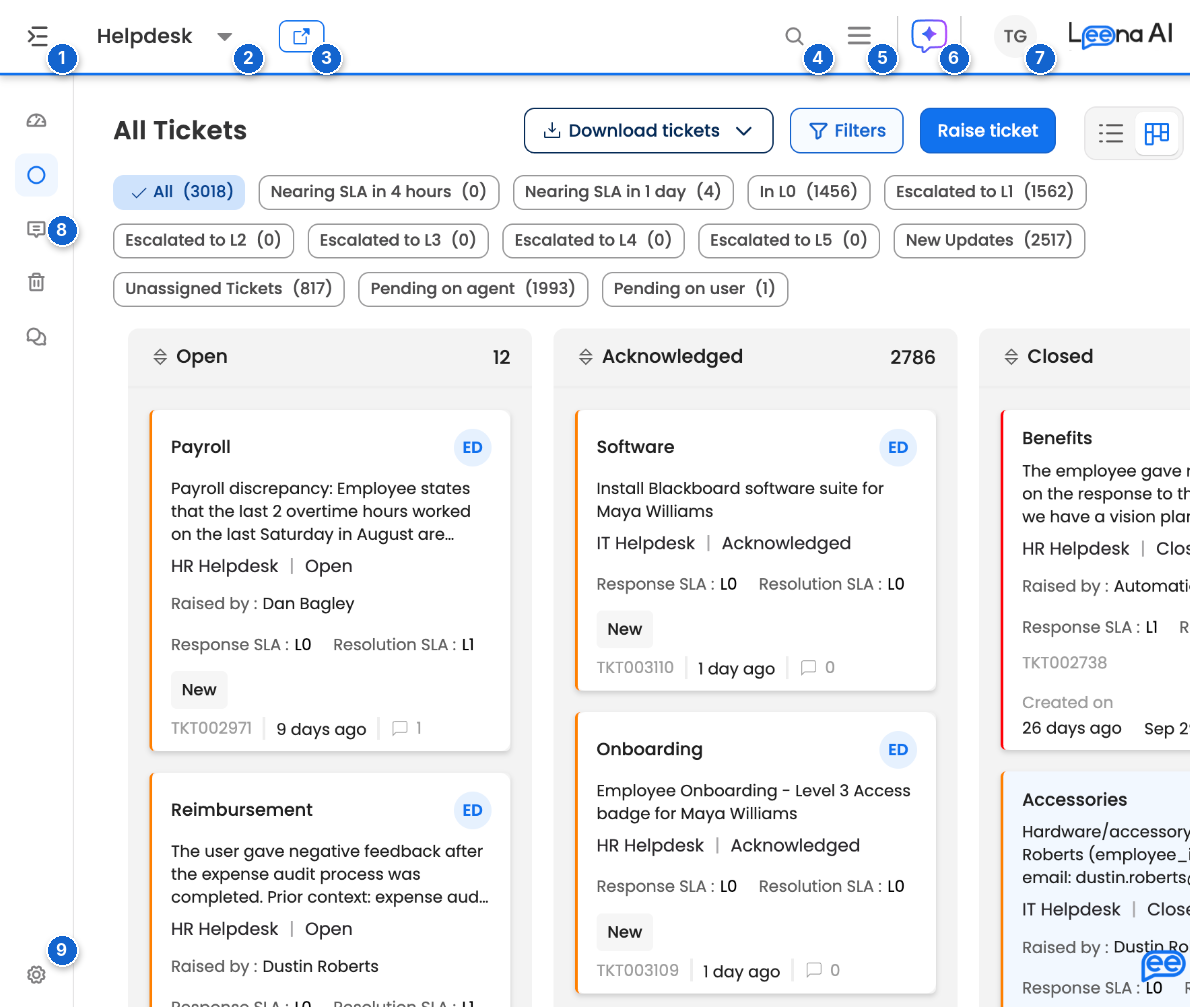
The dashboard, here on Helpdesk → All Tickets
| # | Part | What it does |
|---|---|---|
| 1 | Side menu toggle | Expands the side menu to show page names, or collapses it back to icons. |
| 2 | Module switcher | Shows the module you're in. Select it to move to another module. |
| 3 | Virtual assistant | Opens your organization's employee assistant in a new browser tab, so you can see what employees see. |
| 4 | Search | Searches the module you're in, on modules that have it. |
| 5 | ☰ menu | Groups Notifications, Help and Guide when the window is narrow. On a wider screen they appear as separate icons. |
| 6 | Forge | An AI assistant for the dashboard. It's in beta. |
| 7 | Profile | Your profile menu: your status, password, language, availability, bots and Logout. |
| 8 | Side menu | The pages of the module you're in. |
| 9 | Settings | The module's settings, if you have access to them. |
Your company's logo appears at the far right of the header.
The header adapts to your screenOn a wide screen, Virtual assistant shows its name, search shows as a box, and Notifications, Help and Guide each have their own icon. On a narrower window, such as the one above, they shrink to icons or move under ☰. They work the same either way. The dashboard is made for a desktop or laptop. On a phone, it suggests switching to one.
What you can see depends on your access
The modules in the switcher, the pages in each side menu and the actions on each page depend on the roles your admin has given you. Two people on the same bot can see different things. If something you need is missing, ask your admin to check your roles in Admin console → Dashboard users. See Dashboard users.
Some parts of the header also appear only when they apply. For example, the environment label shows only outside production, and Help shows only when your company has it turned on.
In this guide
| Page | What it covers |
|---|---|
| Signing in | Signing in with a password, SSO, Google or Microsoft, resetting a password, activating your account, and staying signed in |
| Finding your way around | The module switcher, the side menu, module settings, environments and the Virtual assistant link |
| Search, help and Forge | Searching a module, notifications, the Help panel, guides and Forge |
| Your profile and bots | Your status, password, language, availability, switching bots and logging out |
| Working with lists | Searching, filtering, sorting and paging through the lists in every module |
| Banners and notices | Session, maintenance, trial and environment notices |
| FAQs | Answers to common questions |
Updated about 1 hour ago