
Your profile and bots
Your live chat status, password, language and availability, switching bots and logging out.
Your profile menu holds the settings that are about you rather than a module: your live chat status, password, language and availability, the bots you can switch between, and Logout. Select your initials or photo at the top right of the header to open it.
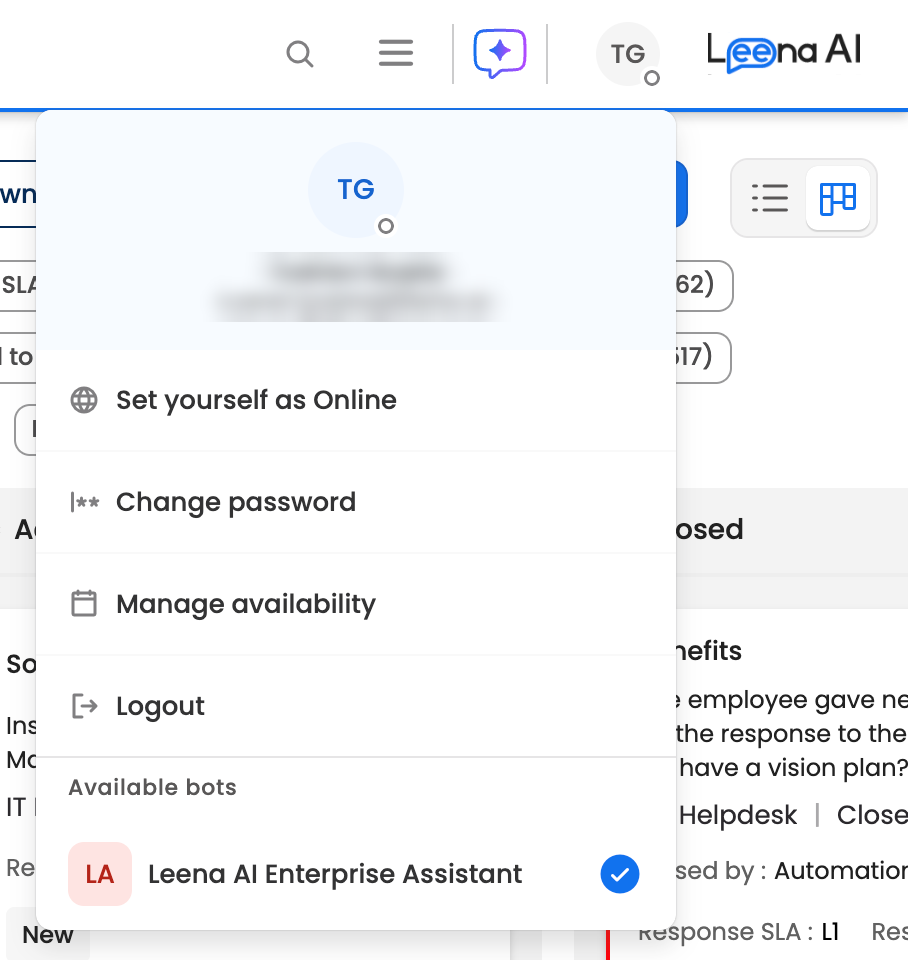
The profile menu
The top of the menu shows your name and email address. If you've been marked unavailable, the dates appear under them.
The options below depend on how your company has set up the dashboard, so you might not see all of them:
| Option | When you see it | What it does |
|---|---|---|
| Set yourself as Online or Offline | Live chat is turned on | Changes whether you can receive live chats |
| Change password | You sign in with a password | Changes your dashboard password |
| Change language | Your company allows more than one language | Changes the language of the dashboard |
| Manage availability | Your company uses the newer Helpdesk | Opens Manage unavailability, to plan time away |
| Logout | Always | Signs you out |
| Available bots | Always | The bots you can work in, to switch between them |
Your live chat status
If your company uses live chat in Helpdesk, the small dot on your initials shows whether you're online. Select Set yourself as Online to start receiving live chats, or Set yourself as Offline to stop. See Live Chat.
Changing your password
- Select Change password.
- Enter your current password, then your new password, then the new password again to confirm it.
- Submit the form.
The dialog lists your company's password rules, such as at least 8 characters, an uppercase letter, a number or a special character, and marks each one as your new password meets it.
If your company signs in with SSO, Google or Microsoft, there's no dashboard password to change, so this option isn't shown. If you've forgotten your password, sign out and use Forgot password? on the sign-in screen. See Signing in.
Changing the language
Select Change language and choose a language. The dashboard switches to it for you. Which languages you can choose depends on what your admin has turned on. See Language.
Planning time away
If you work on tickets, tell Leena AI when you'll be away, so your tickets are looked after while you're gone. Select Manage availability to open Manage unavailability.
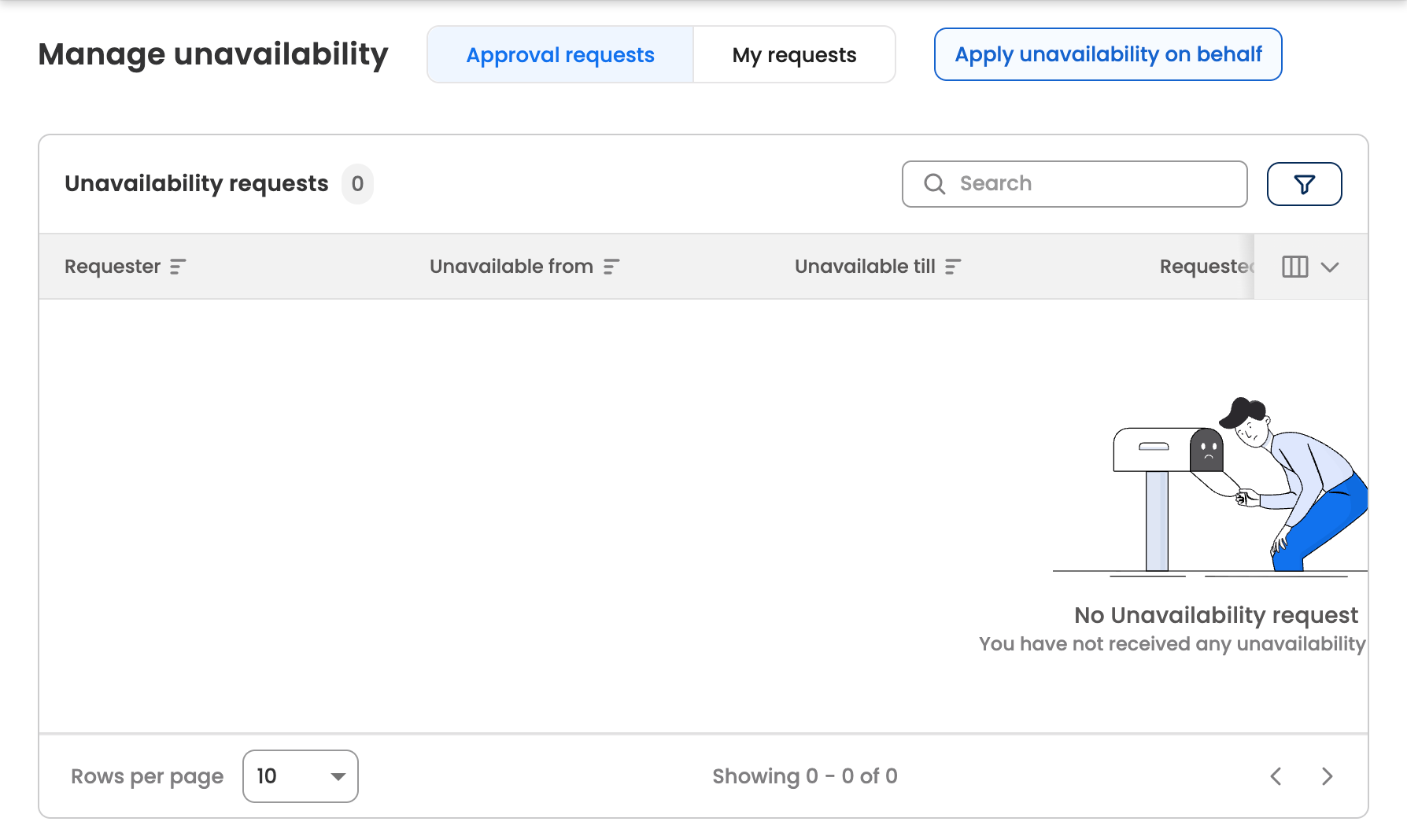
Manage unavailability
- My requests lists the time away you've applied for, and lets you apply for more. You choose the dates and give a reason.
- Approval requests lists requests waiting for you to approve, if you're an approver. When approving, you choose who covers for the person, and whether to reassign their active tickets, redirect new tickets, or both.
- Apply unavailability on behalf lets you apply for time away for someone else, if your role allows it.
Dates and times on this page are in GMT. See Unavailability Management.
Switching bots
If you have access to more than one bot, they're listed under Available bots. The bot you're in has a ✓. Select another bot to switch to it. The dashboard opens that bot, with the modules and data that belong to it.
Each bot keeps its own settings, so check which bot you're in before you change anything. If a bot you need isn't listed, ask your admin to add you to it as a dashboard user.
Logging out
- Select Logout.
- When asked Are you sure you want to log out?, select Logout. Select Cancel to stay signed in.
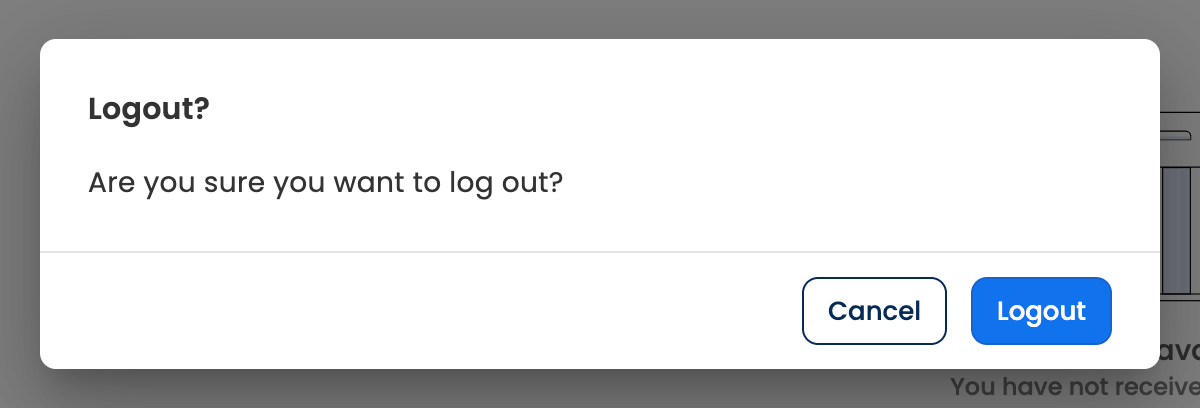
Confirming logout
You're taken back to the sign-in screen.
If you're on a shared computer, always log out when you're done.
Trial accounts
If your company is trying Leena AI, the header shows how many days are left in the trial. The profile menu then also has options to extend the trial, contact the Leena AI sales team, or delete your data.
Updated about 1 hour ago