
Finding your way around
Move between modules, use the side menu and module settings, and know which environment you are in.
Every module in the Unified Dashboard is laid out the same way: the header across the top, the module's pages in the side menu on the left, and the page you're working on in the middle. Once you know one module, you know how to get around all of them.
Moving between modules
Select the module name at the top left, next to ▾, to open the module switcher. It lists every module you have access to on this bot. Select one to open it.
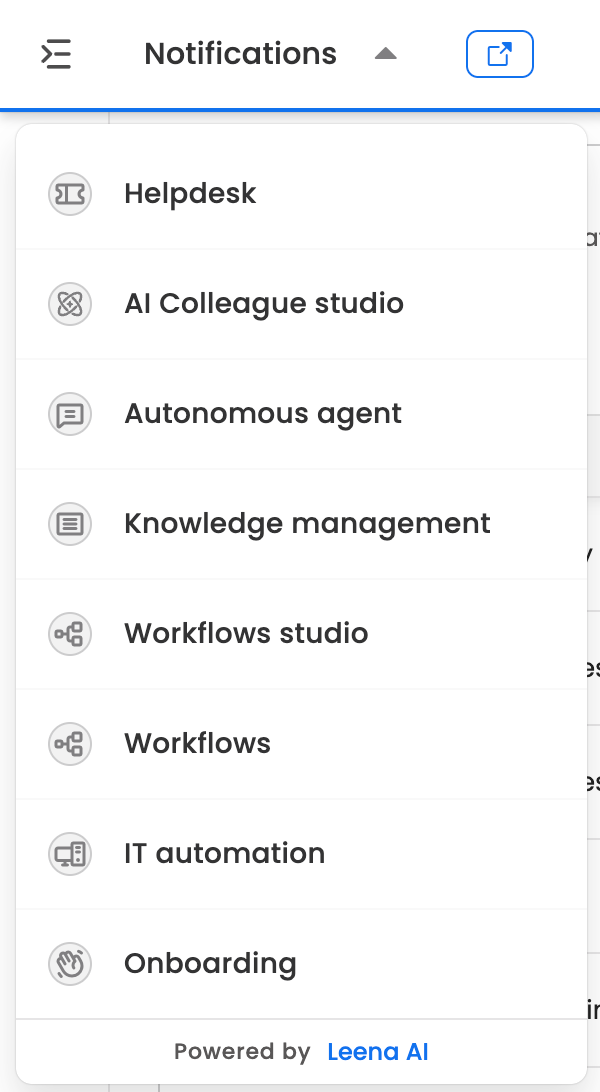
The module switcher
Scroll the list to see more modules. Which modules appear depends on what your company uses and on your roles, so your list may be shorter or longer than this one. Common modules include:
| Module | What it's for |
|---|---|
| Helpdesk | Tickets, live chat and helpdesk settings |
| AI Colleague studio | Building and managing AI Colleagues |
| Knowledge management | The articles and documents the assistant answers from |
| Workflows studio and Workflows | Building and running automated workflows |
| IT automation | Device and IT task automation |
| Onboarding and Offboarding | Joiner and leaver journeys |
| Notifications | Messages sent to employees through the assistant |
| Analytics and Helpdesk insights | Reports on usage, performance and tickets |
| Integrations | Connections to your HR, IT and other systems |
| Admin console | Bot-wide settings, such as dashboard users, authentication and language |
The last item, User guide, opens these docs.
The dashboard remembers the module you last used on each bot and opens it the next time you sign in.
The side menu
The side menu lists the pages of the module you're in. The page you're on is highlighted.
- Select the menu toggle, the icon at the very top left of the header, to expand the menu and show page names, or to collapse it back to icons and give the page more room.
- Select Settings at the bottom of the menu to open the module's settings. The menu changes to the settings pages. Some have ⌄ and expand into more pages. Select ‹ Settings to go back to the module's pages.
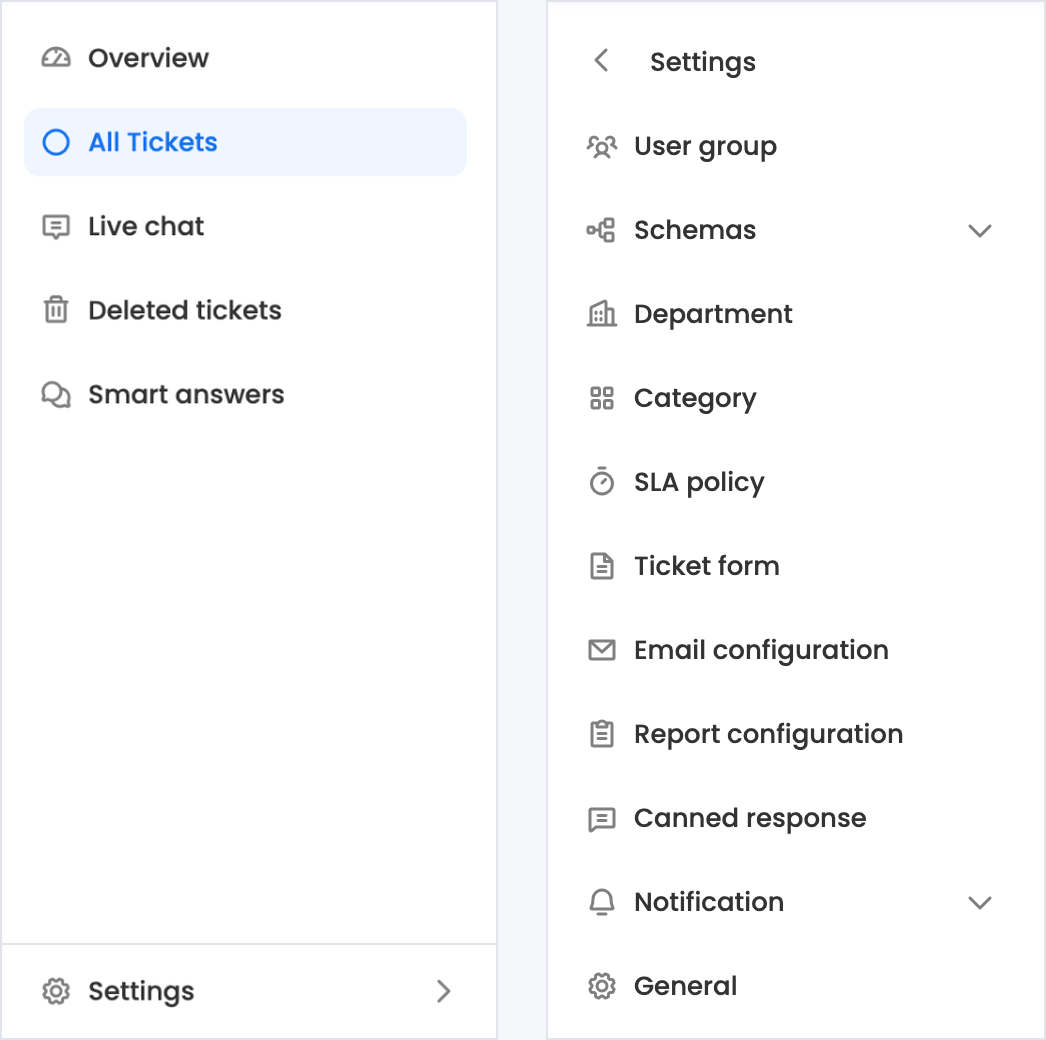
Helpdesk pages (left) and Helpdesk settings (right)
Settings appears only in modules that have settings, and only if your roles allow you to change them. Bot-wide settings, which apply across modules, are in the Admin console module.
Environments
Your company may have more than one Leena AI environment, for example one for building and testing and one that employees use. When you're not in production, a label next to the module name shows which environment you're in:
| Label | Environment |
|---|---|
| Staging | Where your team builds and tries things out |
| UAT | Where changes are tested and signed off before going live |
| Pre-Prod | A final check before production |
There's no label in production, which is the environment your employees use. Changes you make in one environment don't apply to the others. See Understanding Environments.
Seeing what employees see
Select Virtual assistant in the header, the button with ↗, to open your organization's employee assistant in a new browser tab. It's an easy way to check a change from an employee's point of view, such as a new knowledge article or a notification.
Pages, links and tabs
Every page in the dashboard has its own address, which includes the bot it belongs to. You can:
- Bookmark a page you use often.
- Share a page's address with a colleague. They can open it if they have access to that bot and page.
- Open pages in more than one tab, for example to compare two settings pages. You stay signed in across tabs.
Updated about 1 hour ago