
Setup user group policies for Microsoft Teams apps
Use a Teams app setup policy to give the Leena AI app to a specific group of employees — for a pilot, a phased rollout, or when only some teams should have it — and pin it to their Teams app bar so it's easy to find.
The setup spans two Microsoft admin portals:
- Microsoft 365 admin center — create the group of employees who should get the app.
- Teams admin center — upload the app, grant admin consent, create the setup policy and assign it to the group.
Before you start
- Download the Leena AI app package (zip) from Admin Console → External channels → Teams. See Teams.
- Granting admin consent (step 7) needs an account with Global Administrator privileges.
Create the user group
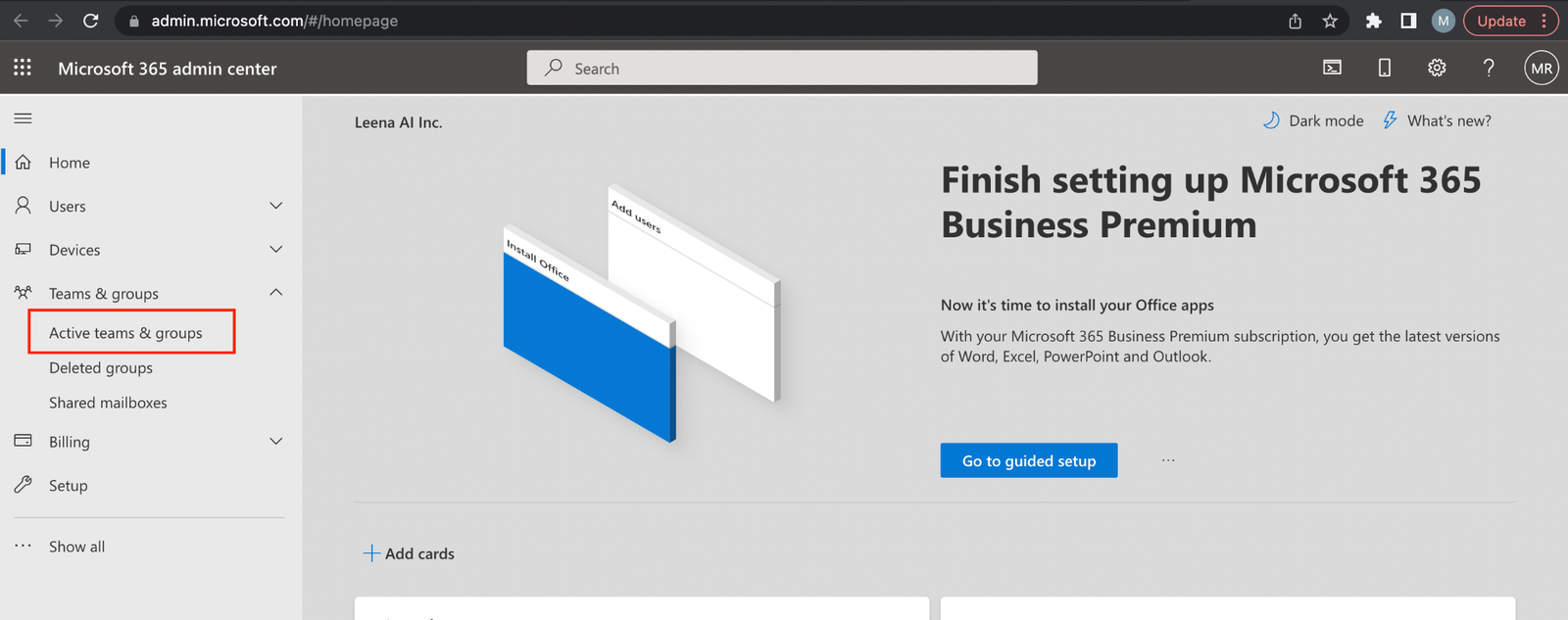
- Sign in to the Microsoft 365 admin center.
- Go to Teams & groups → Active teams & groups.
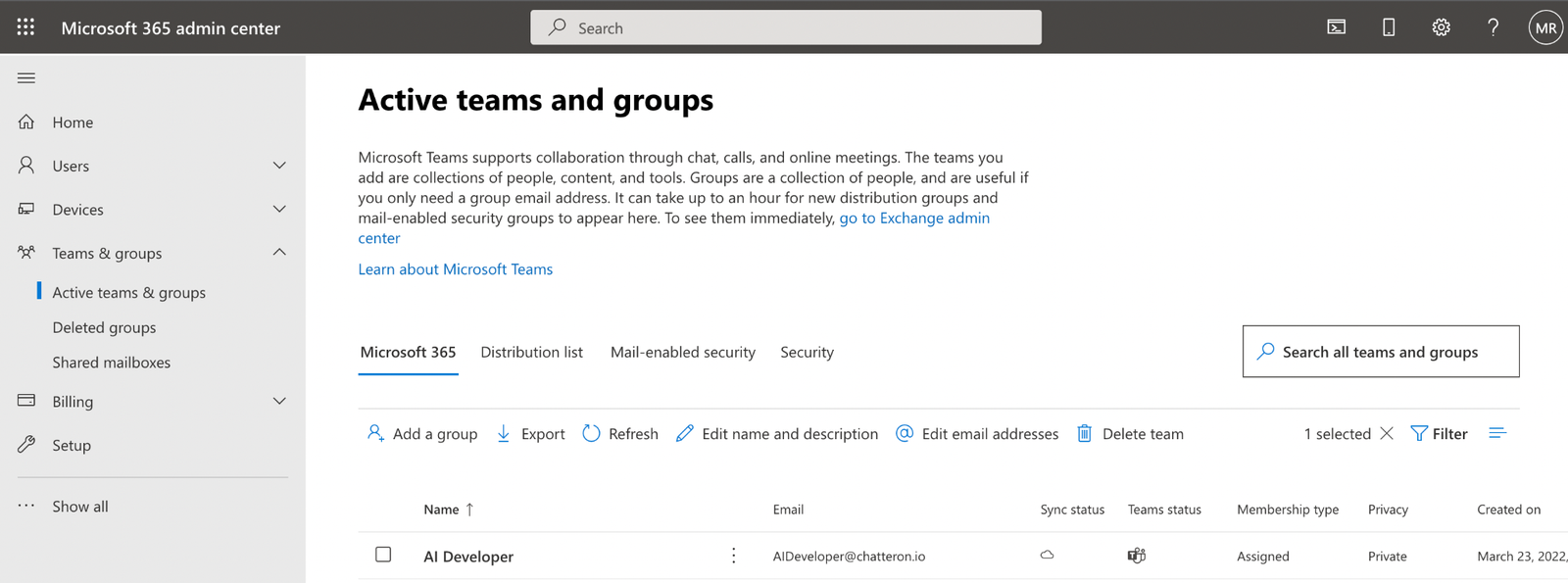
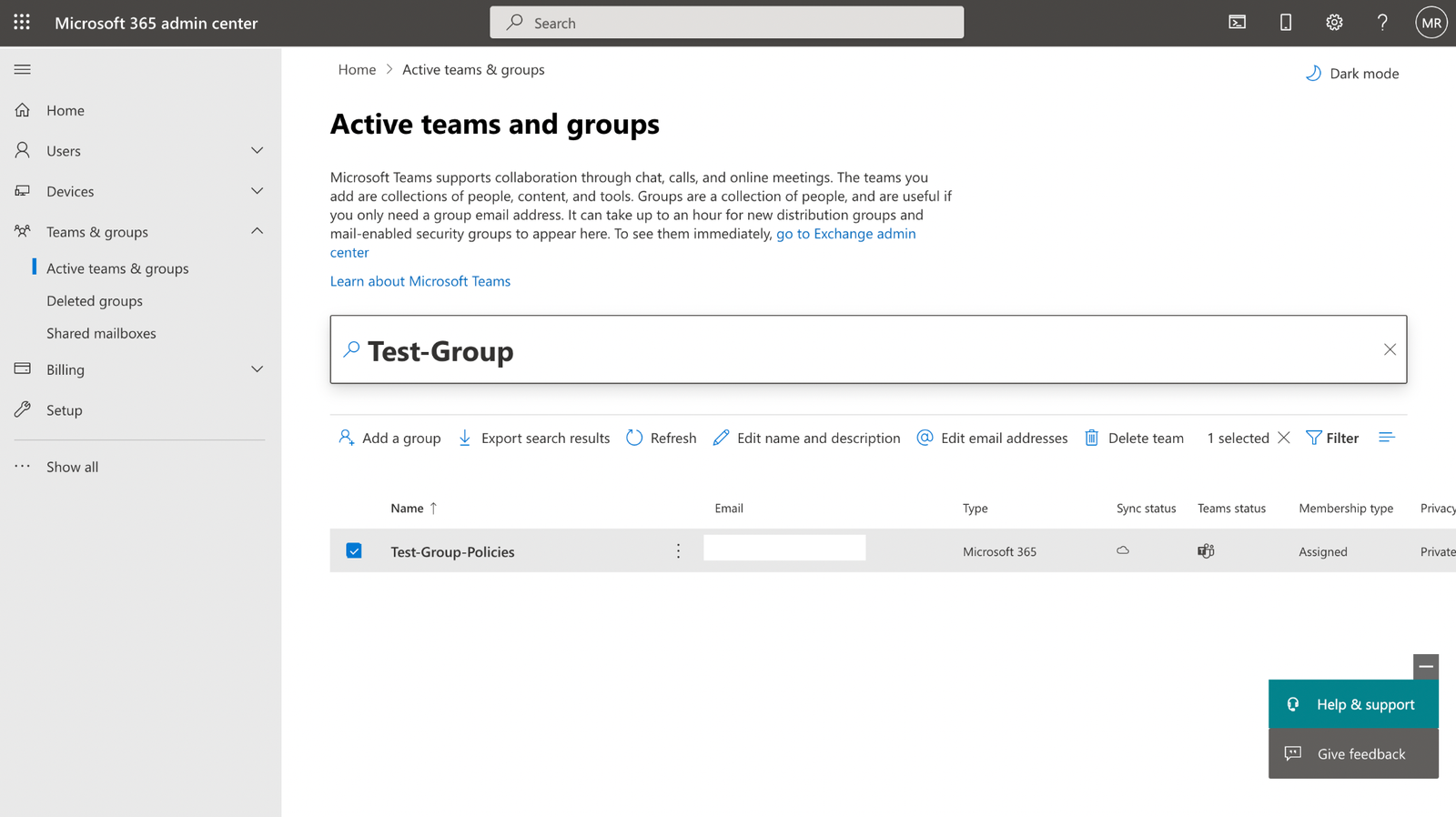
- Create a new group with the employees who should get the Leena AI app, or select an existing group and update its members.
Upload the Leena AI app
- Once the group has the right members, open the Teams admin center.
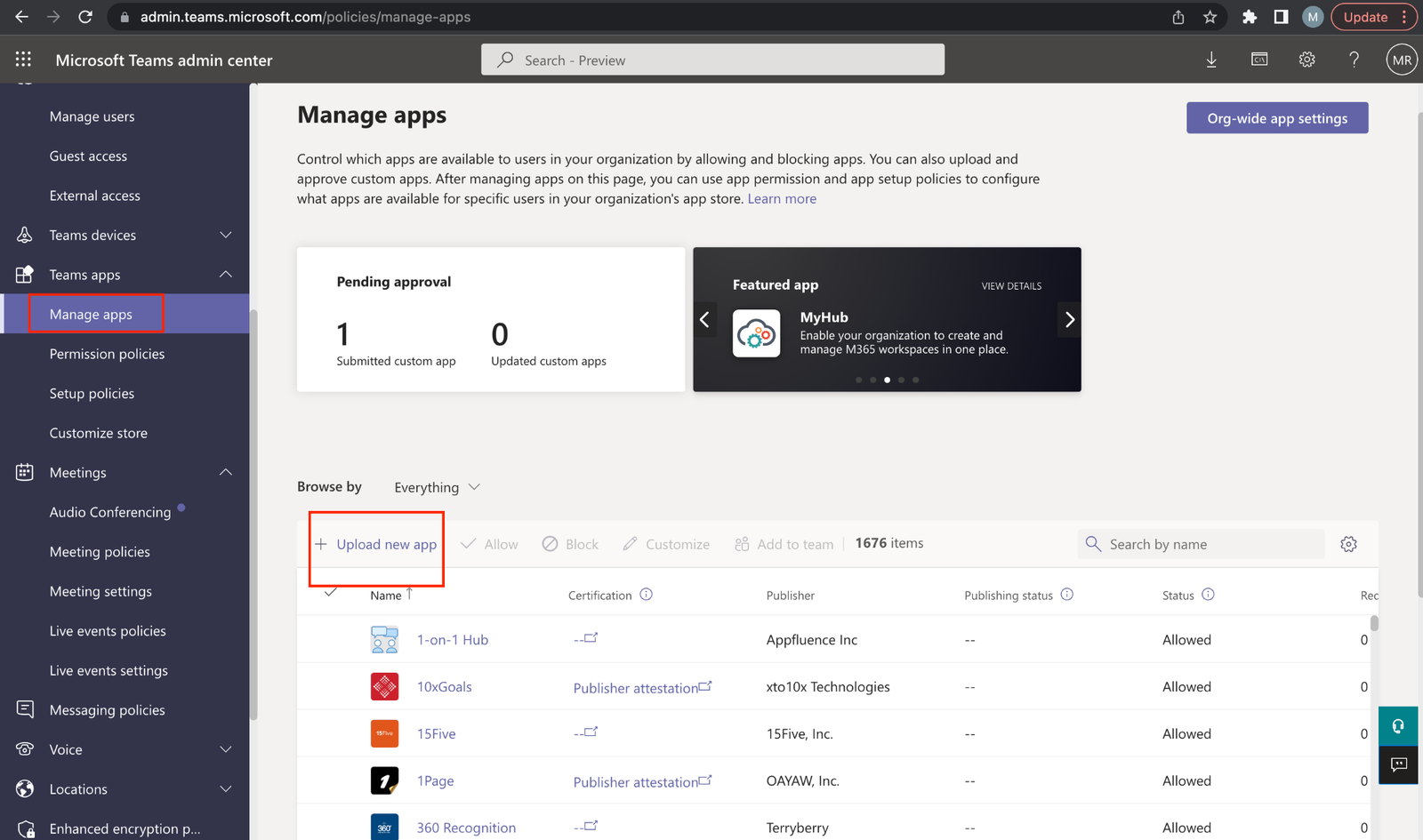
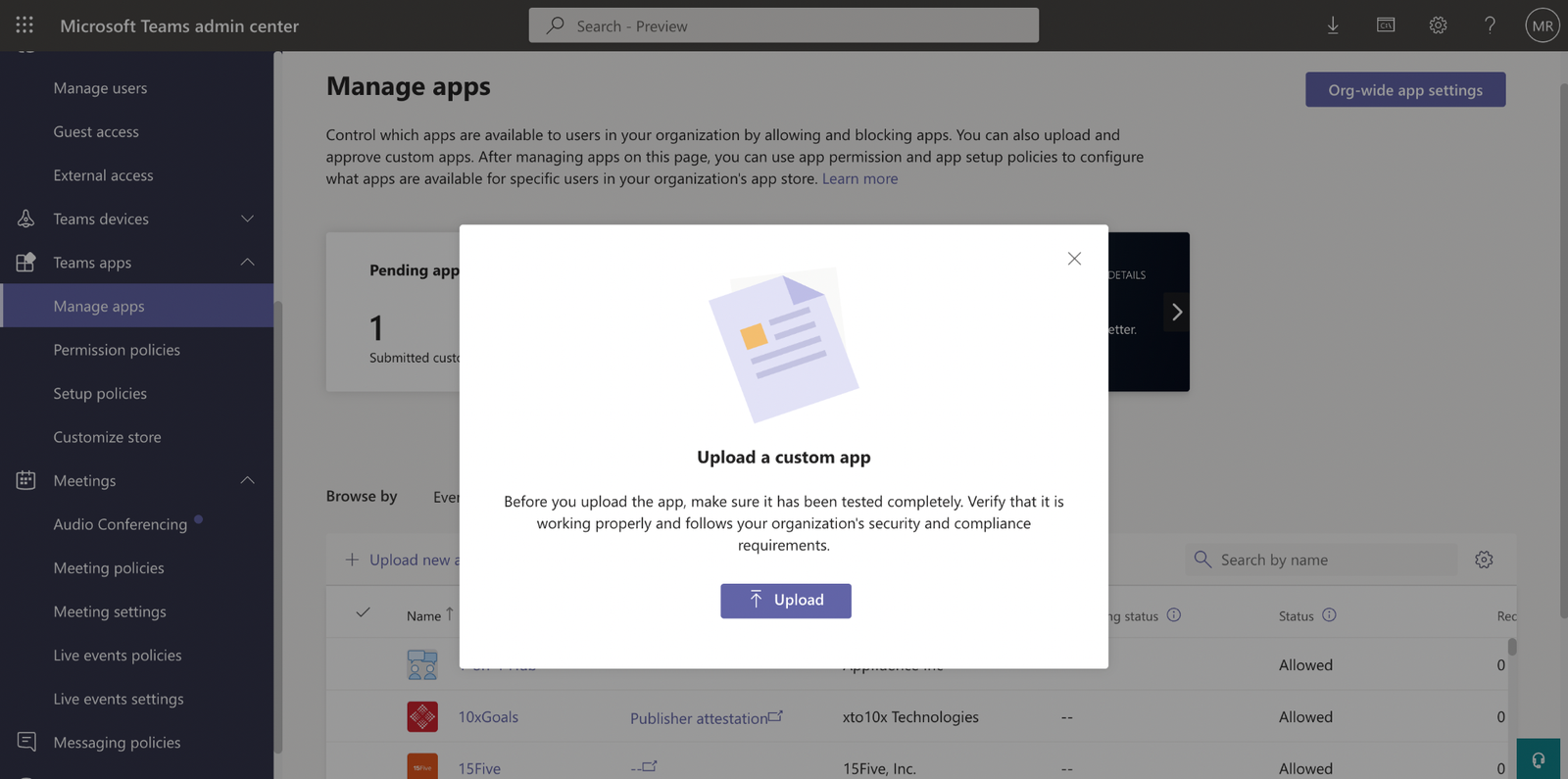
- Go to Teams apps → Manage apps, click + Upload new app, and upload the zip you downloaded from Admin Console → External channels → Teams. If you're updating an app that's already uploaded, skip to step 6.
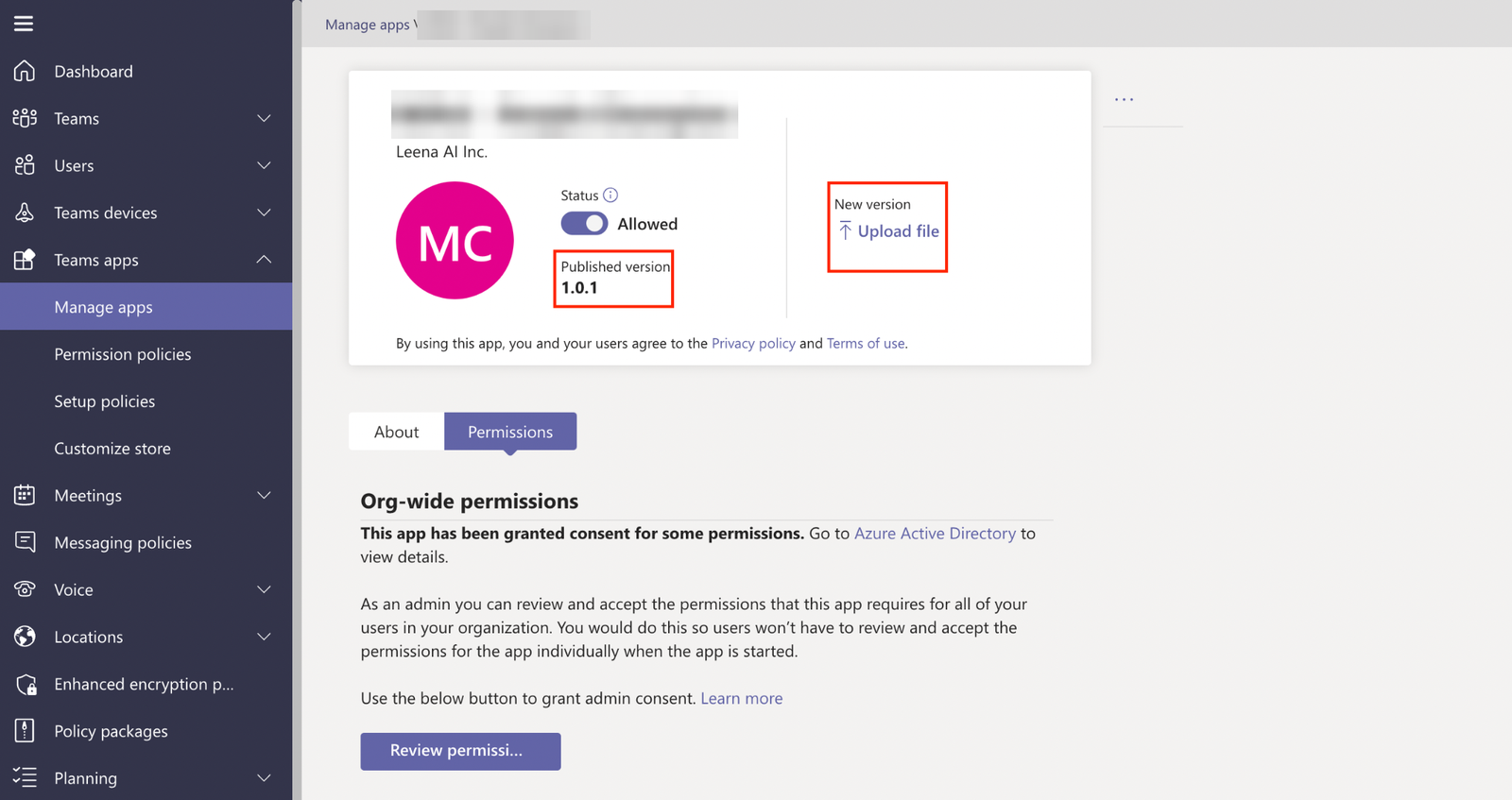
- Updating an existing app (instead of step 5): open the app from Manage apps and click Upload file under New version to upload the new package. You get a new package each time you click Update branding on the Admin Console, and each one carries a higher version number — once the upload succeeds, the Published version shown here changes to match.
Optional: link the uploaded app back to Leena AIOnce the app is in Teams, you can enter the app ID Teams assigned to it as External app ID on the Admin Console Teams page. Leena AI uses it to build links that open the app in Teams. See Teams.
Grant admin consent
- Grant the app the permissions it needs. This step needs Global Administrator privileges.
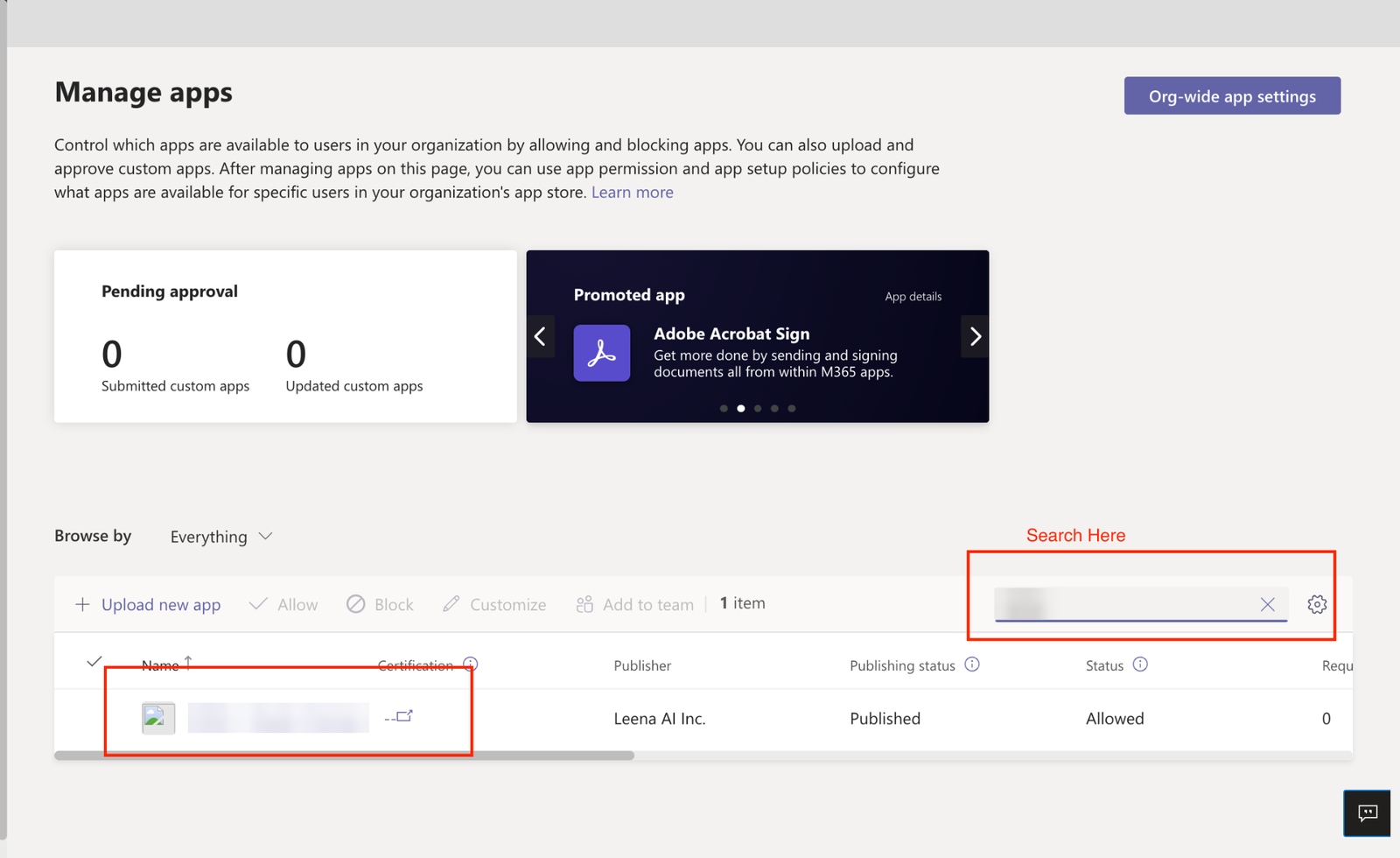
In Manage apps, search for the Leena AI app and open it.
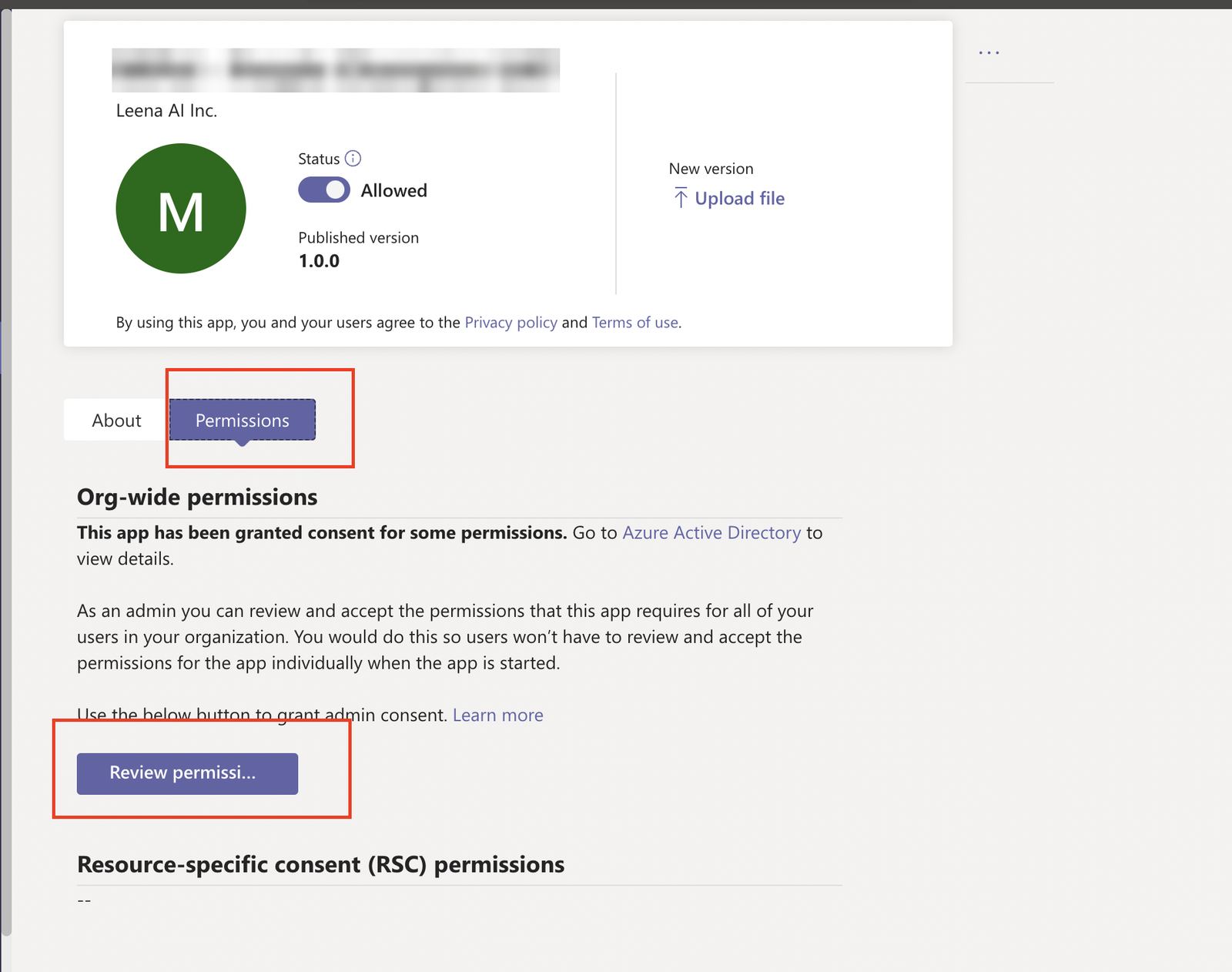
Open the Permissions tab and click Review permissions and consent.
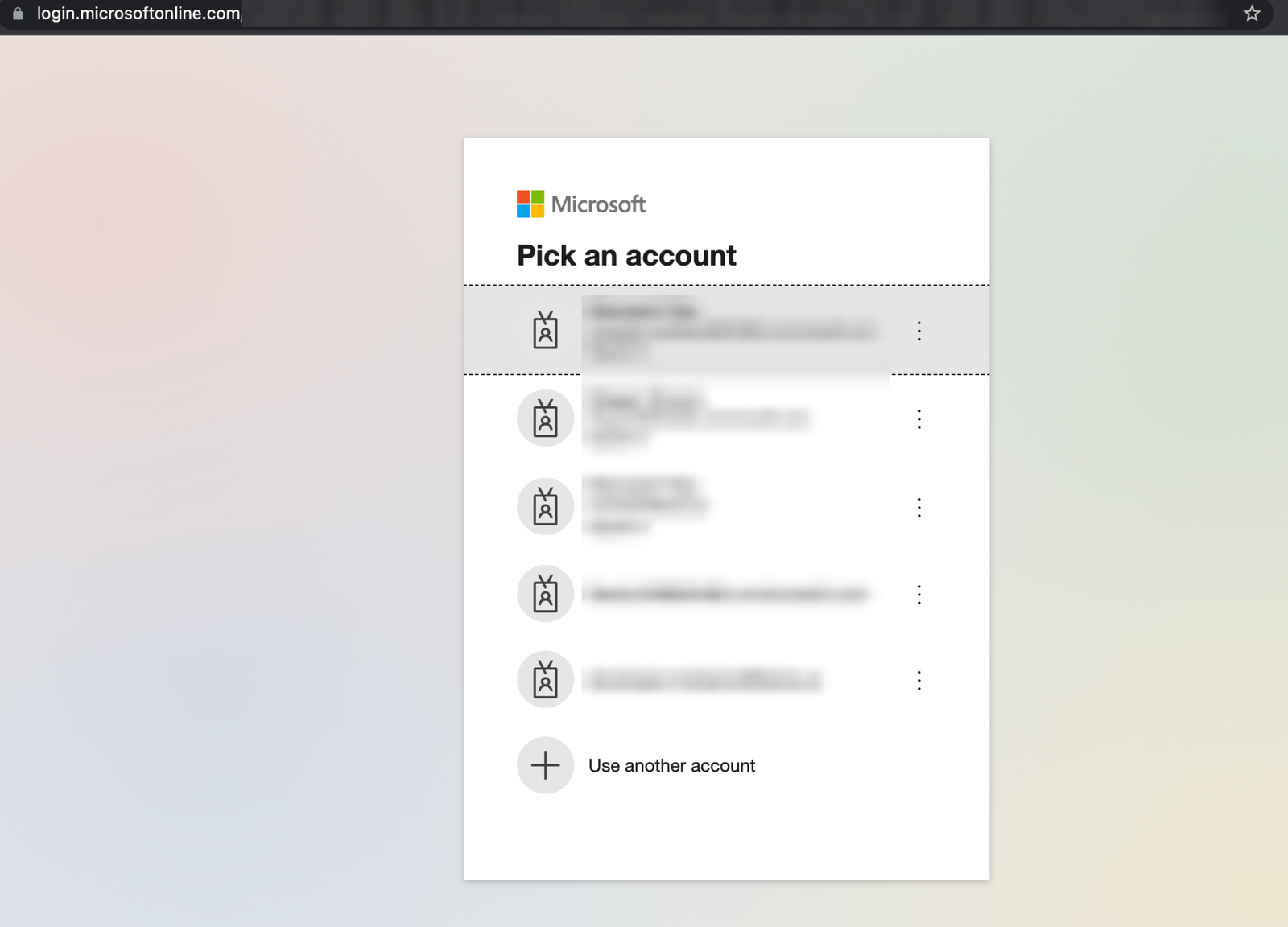
You're redirected to the Microsoft sign-in page. Sign in with an admin account — only an admin can grant consent on behalf of the organisation.
Review the permissions the app requests and click Accept. The window closes once consent is granted, and you can move on to the next step.
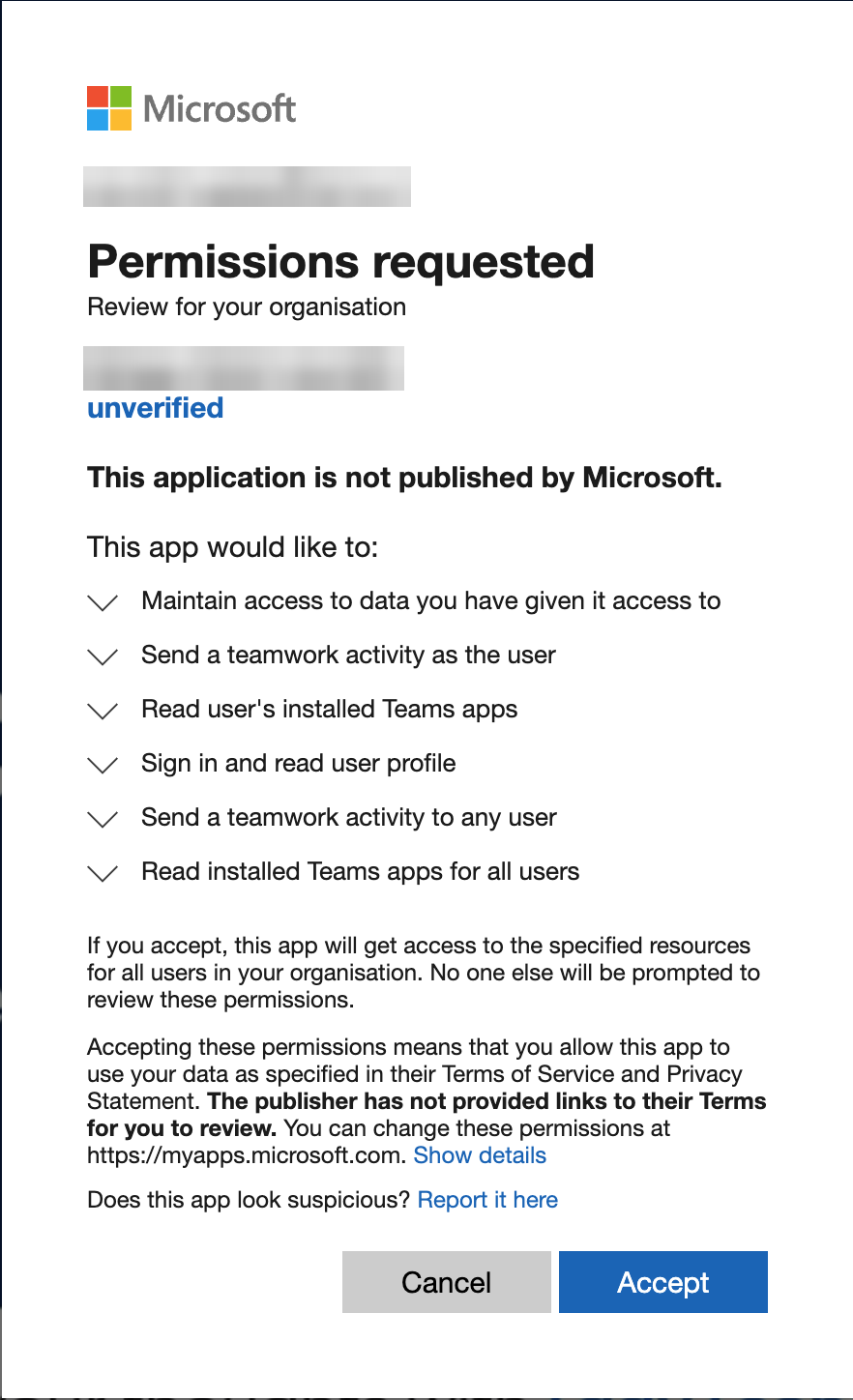
These are the Microsoft Graph permissions the Leena AI app asks for, and what each is used for:
| Permission on the consent screen | Used for |
|---|---|
| Sign in and read user profile | Signing employees in to the Leena AI app in Teams (single sign-on) |
| Maintain access to data you have given it access to | Refreshing sign-in so employees stay signed in |
| Send a teamwork activity as the user / to any user | Posting Leena AI notifications to the Teams activity feed |
| Read user's installed Teams apps / Read installed Teams apps for all users | Checking that the Leena AI app is installed for an employee before notifying them |
Create an app setup policy
- Go to Teams apps → Setup policies → Manage policies and click + Add to create a new policy. This is where you add the Leena AI app.
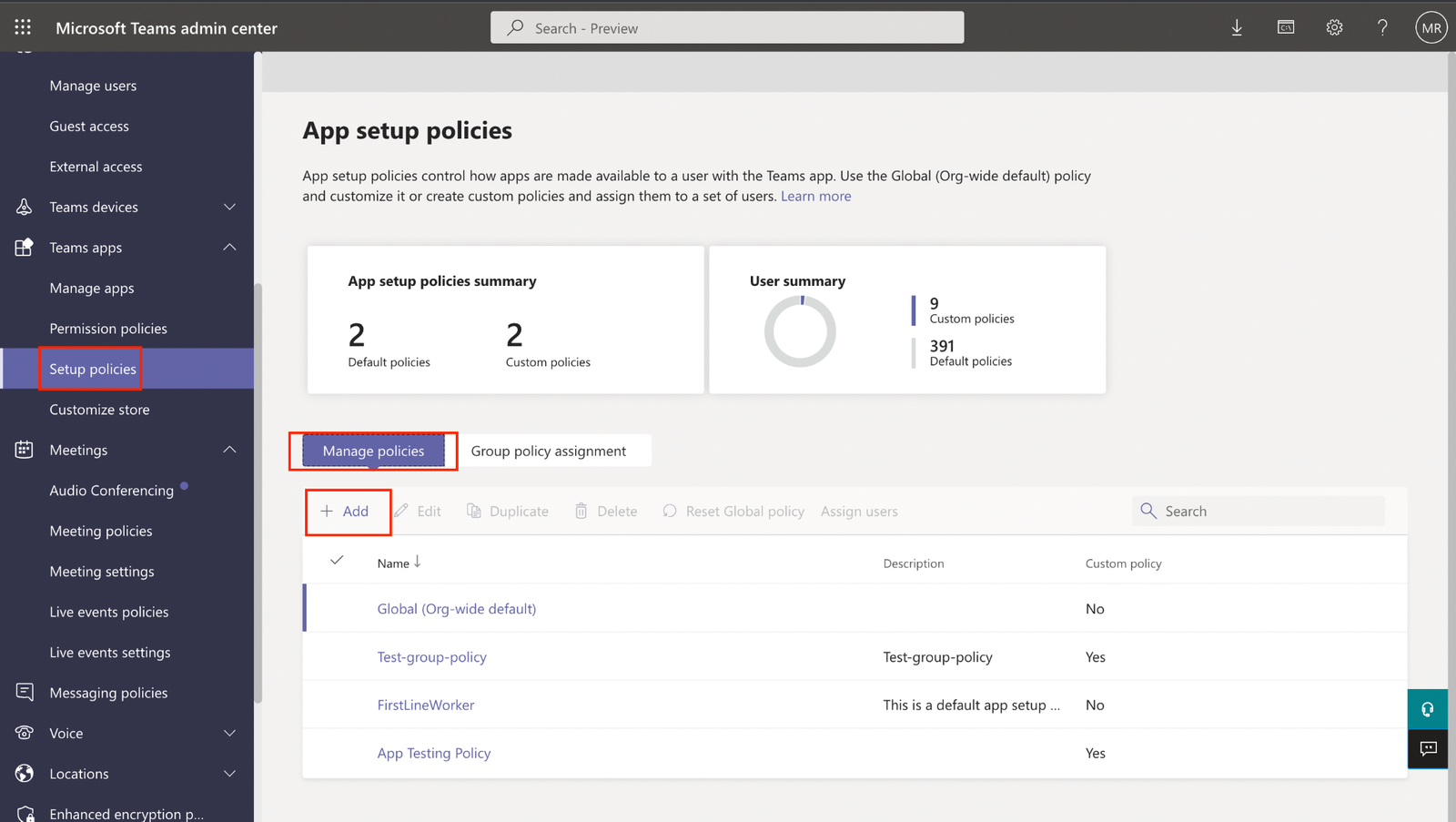
- Configure the policy:
- Enter a Name and Description for the policy.
- Under Installed apps, click Add apps.
- Search for the Leena AI app you uploaded in step 5 and click Add next to it.
- Click Add at the bottom of the panel.
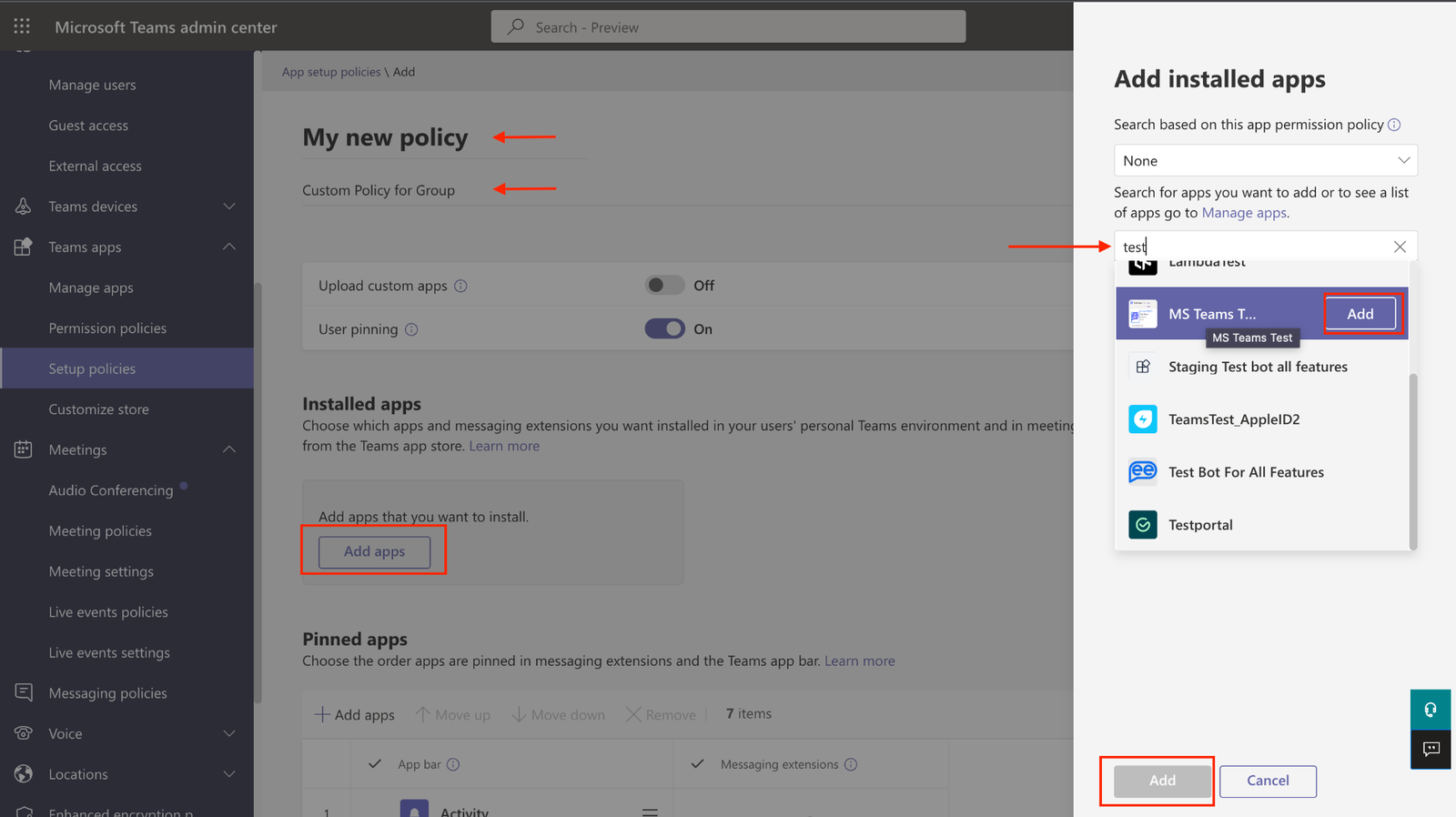
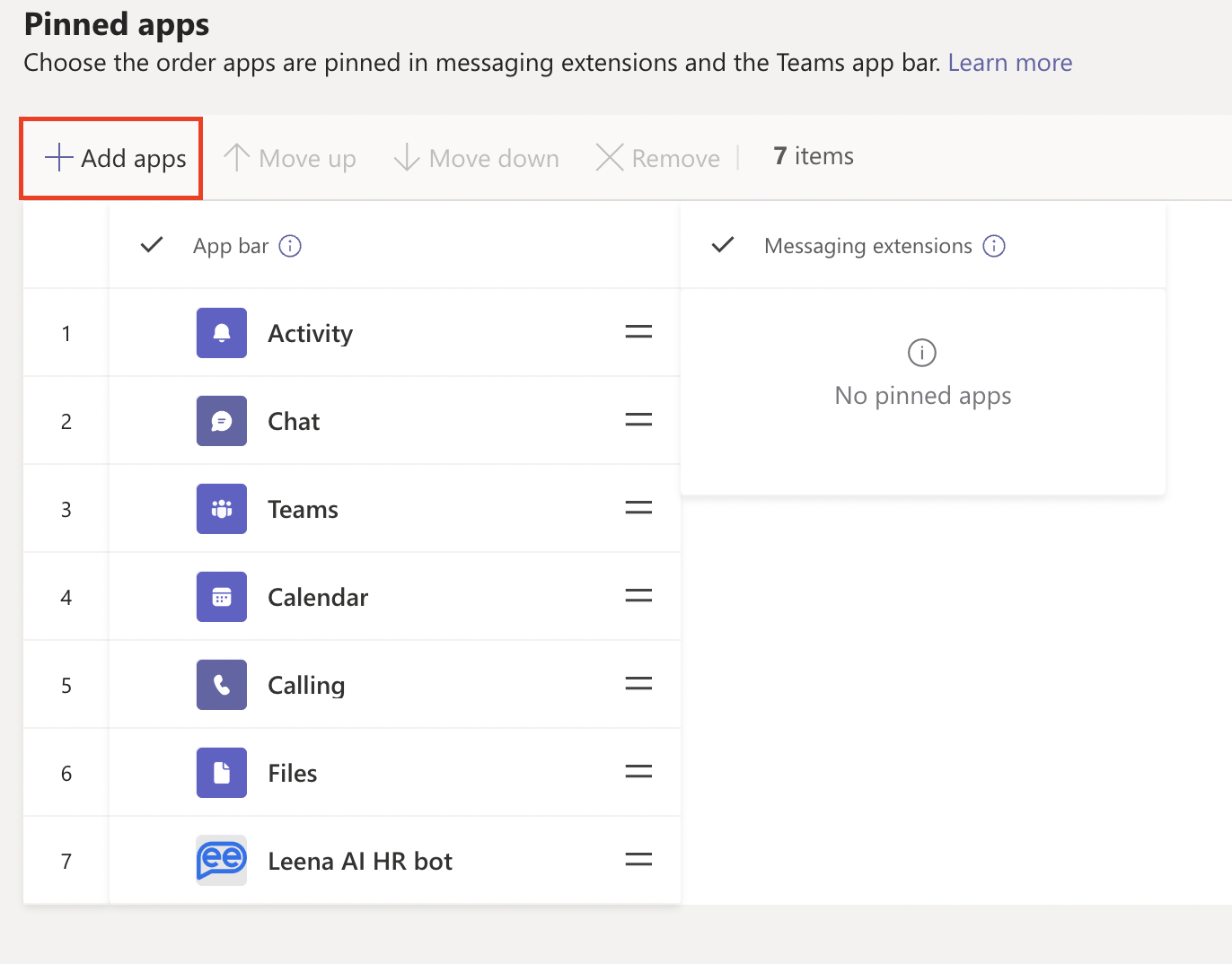
- Pin the Leena AI app so it appears in employees' Teams app bar:
- Under Pinned apps, click + Add apps.
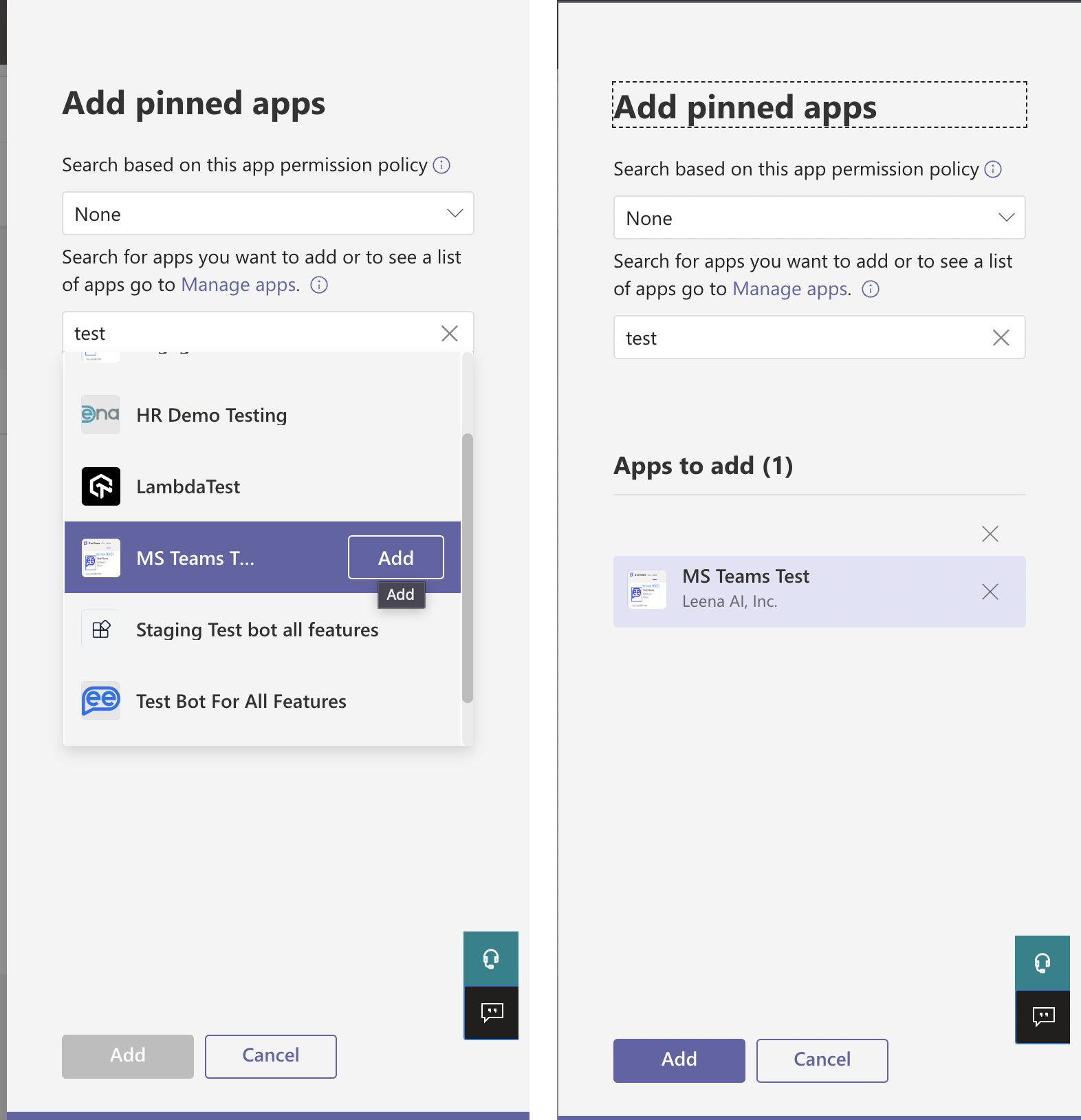
- Search for the Leena AI app, click Add next to it, then click Add at the bottom of the panel.
- Click Save to create the policy.
Assign the policy to the group
- Assign the policy to the group you created in the Microsoft 365 admin center:
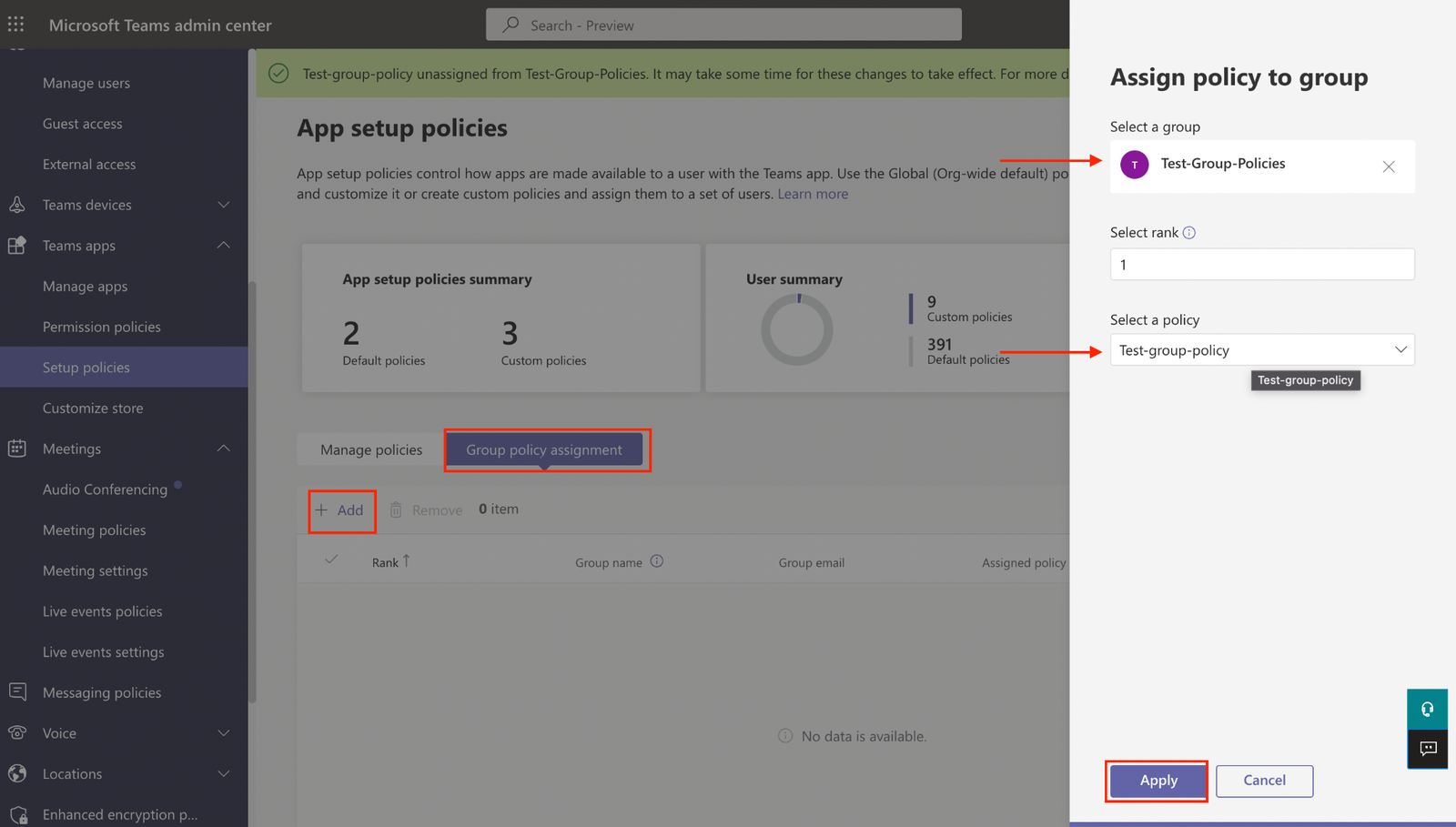
- Go to Teams apps → Setup policies → Group policy assignment.
- Click + Add, search for the group, select the policy you created, and click Apply.
Updated about 1 hour ago