
Voice Call
Beyond interacting with Leena AI agent via chat, users can additionally interact with the agent via a voice call which has all the capabilities available that are accessible on chat. This new voice call functionality is designed to provide a more natural, convenient, and accessible way to get the help you need, especially for complex requests and execute exterprise workflows.
How to Start a Voice Call
Getting started is simple. Just follow these steps:
-
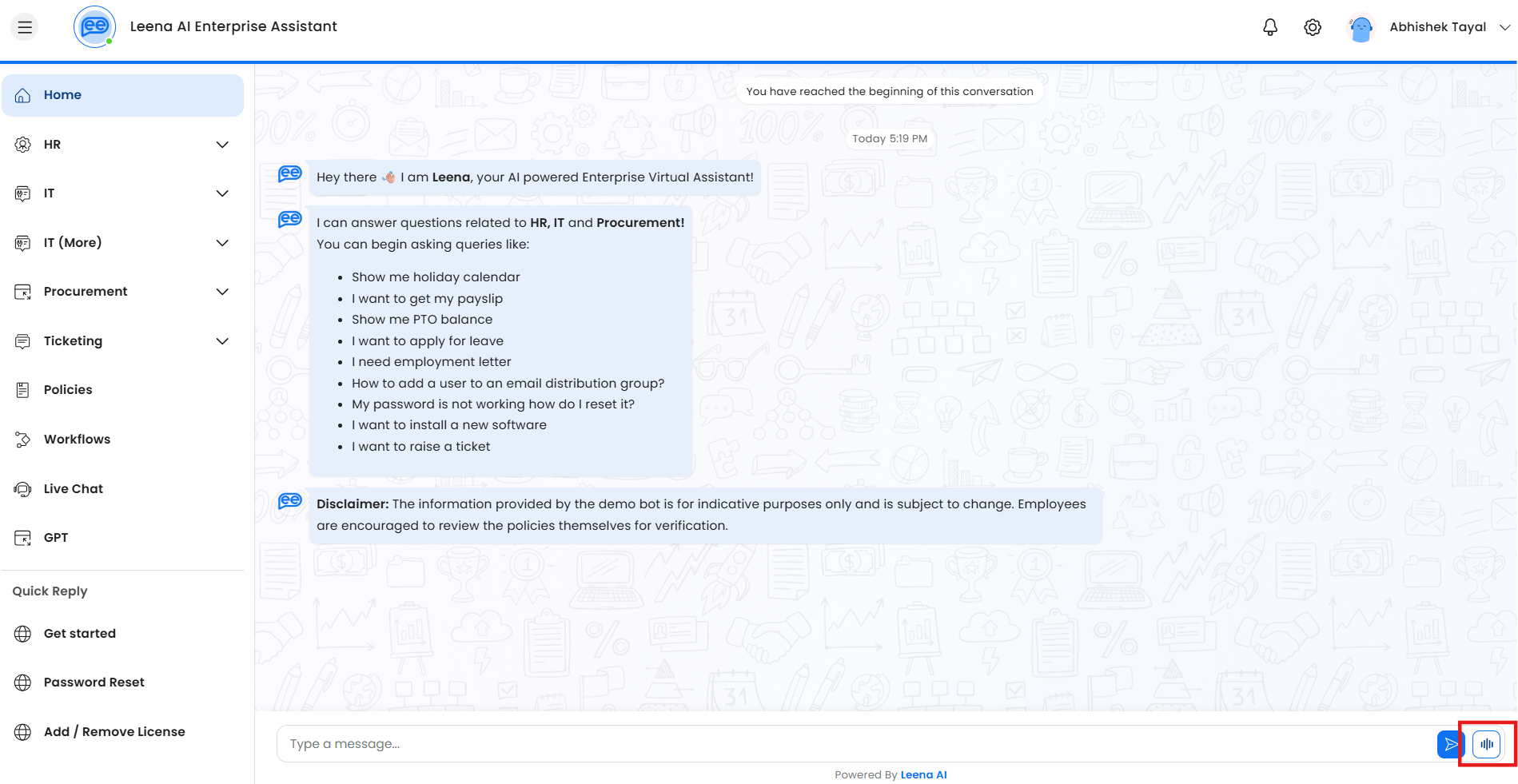
Locate the Icon: In the chat interface of the Leena AI web app, you will now see a new "Start Voice Call" icon beside the chat composer.
-
Grant Permission: The first time you use this feature, your browser will ask for permission to access your microphone. Please grant access to proceed.
-
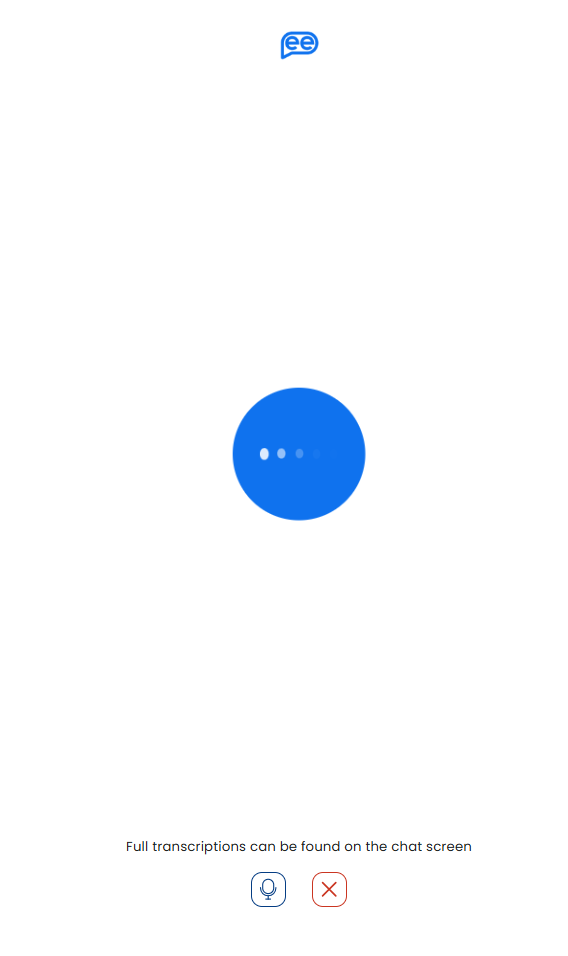
Start Talking: Once the call connects, you can start talking to the virtual agent and mention your request/issue over audio.
What to Expect During Your Call
To make your experience as smooth as possible, we've included several helpful features:
-
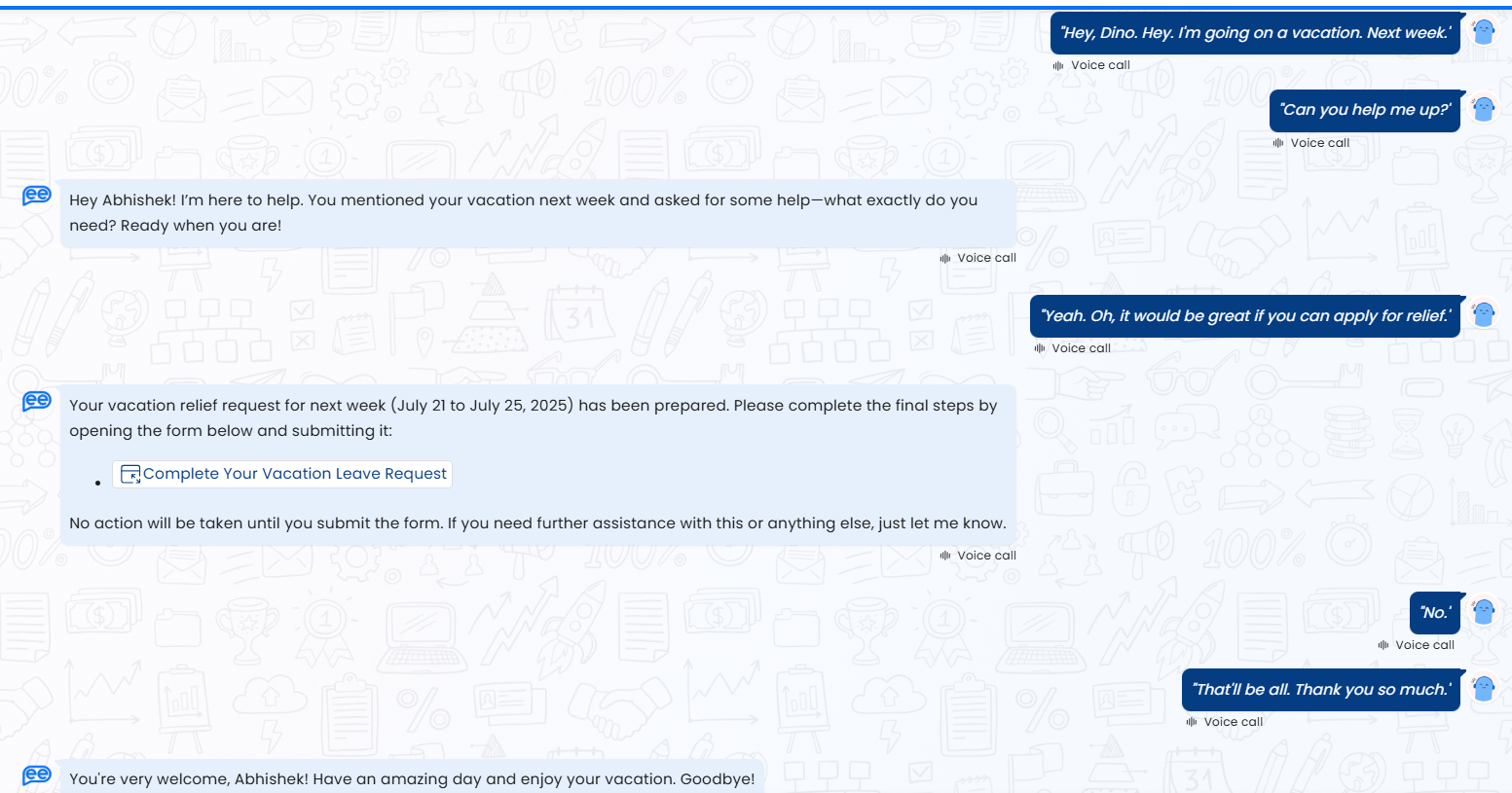
Transcription: As you speak, your words will be transcribed and displayed in the chat window in near real-time. The agent's spoken responses will also appear as text, providing a complete record of your conversation for later reference and being able to access any links that were provided as part of response.
-
Interactive Content: If the virtual agent needs you to click a link, fill out a form, or press a button, these elements will appear directly in the chat interface for you to interact with during the call.
-
Call Controls: You have full control over the call. You can easily mute or unmute your microphone and end the call whenever you wish.
Tips for the Best Experience
To ensure the best performance and accuracy, please keep the following in mind:
- Internet Connection: The quality of the voice call depends on your internet bandwidth.
- Microphone Quality: A clear audio input from your microphone will improve the accuracy of the transcription.
- Background Noise: Try to make calls from a quiet environment, as background noise can affect the agent's ability to understand you.
What to expect later phases?
What we have currently is just phase 1. We will have more capabilties as we move ahead:
- More Languages: While the voice capability currently supports English only, we do plan to support more languages in future after stablizing English.
- Voice customization: In future, the voice agent will become customizable to different 'voices' and maybe regional dialects.
Behind the Scenes
Refer to the architecture here
Updated 8 days ago