
Debug Runs
Ask Forge why a run failed, which runs went wrong, or why a tool wasn't picked — Forge reads the run evidence and explains it in plain words. Debugging only reads data: Forge never creates or changes anything while it investigates.
What Forge can investigate
| Question type | What Forge looks at | Example |
|---|---|---|
| Explain a run | One run, request or conversation — why it failed, answered wrongly, looped, escalated or was slow. | Why did run ID_015028 fail? |
| Find runs | Run history filtered by status, channel, trigger, AOP, tool, user or time. | Show the failed runs from the last 24 hours |
| Run analytics | Counts and breakdowns — handled rate, failure reasons, by AOP, tool or channel, and period comparisons. | How many runs failed this week and why? |
| Tool selection | Why a tool was or wasn't picked, whether it was available, and how it was ranked. | Why didn't the leave-balance tool get picked here? |
| Knowledge and workflow trace | Where a knowledge answer came from; the nodes a workflow ran, and its connector logs. | Trace the workflow nodes for this run |
| Instance setup | AI Colleagues, AOP definitions, and the orchestrator settings that often explain behaviour. | Is the For-Each Loop tool enabled? |
Note: If a run page is open, ask about this run and Forge uses it — you don't need to paste the ID.
Explain a single run
Give Forge a run ID, request ID or conversation ID, or open the run and ask about this run. Forge reads the run's evidence and tells you:
- The root cause, in plain words, with the exact error the AOP or tool returned.
- A timeline of what happened, step by step.
- What each tool and model call did, with its inputs and result.
- Which AOP handled the run, and whether a helper AOP it called never started.
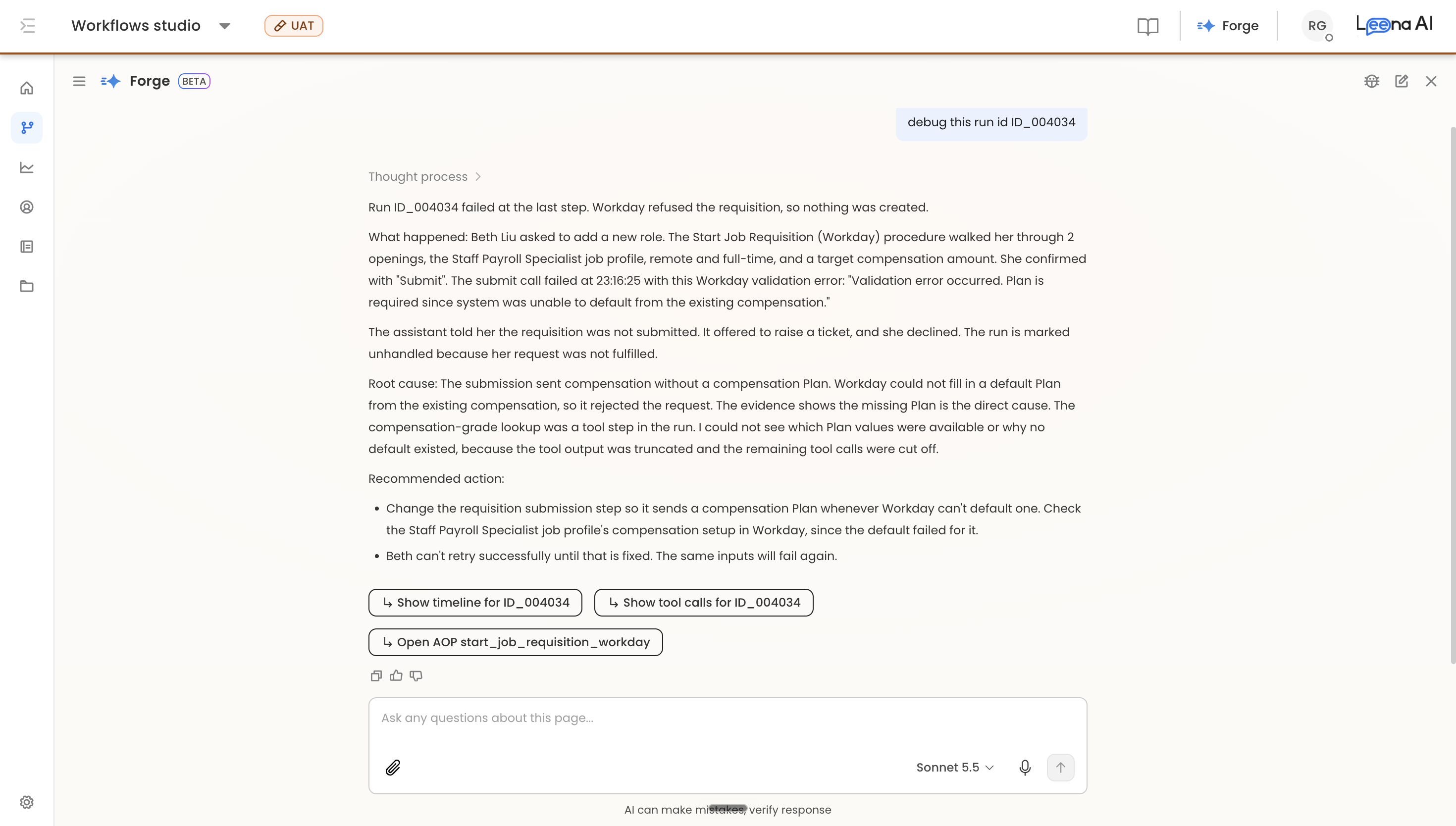
Note: Forge reports only what the run data shows. If the evidence doesn't explain the failure, it says so rather than guessing — and it never shows raw PII values.
Other questions you can ask about a run: Explain what happened in Req_6a2c3e04b6a9916a71f24180, Why was this run escalated?, Why did this run take so long?
Find runs and run analytics
Ask Forge to search run history, or to count and break down runs. Forge answers with a table, KPI tiles or a chart, plus a link to the matching runs in Run history.
| You can | Options |
|---|---|
| Filter by | Status, channel, trigger (including Workbench schedule), AOP, tool, AI Colleague, user, escalation and time window. |
| Break down by | AOP, tool, AI Colleague, channel, schedule or failure reason. |
| Compare | One period against another — for example, this month versus last month. |
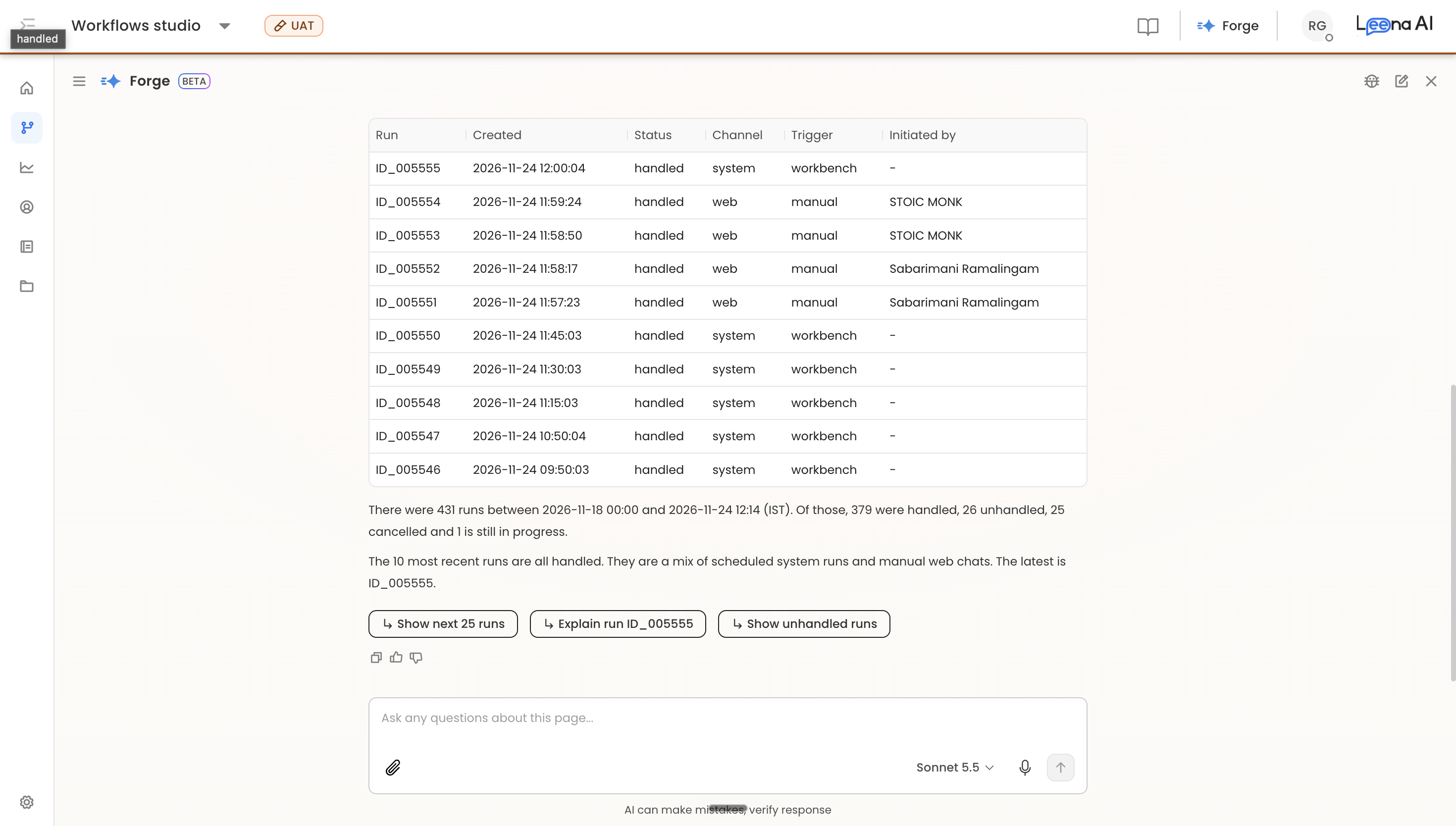
Note: Forge uses your time zone for dates such as yesterday or this week.
Examples: How many runs failed in the last 7 days?, Handled rate this month versus last month, Break down this week's unhandled runs by AOP, Find runs by [email protected] this week.
Why runs were unhandled
Every unhandled run has exactly one reason in the Unhandled due to column of Run history, and Forge uses the same reasons in its answers.
| Unhandled due to | What it means |
|---|---|
| Out of scope | No AOP or capability covers the request. |
| Knowledge gap | The knowledge base had no answer. |
| Guardrail | A guardrail blocked the request or the answer. |
| Tool / AOP failure | A tool or AOP ran and failed. Earlier called Skill / AOP failure. |
| System error | Anything that can't be attributed to the reasons above. |
The detailed reason — such as the tool name and its error — is in the Unhandled reason column.
Tool selection, knowledge answers and workflow traces
Tool selection. When the AI Colleague picked the wrong tool, or no tool, Forge checks whether the tool was available to that AOP, reads its definition, and shows how it was ranked against the others for that request — for example, Why didn't the create_ticket tool run for ID_1? A vague tool name or description is a common cause; see Forge best practices for naming tips.
Knowledge answers. For an answer from the knowledge base, Forge shows which articles were used and why, so you can tell a missing article from a wrong match — for example, Why did the knowledge answer in this run cite the wrong policy?
Workflow traces. When a run called a workflow, Forge shows the path of nodes it ran, the detail of each node, and the connector logs — for example, Trace the workflow nodes for run ID_2.
From finding to fix
Forge keeps investigating and fixing separate — it changes nothing until you ask for a fix.
- Find the failing runs — Show the failed runs of the Payroll AOP this week.
- Get the root cause. Ask Forge to explain one of them, and check the evidence it shows.
- Ask for the fix — Fix the leave balance tool so it returns days. Forge copies the failing input and error into the fix.
- Approve. A small change to one AOP or Code tool runs as a quick edit. Bigger changes show a plan first.
- Test again. Run the same request in the Virtual Assistant, then ask Forge whether the new run succeeded.
Note: When you fix a Code tool, the AOPs that use it pick up the fix without being republished. See Build with Forge for quick edits and plans.
Tips and limits
| Tip | Why |
|---|---|
| Give an ID when you have one | A run, request or conversation ID gets the fastest, most exact answer. |
| Name the time window | Last 7 days or since Monday keeps results small. Very large results are trimmed. |
| One run per root cause | Ask about one run when you want a root cause; use analytics questions for patterns. |
| Expect one question | Forge may ask one clarifying question if your request could mean several runs or AOPs. |
| Read-only | Forge never creates or changes anything while debugging. To change something, ask for the fix. |
| Your instance only | Forge reads runs of the instance you have open, within your permissions. |
Related pages
Updated about 1 hour ago