
Marketplace
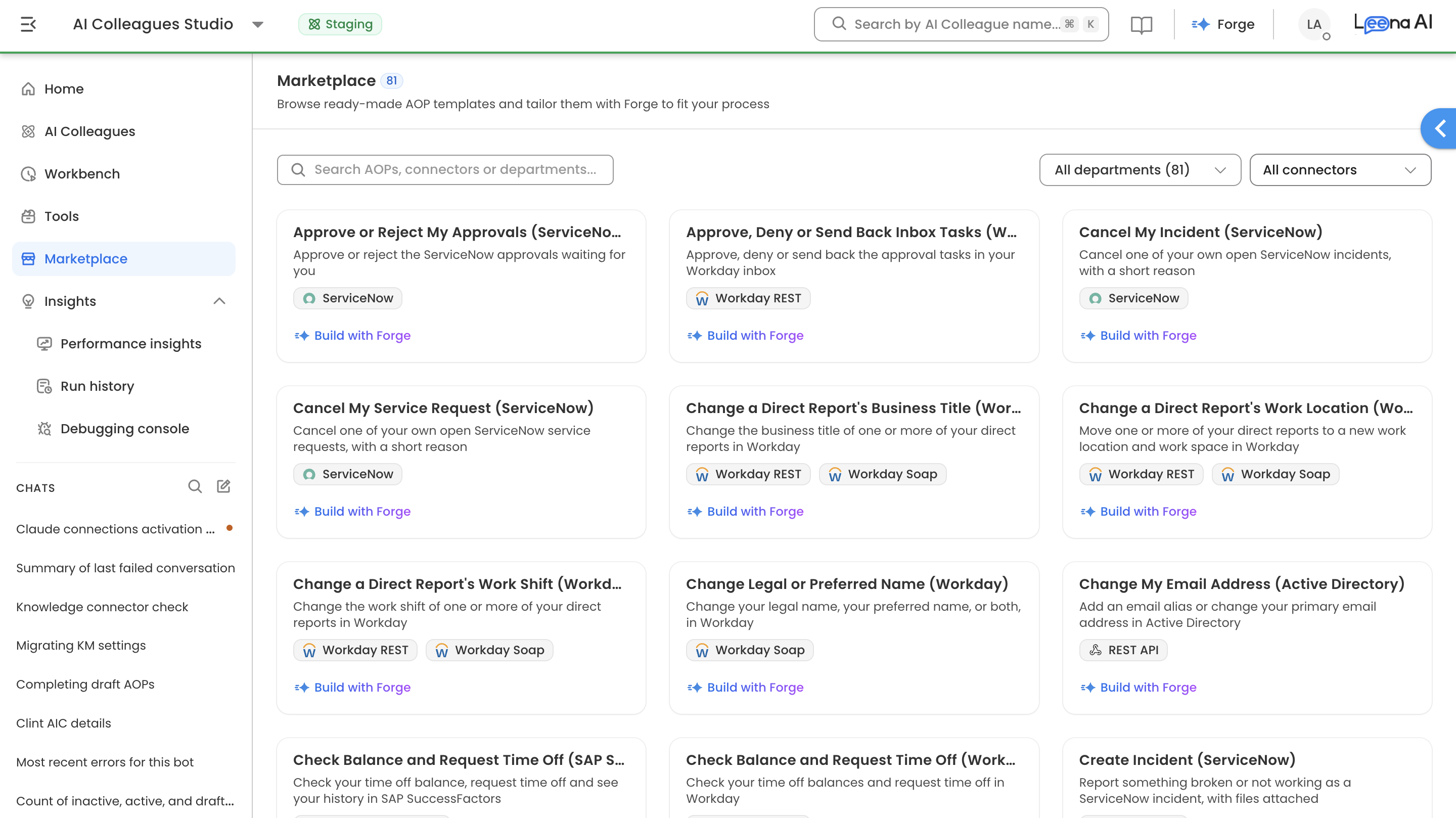
The Marketplace is a catalog of ready-made AOP templates. Each template is a working AOP, with any helper AOPs and the tools it needs, built for a common process such as handling a laptop request or answering a payslip question. Instead of starting from a blank page, you pick a template and Forge builds it on your instance, asking only for what your setup needs.
Templates are built with ForgeEvery template is turned into your own AOP through Build with Forge. Forge asks for your choices, values and app credentials during the build, so you don't need to set anything up first. See Forge.
Opening the Marketplace
You can reach templates from three places:
| Where | How |
|---|---|
| Marketplace | Click Marketplace in the AI Colleagues side menu |
| Home | Click Home in the side menu; templates are below the Forge chat box |
| Search | Top bar search → press Enter → Marketplace under View type |
Home shows up to 12 templates with their own search box. Click View all templates to open the full Marketplace.
The search suggestions under the top bar don't list templates. Press Enter to open the full results, then select Marketplace. Templates show there as Marketplace AOP.
Finding a template
The Marketplace page shows how many templates are in the catalog, and lists them as cards. More cards load as you scroll. Each card shows:
- The template's name and a short description
- The apps it works with (more than two show as +N; hover to see them)
- A Build with Forge button
Click a card to open the template's details.
Search — Search AOPs, connectors or departments... Search matches template names, departments, connectors and descriptions, as well as the AOPs and tools inside each template. When a template matches only through one of its AOPs or tools, the card names it, for example AOP:, Helper AOP: or Tool: followed by its name.
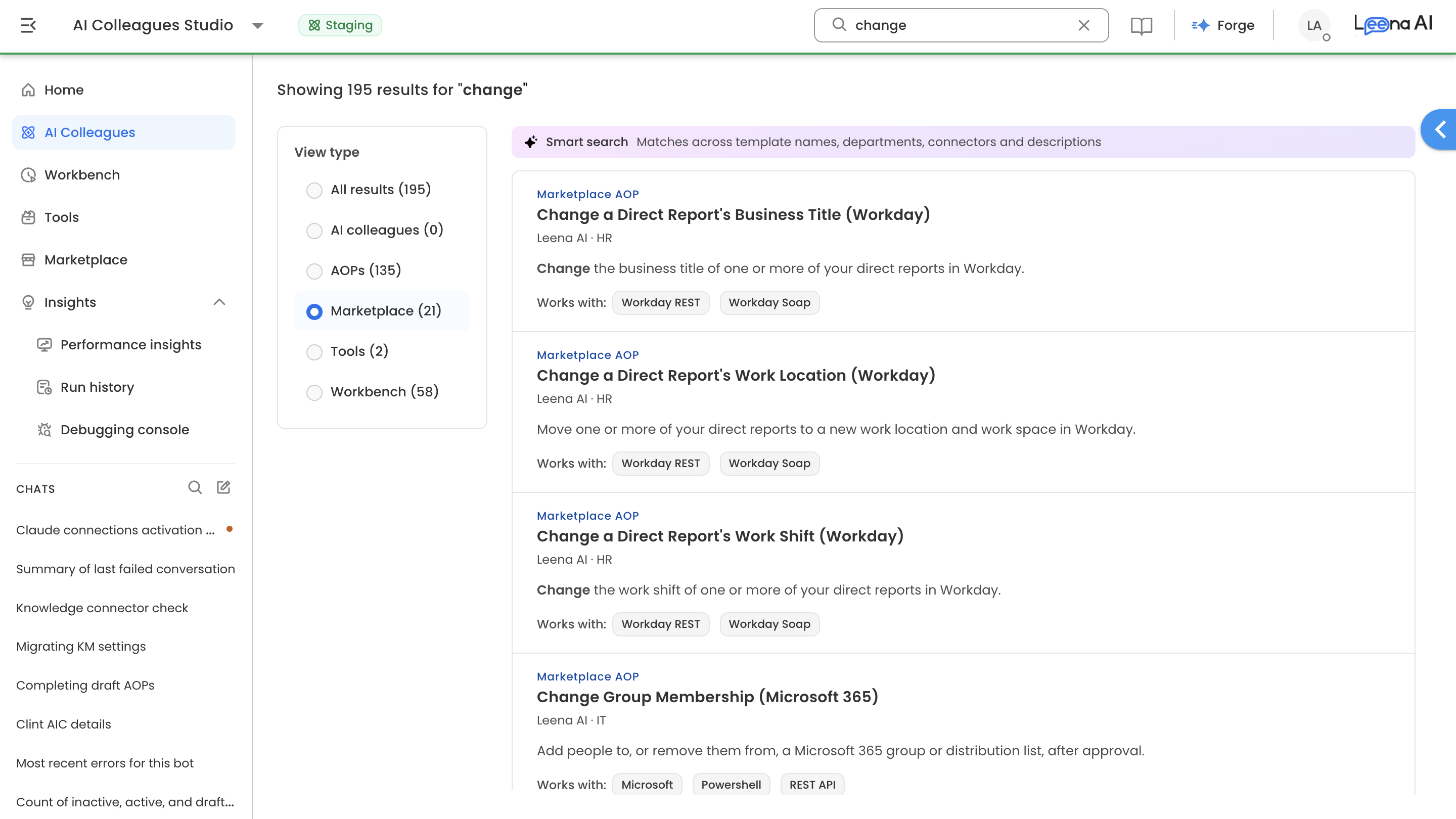
Filters
| Filter | What it does |
|---|---|
| Department | Pick one department; each option shows its template count |
| Connectors | Pick one or more apps; the list has its own search |
Departments are IT, HR, Finance, Procurement and Sales. Only departments that have templates are listed. Click Clear all to remove every filter.
Template details
The details page shows the template's name and description, the apps it Works with, and a Build with Forge button. The back link at the top returns you to where you came from: Marketplace, Search results or Home.
The page has two tabs: Overview and Requirements.
Overview
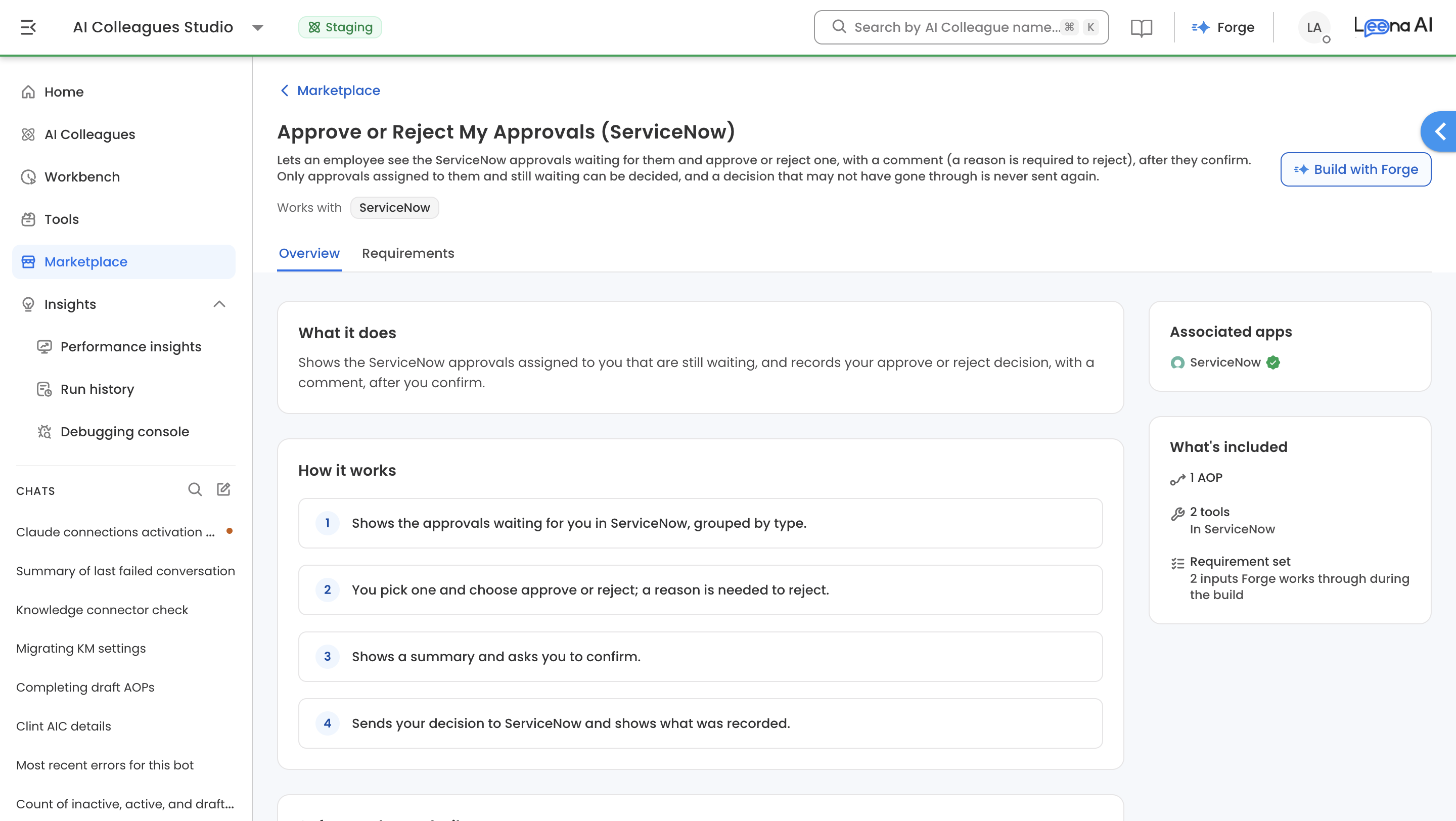
| Section | What it shows |
|---|---|
| What it does | A summary of the process the template handles |
| How it works | Numbered steps; click a step to read what it does |
| Safety and guardrails | How the template protects your data (see below) |
| What's included | The AOPs (Primary and Helper) and tools in the template |
Safety and guardrails can include:
- Only reads data — none of the template's tools change data.
- Changes data with N tools (or Can change data) — which tools can change data, and which only read.
- A confirm step comes first — the step that asks the user to confirm before data changes.
- Tested offline or Tested on a live tenant — the tools pass their recorded test cases.
On the right:
- Associated apps — each app the template uses, with its status on your instance: Connected, Not connected, Asked during build or Not checked yet.
- What's included — the number of AOPs (primary and helpers), the number of tools and how many read or write data, and the Requirement set: how many inputs Forge works through during the build.
Requirements
When your instance can build the template, the tab opens with: This is what the template declares it needs. Forge asks for exactly these during the build interview — nothing generic. Missing apps never block the import; credentials are collected mid-build.
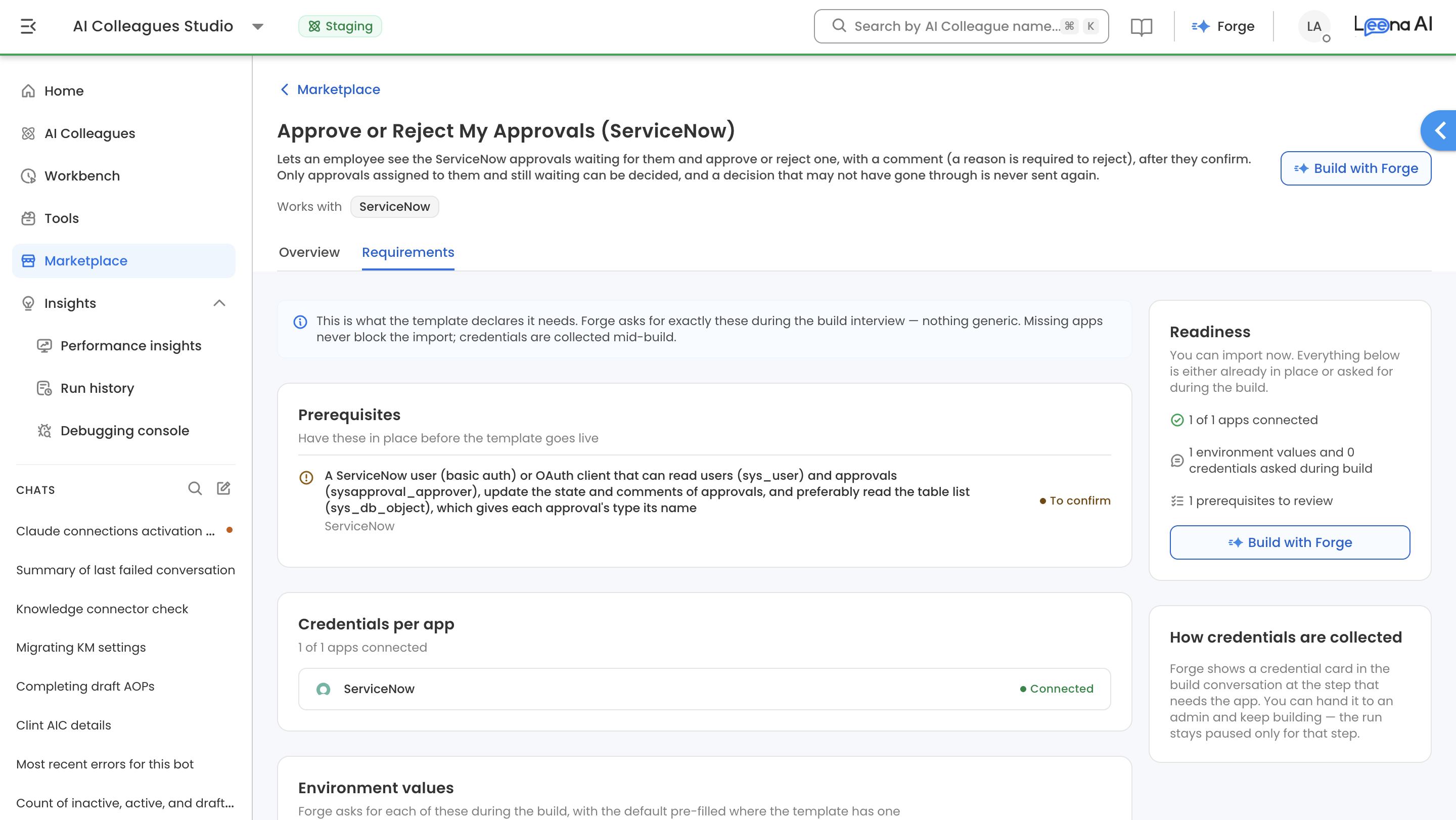
| Section | What it shows |
|---|---|
| Credentials per app | Each app, marked Connected, Asked during build or Not checked yet |
| Decisions you'll be asked to make | Choices that change how the template is built, with the default shown |
| Environment values | Values Forge asks for, with any default, marked Required or Optional |
| Prerequisites | What to have in place before go-live: In place or To confirm |
Credentials per app also shows how many of the template's apps are connected, for example 2 of 3 apps connected.
How credentials are collected — Forge shows a credential card in the build conversation at the step that needs the app. You can hand it to an admin and keep building; the run stays paused only for that step.
Readiness — a summary on the right of the tab, with a Build with Forge button. It shows how many apps are connected, how many environment values and credentials will be asked during the build, and how many prerequisites to review. Its message tells you whether you can start:
- You can import now. Everything below is either already in place or asked for during the build.
- You can import now, but N apps are not connected yet. The build asks you to connect them at the step that needs them.
- This instance is not set up to build from the prebuilt catalog.
Building a template with Forge
- Click Build with Forge on a template card, on its details page, or in the Readiness card.
- A new Forge chat opens beside the page and starts building from the template. If Forge is already open, it switches to the new chat; your earlier chat keeps running.
- Answer Forge's questions in the chat: the decisions, environment values and app credentials listed under Requirements.
Related pages
Updated about 1 hour ago