
Build with Forge
Describe what you want built, review Forge's plan, and approve it — this page covers how to work in the Forge panel, and everything you can build with it: AI Colleagues, AOPs, Code tools, MCP tools and Workbench triggers.
Chats and chat history
You can keep several chats on each instance and go back to any of them later. Start a new chat for each new problem, so contexts stay separate.
- New chat starts a fresh conversation. The previous one stays in history.
- History lists your chats on the current instance. Only you can see them.
- Click a chat in History to reopen it where you left off.
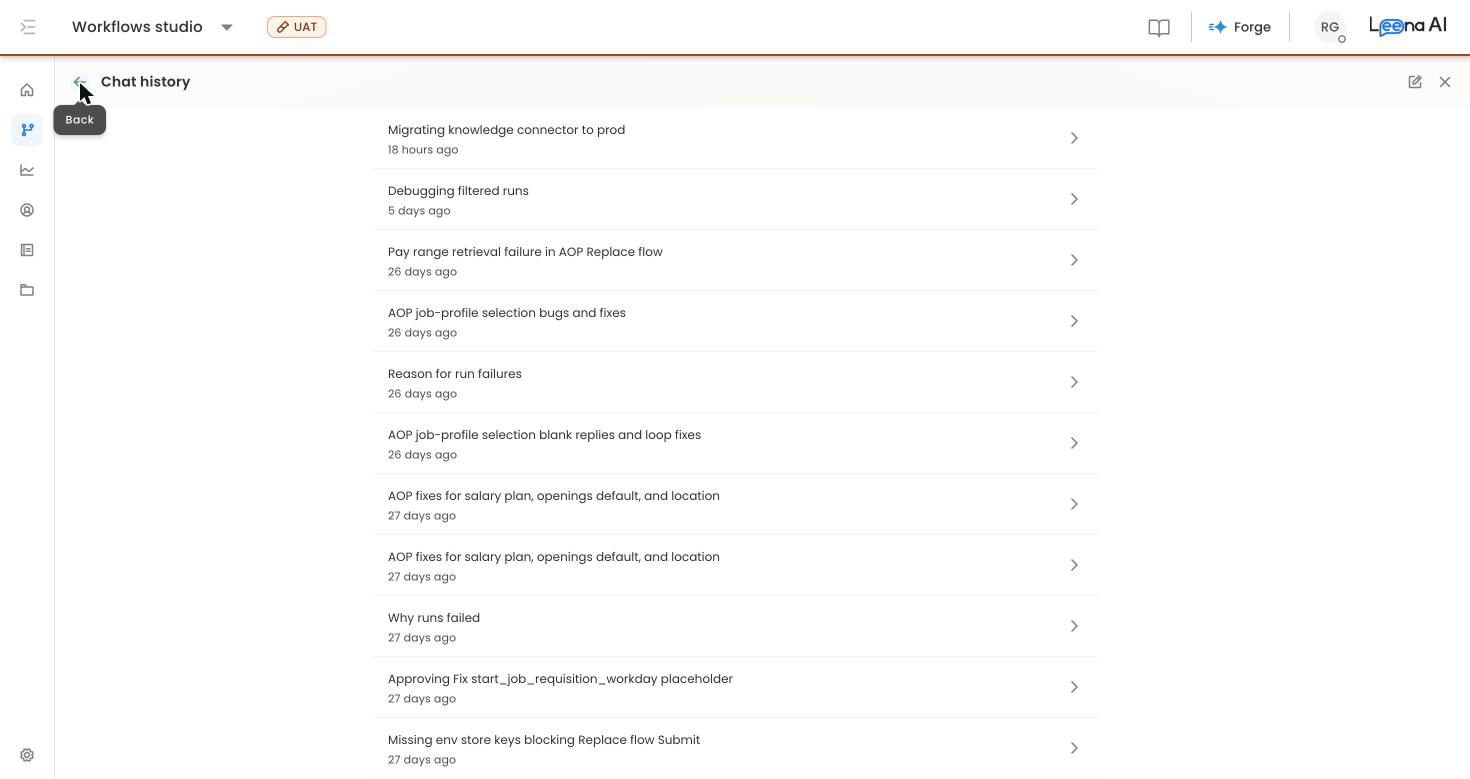
| What you see in History | What it means |
|---|---|
| A row titled New chat | The title isn't ready yet. It fills in shortly, or after your next message. |
No chats found | You haven't started a chat on this instance yet. |
Couldn't load older chats — Retry | Older chats failed to load. Click Retry. |
Composer, attachments and feedback
Type your request in the composer at the bottom of the panel. A message can be up to 5,000 characters — for longer specs, attach a file.
| Action | How it works |
|---|---|
| Attach | Up to 10 files per message, 25 MB each — PDF, images, Office files, CSV, TXT, MD and JSON. Forge reads attached specs while planning, and can keep a document on an AOP as reference material. |
| Stop | While Forge is working, the send button becomes Stop. Click it or press Esc to cancel the turn. When Forge is idle, Esc closes the panel. |
| Recall | Press the up arrow in an empty composer to bring back your last message. |
| Rate | Every finished answer has thumbs up and thumbs down. Thumbs down lets you pick tags, add a comment and submit. |
| Copy | Copies the answer as formatted text. |
How answers are shown
Forge streams its answer as it works. Besides text, an answer can include:
| Element | What it shows |
|---|---|
| KPI tiles and charts | Counts and trends, such as failed runs over the last 7 days. |
| Tables | Lists such as your Workbenches — up to 25 rows and 8 columns. |
| Timelines | The steps of a run, in order — about 30 events. |
| Plan card | The steps Forge will take, with each step's status as it runs. |
| Confirm card | A yes or no before Forge makes a change. |
| Forms | A short form when Forge needs several details at once, such as a Workbench trigger. |
| Clarifying questions | Up to five questions when your request is missing something. |
| Follow-up chips | Up to three suggested next steps. Click one to send it. |
| Links | A link to open the page Forge built or changed. |
Plans, approvals and quick edits
Forge plans before it builds. Nothing changes in your instance until you approve the plan.
- Forge checks what exists. Before planning something new, Forge looks for an existing AI Colleague, AOP or tool it can reuse or update.
- Forge shows the plan. Each step names what it will build or change, in order — a tool comes before the AOP that uses it, and an AOP before the Workbench that runs it.
- You approve. You can also ask Forge to change the plan first, for example to rename a step or reuse an existing tool.
- Forge runs one step at a time. The plan card shows each step's status. If a step needs a detail or a sign-in, Forge pauses and asks.
- Forge reports the result, with a link to what it built.
Note: If a step fails, Forge says why and suggests a fix. Steps that already finished are kept.
Quick edits. A small change to one AOP or Code tool — fixing wording, a URL or a value in an AOP's steps, or fixing a bug in a Code tool you asked to fix — runs straight away, without a plan approval. Anything that creates something, changes who can use it, or touches more than one item goes through a normal plan.
Note: Forge asks for your decision every time, including when you use it from another client over MCP. See Use Forge from other clients.
Build AI Colleagues
Ask Forge to create an AI Colleague with a name, job title and job description. Forge confirms with you before creating it, because a new AI Colleague is live straight away.
- You own the new AI Colleague unless you name other owners.
- The escalation contact starts empty — add one now or later.
| What you can change | Example request |
|---|---|
| Name | Rename the IT colleague to IT Service Desk |
| Job title | Change the HR colleague's job title to People Partner |
| Job description | Update the Payroll colleague's job description to cover reimbursements |
| Escalation contact | Set Ravi as the escalation contact for the IT colleague |
| Owners | Make Priya an owner of the HR colleague |
Build AOPs
Forge writes an AOP (procedure) under an AI Colleague, validates it and publishes it. Tell Forge which AI Colleague it belongs to, the steps it should follow and the systems involved. Attach a spec if you have one — Forge reads it in full.
Forge builds AOPs from tools that already exist. If a tool is missing, Forge adds a step to build it first, in the same plan.
| What you can change | Example request |
|---|---|
| Steps and instructions | Ask for the employee ID before checking the balance |
| Name and description | Rename the Leave AOP to Leave balance and requests |
| Tools it uses | Add the ServiceNow lookup tool to the IT ticket AOP |
| Helper AOPs it calls | Have the Onboarding AOP call the Laptop request AOP |
| The AI model it runs on | Run the Payroll AOP on the high-reasoning model |
| Reference documents | Attach this policy PDF to the Travel AOP |
| Publish | Publish the draft of the Benefits AOP |
Forge can also summarise an AOP, and explain how a primary AOP and its helper AOPs work together — for example, Summarise the Direct deposit change AOP.
Build Code tools
Use a Code tool when the AI Colleague needs logic between the API call and the answer — several API calls in one go, filtering or totalling results, business rules, or reshaping the output. Also use one for an app that has no MCP server.
Forge writes the code, tests it in a sandbox, then saves and publishes the tool. Tell Forge what the tool must do, its inputs and outputs, and which app it calls. Test inputs and expected results in your request help Forge test it properly.
Code tools can take documents as input (PDF, DOCX, XLSX, CSV and images), and return generated documents as download links.
| What you can change | Example request |
|---|---|
| Code | The leave balance tool returns hours instead of days; fix it |
| Name and description | Describe the incident lookup tool as read-only |
| Inputs | Add an optional date range to the leave balance tool |
| Tests | Add a test for an incident number that doesn't exist |
| What it may reach (hosts, packages, connections) | Let the payroll tool call the ADP connection |
Note: When you fix a Code tool, the AOPs that use it pick up the fix. You don't need to republish them unless the tool's inputs or outputs change.
Note: Code tools can't read scanned or image-only PDFs.
Build MCP tools
Use an MCP tool when the AI Colleague needs an app action as it is, with the vendor's own inputs and results. Forge exposes the actions you choose from an app you've already connected, then syncs them as a tool — for example, Add the Jira MCP connection's create-issue action as a tool.
- Only an admin can create an MCP tool.
- Tell Forge the app, and the actions you need — or whether you want all of them.
- If the app isn't connected yet, Forge pauses and shows a Connect button. Connect it, then continue the chat.
On an existing MCP tool, you can change which of the app's actions it exposes, or ask Forge to re-sync them.
Workbench schedules and triggers
A Workbench runs a published AOP automatically. Forge can set one up on a schedule or on an external trigger.
| Run condition | How Forge sets it up |
|---|---|
| Schedule (recurring or one-time) | Forge collects the cadence, start time and time zone in chat, then creates the Workbench. |
| External trigger (inbound webhook or app event) | Forge opens the Workbench form already filled in. You finish the trigger setup there. |
Note: The AOP must exist and be published first. If it doesn't, Forge builds it as an earlier step in the same plan.
| What you can change | Example request |
|---|---|
| Name | Rename the payroll workbench to Payroll – monthly |
| Which AOP it runs | Point the onboarding workbench at the Onboarding v2 AOP |
| Whether it recurs | Make the audit workbench a one-time run |
| Schedule | Run the Onboarding procedure every Monday at 9am IST |
| On or off | Pause the weekly payroll workbench |
| An upcoming run | Cancel next Monday's onboarding run |
| External trigger | Changed through the Workbench form |
Questions about your Workbenches. Forge answers from their setup, in a table — name, type, schedule, AI Colleague, AOP, status, creator and created date. You can filter by status, trigger type, schedule, creator or creation date, for example When is the payroll workbench scheduled to run next? or Which webhook workbenches did I create this month?
Build several things in one request
You can ask for a whole solution in one message. Forge plans it in the right order, reuses what already exists, and builds one step at a time.
For example, Build an onboarding procedure for the HR colleague that creates a ServiceNow ticket for the laptop, and run it every Monday at 9am — Forge plans a Code or MCP tool for ServiceNow, then the AOP, then the Workbench.
Connections and environment variables
If a tool needs an app connection or an environment variable, Forge handles it as part of building the tool — it asks you to sign in to the app, or to give a value for an AI Colleague's environment variable. To set up or check a connection or variable on its own, see Manage Your Instance.
What Forge won't do while building
| Forge won't | What to do instead |
|---|---|
| Delete AI Colleagues, AOPs or tools | Delete them in AI Colleagues Studio. |
| Connect a new app | Connect it when Forge shows the Connect button, or under Integrations. |
| Change a tool while you're only debugging | Ask Forge to fix the tool once you've found the problem. |
| Change orchestrator or guardrail settings | Forge opens the settings page — make the change there. |
| Read scanned or image-only PDFs in a Code tool | Use a PDF with selectable text. |
| Work on two instances in one chat | Switch instance and start a new chat. |
Related pages
Updated about 1 hour ago