
Move to Production
Forge moves AOPs and single tools from a UAT or Staging instance to production — it checks readiness, shows what will change, and opens the migration screen, where you map connections and start the migration yourself.
What you can move
Start the chat on the source instance (UAT or Staging). Forge moves items to a production instance in the same cluster.
| You can move | How |
|---|---|
| One AOP | The full flow below, ending in the migration screen. |
| One tool (API, workflow, Code or MCP tool) | A readiness check, then the Migrate tool screen. |
| Several AOPs | One at a time, in an order you confirm. |
| All AOPs | Helper AOPs first, then primary AOPs. |
Note: Forge doesn't move AI Colleagues, connections or audiences. If the AI Colleague an AOP belongs to doesn't exist on production, create it there first, with the same identifier. Connections and audiences are mapped to production ones in the migration screen.
Note: Forge prepares and checks the migration, but only the migration screen can run it — you start it yourself with Start migration.
Move an AOP to production
- Ask Forge — for example, Migrate the Direct deposit change AOP to prod.
- Confirm the instances. Forge names the source and destination instances and their environments, for example from HR UAT (UAT) to HR Prod (Production). Confirm, or ask for a different destination — Forge lists the production instances in your cluster by name, so you pick one from the list.
- Pick the AOP. If you didn't name one, Forge lists the AOPs that can be migrated, newest first. Draft AOPs and AOPs with no active version can't be migrated.
- Review the readiness check. Forge shows blockers and warnings in tables. If there's a blocker, fix it and ask again.
- Review the comparison. If the AOP is already on production, Forge shows what differs between the two versions, field by field.
- Open the migration screen. It opens beside the chat. Map connections, environment variables and audiences to their production ones, check validation, and click Start migration.
- Check the result. When you return to the chat, Forge reads the migration history and reports the outcome. If any tools failed, Forge names them and offers to look into it.
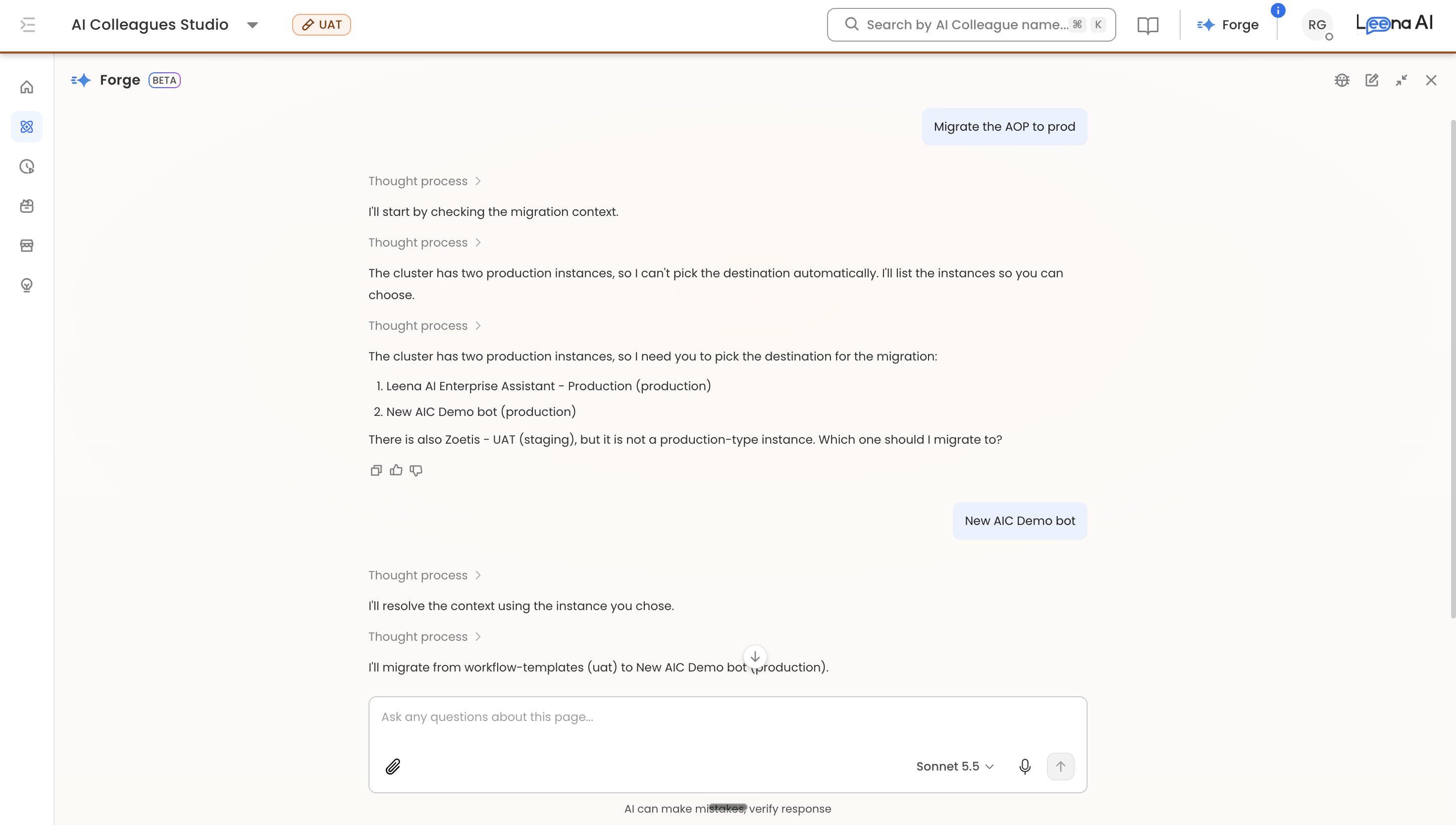
Note: You can also review the required mappings in chat before opening the screen. Forge checks readiness again after each change.
Readiness checks
Forge checks an AOP before you migrate it, and reports the result in two tables.
| Result | What it means | What happens |
|---|---|---|
| Blocker | Something that stops the migration, such as the AI Colleague missing on production. | Forge stops. Fix the blocker, then ask again. |
| Warning | Something to know, such as the production copy being overwritten. | Forge shows it and continues. |
The Blockers table shows each issue, what it means and what you must do. Forge shows the exact error text, so you can search for it or share it.
Comparison with production
When the AOP already exists on production, Forge shows a table of the fields that differ, with the version on each side — for example UAT (v3) and Prod (v2).
Note: If someone edited the AOP directly on production since the last migration, Forge warns you that the migration will overwrite those edits, and asks you to confirm before continuing.
Other questions you can ask: Is Benefits enrollment ready to move to prod?, What's different between the UAT and prod versions of the Leave AOP?, Why did yesterday's migration fail?
Move a single tool
To move one tool without its AOP, name the tool. Forge works with API, workflow, Code and MCP tools.
- Ask Forge — for example, Migrate the Create ticket tool to prod. If you don't name one, Forge lists the tools you can move; narrow the list by type or by words in the name.
- Review the readiness check. Forge shows any blockers and warnings, and tells you whether the tool will be created new on production or will overwrite an existing copy.
- Open the Migrate tool screen. Map connections and audiences there, then start the migration.
- Check the result. Back in the chat, Forge checks the migration history and reports the outcome.
Note: If a name matches both an AOP and a tool, Forge asks which one you mean.
Move several AOPs, or all of them
Several AOPs. Name them, separated by commas — Migrate the leave, payroll and onboarding AOPs to prod. Put a name in quotes if it contains a comma. Forge confirms the list and the order, then moves them one at a time, showing progress such as Migrating 2 of 3: Payroll.
All AOPs. Ask Migrate all AOPs to prod. Forge builds a plan in this order and asks you to confirm it:
| Order | AOPs |
|---|---|
| 1 | Helper AOPs — active, then inactive |
| 2 | Primary AOPs — active, then inactive |
Helper AOPs go first because moving a primary AOP only checks its helpers — it doesn't move them. Draft AOPs and AOPs with no active version are left out, and Forge lists them.
Note: In both cases, if an AOP is already on production and unchanged, Forge says so and skips it. If one AOP is blocked or fails, Forge tells you and asks whether to skip it or stop.
After the migration
| Step | What to do |
|---|---|
| Activate if needed | If the AOP arrived inactive on production, Forge tells you. Activate it before users can reach it. |
| Smoke-test it | Run one real request on production, and ask Forge to explain the run. |
| Pick up where you left off | If you ask Forge something else mid-migration, it answers, and the migration resumes when you come back to it. |
Tips and limits
- Move one AOP at a time when you can, and test it before moving the next.
- Forge checks access against the destination you confirm, and shows any access error it gets.
- Forge shows names, never internal IDs, for instances, AOPs and AI Colleagues.
- Forge can't start the migration itself — only the migration screen does, after you click Start migration.
Related pages
Updated about 1 hour ago