
Overview and Getting Started
Forge is the conversational assistant for building on Leena AI — describe what you want in plain words, and Forge investigates, explains, and builds or changes things in your instance, showing every change as a plan for your approval before anything is applied.
Watch the tutorial
What Forge can do
Forge covers the full build cycle, from creating an AI Colleague to moving it to production. Each area has its own page.
| Area | What you can ask Forge to do | Example |
|---|---|---|
| Build | Create and update AI Colleagues, AOPs, Code tools, MCP tools and Workbench triggers. | Build an onboarding procedure; create any tools it needs |
| Debug | Explain why a run failed, search runs, and trace tool selection and workflow paths. Debugging only reads data. | Why did run ID_015028 fail? |
| Move to production | Check readiness and migrate AOPs or single tools from UAT or Staging to production. | Is Benefits enrollment ready to move to prod? |
| Manage your instance | Knowledge Management connectors and syncs, integrations, settings, users and employee sync. | Did last night's Confluence sync work? |
| Marketplace | Browse prebuilt AOP templates, and contribute your own. | — |
| Use from other clients | Call Forge from Claude Code and other clients over MCP or A2A. | — |
| Product questions | Answer "how do I" questions from docs.leena.ai. | How do I set up a trigger in Workbench? |
See Build with Forge, Debug Runs, Move to Production, Marketplace and Use Forge from Other Clients for each area, and Forge Best Practices for tips on getting good results.
Who can use Forge
Anyone with access to AI Colleagues Studio can use Forge. Forge acts as you — it can only see and do what your dashboard role allows.
| Rule | What it means |
|---|---|
| One instance per chat | Each chat works on the instance you have open. To work on another instance, switch to it and start a new chat. |
| Your approval first | Forge shows a plan and asks you to confirm before it makes a change. |
| System Admin only | Inviting dashboard users to the workspace. |
| Logged | Every change Forge makes is recorded in Audit Logs against you, marked Initiated Via: Forge. |
Opening Forge
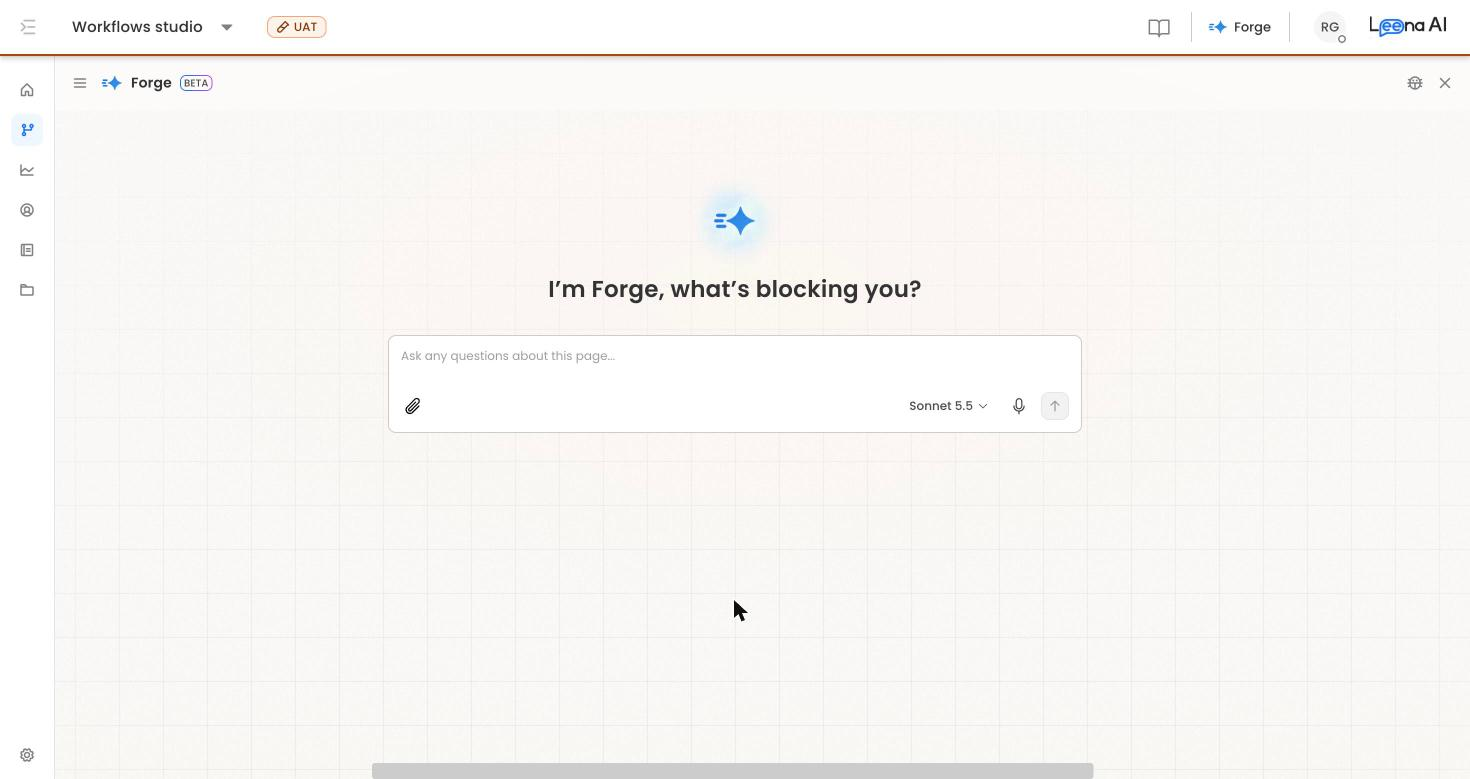
Open Forge from any AI Colleagues page.
- Click the Forge icon in the top bar, or press Cmd+J (Mac) or Ctrl+J (Windows).
- Forge opens full page. Use Full page in the header to switch to a side-by-side view and back.
- Press Esc or click Close to close it. Your conversation is kept.
Panel header controls
| Control | What it does |
|---|---|
| History | Opens your chat history. The back arrow returns you to the current chat. |
| New chat | Starts a fresh conversation. The previous chat stays in history. |
| Full page | Switches between full-page and side-by-side view. |
| Close | Closes the panel. Your conversation is kept. |
Page awareness
Forge knows which page you are on. If you have an AI Colleague, AOP, tool, run or Workbench open, ask about this run or this AOP and Forge uses it — you don't need to paste IDs. To work on something else, name it in your message, for example the Payroll AOP.
Your first chat
When you open a new chat, Forge greets you with suggested prompts based on what is set up in your instance — such as AI Colleagues with no AOPs yet, or runs that failed recently. Click a suggestion to send it, or type your own request.
A typical first build looks like this:
- Describe the outcome — for example, Create an IT helpdesk colleague owned by me.
- Answer Forge's questions. If something is missing, Forge asks up to five clarifying questions or shows a short form.
- Review the plan. Forge lists the steps it will take, in order. Check names, scope and what it will reuse.
- Approve. Forge runs each step and shows its progress.
- Check the result. Forge links to what it built and suggests up to three follow-ups, such as testing the new AOP.
Note: Start a new chat for each new problem, so earlier context doesn't mix in.
Scope, limits and safeguards
| Area | How Forge handles it |
|---|---|
| Approval | Forge shows a plan and asks you to confirm before sensitive steps. |
| Settings | Forge reports settings and opens the right page. You make the change yourself. |
| Instance scope | Each chat works on the current instance only. |
| Permissions | Forge acts as you, within your dashboard role. |
| Audit | Changes are logged in Audit Logs against you, marked Initiated Via: Forge. |
| One turn at a time | Forge handles one message at a time in a chat. |
| Data | Forge reports only what the data contains, and does not show raw PII values. |
The numeric limits:
| Limit | Value |
|---|---|
| Message length | Up to 5,000 characters |
| Attachments | Up to 10 files per message, 25 MB each |
| Clarifying questions | Up to 5 per turn |
| Follow-up suggestions | Up to 3 per answer |
| Tables in answers | Up to 25 rows and 8 columns |
| Timelines in answers | About 30 events |
Note: Very large results are trimmed. If an answer looks cut off, narrow the question.
Troubleshooting
| What you see | What it means | What to do |
|---|---|---|
| Forge icon is missing | You're not on an AI Colleagues page, or you don't have AI Colleagues Studio access. | Go to an AI Colleagues page, or ask your admin for access. |
Agent is not available on this page. | Forge can't run on the current page. | Go to an AI Colleagues page. |
Response interrupted, please try again | The turn didn't finish. | Ask again, or start a new chat. |
That form link has expired | The form is no longer valid. | Ask Forge to open the form again. |
Upload failed / Too large — 25 MB max | The file didn't upload, or it's over 25 MB. | Attach it again, or use a smaller file. |
Message exceeds 5000 characters | The message is too long. | Shorten it, or attach the details as a file. |
| The answer looks trimmed | The result hit the display limit. | Narrow the question. |
Related pages
Updated about 1 hour ago