
Browser Tools (Beta)
Automate tasks in web apps that have no API. Record the task once with Forge and your AI Colleagues can run it for employees.
BetaBrowser tools are in beta. Ask your Leena AI team to turn them on for your bot.
What is a browser tool
A browser tool does a task in a web app that has no API. For example, checking leave balance in Workday or resetting a password in SAP SuccessFactors.
You do the task once in a secure browser while Forge records it. The recording becomes a tool your AI Colleagues can run for employees.
Use a browser tool only when an API, MCP or code tool isn't an option.
Create a browser tool
-
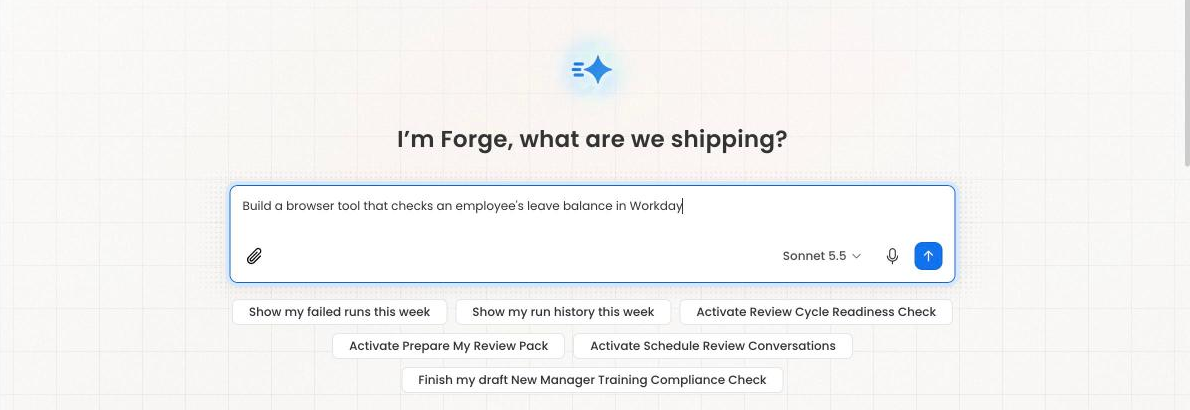
Ask Forge. In AI Colleagues Studio, ask Forge to build the tool. For example, "Build a browser tool that checks an employee's leave balance in Workday". Approve the plan Forge shows.
-
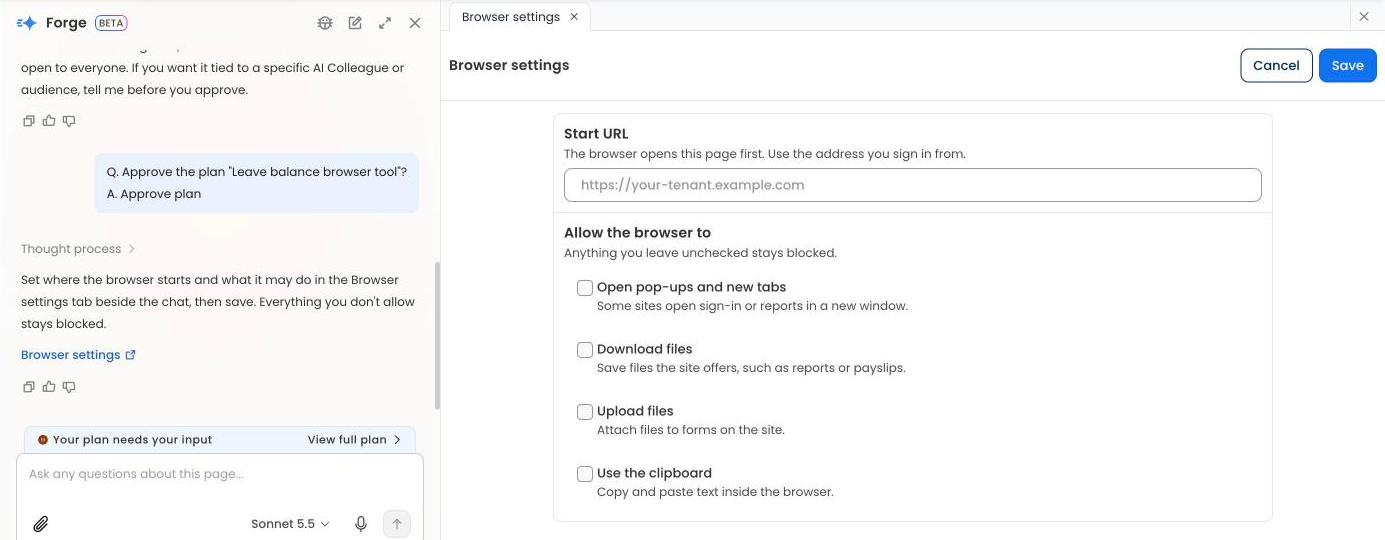
Set browser settings. In the Browser settings tab, enter the Start URL (the page you sign in from). Then choose what the browser may do: open pop-ups and new tabs, download files, upload files or use the clipboard. Everything else stays blocked. Click Save.
-
Record the task. A browser opens beside the chat. Sign in and do the task once. On the screen that shows the outcome, click Record result. Then click Stop recording. Forge shows the recorded steps and the values that became inputs.
-
Add the login. If the task signs in, pick an existing login or create new environment variables. Logins are saved in Integrations > Environment variables. What you type while recording isn't kept.
-
Review guardrails. Forge suggests guardrails for every page and for each page. A guardrail can block an action or stop the run. To change one, describe the change in the chat.
-
Run a test. In the Test run tab, fill in the inputs and click Run test. You can watch the browser but not control it. Run it again or make changes until the test passes.
-
Create the tool. Confirm the name, description, example queries and where each input comes from. Click Create the tool.
Inputs about the employeeInputs that say who the task is for (email, employee ID or a profile field) come from the employee's profile. They are never asked in chat, so no one can act for someone else.
Change a browser tool
Ask Forge to change the tool by name. You can change its name, description, example queries, guardrails, login or steps.
- Steps can't be edited. You can remove steps, bring back removed steps or record the task again.
- Changes to guardrails, steps or login must pass a test before they are saved.
What employees see
When an employee asks for the task, the AI Colleague runs the tool in a secure browser and replies with the result. While it runs, the chat shows the progress, for example "Step 2 of 6". Employees can't control the browser.
Good to know
- Security: Logins and secret inputs never reach the AI.
- Time limit: A run stops after 5 minutes by default.
- Self-fix: If a step fails during a run, AI can fix it for that run only. The saved tool doesn't change.
- Availability: A new browser tool is available to all AI Colleagues. To link it to one AI Colleague, tell Forge before you approve the plan.
Beta limits
- One-time codes (MFA) aren't supported. Use an account that signs in with a password only.
- Each tool signs in with one shared login. Employees don't sign in with their own accounts.
Updated about 6 hours ago