
Ticket Timeline
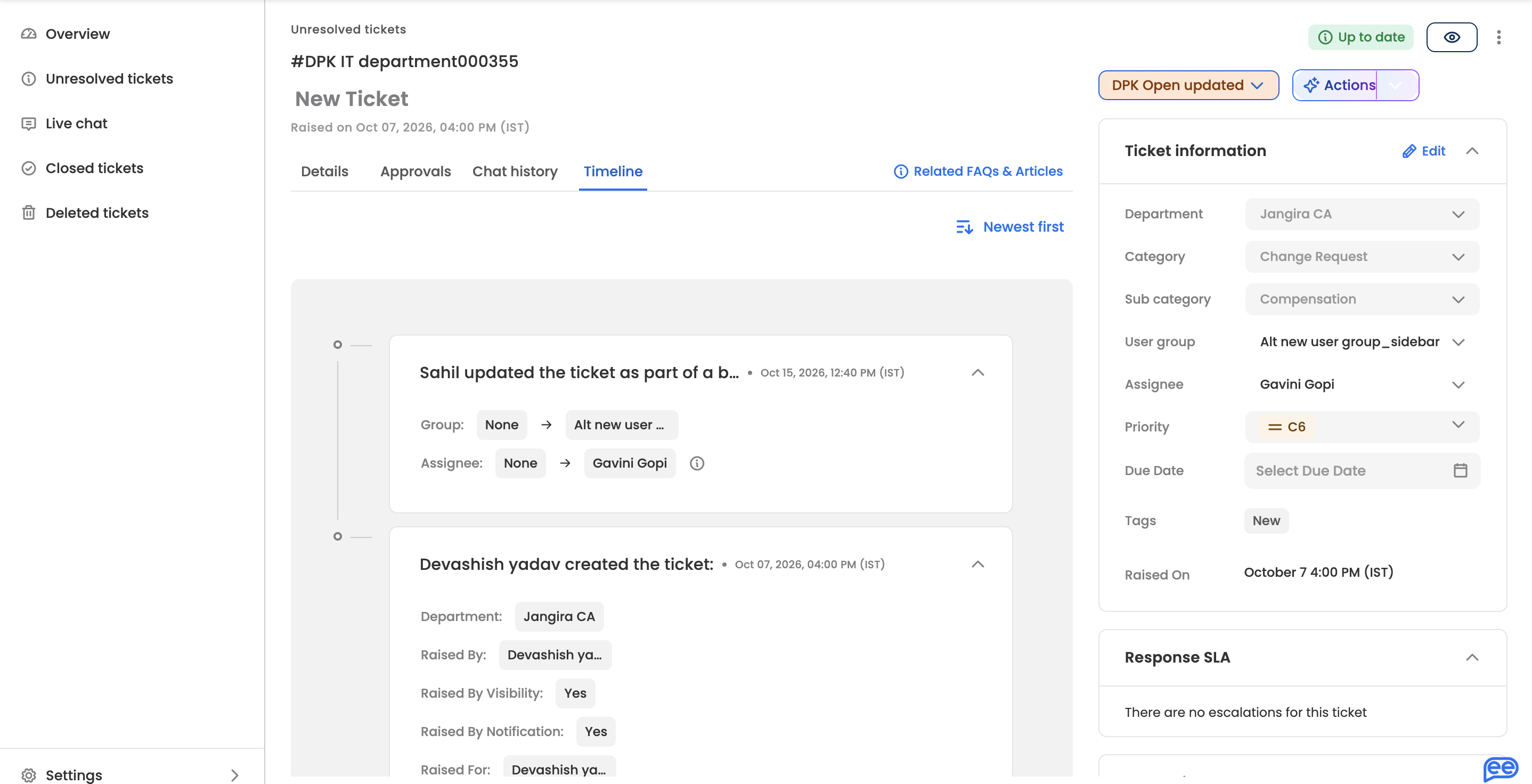
The Ticket Timeline is a record of important activities and changes made to a ticket. Available on the Ticket Details page, it helps you follow the ticket's journey—from creation through updates, approvals, and closure.
Use the Timeline to understand what happened, when it happened, and who performed the action, where that information is available.
1. How to Access the Timeline
- Open the ticket you want to review.
- On the Ticket Details page, select Timeline.
- Review the entries to see the ticket's activity history.
- Expand an entry, where details are available, to see more information about the change.
2. What the Timeline Captures
Ticket Creation
The Timeline records when the ticket was raised and who raised it. This provides the starting point for reviewing the ticket's history.
Assignment and Reassignment
The Timeline captures changes to the agent or group responsible for handling the ticket. You can use these entries to understand how ownership moved between teams or individuals.
Ticket Status Changes
Status updates help you follow the ticket's progress. These include changes to the ticket's status, closure, and reopening.
Changes to Ticket Information
The Timeline captures updates to key ticket details, including:
- Department
- Category and subcategory
- Priority
- Due date
- Custom ticket fields, such as Region or Country, where configured
Where available, the entry displays the previous and updated values so you can understand exactly what changed.
Requester Information
Changes to the requester or the person the ticket was raised for can appear in the Timeline. This helps you review corrections or updates to the people associated with the request.
Watchers and Collaborators
The Timeline records changes to the people or groups following or collaborating on the ticket.
Ticket Approval Activity
For tickets that use approval workflows, the Timeline captures activities such as:
- Adding approvers
- Removing approvers
- Adding or updating approval notes
- Approving an approval request
- Rejecting an approval request, including the rejection note
SLA and Escalation Activity
The Timeline can show SLA-related events, including pauses, resumptions, escalations, and reminders. These entries help explain important timing-related events during ticket handling.
Other Ticket Activities
Depending on the features in use, the Timeline can also include activities such as linking or unlinking related tickets, forwarding a ticket, and submitting a ticket rating.
3. Understanding a Timeline Entry
Each entry provides a summary of an activity. Depending on the event, it may include:
| Field | Description |
|---|---|
| Activity description | A short explanation of what happened. |
| Date and time | When the activity occurred. |
| Action performed by | The person who made the change, where available. |
| Previous value | The information before the update. |
| Updated value | The information after the update. |
| Additional details | Supporting information, such as an approval or rejection note. |
Example: An assignment-change entry can help you identify the previous assignee, the new assignee, and when the reassignment happened.
4. Sorting and Viewing Activities
Use the sorting control to choose how you want to review the history:
- Newest first: Displays the most recent activities at the top. Use this to quickly check the latest updates.
- Oldest first: Displays the earliest activities at the top. Use this to follow the ticket's journey from the beginning.

5. When to Use the Timeline
The Timeline is useful when you need to:
- Review progress: Understand the key steps taken on a ticket.
- Check ownership: See how the ticket moved between agents or groups.
- Understand changes: Review updates to ticket information and their previous values.
- Review approvals: Check approval decisions and associated notes.
- Support a handover: Get context before taking over a ticket.
- Investigate delays: Review status changes, SLA pauses, and escalation activity.
Note: The activities displayed depend on the actions taken on the ticket and the features enabled for your organisation. Not every entry will contain all the details listed above.
Updated 1 day ago